Your Personal Ergonomic Assistant
MacBreakZ is a sophisticated Personal Ergonomic Assistant designed to promote healthy and productive computer use.
The Activity Window
The Activity Window is a small semi-transparent window that indicates your current activity level and the time to the next break.
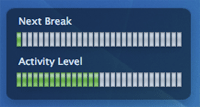
The top bar indicates the time to the next break. The next break will be due once the bar reaches the right hand edge. In order to make it easier to judge how far the break is away, the bar will change color from green, to yellow to red, the closer you get to a break.
The bar at the bottom indicates your current activity level, that is how actively you are using the keyboard and mouse (or other input devices).
When the bar is green, your activity level is "safe", when it turns yellow you are entering the "warning" zone. "Red" indicates the danger zone.
Your risk of developing repetitive strain injuries (such as inflammations, carpal tunnel syndrome, etc.) is strongly related to long periods of continuous keyboard and mouse use. Even short breaks of activity (see microbreaks) of only a few seconds in between bursts of activity can significantly reduce that risk.
You should thus aim to stay within the "safe" activity zone and never stay in the "danger" zone for very long.
How To: Move the Window
In normal use, the activity window is visible in front of all other windows and lets click go straight through itself.
The activity window becomes a normal "drag-able" window as soon as MacBreakZ is the top most application. This is indicated by the window becoming more opaque.
MacBreakZ can be used in two different user interface modes in the normal "factory preset" mode all you need to do to make MacBreakZ the top most application (and thus make the activity window drag-able) is to click on its dock item or Command-Tab to it in the normal fashion.
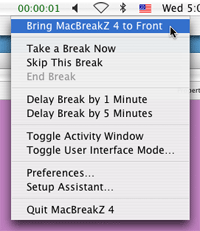
If you have hidden the dock item and application icon, you can use the menu bar item's "Bring MacBreakZ 4 to Front" item.
How To: Show or Hide the Window
The activity window and the menu bar item both show the same information, so you can choose to hide the activity window and only leave the menu bar item visible.
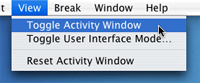
You can do so by using the "Toggle Activity Window" item in the "View" or menu bar item menu.
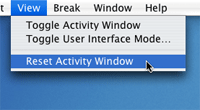
Should a display resolution switch ever leave the activity window "off the screen", you can reset its position to the top left most corner by selecting "Reset activity window" in the view menu: