Applies to macOS 11 Big Sur through macOS 27 Golden Gate
The short answer: macOS has no setting for the menu bar’s color. The bar takes its look from whatever is behind it, and Apple only gives you switches that make it more or less see-through: Show menu bar background (macOS 26 Tahoe and later), Reduce transparency (any version), and the Liquid Glass Clear / Tinted choice or slider (macOS 26.1 and macOS 27). If all you want is a readable bar again, one of those will do. If you want the bar a specific color, black, white or anything else, you either paint a strip across the top of your wallpaper by hand, or you use an app that does it for you.
A disclosure before we start: I’m the developer of Boring Old Menu Bar, a small paid utility that gives the Mac menu bar a solid color. You’d expect this to end by recommending it, so it starts with what Apple’s own settings do, then the free approaches, and is honest about where each stops. For a lot of people the built-in switch is enough.
Why the menu bar is the color it is
Until macOS 10.15 Catalina the menu bar was a plain, opaque strip: light grey in light mode, near-black in dark mode. macOS 11 Big Sur made it translucent and tinted by the top of your wallpaper, so a blue picture gives a bluish bar and a busy photo gives a busy bar. Sequoia and Sonoma kept that. macOS 26 Tahoe went one step further and removed the bar’s background altogether: the menu titles float directly over the wallpaper, and macOS picks white or black text depending on how bright the picture is up there. macOS 27 Golden Gate keeps the Tahoe design and improves contrast, but the bar is still painted from your wallpaper.

The translucent, wallpaper-tinted bar that Big Sur introduced and Sequoia still has. The bar is whatever the top of the picture is.
Two consequences follow:
- You never choose the text color. It is always automatic, based on the brightness of whatever is behind the bar. Make the bar dark and you get white text; make it light and you get black text.
- Anything that changes what is behind the bar changes the bar. That is the whole trick behind every method below, Apple’s included.
Route 1: Apple’s “Show menu bar background” switch (macOS 26 and later)
Tahoe shipped with the bar’s background removed, and enough people objected that Apple added a switch during the beta: System Settings › Menu Bar › Show menu bar background. Turn it on and the bar gets a translucent backdrop again, roughly the Sequoia look.
What it gives you: a bar that reads better on most wallpapers, with no side effects anywhere else. What it doesn’t: a color. The backdrop is Apple’s blur in Apple’s grey, still tinted by the wallpaper. If your menu titles are hard to read because of the picture behind them, try this first.
Route 2: Reduce transparency (any macOS version)
System Settings › Accessibility › Display › Reduce transparency replaces the blur behind the menu bar, the Dock and most panels with a solid fill. In light mode the bar becomes solid light grey; in dark mode, near-black. This works on every version from Big Sur to macOS 27, and it is the answer you’ll find in most forum threads.
The catch is in the name of the section: it is an accessibility setting for the whole interface. Sidebars, Control Center, Notification Center, menus and widgets all go flat with it. Some people prefer that. Others turn it on for the menu bar and off again a week later because the rest of the Mac looks like a spreadsheet. Two smaller catches: Increase contrast forces Reduce transparency on, so if your bar went solid grey and you didn’t ask for it, look there; and on macOS 26.1 several people reported that Reduce transparency stopped producing a truly solid bar and instead looked like the “Tinted” option below.
Route 3: The Liquid Glass “Clear / Tinted” setting and the slider
macOS 26.1 added a choice under System Settings › Appearance: Liquid Glass Clear or Tinted. Tinted adds a frosted layer behind glass elements, including the menu bar when its background is shown. macOS 27 replaces the two-way choice with a Liquid Glass slider in the same place, so you can pick how transparent or opaque the glass effect is across the whole system.
This is the right tool if your complaint is Liquid Glass in general. It is not a color control: it decides how much of the wallpaper shows through, never what color sits on top.
Route 4: The wallpaper trick, by hand
Since the bar is painted from the wallpaper, you can paint the wallpaper. Open your desktop picture in Preview, Pixelmator or any editor, draw a solid rectangle across the top edge in the color you want, save it, and set the result as your wallpaper. On Sequoia and earlier the bar takes on that color. On Tahoe and later with the background switch off, the strip is the bar.
How tall the strip has to be depends on your display: the menu bar is 24 or 25 points on most Macs and taller on notched MacBooks, and Retina wallpapers are stored at double resolution, so expect a couple of attempts. A free command-line script called ChangeMenuBarColor automated this for Big Sur and Monterey; it appends the strip to a copy of your wallpaper. It hasn’t been updated for the way newer systems store wallpapers, so treat it as a starting point rather than a tool.
Where the trick stops:
- Every display and every Space has its own wallpaper. Two monitors at different sizes means two edited pictures; five Spaces means five.
- Dynamic and rotating wallpapers can’t be edited this way. Apple’s dynamic desktops change with the time of day, and a slide show changes on a timer; you can’t paint a strip on a picture that keeps swapping itself out.
- Light and dark mode. A black strip is wrong in light mode and a white one is wrong in dark mode; the wallpaper doesn’t know which mode you’re in.
- On Tahoe the text color no longer follows a lightened strip reliably. Several people who used a light strip on Sequoia to force black menu text found it stopped working after the upgrade.
If you have one display, one Space, a static wallpaper and one appearance mode, this is free and works. Otherwise it becomes a chore, which is where apps come in.
Route 5: Apps that color the menu bar
A few utilities exist, and they fall into two groups.
Tools that do something else and added a colored bar. TopNotch is free and makes the bar black so the notch on a MacBook Pro or Air disappears; recent versions add a few colors. Bartender 6 is a menu bar icon manager that gained a color or gradient bar in 2025; it’s the right choice if hiding icons is your main job and the color is a bonus. Two newer utilities, Dynamic Menu Bar and the open-source WandelBar, customise the Tahoe bar with blur, tint and textures; both need macOS 26 or later.
Boring Old Menu Bar does one thing: it paints the strip for you. It renders a copy of your current desktop picture with a solid bar across the top, exactly where the menu bar sits, and sets that as the wallpaper, on every display and in every Space, and swaps it again when the wallpaper, the resolution or the appearance changes. You pick a color for light mode and a separate one for dark mode, and the app switches with the system. Six built-in styles, Catalina light and dark, white, light grey, dark grey and black, plus any custom color. Rounded screen corners are an optional extra. It does not patch macOS or load a kernel extension; the bar you see is still Apple’s, it simply has something opaque behind it. Version 1.29 and later, currently 1.31, are for macOS 27 on Apple silicon, version 1.28 covers macOS 13 Ventura to 26 Tahoe on Intel and Apple silicon, and there’s a 14-day free trial. On macOS 27 the app paints onto wallpapers it can read as a file: a picture, one of Apple’s system pictures, a colour, a folder shuffle or a time-of-day picture. Aerials, Photos-library pictures and “Your Photos” shuffles have no file, so a display showing one of those is left alone, and the app says so.

macOS 27 as shipped: white titles over a light wallpaper.

The same Mac and wallpaper with a black bar behind the titles. Nothing else on the desktop changed.

Or dark grey, or any other color. Custom colors take one value for light mode and one for dark.
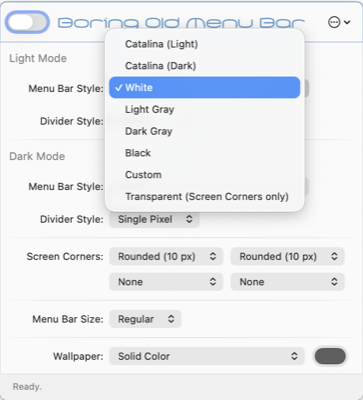
The whole app: a style and divider line for light mode, another pair for dark mode, screen corners, and the wallpaper the bar is painted onto.
The honest caveat is the same one that applies to the wallpaper trick, because it is the wallpaper trick: every wallpaper change takes a moment, and a slide show or a rotating series means more of them. A static picture or a solid color set inside the app gives the smoothest result. The app’s troubleshooting page has a setup guide for dynamic wallpapers, multiple Spaces and multiple displays.
A black menu bar hides the notch
On a MacBook Pro or MacBook Air with a notch, the menu bar is the only thing that surrounds it. Make the bar black and the notch vanishes into it; this is the single most common reason people go looking for a way to color the bar. Reduce transparency in dark mode gets you most of the way (near-black, not black). TopNotch does exactly this and nothing else, for free. Boring Old Menu Bar’s black style does the same and also gives you the other colors and a separate light-mode setting; it absorbed our earlier De-Notch-ifier utility, so if you own one you have the other.
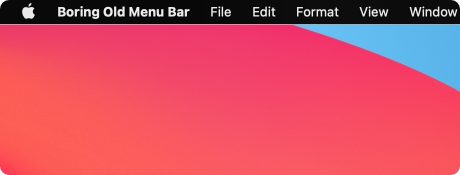
The black style with rounded corners switched on. On a notched MacBook the notch sits inside this bar and disappears.
“Dark menu bar” is not a setting any more
If you remember Use dark menu bar and Dock from El Capitan through High Sierra: that checkbox went away when macOS Mojave introduced full Dark Mode. Today the bar follows the system appearance, System Settings › Appearance › Light / Dark / Auto, and there is no way to have a dark bar with a light interface, or the reverse, through settings. The only routes are the ones above: paint the wallpaper, or use an app that does.
Which route for which job
| What you want | Use |
|---|---|
| Menu titles readable again on macOS 26 or 27, nothing else changed | Show menu bar background (System Settings › Menu Bar) |
| A solid grey or near-black bar on any macOS version, whole interface can go flat | Reduce transparency (Accessibility › Display) |
| Less Liquid Glass everywhere | Liquid Glass slider, or Clear / Tinted on 26.1 (Appearance) |
| One specific color, one display, one Space, static wallpaper | Paint the wallpaper yourself |
| A black bar to hide the notch, and only that | TopNotch (free) or Reduce transparency in dark mode |
| Hide menu bar icons, colored bar as a bonus | Bartender 6 |
| Any color, separate light and dark, every display and Space, time-of-day wallpapers (not aerials on macOS 27) | Boring Old Menu Bar |
Common pitfalls, whatever route you take
- Text color is automatic. No method lets you pick it directly. Choose a dark bar for white text and a light bar for black text.
- Solid-color wallpapers behave differently. Apple’s plain color wallpapers are not pictures, so the paint-a-strip approach needs a real image; Boring Old Menu Bar renders Apple’s colours as a plain fill, or sets a solid color of its own.
- Accent color is not bar color. System Settings › Appearance › Accent color changes buttons and highlights, not the menu bar.
- The bar went grey by itself. Check Accessibility › Display: Increase contrast switches Reduce transparency on for you.
- Switching off an app can bring back the wrong wallpaper on macOS 26 and later. Apple now stores whole wallpaper series in one file, so restoring “the wallpaper” can restore the first picture in the series. Boring Old Menu Bar 1.31 reads your choice from the wallpaper settings and restores it exactly; with other apps, setting a static image first avoids it.
FAQ
Can I change the menu bar color in System Settings? No. You can show or hide its background (macOS 26 and later), make it opaque with Reduce transparency, and adjust Liquid Glass, but there is no color picker for the bar. Its color comes from the wallpaper behind it.
How do I make the Mac menu bar black? Dark mode plus Reduce transparency gives a near-black bar. For true black, paint a black strip across the top of your wallpaper, or use TopNotch or Boring Old Menu Bar.
How do I make the menu bar white in dark mode? Settings can’t; the bar follows the system appearance. Paint a white strip on the wallpaper, or use an app with a separate dark-mode color.
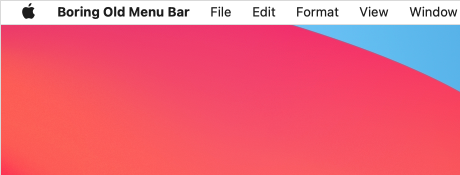
The white style. It stays white whichever appearance mode the system is in.
Does “Show menu bar background” work on macOS Sequoia? No, the switch arrived with macOS 26 Tahoe. On Sequoia and Sonoma the bar always has a translucent background; Reduce transparency is the built-in way to make it solid.
Why did my menu bar text turn white after upgrading to Tahoe or macOS 27? The bar’s background was removed, so macOS now picks the text color from the wallpaper’s brightness up there. A darker top edge gives white text; a lighter one gives black. Turning on Show menu bar background usually settles it.
Does changing the menu bar color affect performance? Apple’s switches don’t. The wallpaper-based methods only do work when something changes: a new wallpaper, a resolution change, a switch between light and dark mode. A slide show that changes every minute means a re-render every minute.
Will this work on an external display? Apple’s switches apply everywhere. The wallpaper trick has to be repeated per display; Boring Old Menu Bar handles each display and each Space on its own, as long as the display shows a wallpaper it can render.
Frank Reiff is the developer of Boring Old Menu Bar, A Better Finder Rename and A Better Finder Attributes, Mac utilities in continuous development since 1996. Get in touch with a menu bar problem this guide doesn’t cover.