Applies to macOS Ventura through macOS 27
The short answer: select the file and press Return. The name turns into a text field with everything before the extension already selected, so you type the new name and press Return again to confirm. Three other routes do exactly the same thing: click the name once, pause, and click it again; choose File › Rename…; or right-click the file and pick Rename…. There is no ⌘-key shortcut for renaming in the Finder. If you’ve seen ⌘⌃R mentioned somewhere, that is a hot key my own app adds to the Finder, not one Apple ships.
A disclosure: I’m the developer of A Better Finder Rename, a paid batch file renamer for Mac that I’ve been working on since 1996. It only appears at the very end of this page, because for one file, or for one simple change across many, the Finder is the right tool and it’s free.
1. The Finder rename shortcut: Return
- Click the file once to select it.
- Press Return (labelled Enter on some keyboards).
- Type the new name. The Finder has selected the name but not the extension, so
IMG_4303.jpgbecomesBeach.jpgwith no risk of losing the.jpg. - Press Return again, or click anywhere else, to commit. Press Escape to cancel and keep the old name.
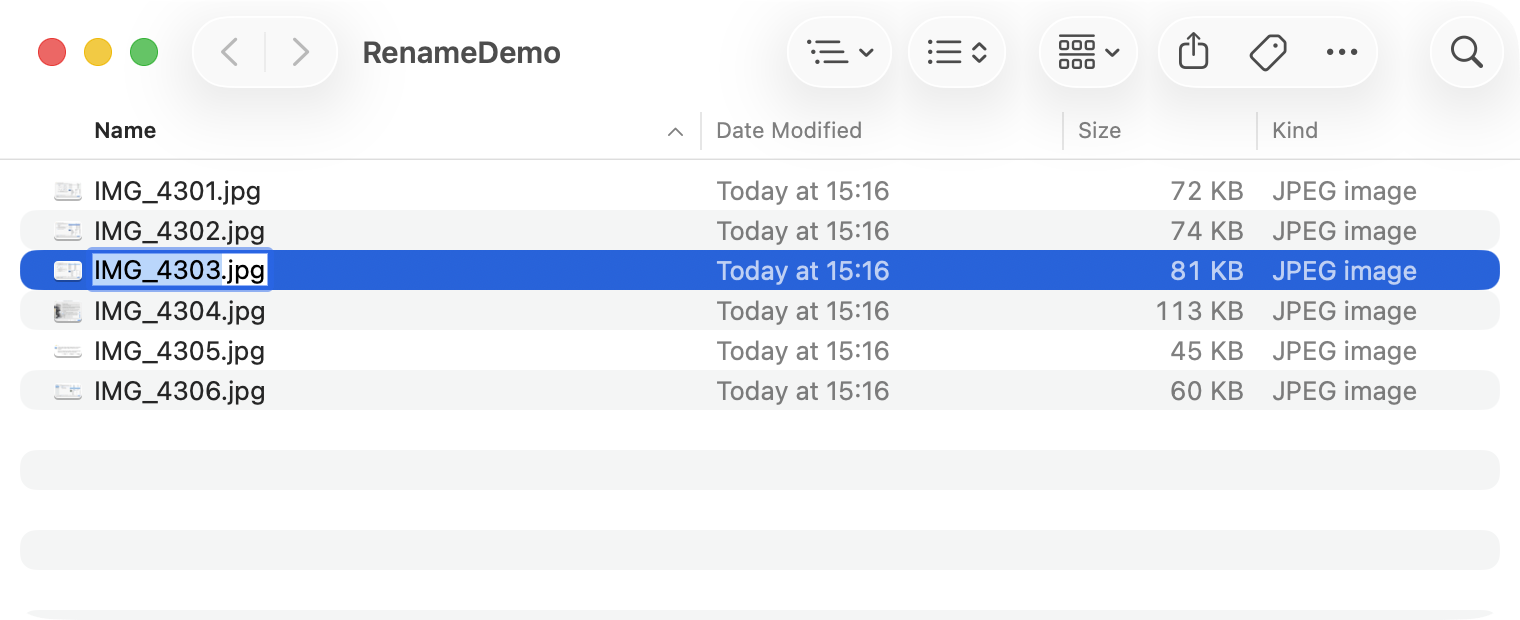
Return puts the name into edit mode with everything except the extension selected. This is macOS 26; it has worked this way since the first Mac OS X.
It works the same in icon, list, column and gallery view, on the Desktop, and on folders. If you change your mind after committing, ⌘Z puts the old name back.
Why there is no ⌘-key shortcut. Return has been the Mac’s rename key since the 1980s, so Apple never gave Rename… a key combination of its own. You can add one yourself, which is handy if you have arrived from Windows with F2 in your fingers:
- Open System Settings › Keyboard, click Keyboard Shortcuts…, then App Shortcuts.
- Click + and choose Finder as the application.
- In Menu Title type
Rename…exactly as it appears in the Finder’s File menu, with the single ellipsis character (Option-semicolon), not three full stops. The shortcut silently fails to attach if the title doesn’t match. - Press the combination you want and click Done.
On macOS 26 the menu item is called Rename… whether one file or fifty are selected, so the same shortcut opens the in-place editor for a single file and the batch sheet (next section) for a selection. On older systems the title changes with the number of files selected, so a custom shortcut defined on one wording won’t fire for the other.
2. Renaming several files at once
The Finder has had a batch renamer since OS X Yosemite. Select the files (⌘A for everything in the folder, Shift-click for a range, ⌘-click to add single files), then right-click the selection and choose Rename…. A sheet drops down with a mode popup at the top:
- Replace Text finds a piece of text in every name and swaps it for another. Turning
IMG_intoKos 2026 -across a folder of holiday photos is the classic job. - Add Text adds a fixed prefix or suffix to every name.
- Format rebuilds the names from scratch as Name and Index, Name and Counter or Name and Date, with a base name you choose and a starting number.
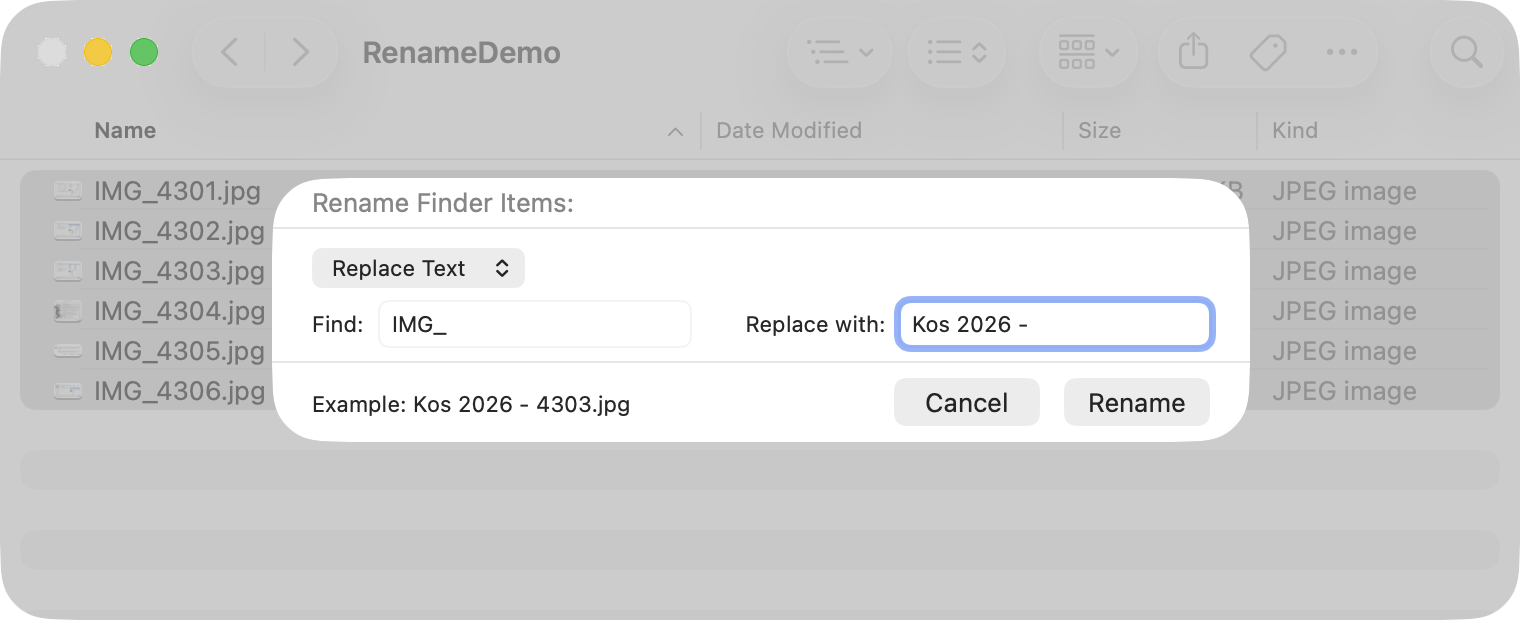
Replace Text mode. The Example line shows the result for one file, which is the only preview the Finder gives you.
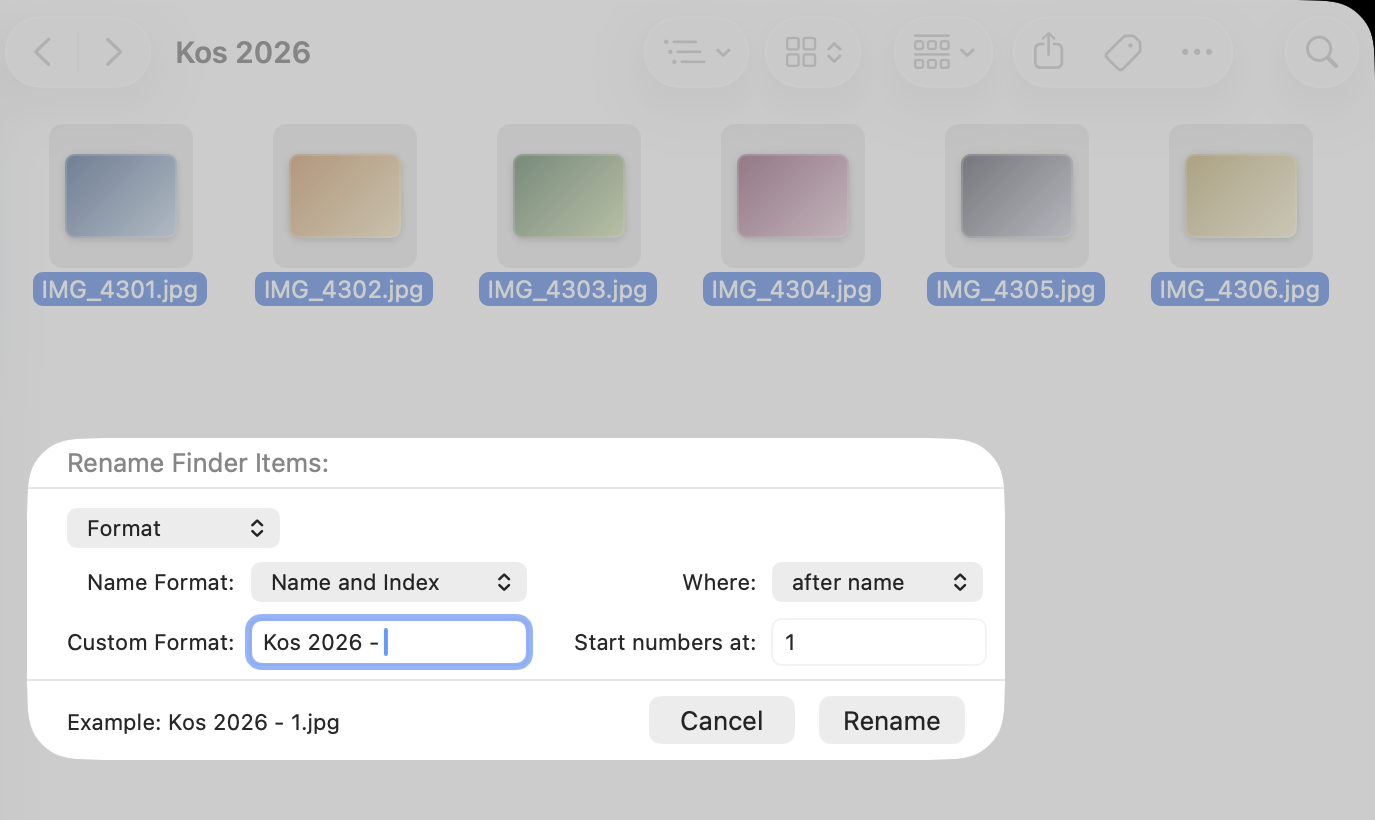
Format mode with a custom name and a counter. On macOS 26 and 27 the counter is zero-padded automatically; on Ventura through Sequoia it isn’t.
Press Rename and the whole selection changes at once. ⌘Z undoes the entire batch, as long as you do it straight away. For a closer look at the three modes, the sort-order and padding traps, and the free and paid alternatives, see the longer guide to batch renaming files on a Mac.
3. Folders, the sidebar, and aliases
A few things that catch people out:
- Folders rename exactly like files. Select, Return, type. Anything inside keeps working, and applications that have the folder open follow the new name. A folder window’s title bar updates as soon as you commit.
- The sidebar shows real names. There’s no rename command for a sidebar entry. Rename the folder itself in a Finder window and the sidebar follows.
- Aliases are independent. Renaming an alias doesn’t touch the original, and renaming the original doesn’t break the alias: an alias tracks its target by identity, not by name.
- Two characters are off limits. The Finder refuses a colon outright. It accepts a slash, but stores it as a colon, which is what you’ll see in the Terminal and in some apps, so avoid both. Names starting with a full stop are reserved for hidden files and the Finder won’t let you use them.
4. Where the Finder stops
For one file, nothing beats Return. For a batch, the Finder’s sheet covers one simple change at a time and that is also where it stops. There is no preview beyond a single example line, so a mistake across three hundred files is discovered after the fact. Numbers can’t be padded to a width you choose. “The date” means today’s date, not the date a photo was taken or a document was written. There’s no find-and-replace with patterns, no way to save a job you run every week, and no warning when two files are about to end up with the same name. And every extra change means another pass through the sheet.
That is the gap A Better Finder Rename fills. It shows every file’s old and new name side by side before anything is touched, chains as many steps as a job needs, pulls dates from EXIF and other metadata, handles regular expressions, saves presets, and sorts out name conflicts for you. It even has its own Finder hot key, ⌘⌃R, which opens the selected files in the app ready to go. If you’d like to see the whole landscape first, including Shortcuts and the Terminal, the batch rename guide compares all four routes.
FAQ
Why doesn’t Return open the file, like Enter does on Windows? Because on the Mac Return has always meant “rename” and the open command is ⌘O (or ⌘↓, or a double-click). Windows went the other way and uses F2 for rename. If you keep opening the wrong thing, add F2 as a rename shortcut as described in section 1 and the two systems behave alike.
How do I rename the extension? Press Return, then press ⌘A to extend the selection to the
whole name including the extension, and retype it. (The arrow keys also work: Return selects only
the name, and the right arrow moves the cursor towards the extension.) The Finder asks you to confirm an extension change, because
changing .jpg to .png doesn’t convert the file, it just mislabels it. If you can’t see the
extension at all, open Finder › Settings › Advanced and tick Show all filename extensions.
How do I batch rename in the Finder? Select the files, right-click, choose Rename…, pick Replace Text, Add Text or Format, and press Rename. Section 2 walks through the three modes.
Is there a keyboard shortcut for Rename… in the Finder? Not out of the box: Return is the shortcut. You can assign your own in System Settings › Keyboard › Keyboard Shortcuts… › App Shortcuts. The ⌘⌃R combination that sometimes comes up in searches is A Better Finder Rename’s hot key, which only exists once that app is installed.
Frank Reiff is the developer of A Better Finder Rename, the Mac batch renaming utility in continuous development since 1996. Questions about a renaming job the article doesn’t cover? Get in touch; unusual renaming problems have a way of becoming product features.