Applies to macOS Ventura through macOS 27
The short answer: macOS has a perfectly good batch renamer built into the Finder: select your files, right-click, choose Rename…, and for simple jobs it’s all you need. For anything involving metadata (photo dates, music tags), regular expressions, control over how numbers are padded, or more than one transformation at a time, you’ll want either the Terminal or a dedicated renaming utility.
A disclosure before we start: I’m the developer of A Better Finder Rename, a batch file renamer for Mac, a paid utility I’ve been working on since 1996. You’d be right to expect this article to end by recommending it.
Helping folk rename files on the Mac has been my bread and butter for nearly 30 years, which is proof enough that while some jobs don’t need a sophisticated tool, many do. Moreover, once people discover how useful it is to organize their file collections properly, A Better Finder Rename quickly becomes part of their every day routine.
1. The Finder’s built-in Rename (free, already installed)
Since OS X Yosemite, the Finder has had a serviceable batch renamer that most Mac users have never noticed:
- Select the files in the Finder (⌘A for all, or shift-click a range).
- Right-click the selection and choose Rename… (on older systems it reads “Rename X Items…”).
- A small dialog appears with three modes in the top dropdown:
- Replace Text finds a string in every name and replaces it. The classic use: turning
IMG_intoHawaii_across 400 photos. - Add Text adds a fixed prefix or suffix to every name.
- Format rebuilds the name from scratch as Name and Index, Name and Counter, or Name and Date, with a custom base name and a starting number.
- Replace Text finds a string in every name and replaces it. The classic use: turning
Press Rename and the whole batch is done at once. If you change your mind, ⌘Z undoes the entire batch, as long as you do it immediately.
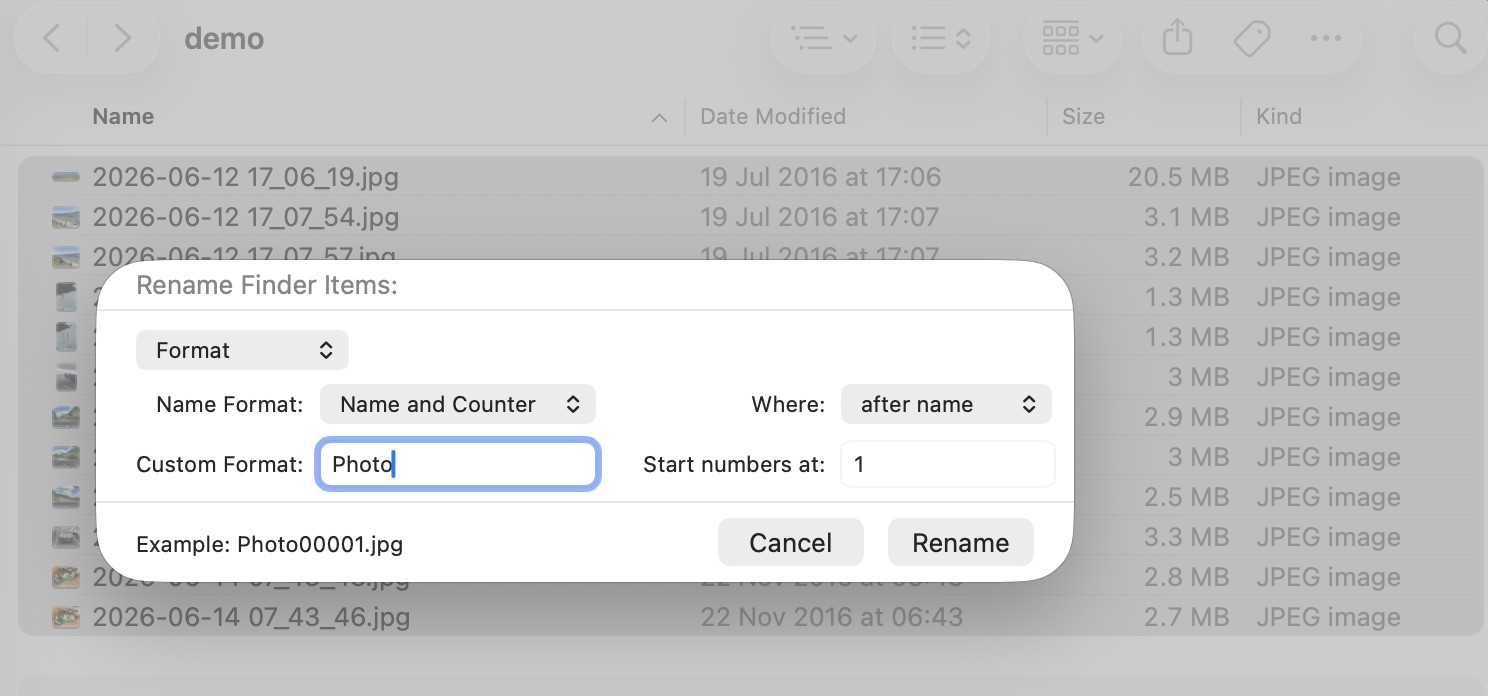
Format mode in macOS 26 and 27. Note Example: Photo00001.jpg: the counter is now zero-padded to five
digits, where older systems would have produced Photo1.jpg.
What it’s good for: quick, single-step renames of any size. Honestly, if your job is “replace
this text” or “call them all Invoice 1, Invoice 2, …”, stop reading here. The Finder does this
fine, and it’s free.
Where it runs out of road:
- Padding you can’t control. Older systems (Ventura through Sequoia) count 1, 2, 3 … 10, 11, so
alphabetical sorting puts
file10beforefile2. macOS 26 finally fixed this and macOS 27 keeps it: Name and Counter now zero-pads automatically to five digits (Photo00001.jpg). The catch is that five digits is all you get, so exactly001, 002, 003is still impossible, and the older systems don’t pad at all. - One step at a time. You can’t replace text and add a prefix and number the files in one pass; you have to run the dialog repeatedly and hope you don’t make a mistake in the middle.
- No metadata. “The date” is today’s date or the file system date; the Finder knows nothing about EXIF capture dates, ID3 music tags, or page counts.
- No patterns. No wildcards, no regular expressions, no conditional logic.
- The numbering follows the current sort order, which is easy to get wrong and tedious to verify when the stakes are high.
- No Preview. You’re mostly going in blind.
2. Shortcuts and Automator (free, more flexible, more fiddly)
Both of Apple’s automation tools can rename files. In Shortcuts (and the older Automator, where the action is called Rename Finder Items), you can chain a few renaming steps (make lowercase, add date, sequence) and save the result as a Quick Action that appears in the Finder’s right-click menu.
This is the right tool when you do the same simple rename repeatedly: say, every Monday you prefix a folder of exports with the week’s date. Build it once, run it forever.
It’s the wrong tool for one-off complex jobs: assembling a multi-step rename out of Automator blocks is slower than doing it by hand, you can’t properly preview the result before it runs, and the moment you need metadata or regular expressions, you’re back where you started. In my experience the practical ceiling is two or three chained steps; beyond that, debugging the workflow takes longer than the rename.
3. The Terminal (free, unlimited power, no safety net)
If you’re comfortable in a shell, macOS will batch-rename anything. zsh, the default shell since
Catalina, ships with zmv, a pattern-based mover:
autoload -U zmv
# change every .jpeg extension to .jpg
zmv '(*).jpeg' '$1.jpg'
# zero-padded numbering, sorted by name
i=1; for f in *.jpg(n); do mv "$f" "$(printf 'hawaii_%03d.jpg' $i)"; ((i++)); done
For renaming photos by their EXIF capture date, the command-line gold standard is the free ExifTool:
exiftool -d "%Y-%m-%d_%H%M%S%%-c.%%e" "-FileName<DateTimeOriginal" /path/to/photos
The honest assessment: the Terminal can do everything a paid utility can. What it doesn’t give you is a preview. A typo in a pattern renames a thousand files wrongly in half a second, there is no undo, and the failure modes (name collisions silently overwriting files, hidden extensions, files sorted differently than you assumed) are exactly the ones you discover afterwards. If you go this route, test on a copied folder first, every time. The people I’d genuinely point here are developers and photographers with a scripted, repeatable pipeline; for them it’s the best answer on this page.
4. Dedicated renaming utilities (paid, built for exactly this)
A dedicated renamer exists to close the gap between “the Finder is too simple” and “the Terminal is too unforgiving.” The category has been around for decades; the defining features are a live preview of every name before anything is touched, multi-step renames in one pass, and access to file metadata.
My own entry is A Better Finder Rename, currently at version 12, US$29.95 / €29.95 as a one-time purchase (no subscription; minor updates are free, major version upgrades are discounted). There’s a free trial so you can check it handles your job before paying. After almost thirty years of customer requests, the feature list is long, but the things people actually buy it for are:
- Live preview of every change before you commit, with conflict detection (the antidote to the Terminal’s failure modes).
- Multi-step actions: replace text, then strip characters, then add an EXIF date prefix, then a zero-padded sequence number, as one saved, repeatable action applied in a single pass.
- Metadata renaming: EXIF capture dates for photos (including RAW formats), keeping RAW+JPEG+XMP sidecar file pairs in sync, ID3 tags for music, Broadcast Wave production audio by Scene and Take, dates in any format you can describe.
- Real regular expressions for the jobs nothing else can express.
- Scale: it’s routinely used on tens and hundreds of thousands of files at once.
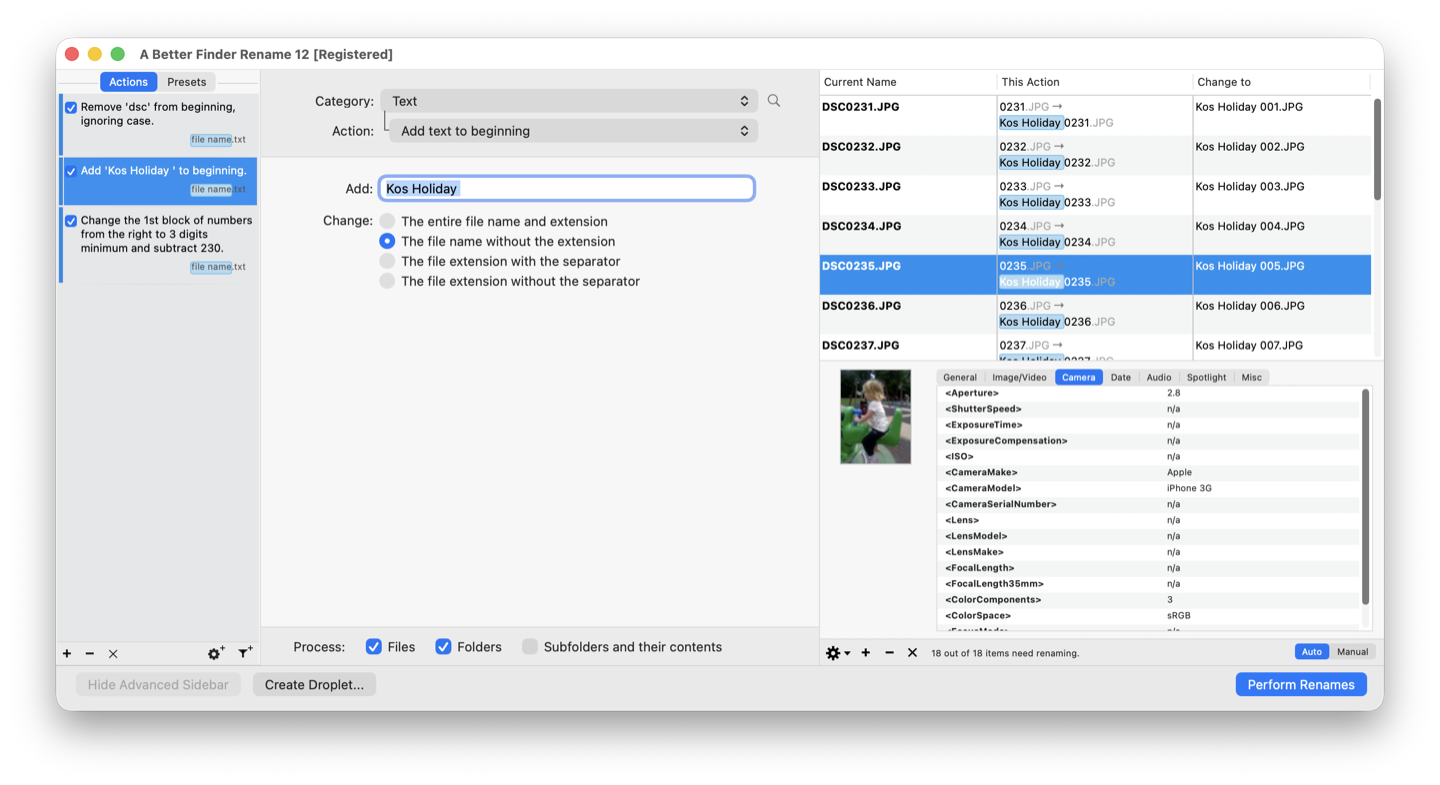
A multi-step action on the left, with a live preview of every resulting name on the right, before a single file is touched.
Fairness requires naming the alternatives: Name Mangler and Renamer are both solid Mac renamers in the same price class with friendlier learning curves and shorter feature lists; NameChanger and Transnomino are free and handle the middle ground well; ExifRenamer (free) covers the photos-by-date case specifically. If your needs are modest, try the free ones first; that’s not false modesty, it’s the same advice as section 1. A Better Finder Rename is what you graduate to when a tool from that list can’t express the rename you need, or when you need to trust a preview before touching fifty thousand client files.
For a side-by-side of the dedicated renamers — price, preview, metadata support and which to pick for which job — see the best Mac file renamer, compared.
(A Better Finder Rename is also on the Mac App Store under the name “Better Rename”, where Apple’s rules make it subscription-based. The version sold on this site is the classic one-time purchase.)
Which tool for which job
| Your job | Use |
|---|---|
| Replace or add text, simple numbering, one-off | Finder (free, built in) |
| The same simple rename, repeated regularly | Shortcuts / Automator quick action |
| Scripted pipelines, you live in the shell | Terminal (zmv, exiftool) |
| Photos by capture date, with preview and sidecar handling | A Better Finder Rename (or ExifRenamer, free, for the basic case) |
| Multi-step renames, regex, custom number padding, huge batches | A Better Finder Rename or similar dedicated utility |
Common pitfalls, whatever tool you use
- Sort order determines numbering. Decide whether “file 001” means first alphabetically, first created, or first photographed. These differ more often than you’d think.
- Name collisions. Any rename that makes names less unique can produce duplicates. The Finder and good utilities stop and warn; shell commands may silently overwrite. This is the single most dangerous renaming mistake.
- Hidden extensions. macOS hides extensions by default; a pattern that accidentally renames
.jpgitself will break file associations. Good tools protect the extension unless told otherwise. - Pilot batch first. Whatever the tool: run your rename on 20 copied files, inspect the result, then do the real thing.
Specialized renaming workflows
This guide covers the general case. Some jobs deserve a deeper treatment of their own:
- Rename photos on a Mac — untangle Finder filenames, Apple Photos titles, and exports before renaming anything.
- Rename photos by date taken — build filenames from EXIF capture times, including RAW files, sidecars, and time zones.
- Rename photos with sequence numbers — choose the numbering order and padding so files sort correctly everywhere.
- Rename files from a spreadsheet or CSV — map arbitrary old names to new names prepared in Excel, Numbers, or Google Sheets.
- Fix photo sorting in the Mac Finder — when the real problem isn’t the names but the order the Finder shows them in.
- Change a file’s Created or Modified date on a Mac — when the dates themselves are wrong, fix those instead of working around them in the filename.
FAQ
Can the Finder add leading zeros (001, 002, …)? On macOS 26 and 27, yes, within limits: Name and
Counter pads to five digits automatically (Photo00001.jpg), so names sort correctly. What you
can’t do is choose the width, so exactly 001, 002, 003 is still out of reach, and on Ventura
through Sequoia the Finder doesn’t pad at all. For a specific number of digits, reach for a
dedicated tool.
How do I batch edit or change many file names at once on a Mac? Select the files in the Finder, right-click, choose Rename…, then Replace Text, Add Text or Format. That is the built-in batch edit and it covers most one-change jobs. For anything the three Finder modes can’t express (a fixed number of digits, dates from metadata, several changes in one pass), a dedicated renamer does it with a preview.
How do I undo a batch rename? In the Finder: ⌘Z immediately afterwards undoes the whole batch. In A Better Finder Rename, any rename can be undone from within the app. In the Terminal: there is no undo, so work on copies.
Can I rename photos using the date they were taken? Not with built-in tools. The Finder only knows file system dates. Use ExifTool (free, command line), ExifRenamer (free, basic), or A Better Finder Rename (paid, with preview, RAW and sidecar-pair support).
Does renaming files break anything? Renaming changes only the name, never the content. But documents that reference files by name (edited videos referencing media, HTML referencing images, Lightroom catalogs) will lose track of renamed files. Rename before you build projects on top of files, not after; or use your asset manager’s own renaming feature.
Is there a way to lowercase all the extensions / fix .JPEG vs .jpg? Finder’s Replace Text
can fix one variant at a time. A pattern-based tool does them all in one pass. In zsh: zmv
'(*).(#i)jpeg' '$1.jpg'.
Frank Reiff is the developer of A Better Finder Rename, the Mac batch renaming utility in continuous development since 1996. Questions about a renaming job the article doesn’t cover? Get in touch; unusual renaming problems have a way of becoming product features.