Applies to macOS Ventura through macOS 27; Excel for Mac (Microsoft 365), Numbers and Google Sheets
The short answer: select the files in the Finder, press ⌘C, click a cell in Excel and press ⌘V. You get one file name per row, in the order the Finder window was sorted, and it works the same in Numbers and Google Sheets. That is the whole trick for a single folder of names. The rest of this page is for the next questions: full paths instead of names, names and extensions in separate columns, files in subfolders, sizes and dates, and the two ways Excel quietly mangles file names when you paste them.
A disclosure: I’m the developer of Nifty File Lists, a paid Mac tool that appears at the end of this page for the cases the free routes don’t cover. For a list of names, you don’t need it; the page says so.
If you want the broader picture (CSV and text output, the Terminal in more depth, the two dedicated tools compared), the overview is export a list of files in a folder on a Mac. If the list should end up on paper or as a PDF, see print a list of files in a folder.
Route 1: copy from the Finder, paste into Excel
- Open the folder in the Finder. Sort it the way you want the list ordered (click the Name, Date Modified or Size column header in List view). The pasted list follows the window’s current sort order.
- Select the files: ⌘A for everything, or click the first and shift-click the last for a range, ⌘-click to add or remove individual files. Folders in the selection are pasted by name too, as a single row each, without their contents.
- Press ⌘C.
- In Excel, click the cell where the list should start and press ⌘V.
Each file name lands in its own row in one column, extension included, whether or not the Finder is set to show extensions. Nothing else comes along: no sizes, no dates, no paths.
Numbers and Google Sheets behave the same way, one name per row. If a spreadsheet pastes file icons or embeds copies of the files instead of names (Numbers sometimes does when the selection is small), take the one-step detour: paste into a plain-text TextEdit document first (Format ▸ Make Plain Text, ⇧⌘T, if the document is rich text), select all, copy, and paste that into the spreadsheet.
Pasting into Excel on the Mac, two traps worth knowing before you paste:
- Leading zeros vanish. A file called
007.jpgis fine (the extension keeps it text), but names like001,0042or a column you have split to bare numbers become1and42. Select the destination column first and set its number format to Text (Format ▸ Cells ▸ Text, or the format pop-up on the Home tab), then paste. - Names that look like dates become dates.
1-2,3.11,MAR-05and2026-07-14turn into dates or decimals when they stand alone. The same cure applies: make the column Text before pasting, or paste with Edit ▸ Paste Special ▸ Text into a Text-formatted column. Google Sheets and Numbers do the same conversions with the same cure.
Route 2: full paths instead of names
Hold ⌥ (Option) while the Finder’s right-click menu is open and Copy becomes Copy “name” as Pathname
(for several files, Copy X Items as Pathnames). Paste that into Excel and each row is the full path,
/Users/you/Documents/Projects/Acme/brief.pdf. Two uses: a list that says where each file lives, and the raw
material for splitting the path into columns.
Route 3: name and extension in separate columns
Excel for Mac in Microsoft 365 has the text functions that make this a one-liner. With the file name in A2:
| You want | Formula |
|---|---|
| Name without extension | =TEXTBEFORE(A2,".",-1) |
| Extension only | =TEXTAFTER(A2,".",-1) |
| File name from a full path | =TEXTAFTER(A2,"/",-1) |
| Folder from a full path | =TEXTBEFORE(A2,"/",-1) |
The -1 means “the last dot” or “the last slash”, so 2026.07.14 brief.pdf splits correctly and a path with a
dozen folders gives the right file name. Fill the formula down, then copy the column and Paste Special ▸
Values if you want plain text rather than formulas.
If your Excel predates these functions, Data ▸ Text to Columns with / as the delimiter splits a path into
one column per folder level, and . splits a name from its extension (names containing several dots end up in
several columns; sort that out by hand or use the formulas). Numbers and Google Sheets have SPLIT and
REGEXEXTRACT for the same jobs; in Sheets, =REGEXEXTRACT(A2,"[^/]+$") is the file name from a path.
Route 4: subfolders, sizes and dates from the Terminal
The Finder trick is one folder deep. For a whole tree, or for sizes and dates alongside the names, open Terminal
(Applications ▸ Utilities) and use cd to go to the folder (type cd , drag the folder from the Finder onto the
window, press Return). Then:
# names only, straight to the clipboard: switch to Excel and ⌘V
ls -1 | pbcopy

# every file in every subfolder, path included, to the clipboard
find . -type f -not -name '.*' | pbcopy

# name, size in bytes and modification date as CSV, ready for Excel's File ▸ Import
stat -f '%N,%z,%Sm' -t '%Y-%m-%d %H:%M' * > ~/Desktop/files.csv

# the same for the whole tree
find . -type f -not -name '.*' -exec stat -f '%N,%z,%Sm' -t '%Y-%m-%d %H:%M' {} + > ~/Desktop/files.csv
Open the CSV in Excel with File ▸ Import ▸ CSV file (or just double-click it; set the first column to Text
in the import wizard if your names have leading zeros). The honest caveats: file names that contain commas break
a naive CSV, the Terminal has no undo if you mistype a path, and Windows-oriented guides that tell you to use
Data ▸ Get Data ▸ From Folder are describing a Power Query connector that Excel for Mac has gained only in
recent builds; if your Excel has it, it does this job too, if not, the paste and pbcopy routes above are
quicker than finding out.
Route 5: make it a one-click Quick Action
If you do this every week, build a Shortcut once: in Shortcuts, create a shortcut that receives files from the Finder, add Get Details of Files (choose Name), then Copy to Clipboard, and enable it as a Quick Action in the shortcut’s details. From then on, select files in the Finder, right-click, choose the shortcut, switch to Excel, paste. Swap Name for File Path, File Size or Last Modified Date to copy those instead; Shortcuts can’t easily put several of them into separate columns in one pass, which is the point at which the next section applies.
When you want columns, not just names: Nifty File Lists
Every route above gives you names, and with effort paths, sizes and dates. What none of them gives you is the information that makes a file list useful as a document: the capture date and camera of each photo, the duration of each video or song, the author and page count of each PDF, in separate columns, for a whole folder tree, in a format Excel opens without an import wizard.
Nifty File Lists (US$19.95 / €19.95, one-time purchase, free trial) is built for that. Drop
the folder on it, tick the columns you want, and either save an .xlsx, CSV or PDF, or choose Copy to MS Excel
or Apple Numbers and press Copy to Clipboard: switch to the spreadsheet, ⌘V, and the whole table arrives with
its columns intact. It is the multi-column version of the Finder trick this page opened with, and it handles
subfolders (with a path column), filters by file type, folders with hundreds of thousands of files, and saved
column sets for the lists you make repeatedly.
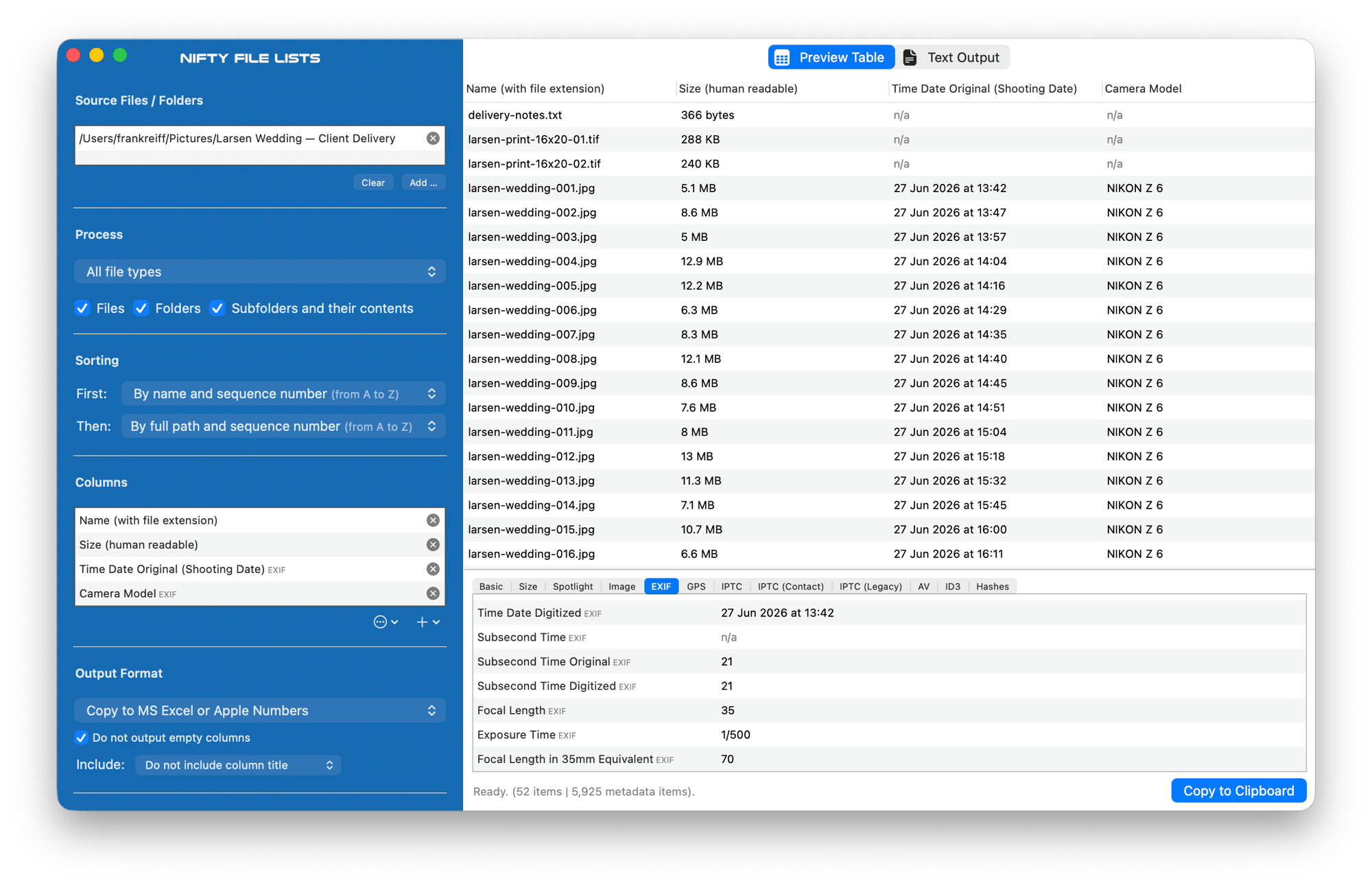
Pick the columns, copy the finished table, paste into Excel or Numbers.
The honest line: for names, or names plus one more thing, use the free routes. For a photographer’s delivery list, an audio archive, a document inventory or anything a client will read, the metadata columns are the reason to pay, and the trial (no time limit; output covers the first ten files) shows your exact columns before you do. The cheaper Files List Export is compared fairly in the overview guide.
Common pitfalls
- The pasted order isn’t the order you expected. It is the Finder window’s sort order at the moment you copied. Sort first, copy second.
- Hidden files are missing, or present. The Finder skips hidden files;
ls -1skips them too,findlists everything unless you exclude names starting with a dot, as the commands above do. - Leading zeros and date-like names are changed by Excel on paste. Text-format the column first.
- Extensions hidden in the Finder are still pasted. The names you get are the real names; if you want them without extensions, use the formula in Route 3 rather than editing by hand.
- Umlauts and accents come out garbled after a CSV import: choose UTF-8 as the file origin in Excel’s import wizard.
- Thousands of files, one folder. The paste route works at any size, but Excel’s paste of very long selections can take a while; the Terminal or a file list tool is faster past a few thousand rows.
FAQ
How do I copy all the file names in a folder on a Mac? Open the folder, ⌘A, ⌘C, and paste into Excel, Numbers, Google Sheets or a text document. Each name becomes a row (or a line).
How do I get a list of files in a folder into Excel with their sizes and dates? The Terminal’s
stat -f '%N,%z,%Sm' -t '%Y-%m-%d %H:%M' * > ~/Desktop/files.csv, then File ▸ Import in Excel; or a file list
tool such as Nifty File Lists, which also adds metadata columns and writes .xlsx directly.
Can I copy file names without the extensions? Not directly from the Finder; paste the names and use
=TEXTBEFORE(A2,".",-1) in the next column.
Does this include files in subfolders? The Finder paste doesn’t. Use find . -type f | pbcopy in the
Terminal, or a file list tool with a subfolder option.
Why did Excel turn my file names into dates? Because 1-2 or 3.11 look like dates to Excel. Format the
column as Text before pasting, or use Paste Special ▸ Text.
Is there a built-in way to export a folder listing from the Finder? No menu command, only the copy-and-paste behaviour above and the Terminal. Windows’ Get Data ▸ From Folder in Excel is a Power Query feature that Excel for Mac has only recently started to gain.
Frank Reiff is the developer of Nifty File Lists and of the A Better Finder utilities, Mac file-management tools in continuous development since 1996. Related: export a list of files in a folder on a Mac, print a list of files in a folder, or get in touch with a file-list job this page doesn’t cover.