Applies to macOS Ventura through macOS 27
The short answer: the Finder cannot print a list of the files in a folder, and it never has
been able to. On a Mac you have three honest options. Copy the file names out of a Finder window
and paste them into TextEdit; dump a listing with ls in the Terminal; or use a dedicated file
list tool that produces a finished, paginated document with the columns you actually want. The
first two are free and take a minute. This guide covers all three, including where the free
routes stop being worth the fiddling.
A disclosure: I’m the developer of Nifty File Lists, a paid file list tool for the Mac. The free routes are covered honestly first, and for a one-off list of file names they are genuinely all you need.
Three boundary checks before we start:
- You want to print a list of the files in a folder: their names, and perhaps sizes and dates → this guide.
- You want a formal record of a folder’s contents to hand to a client, a court or an auditor → same job, stricter requirements: save the list as a PDF (below) rather than printing it, with the date and size columns included.
- You want to print the documents themselves → select them in the Finder and choose File → Print, which opens and prints each one. No list involved.
Why the Finder can’t do this
It seems like it should be a menu item. The Finder shows you a perfectly good list view with names, dates and sizes; there is just no way to send that view to a printer or a PDF. Choosing File → Print with files selected prints the files, not the list. This has been the situation since Mac OS X shipped in 2001, and neither macOS 26 nor macOS 27 has changed it. (Genuinely old Mac hands will remember that classic Mac OS could print a Finder window, decades ago. That feature never made the transition.)
So everything below is a workaround of one kind or another. The only question is how much formatting you need.
Free route 1: copy the names into TextEdit
The Finder has a barely known trick: copying files and pasting them into a plain-text document pastes their names as text.
- Open the folder in the Finder and select the files you want listed (⌘A for all of them).
- Copy with ⌘C.
- Open TextEdit, create a new document, and make sure it is in plain text mode (Format → Make Plain Text, or ⇧⌘T; in rich text mode you’d attach copies of the files instead of pasting their names).
- Paste with ⌘V. You get one file name per line, in the order the Finder window was sorted.
- Print with ⌘P, or use the PDF dropdown in the print dialog to save the list as a PDF.
This is the fastest free route and it is fine for what it is. Its limits:
- Names only. No sizes, no dates, no paths, nothing else the Finder window was showing you.
- One folder at a time. Nothing from subfolders comes along.
- The order is whatever the window was sorted by, and nothing in the printout says which folder the names came from or when you made the list.
Free route 2: the Terminal
The Terminal’s ls command produces a proper listing, including sizes and dates, and can
recurse into subfolders. To write one into a text file on your Desktop:
# names, sizes and modification dates for one folder
ls -lh ~/Documents/Projects/Acme > ~/Desktop/list.txt

# the same, including all subfolders
ls -lhR ~/Documents/Projects/Acme > ~/Desktop/list.txt

# open the result in TextEdit, then print or save as PDF from there
open -e ~/Desktop/list.txt
For a bare list of names, ls -1 (the digit one) prints one name per line with no other
columns. Add -a if you also want hidden files.
This works, it’s free, and for a technical audience it may be exactly right. The caveats:
- The output is raw. Permission strings (
-rw-r--r--), owner and group names, and terse date formats in front of every file name. Fine on screen; noise on paper. - You take every column
lsgives you, in the order it gives them. Choosing different columns (say, just name and size, or a photo’s capture date) isn’t whatlsdoes. - Long listings become a wall. No page headers, no page numbers, no alignment guarantees once TextEdit wraps the long lines. A 900-file listing prints, but nobody enjoys reading it.
- The classic crude alternative, taking a screenshot of the Finder window, fails as soon as the folder is taller than the screen, and the result is a picture, not text.
Where the free routes stop
Both free routes break down at the same point: the moment you care what the printed page looks
like, or need any column the Finder and ls don’t offer. Concretely, when you need:
- Chosen columns: name, size and modification date, but also things like a photo’s capture date and camera, a video’s duration, a document’s author, or a file’s full path.
- A readable layout: aligned columns, page numbers, and the column headers repeated on every page instead of only appearing on page one.
- A list that says what it is: which folder, how many files, and when the list was made, printed on the document itself.
- Hundreds or thousands of files without the result turning into an unreadable dump.
That is the point of a dedicated tool.
The dedicated tool: Nifty File Lists
Nifty File Lists does one job: it reads the details of the files in a folder, with or without its subfolders, and turns them into finished documents. For printing, two of its output formats matter.
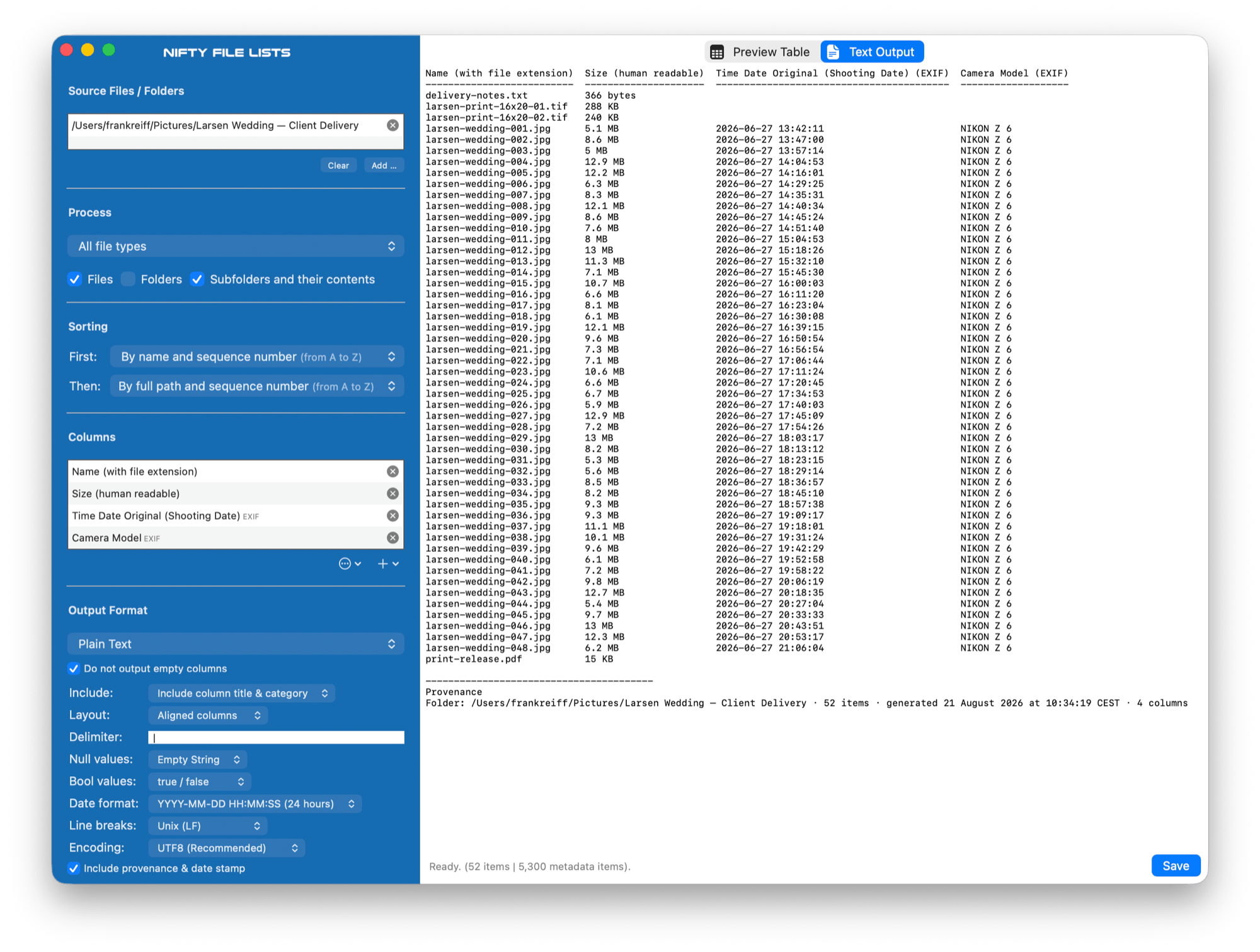
Aligned plain text pads every column to its widest value, right-aligns the numbers, and
rules off the header, so the listing stays readable in any monospaced context: printed, pasted
into an email, or saved as a .txt next to the files on a backup drive. Columns that contain no
data for your particular files are left out automatically. A listing looks like this:
Name (with file extension)  Size (human readable)  Time Date Original (Shooting Date) (EXIF)  Camera Model (EXIF)
--------------------------  ---------------------  -----------------------------------------  -------------------
delivery-notes.txt          366 bytes
larsen-print-16x20-01.tif   288 KB
larsen-print-16x20-02.tif   240 KB
larsen-wedding-001.jpg      5.1 MB                 2026-06-27 13:42:11                        NIKON Z 6
larsen-wedding-002.jpg      8.6 MB                 2026-06-27 13:47:00                        NIKON Z 6
larsen-wedding-003.jpg      5 MB                   2026-06-27 13:57:14                        NIKON Z 6
…                           …                      …                                          …
larsen-wedding-048.jpg      6.2 MB                 2026-06-27 21:06:04                        NIKON Z 6
print-release.pdf           15 KB

----------------------------------------
Provenance
Folder: /Users/frankreiff/Pictures/Larsen Wedding — Client Delivery · 52 items · generated 21 August 2026 at 10:34:19 CEST · 4 columns
(The delivery notes and the print TIFFs simply leave their photo-metadata cells blank; the columns stay because the photos fill them. A column only disappears when it is empty for every file in the list.)
PDF is the format for paper. It produces a paginated document with the column headers repeated on every page, continuous “Page X of Y” numbering, and your choice of A4, US Letter or Legal in portrait or landscape. Table rules come in hairline, grid or zebra styles, and the zebra shading is calibrated to survive a black-and-white laser printer. A live preview shows the finished pages while you adjust the settings.
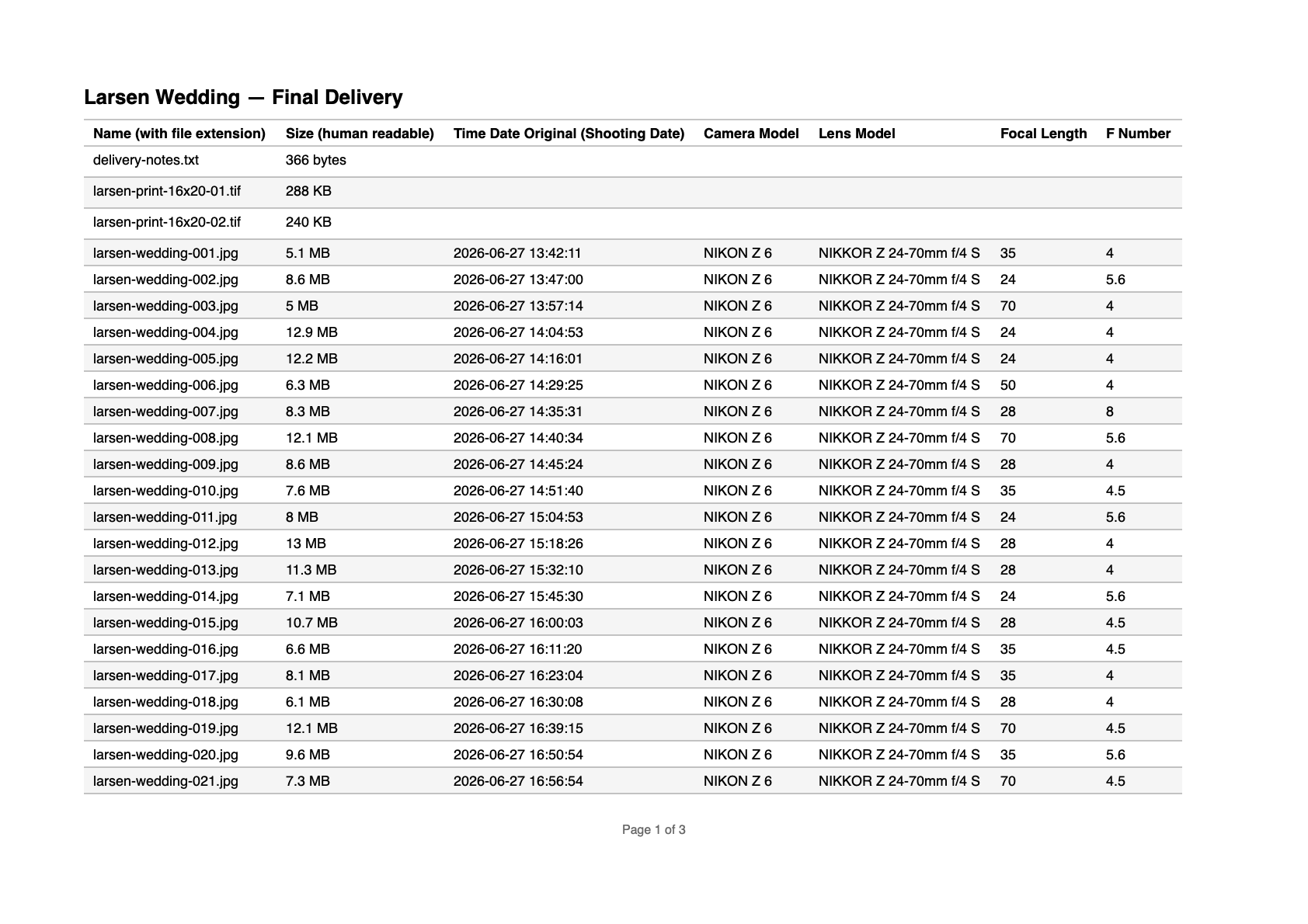
The same folder as a PDF — Nifty’s paper format: the column headers repeat on every page, rows are zebra-striped to survive a black-and-white laser printer, and the document is numbered “Page 1 of 3”. A record you can file or hand to a client, not just a screenful of names.
One design decision matters more than the rest: columns are never silently cut off. If the columns you chose don’t fit the page width, the layout narrows them intelligently, then steps the font down, and only as a last resort splits the table into sequential parts, repeating your identifying column on each part so every row stays traceable. Long file names and paths wrap onto extra lines; they don’t disappear off the page edge.
Both formats end with an optional provenance line (on by default): the source folder, the number of items, the generation date and the column count. Your printout says what it is, which is the difference between a page of names and a record you can file.
The workflow is short: drop a folder on the window, tick the columns you want (and save the combination as a column set if you’ll need it again), pick Plain Text or PDF, and save or print. Subfolders are included or excluded with a switch, and the scan can be filtered to just images, video, audio or documents when that’s what the list is about.
Nifty File Lists is US$19.95 as a one-time purchase, with a free trial that never expires: the only limitation is that trial output covers the first ten files of a list, which is enough to check that the columns and layout are exactly what you want on paper.
The tricky cases
- Very large folders. A folder of a few hundred files prints fine from any of the routes above. Tens of thousands of files is where TextEdit starts to choke and pagination starts to matter; a dedicated tool with a multi-threaded scanner is built for exactly that.
- Subfolders. The TextEdit trick can’t include them at all,
ls -Rincludes all of them with no middle ground, and either way the printout gets confusing fast. If the folder structure itself is the story, list the full or relative path as a column so every row says where its file lives. - Hidden files.
ls -ashows them; the TextEdit route and Nifty File Lists’ deep scan deliberately skip the invisible housekeeping files (.DS_Storeand friends), which is almost always what you want on paper. - Network volumes and external drives. All three routes work on any mounted volume. Big scans over a slow network share take as long as the network allows, whatever tool is asking.
Common pitfalls
- Pasting into a rich-text TextEdit document. Instead of a list of names you get embedded copies of the files themselves. Switch the document to plain text first (⇧⌘T).
- Printing page one and assuming the rest is fine. Long raw listings wrap unpredictably once printed. Check the print preview past the first page, or use a format that paginates deliberately.
- A list with no context. A page of file names with no folder and no date is a puzzle six months later. Write it on the printout, or use output that stamps the provenance automatically.
FAQ
Can the Finder print a list of files in a folder? No. Selecting files and choosing File → Print prints the files themselves. There is no built-in way to print or export the Finder’s list view; you need one of the workarounds in this guide.
How do I save the list as a PDF instead of printing it? Every macOS print dialog has a PDF dropdown in the corner: choose “Save as PDF”. That works for TextEdit and Terminal output too. A dedicated tool can skip the detour and write the PDF directly, with pagination designed for the purpose.
Can I export the list to Excel or CSV instead of printing it? Yes — that’s the spreadsheet version of this job, with its own guide: export a list of files in a folder on a Mac. The ten-second version: copy the files in the Finder and paste into Excel or Numbers — their names arrive as text, one per row.
How do I include the files in all subfolders? In the Terminal, ls -R. In Nifty File
Lists, enable the subfolder scan and add a path column so every row shows where the file lives.
The TextEdit copy-paste trick can’t include subfolders.
Can I choose which details are listed, like photo capture dates? Not with the free routes;
ls knows about file-system data only. A file list tool can add document, photo, audio and
video metadata columns: capture date, camera, duration, author and so on.
Does this work for an external or network drive? Yes, all of the routes in this guide work on any mounted volume.
What’s the difference between this and a file manifest? Purpose. A quick printout is for you; a manifest is a complete, provenance-stamped record of a folder made for someone else: a client, a court, an archive. Same underlying job, stricter requirements: save it as a PDF, keep the folder path and the date columns in, and date the document itself.
Frank Reiff is the developer of Nifty File Lists and of A Better Finder Rename, Mac file-management tools in continuous development since 1996. If the files need proper names before they go on paper, start with batch renaming files on a Mac, or get in touch with a file-listing problem this guide doesn’t cover.