Applies to macOS Ventura through macOS 27
The short answer: the fastest way to get a folder’s file names into a spreadsheet costs
nothing and takes ten seconds — select the files in the Finder (⌘A), copy (⌘C), and paste into
Excel or Numbers: you get one file name per row. The Terminal’s ls adds sizes and dates. Where
the free routes stop is everything beyond names-and-basics: real .xlsx output, columns like a
photo’s capture date or a video’s duration, subfolder paths, or folders with thousands of files —
that’s the job of a dedicated file list tool, and this guide compares the two serious ones,
including my own.
A disclosure: I’m the developer of Nifty File Lists, a paid file list tool for the Mac. As with every guide on this site, the free routes come first and honestly — for a one-off list of file names, you don’t need to buy anything, including from me.
Two boundary checks before we start:
- You want the list on paper or as a PDF → that’s the printing version of this job: print a list of files in a folder on a Mac.
- You want a formal, provenance-stamped record of a folder for a client, court or archive → that’s a manifest: print or save the list as a PDF instead.
Free route 1: copy the file names straight into Excel or Numbers
The Finder has a barely known trick: copying files and pasting them into text-shaped places pastes their names as text.
- Open the folder in the Finder and select the files you want listed (⌘A for all of them).
- Copy with ⌘C.
- Switch to Excel or Numbers, click the cell where the list should start, and paste with ⌘V.
- You get one file name per row, in the order the Finder window was sorted. Sort the folder by name, date or size first and the pasted list follows that order.
If your spreadsheet pastes file icons or attaches copies of the files instead of names, take the one-step detour: paste into a plain-text TextEdit document first (Format → Make Plain Text, ⇧⌘T, if needed), then copy the names from there.
A longer walkthrough aimed at Excel specifically, with full paths, name/extension splitting, subfolders and the leading-zero and date traps, is in copy file names into Excel on a Mac.
The limits of the trick:
- Names only. No sizes, no dates, no paths — nothing else the Finder window was showing.
- One folder at a time. Nothing from subfolders comes along.
- It’s manual: fine once, tedious as a weekly routine.
Free route 2: the Terminal
ls produces a proper listing, with sizes and dates if you ask, and can recurse into
subfolders:
# just the names, one per line — ready to import or paste anywhere
ls -1 ~/Documents/Projects/Acme > ~/Desktop/files.txt

# names, sizes and modification dates
ls -lh ~/Documents/Projects/Acme > ~/Desktop/files.txt

# the same, including all subfolders
ls -lhR ~/Documents/Projects/Acme > ~/Desktop/files.txt
Import the result into Excel or Numbers, or just paste it. This is free and scriptable, and for
a technical audience it may be exactly right. The catches: the output comes with columns you
didn’t ask for (permission strings, owner names) in a raw format spreadsheets don’t split
cleanly; choosing different columns isn’t what ls does; and building a genuinely clean CSV
from the shell — quoting commas in file names, formatting dates, adding metadata — turns into a
small scripting project. The moment that project doesn’t feel fun, you’ve found the boundary.
Where the free routes stop
Both free routes give you file names and, with effort, sizes and dates. They stop at:
- Real spreadsheet files.
.xlsxor clean CSV with chosen, properly quoted columns — not a raw text dump you massage after import. - Metadata columns. A photo’s capture date and camera, a song’s artist and duration, a
document’s author and page count, a file’s full path. The Finder and
lsknow none of this. - Subfolders with traceability — every row saying where its file lives.
- Scale. Hundreds of thousands of files without the copy-paste route (or your patience) giving out.
- Repeatability. The same columns, filter and format next week, in two clicks.
That’s the job the dedicated tools sell. There are two serious ones on the Mac.
The dedicated tools, honestly compared
Files List Export (Georgios Trigonakis, $8.99 on the Mac App Store) is the best-known utility for exactly this job: drop in a folder, get the list out as Excel, CSV, TSV, PDF, HTML, JSON or Markdown, or copied to the clipboard. It’s simple, actively maintained, and if all you need is names, sizes and dates in a spreadsheet, it’s an honest recommendation and cheaper than my own tool. It’s also what many people searching “file list export” are actually looking for by name.
Nifty File Lists (mine, US$19.95 one-time purchase, free trial) plays in the same category but goes deeper on three fronts:
- Metadata columns. Beyond names, sizes and dates: EXIF capture date and camera model for photos, artist/album/duration for audio, author and page counts for documents, video durations, full or relative paths. You tick the columns; empty ones drop out automatically.
- Output that’s designed, not dumped. Excel-ready CSV/TSV and Excel output, aligned plain-text listings that stay readable in email, and paginated PDF with repeating headers and a no-silent-truncation layout — plus an optional provenance line (folder, item count, generation date) so the list says what it is. Or skip the file entirely: copy the finished table to the clipboard and paste it straight into an open spreadsheet — the multi-column version of the Finder trick this guide opened with.
- Scale and routine. A multi-threaded scanner built for very large folders, subfolder scans with path columns, filters for just images/video/audio/documents, and saved column sets for the lists you make repeatedly.
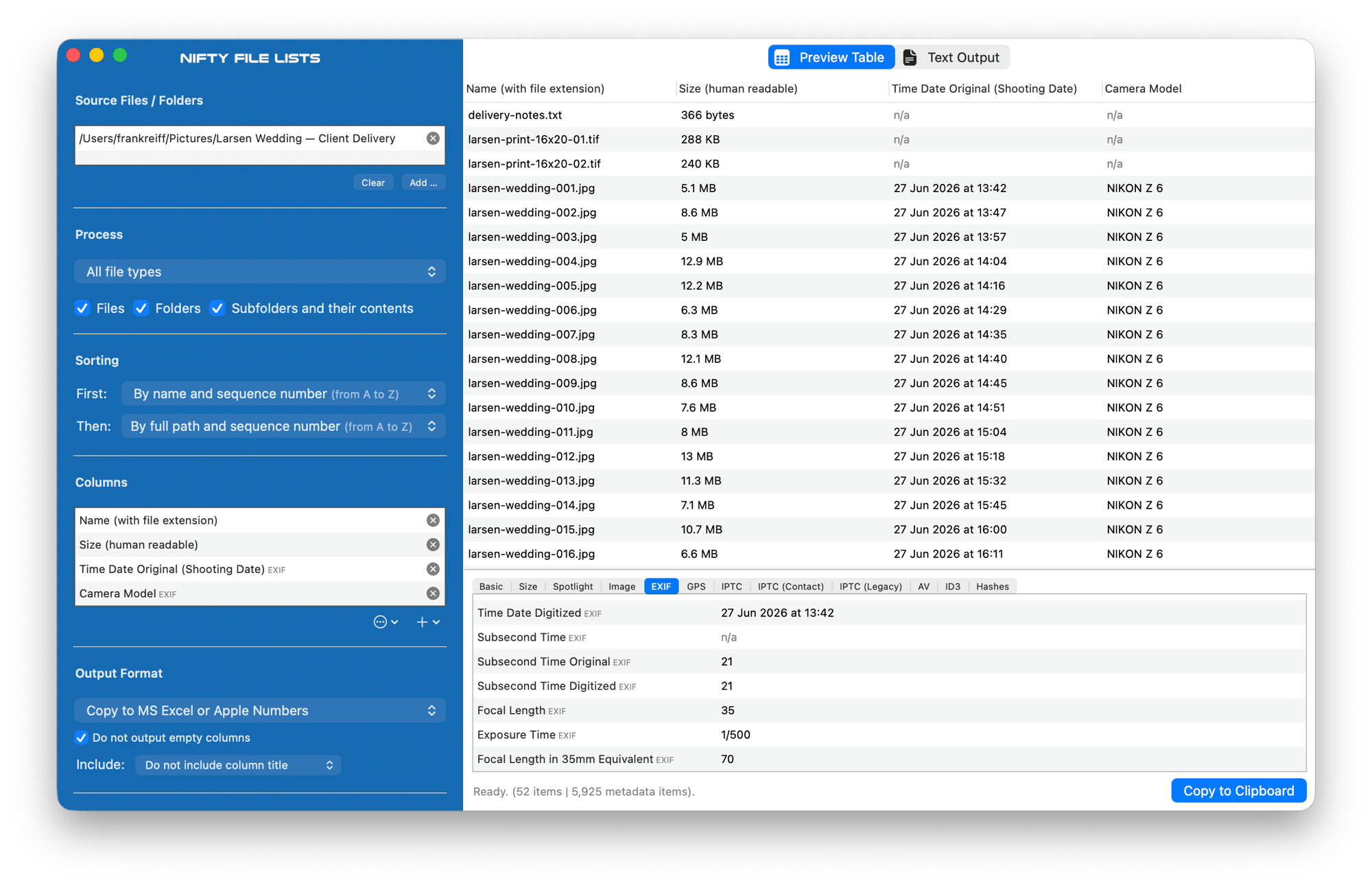
The clipboard route, previewed as a table: pick the columns, press Copy to Clipboard, switch to Excel or Numbers and paste.
The honest line between them: for a basic list, buy the cheaper tool or use the free routes; for lists where the metadata is the point — a photographer’s delivery folder, an audio archive, a document inventory — or folders too big for everything else, that’s what Nifty File Lists is for. The free trial (no time limit; output covers the first ten files) lets you check your exact columns before paying.
Which route for which job
| Your job | Use |
|---|---|
| File names into a spreadsheet, once | Finder copy-paste (⌘A, ⌘C, paste) — free |
| Names + sizes + dates, technical audience | Terminal ls -lh — free |
| Scripted/recurring export in a pipeline | Terminal, scripted — free |
| Simple list to Excel/CSV, nicely packaged | Files List Export ($8.99) |
| Metadata columns, big folders, repeatable column sets | Nifty File Lists ($19.95) |
| The list on paper / as a formal record | print guide |
Common pitfalls
- Rich-text paste. If pasting gives you icons or embedded files instead of names, go through a plain-text TextEdit document first (⇧⌘T).
- Excel “helping” with your data. Imported CSV columns can get mangled — leading zeros
dropped, name fragments read as dates. Import with columns set to Text when the names
matter, or use
.xlsxoutput from a dedicated tool, which sidesteps the import step entirely. - Subfolder lists with no paths. A recursive listing of
IMG_0001.jpgtwelve times is a puzzle. Include a path column so every row says where its file lives. - A list with no context. Six months later, a bare list of names answers nothing. Note the source folder and date — or use output that stamps that provenance automatically.
FAQ
How do I copy a list of file names into Excel on a Mac? Select the files in the Finder (⌘A), copy (⌘C), click a cell in Excel and paste (⌘V) — one name per row. If you get icons instead of text, paste into a plain-text TextEdit document first, then copy from there.
Can I include the files in all subfolders? The copy-paste trick can’t. In the Terminal,
ls -R recurses; in a dedicated tool, enable the subfolder scan and add a path column so every
row stays traceable.
How do I get file sizes and dates into the spreadsheet, not just names? ls -lh in the
Terminal gives a raw version; a file list tool gives them as proper columns, along with metadata
the Finder doesn’t show (capture dates, durations, authors).
Is there a completely free way to export a file list to CSV? Yes — ls -1 > files.txt for
names, or an ls -lh dump you clean up after import. A genuinely clean CSV with chosen columns
and quoted names is where the free route turns into a scripting exercise.
Is “File List Export” the same kind of app? Yes — Files List Export ($8.99, Mac App Store) is the best-known dedicated tool for this job and a good one. Nifty File Lists is the deeper-metadata, bigger-folder alternative; the comparison above is the honest summary of when each makes sense.
Does this work on external and network drives? All routes in this guide work on any mounted volume; big scans over slow network shares just take as long as the network allows.
Related guides
- Print a list of files in a folder on a Mac — the same job, destined for paper or PDF.
- Rename files from a spreadsheet or CSV — the round trip: export the list, fix the names in Excel, rename the files to match.
- Merge folders on a Mac — after combining several folders into one, list the result to check that nothing was skipped or overwritten.
Frank Reiff is the developer of Nifty File Lists and of A Better Finder Rename, Mac file-management tools in continuous development since 1996. Get in touch with a file-listing problem this guide doesn’t cover.