Applies to macOS Ventura through macOS 27
The short answer: your photos sort wrongly in the Finder because copying or downloading them reset each file’s created date to today, while the real date the photo was taken lives in the photo’s EXIF metadata, which the Finder ignores when sorting. The fix is to copy that embedded shooting date onto the file’s created (and modified) date, after which the Finder sorts chronologically again. You can do it for free in the Terminal with ExifTool, or with a live preview and RAW support in a dedicated app.
A disclosure: I’m the developer of A Better Finder Attributes, a paid tool that does exactly this. So this starts with the free route and is clear about where it stops.
Why photos end up out of order
There are two different dates on every photo, and the Finder sorts on the wrong one for this purpose (there’s a fuller explanation in How to change file dates on a Mac):
- The file’s created / modified dates live in the file system. Copying, downloading, AirDropping or restoring a photo usually stamps today onto the created date. The Finder’s date columns sort on these.
- The photo’s EXIF “date taken” lives inside the file and is the real capture moment. It survives copying, but the Finder doesn’t sort folders by it.
So a folder of holiday photos copied off a camera can all share roughly the same “created” date and sort in import order or alphabetically, not in the order you actually took them.
The free fixes
If the photos are going into Apple Photos
Apple Photos sorts by the embedded date taken, not the file date, so simply importing the folder usually shows everything in the right order inside Photos. That fixes the Photos view, but not the Finder, and not the files sitting in folders.
In the Terminal with ExifTool
The free ExifTool can read each photo’s date taken and write it onto the file’s dates. On macOS it can set both the modify and create dates:
# copy each photo's EXIF "date taken" onto its file created + modified dates
exiftool "-FileModifyDate<DateTimeOriginal" "-FileCreateDate<DateTimeOriginal" /path/to/photos
After this the Finder sorts the folder chronologically. The catch is the usual one: no preview and
no undo, it only touches files that actually carry a DateTimeOriginal, and movies and some RAW
formats keep their capture time in different fields the line above won’t catch. Work on a copy
first.
Where the free route runs out
You want a dedicated tool once you need any of these:
- A preview of the new dates before committing, especially on a large library.
- RAW formats (Sony ARW, Canon CR2/CR3, Nikon NEF) and movies, whose capture time sits in
fields like Content Creation Date or Media Create Date rather than
DateTimeOriginal. - A sensible fallback when
DateTimeOriginalis missing (useDateTimeDigitizedinstead, etc.) rather than silently skipping those files.
Doing it with a preview
In A Better Finder Attributes this is the Copy EXIF content creation timestamp to file creation date
action. It builds a composite capture date from the best field present (for images,
DateTimeOriginal then DateTimeDigitized; for movies, Content Creation Date or Media Create
Date), shows the resulting dates in a live preview, and writes them to the file’s created and
modified dates in one pass. It handles RAW and movie formats, and you choose which source fields to
prefer. It’s version 7, US$29.95 / €29.95 as a one-time purchase, with a free trial.
Syncing the EXIF shooting date onto the file’s created date so the Finder sorts chronologically.
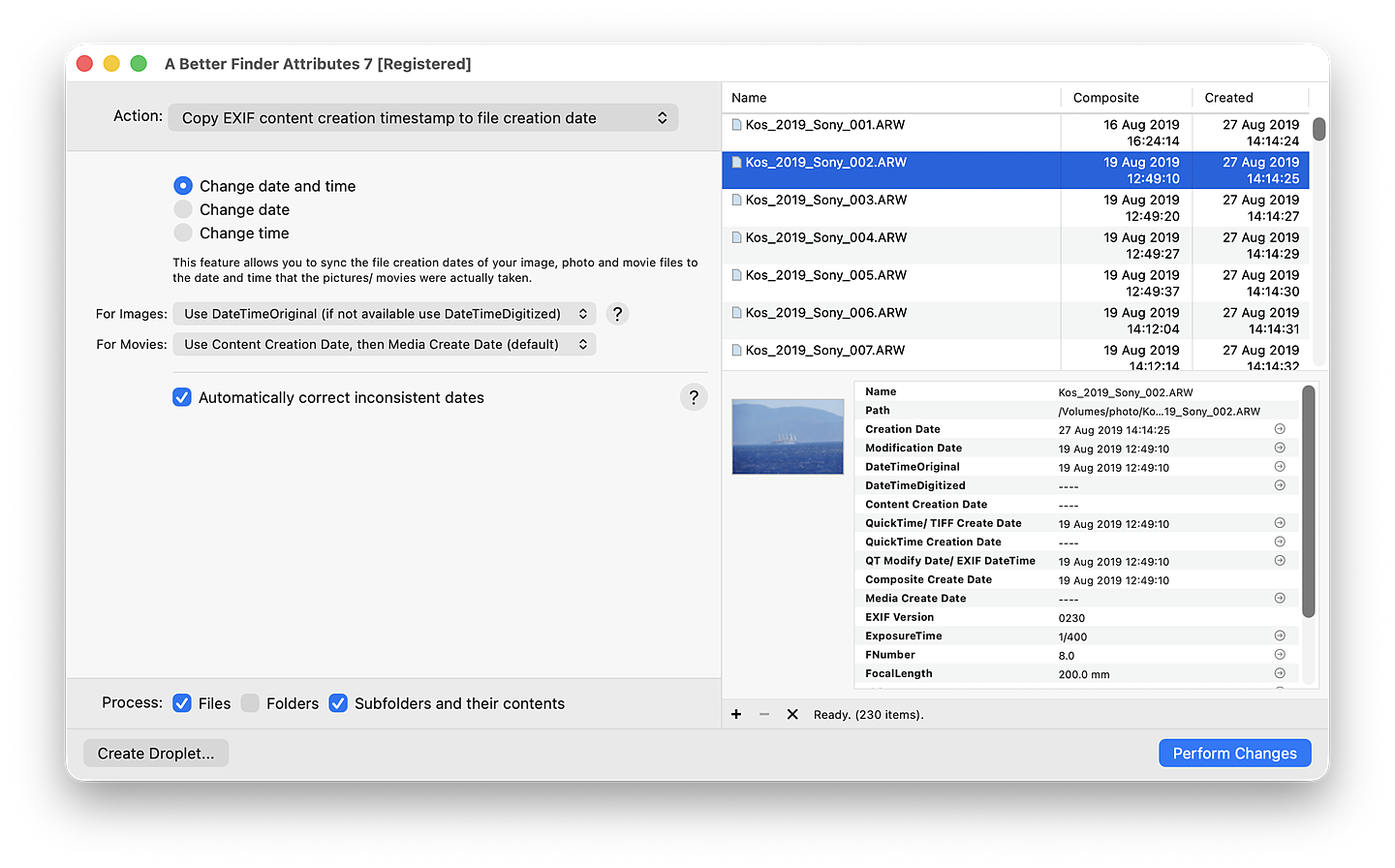
The preview shows each photo’s Composite capture date (assembled from its EXIF fields) beside its current Created date; running the action copies that Composite date onto the file’s creation date, so the folder then sorts chronologically in the Finder.
Two ways to fix sorting (and when to use each)
There are three honest approaches to the same problem:
- Re-date the files (this guide): keep the filenames, copy the real capture date onto the file dates. Best when you want photos to sort by when they were taken, everywhere, without changing their names.
- Rename with sequence numbers: give the files meaningful names plus a zero-padded number so they sort by name. Best when you want tidy, descriptive names and the order baked into them. See How to rename photos with sequence numbers.
- Rename by capture date: bake the moment itself into the name —
2026-07-14_18-42-31.jpgsorts chronologically by name on any system. See How to rename photos by date taken on a Mac.
Common pitfalls
- Keep a backup of your originals. Some editing apps rewrite or strip embedded dates on save.
- Movies and RAW use different date fields. A recipe that only reads
DateTimeOriginalwill miss them; make sure your tool falls back to Content Creation Date / Media Create Date. - Created can’t be later than modified. macOS reconciles these; a good tool sets both sensibly.
FAQ
Why are my photos out of order in the Finder after copying them? Copying reset each file’s created date to today, and the Finder sorts on that, not on the EXIF date the photo was taken. Sync the EXIF date onto the file date and the order comes back.
Does the Finder sort photos by the date they were taken? No. The Finder sorts by the file-system created and modified dates. Apple Photos sorts by the embedded date taken, which is why the same photos can look correctly ordered in Photos but not in a Finder folder.
Will this change the photos themselves? No. Setting the file’s created and modified dates doesn’t alter the image or its embedded date taken. You’re only correcting the file-system dates the Finder reads.
What about RAW files and videos? Their capture time is stored in different fields (RAW often
still has DateTimeOriginal; movies use Content Creation Date or Media Create Date). Use a tool
that reads the right field per format.
Can I just rename the files instead? Yes. Renaming with zero-padded sequence numbers makes them sort by name. See How to rename photos with sequence numbers.
Frank Reiff is the developer of A Better Finder Attributes, a Mac utility for file and photo dates in continuous development since 1996. Related: How to change file dates on a Mac, or get in touch with a sorting problem this guide doesn’t cover.