Applies to macOS Ventura through macOS 27
The short answer: every digital photo records the moment it was taken in its EXIF metadata, and
the most durable thing you can do for a photo collection is to put that moment into the filename:
2026-07-14_18-42-31.jpg sorts chronologically in any program, on any computer, forever. The
Finder can’t read EXIF, so this takes either the free command-line
ExifTool or a dedicated renaming utility with a preview.
A disclosure: I’m the developer of A Better Finder Rename, a paid batch file renamer for Mac that does exactly this. The free route is covered honestly below.
One distinction before we start, because it decides which guide you need: this page is about using the capture date to build a filename. If the dates themselves are wrong — the camera clock was off, scans carry today’s date — fix the dates first: see How to change file dates on a Mac. Wrong dates make wrong filenames.
Why date-based filenames beat everything else
- They sort chronologically everywhere — Finder, Windows, Linux, web servers, backup tools — with no reliance on file dates, which copying and syncing can mangle.
- They’re unique across your whole collection. Two trips can both have a
Beach 001.jpg; only one photo was taken at2026-07-14_18-42-31. - They carry meaning. A filename that tells you when is halfway to telling you what.
The format matters, though:
2026-07-14_18-42-31.jpg      ✓ sorts correctly, safe everywhere
14-07-2026 18:42:31.jpg      ✗ doesn't sort (day first) and colons are
                               forbidden or troublesome in filenames
Year first (YYYY-MM-DD), then time, no colons or slashes. Colons are reserved on macOS and
Windows alike; stick to dashes and underscores and the name survives any file system, URL, or
backup medium.
Which date, exactly?
A photo file carries more dates than you’d think, and picking the wrong one is the classic mistake:
- EXIF
DateTimeOriginal— when the shutter fired. This is the one you almost always want. - EXIF
CreateDate/DateTimeDigitized— when the file was written; for a camera it matches the shutter time, for a scan it’s the moment of scanning, not the day the print was taken. - File system Created / Modified dates — when the file was created on this disk. Copying, downloading and editing can all reset them. Use only as a last resort for files with no EXIF.
- Movies are different: video files store their creation time in their own metadata (and often in UTC rather than local time), so a mixed folder of photos and clips needs a tool that reads both — and some attention to time zones, below.
The free way: ExifTool
ExifTool is the command-line gold standard for photo metadata. One line renames every photo in a folder after its capture date:
exiftool -d "%Y-%m-%d_%H%M%S%%-c.%%e" "-FileName<DateTimeOriginal" /path/to/photos
Reading that pattern: %Y-%m-%d_%H%M%S is the date format, %%-c appends -1, -2, … whenever
two photos would otherwise get the same name, and %%e keeps the original extension. RAW formats
are supported, and "-FileName<CreateDate" handles most video files.
The honest caveats, as with everything command-line: there’s no preview and no undo — a mistyped pattern renames a thousand files wrongly in a blink — so always test on a copied folder first. Sidecar files (XMP) don’t follow their images automatically, and combining the date with other changes (a location prefix, a counter, text cleanup) means learning more of ExifTool’s considerable syntax. If you’d rather point-and-click for the basic case, the free ExifRenamer has been around for years.
With a preview: A Better Finder Rename
Renaming by capture date is one of the jobs the batch file renamer A Better Finder Rename was built for, and the reason photographers make up so much of its user base:
- EXIF dates from every common format, RAW files included, inserted into the name in any format you choose — prefix, suffix, or the whole name. The Date & Time ▸ Rename to date/time action set to Content Creation Date (e.g. EXIF) is all it takes.
- A live preview of every new name before a single file is renamed, with conflict detection — the same-second problem shows up before it bites.
- Burst photos handled automatically: images are sorted using their sub-second EXIF timing,
and when two would still get the same name, conflict resolution appends a distinguisher —
a,b,c, … in shooting order, with the scheme fully customizable (see conflict resolution in the manual). - File pairing keeps RAW+JPEG+XMP groups in lockstep, so
IMG_4302.CR3and its sidecars all become2026-07-14_18-42-31together (see File Pairing in the manual). - Time zones, handled (version 12): rename using the local time where the photo was taken, or translate everything into your own time zone — your choice, and mixed photo/video folders stop being an hour off.
- Choose the date field when a camera writes odd timestamps: version 12 lets you customize which metadata field counts as the shooting date.
- One pass, several steps: capture date + location text + zero-padded counter in a single previewed operation.
It’s US$29.95 / €29.95 as a one-time purchase, with a free trial (up to ten files at a time) to confirm it reads your camera’s files before you pay.
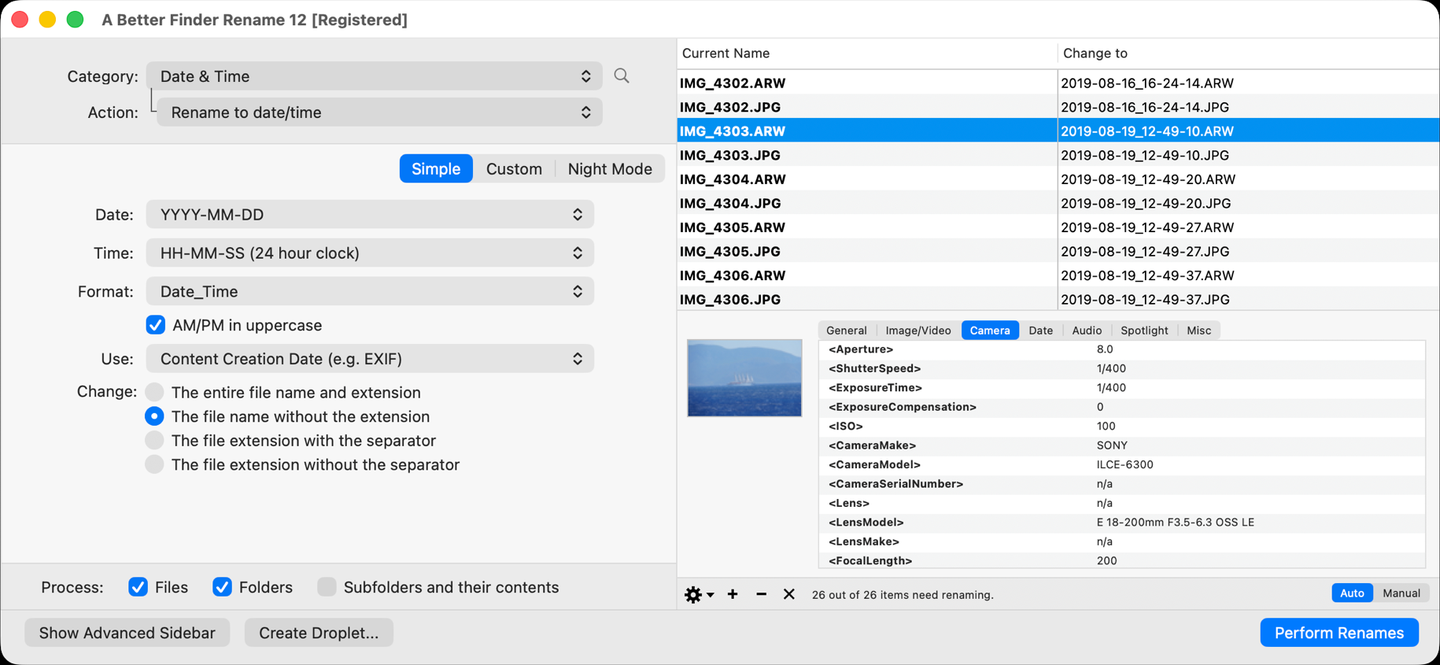
A RAW+JPEG shoot renamed by capture date, previewed before anything is touched: each IMG_ pair
becomes the same YYYY-MM-DD_HH-MM-SS base name, and the metadata panel shows the EXIF data the
names are built from.
The tricky cases
- Two photos in the same second. Burst mode produces them constantly. In ExifTool, the
%%-ccollision suffix covers it. A Better Finder Rename sorts bursts by their sub-second EXIF timing and resolves any remaining clashes automatically, appendinga,b,c, … in shooting order (the distinguisher scheme is customizable). - Time zones. Older cameras stamp plain local time as set on the camera; newer cameras and phones also record the UTC offset (in EXIF 2.31’s offset fields) — though not all photo-management software honors it; videos often store UTC. A folder mixing these can interleave wrongly by several hours. Version 12’s timezone translation exists for exactly this; with ExifTool it’s manual offset arithmetic.
- Scans and photos with no EXIF. A scanned print’s EXIF date (if any) is the scanning moment. Your options: fall back to file dates if they mean something, or first write correct dates into the files — that’s A Better Finder Attributes territory, covered in the date-changing guide — and then rename from the corrected dates.
- Edited copies. An export from your editor gets a fresh
CreateDate; rename fromDateTimeOriginal, which editors preserve, not from file dates.
Common pitfalls
- Renaming before fixing a wrong camera clock. The bad time gets baked into every filename. Fix dates first, rename second.
- Colons and slashes in the date format. Forbidden or mistranslated on most file systems; use dashes and underscores.
- Renaming one half of a RAW+JPEG pair. The pairing breaks silently; rename pairs together.
- Trusting file dates. They change when files are copied or edited; EXIF doesn’t.
- No pilot batch. Whatever the tool: run 20 copied files first, inspect, then do the real thing.
FAQ
Can the Finder rename photos by date taken? No. The Finder’s Name and Date format uses the current date, and file dates at best — it can’t read EXIF capture dates. You need ExifTool or a dedicated renamer.
What’s the best date format for photo filenames? YYYY-MM-DD_HH-MM-SS, e.g.
2026-07-14_18-42-31.jpg. Year-first makes names sort chronologically; dashes and underscores are
safe on every file system, where colons and slashes are not.
What about two photos taken in the same second? A good tool resolves the clash for you:
ExifTool’s %%-c appends -1, -2, …; A Better Finder Rename sorts bursts by sub-second EXIF
timing and appends a customizable distinguisher (a, b, c, …) in shooting order, so
2026-07-14_18-42-31a.jpg really was taken before …31b.jpg.
Do RAW files work? Yes — RAW formats carry the same EXIF dates. The extra requirement is keeping each RAW in sync with its JPEG and XMP sidecar, which is what file pairing is for.
The dates on my photos are wrong — rename anyway? No: fix the dates first (camera-clock offset, scans), then rename. See How to change file dates on a Mac.
My videos come out hours off. Video metadata is often stored in UTC while photos use local time. Use a tool with timezone translation, or correct the offset before renaming.
Frank Reiff is the developer of A Better Finder Rename, the Mac batch renamer in continuous development since 1996. Start with How to rename photos on a Mac for the broader picture, or get in touch with a renaming problem this guide doesn’t cover.