Applies to macOS Ventura through macOS 27
The short answer: the reliable way to make files sort in a chosen order is to rename them with a
meaningful base name plus a zero-padded sequence number, so Holiday001.jpg sorts before
Holiday010.jpg instead of after it. Since macOS 26 the built-in Finder renamer finally pads numbers
automatically (to five digits); on older systems, and whenever you need control over the padding or
want to number files in capture-date order, you’ll want the Terminal or a dedicated renamer.
A disclosure: I’m the developer of A Better Finder Rename, a paid batch file renamer for Mac. This starts with the free tools and is honest about where they stop. If your real goal is photos in date order without changing their names, re-dating them may suit you better than renaming, see How to fix photo sorting in the Mac Finder.
Why padding is the whole game
Names sort as text, one character at a time, so 2 comes after 10 (because 2 is greater than
1). Pad the numbers to a fixed width and the problem disappears: 001, 002, … 010 sorts the way
you’d expect. There’s more on this in How to batch rename files on a
Mac; this guide is the photo-numbering deep dive.
The free fixes
The Finder’s built-in renamer (macOS 26 and 27)
Select the photos, right-click, choose Rename…, pick Format ▸ Name and Counter, type a base
name, and macOS 26 or 27 produces Holiday00001.jpg, Holiday00002.jpg, automatically padded to five
digits. For a simple, one-step “name them all in order” job this is genuinely all you need. Its
limits: the width is fixed at five digits (no way to get exactly 001), it’s one step only, and on
macOS Ventura through Sequoia it doesn’t pad at all (you get Holiday1, which sorts wrongly).
The Terminal
In zsh you control the width yourself with printf:
# rename to Holiday001.jpg, Holiday002.jpg, … in the current sort order
i=1; for f in *.jpg(n); do mv "$f" "$(printf 'Holiday%03d.jpg' $i)"; ((i++)); done
Powerful and free, but with no preview and no undo, and the numbering follows whatever order the shell lists the files in, which may not be the order you want.
Where the free tools run out
A dedicated renamer earns its place when you need to:
- Choose the padding width yourself (
01,001,0001), not a fixed five digits. - Number files in capture-date order (sort by EXIF date taken first, then number), so the sequence matches when each photo was actually shot.
- Combine the number with other steps in one pass: a base name, the date, a counter, text cleanup.
- Preview every new name before committing, and run it across tens of thousands of files.
- Continue a sequence across separate batches with an auto-increment counter.
Doing it with a preview
In A Better Finder Rename, the Sequence numbers actions add a number with the padding and start value you choose, and you can sort the list by EXIF capture date before numbering so the order is chronological rather than alphabetical. Everything shows in a live preview before any file is renamed, and the auto-increment counters let a later batch carry on from where the last one stopped. It’s version 12, US$29.95 / €29.95 as a one-time purchase, with a free trial.
Giving photos custom names and zero-padded sequence numbers, previewed before renaming.
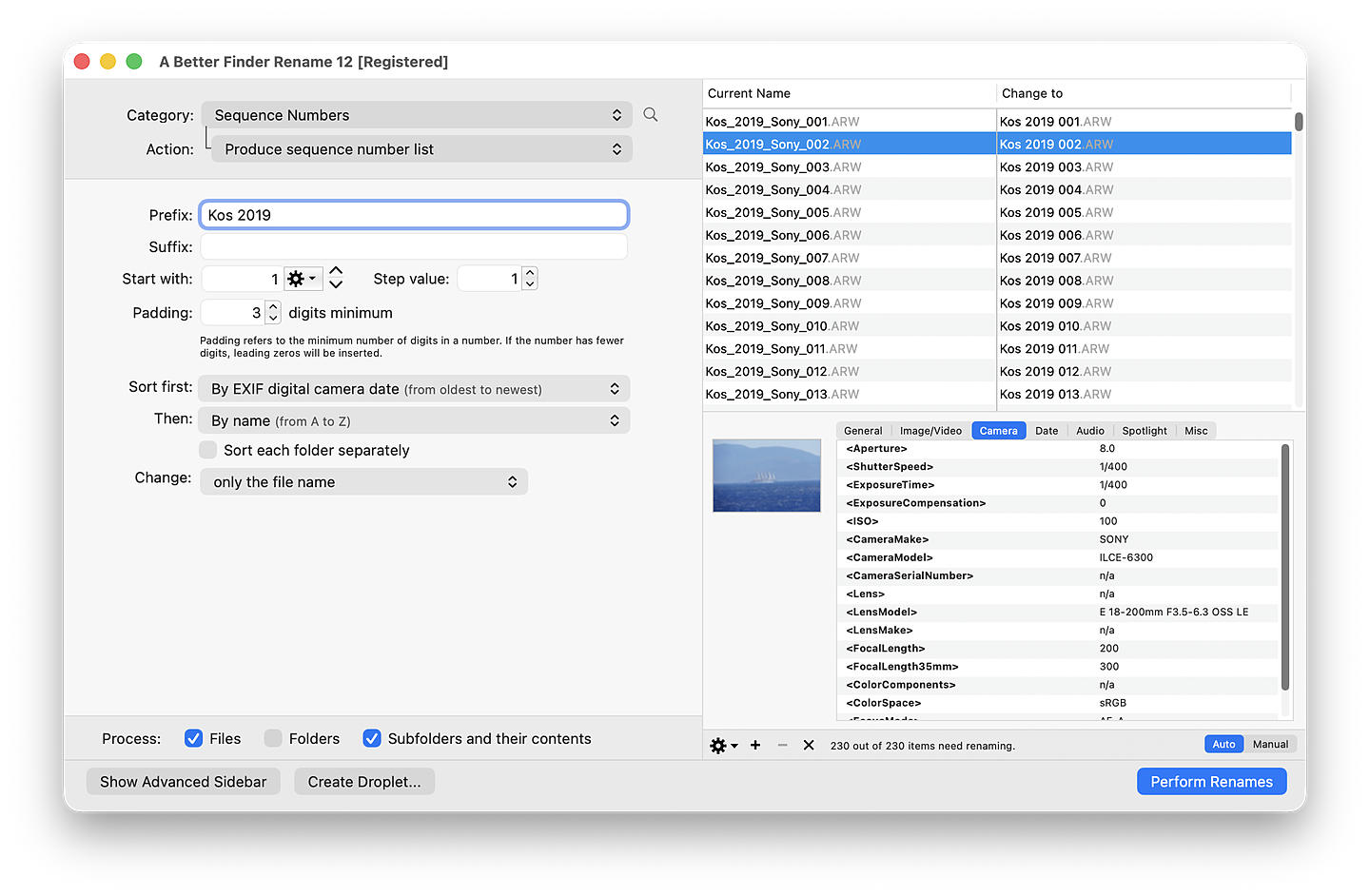
A custom name plus a zero-padded counter, numbered in capture-date order, shown in a live preview before any file is renamed.
Two ways to fix sorting (and when to use each)
- Rename with sequence numbers (this guide): the order is baked into tidy, descriptive names. Best when you want meaningful filenames and don’t need to preserve the originals.
- Re-date the files: keep the filenames and copy each photo’s real capture date onto its file date, so it sorts by when it was taken. Best when names should stay put. See How to fix photo sorting in the Mac Finder.
A third option bakes the capture time itself into the name — 2026-07-14_18-42-31.jpg sorts
chronologically without any counter: see How to rename photos by date taken on a
Mac.
Common pitfalls
- Decide what order “first” means. Alphabetical, date created, or date photographed all differ; sort the list the way you want before numbering.
- Pad enough digits. A folder that might grow past 999 needs four digits now, or it resorts later.
- Protect the extension. Number the name, not the
.jpg; good tools leave the extension alone.
FAQ
Why do my numbered photos sort as 1, 10, 11, 2 instead of 1, 2, 3? Names sort as text, so 10
comes before 2. Pad the numbers to a fixed width (01, 02, … 10) and they sort correctly.
Can the Finder add leading zeros? On macOS 26 and 27, yes: Name and Counter pads to five digits automatically. You can’t choose a different width, and on Ventura through Sequoia it doesn’t pad at all. For a specific width, use a dedicated renamer.
How do I number photos in the order I took them? Sort the files by their EXIF date taken before numbering, so the sequence follows capture time rather than filename. The Finder and Terminal can’t do this directly; a dedicated renamer can.
Should I rename or re-date my photos? Rename when you want the order in the names; re-date when you want to keep the names and have them sort by capture time. See How to fix photo sorting in the Mac Finder.
Frank Reiff is the developer of A Better Finder Rename, the Mac batch renamer in continuous development since 1996. Start with How to batch rename files on a Mac, or get in touch with a renaming problem this guide doesn’t cover.