Applies to macOS Ventura through macOS 26
The short answer: a file manifest is a document that records exactly what is in a folder: every file, the details that matter (sizes, dates, paths, metadata), plus where the list came from and when it was generated. Nothing built into macOS produces one. On a Mac you can assemble a rough manifest for free from a Terminal listing, or produce a finished, paginated PDF with a dedicated file list tool. This guide covers what makes a listing a manifest, the free route and its limits, and the tricky cases: folders with thousands of files, more columns than fit a page, and file names long enough to break layouts.
A disclosure: I’m the developer of Nifty File Lists, a paid Mac tool built around exactly this job. The free route is covered honestly first.
Three boundary checks before we start:
- You need a readable record of a folder’s contents to deliver, file or archive → this guide.
- You want to verify that a copy of a folder matches the original → a manifest with
checksum columns is the reference record for that (covered below), but the comparison itself
is a separate step: regenerate a manifest of the copy and diff the two, or use
shasum -cin the Terminal. - You just want to print a quick list of a folder for yourself → the lighter version of this job: how to print a list of files in a folder on a Mac.
What makes a listing a manifest
Anyone can dump file names into a text file. A manifest earns the name by answering, months later and in someone else’s hands, the question “what exactly was delivered, from where, and when?” That takes four properties:
- Completeness. Every file, and every column you chose, on the page. A listing that silently cuts off whatever doesn’t fit is worse than none, because it looks complete.
- Provenance. The document itself states the source folder, the number of files and the date it was generated. Without that, it’s an anonymous table.
- Durability. It survives paper and PDF: pagination, page numbers, headers on every page, readable in black and white. A manifest that only works as a live spreadsheet isn’t a record, it’s a session.
- The right columns for the audience. A wedding client cares about file names, counts and image details. A discovery request cares about names, paths, sizes and every timestamp. An archive cares about paths and formats.
Who actually makes these? Photographers and video editors closing out a client delivery. Agencies handing a brand’s assets to the next agency. Lawyers and paralegals producing a file list alongside a document production. Anyone filing an insurance claim over a lost drive, offboarding a project, or labelling a cold-storage archive with what’s actually in it.
The free route: Terminal plus TextEdit
macOS will give you the raw material for free. A recursive listing with sizes and dates:
ls -lhR "/Volumes/Deliveries/Larsen Wedding" > ~/Desktop/manifest.txt
open -e ~/Desktop/manifest.txt
Then, in TextEdit: add a heading yourself with the folder, the date and the file count, print to PDF via the print dialog, and you have a manifest of sorts. For a one-off handoff between technical people, this is honestly serviceable.
Where it falls short of the four properties above:
- Provenance is manual. You type the header yourself, every time, and nothing checks that the count you typed matches the listing.
- The columns are
ls’s columns. Permissions and owner noise you don’t want; the capture dates, durations, authors and dimensions you do want aren’t available at all. (mdlswill print Spotlight metadata for a single file, but turning that into a table across a folder is a scripting project, not a command.) - Durability is luck. Long paths wrap wherever TextEdit breaks them, there are no page headers past page one, and a thousand-line dump is technically complete but practically unreadable.
- The spreadsheet variant of this route (paste names into Excel, add columns by hand, format, export PDF) produces a nicer page and costs twenty minutes per delivery, plus it’s stale the moment the folder changes.
The dedicated tool: Nifty File Lists
Nifty File Lists turns a folder into a finished manifest in one pass: point it at the folder, tick the columns, choose PDF, save. The details are where the manifest properties live.
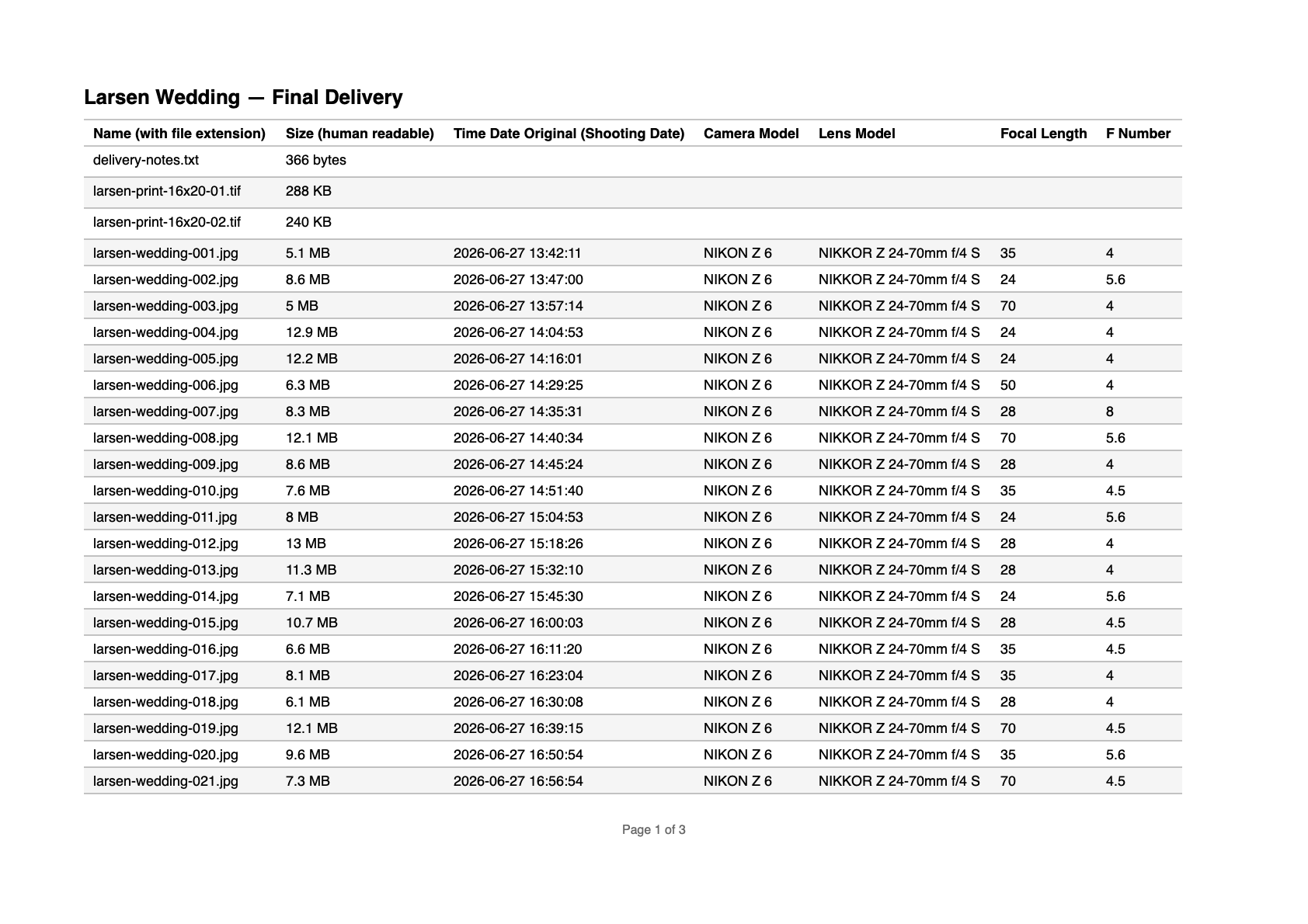
Completeness is enforced by the layout engine. Most file-list utilities quietly render only the first handful of columns and drop the rest off the page edge, with no warning. Nifty File Lists never truncates: if your columns don’t fit the page width, it narrows them intelligently, then steps the font down from 11 to 8 points, and only if the table is still too wide splits it into sequential tables, repeating your identifying column on each one so every row stays traceable. Long file names and paths wrap onto extra lines within their row. Nothing is ever silently dropped; that is the whole point of a manifest.
Provenance is stamped automatically. Every manifest ends with a provenance block (on by default): the source folder, the item count, the generation date and time, and the number of columns. The document says what it is without you typing anything.

Durability is the PDF’s job. Column headers repeat on every page; “Page X of Y” numbering runs continuously across the document; split tables carry a “Table N of M” running header so they stay navigable. Paper sizes are A4, US Letter and Legal, portrait or landscape, and the zebra row shading is calibrated to reproduce on a black-and-white printer. A live preview shows the actual finished pages while you adjust columns and settings, so what you save is what you checked.
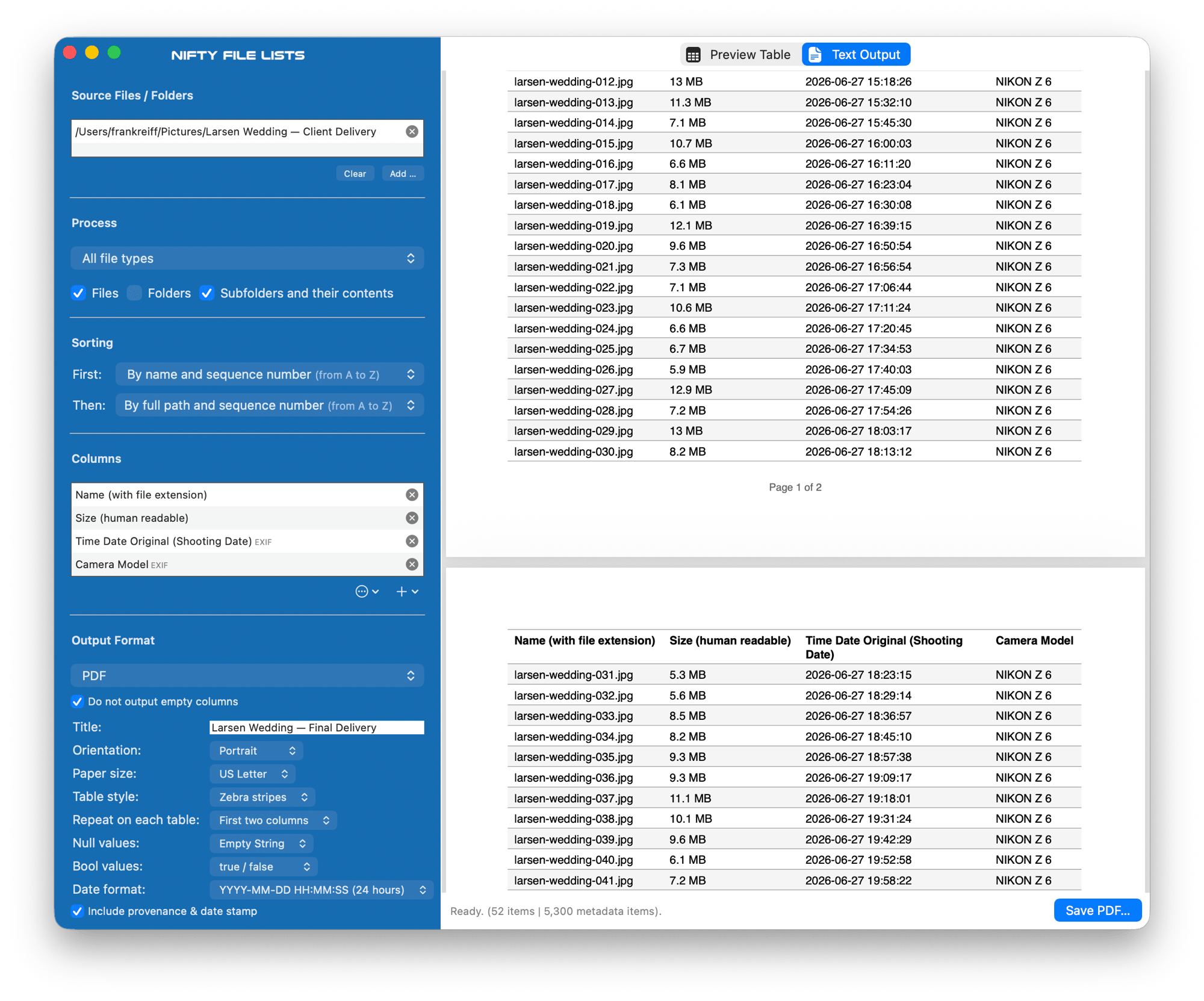
The page break in the live preview: page 1 signs off with its page number, and page 2 repeats the column headers before the rows continue. Nobody reading page 14 of a manifest should have to flip back to page 1 to remember what the third column is.
The columns fit the audience. Beyond names, sizes, paths and every timestamp the file system tracks, the column list reaches into Spotlight metadata: photo capture date, camera, lens, exposure, dimensions and GPS position; audio and video codecs, durations and sample rates; document titles, authors and copyright. Columns that turn out to be empty for your particular files are left out automatically, so the manifest holds data, not blank grid. Tick the combination once and save it as a column set (“Client delivery”, “Discovery list”), and the next manifest is two clicks. When only part of the folder is in scope, the scan can be filtered to just images, video, audio or documents, and subfolders are included or excluded with a switch.
Integrity is a column like any other. For chain-of-custody, archive fixity and transfer-verification work, add per-file checksum columns: MD5, SHA-1, SHA-256, SHA-384 or SHA-512. A manifest with a SHA-256 column is more than a record of what existed; regenerate it later, or against the recipient’s copy, and matching hashes prove the file contents are byte-for-byte unchanged. (Hashing has to read every byte of every file, so expect the scan of a large delivery to take correspondingly longer when a hash column is ticked.)
For handoffs where paper isn’t the medium, the same list saves as aligned plain text (with the same provenance block), Markdown, styled dark-mode-aware HTML, CSV for a spreadsheet, or JSON. Everything runs locally; the files and the lists never leave your Mac, which tends to be a hard requirement in exactly the situations manifests are made for.
Nifty File Lists is US$19.95 as a one-time purchase, with a free trial that never expires: the only limitation is that trial output covers the first ten files, which is enough to proof the manifest format against your real folders before buying.
The tricky cases
- Thousands of files. Completeness means the row count is what it is. The scanner is multi-threaded and handles very large folders; on paper, the repeated headers and page numbering are what keep a 60-page manifest usable. For discovery-scale listings, consider whether the deliverable should be PDF (for reading and filing) plus CSV (for the other side’s database), generated from the same column set so the two agree.
- More columns than a page can hold. This is where other tools silently lose data. The narrow-then-scale-then-split cascade means a 20-column manifest becomes two or three sequential tables, each repeating the file-name column, rather than an 8-column excerpt pretending to be complete. Landscape orientation and Legal paper buy a lot of width before a split is needed.
- Very long file names and paths. They wrap within the row, growing the row taller. If full absolute paths make the table unwieldy, list the relative path instead; the provenance stamp already records the folder they’re relative to.
- The manifest inside the folder it describes. If you save the PDF into the delivery folder itself, a regenerated manifest would then list the previous manifest. Generate last, or keep the manifest alongside the folder rather than in it.
- A folder that’s still changing. A manifest is a snapshot; the generation timestamp in the provenance stamp is what anchors it. Regenerate after the final change, not before.
Common pitfalls
- A Finder screenshot as the record. It cuts off at the window edge, shows only the columns and sort order that happened to be on screen, and proves nothing about subfolders. It reads as what it is: an afterthought.
- A bare CSV as the deliverable. CSV is the right data format and deliberately carries no provenance or layout; recipients open it in Excel, dates arrive mangled by locale, and nothing on it says where it came from. Send the PDF as the record, attach the CSV as the data if the recipient needs to sort and filter.
- Trusting a tool that fits the page by discarding columns. Check any manifest tool against a wide column selection once: count the columns in the output against the columns you selected. If they don’t match and nothing warned you, that tool cannot make manifests.
- A properties-only manifest where integrity is the question. Names, sizes and dates show what existed; they don’t prove contents are unchanged. If a dispute could turn on whether a file was altered in transit or storage, include a checksum column (SHA-256 is the sensible default) so the manifest doubles as the integrity reference.
FAQ
What is a file manifest? A document recording the complete contents of a folder: every file with its relevant properties, plus provenance (source folder, file count, generation date). The term comes from shipping: the manifest is the list of what the cargo is supposed to contain.
What’s the difference between a manifest, an inventory and a directory listing? Usage overlaps, but roughly: a listing is raw output for your own eyes, an inventory catalogs what exists (often across many folders or drives), and a manifest documents a specific folder at a specific time, usually because it’s being handed to someone. The requirements in this guide are the manifest-grade ones.
Can I make a file list for legal discovery on a Mac? Yes; this is the same job with stricter habits. Include name, relative path, size and all timestamps, and a SHA-256 column where integrity could be questioned; generate the PDF as the filed record and a CSV from the same column set as the working copy; and regenerate rather than hand-edit if the folder changes, so the provenance stamp stays truthful.
Can the manifest include photo and video metadata? With a metadata-aware tool, yes: capture date and time, camera and lens, dimensions, GPS position, durations and codecs can be columns like any other. That turns a delivery manifest into a shot-level record, which is usually what photo and video clients actually want. If the next step is renaming the files to match, see renaming photos on a Mac.
Does it include checksums or hashes? Yes. MD5, SHA-1, SHA-256, SHA-384 and SHA-512 are available as per-file columns and appear in the manifest like any other column. Use SHA-256 unless the receiving side specifies otherwise; MD5 and SHA-1 are fine for catching accidental corruption but are no longer considered collision-resistant against deliberate tampering.
Does any of this upload my file information anywhere? The Terminal route obviously not, and Nifty File Lists runs entirely on your Mac: no accounts, no cloud, no telemetry. For client work and legal matters that’s usually not negotiable.
Can I reproduce the same manifest format next month? Yes: save the column combination as a column set and reuse it. The provenance stamp dates each generation, so successive manifests of the same folder are distinguishable records, not confusable copies; and if the column set includes a hash column, comparing two generations shows precisely which files changed in between.
Frank Reiff is the developer of Nifty File Lists and of A Better Finder Rename, Mac file-management tools in continuous development since 1996. Files usually get named and organized before they get documented: start with batch renaming files on a Mac if yours aren’t there yet, print-only needs are covered in printing a list of files in a folder, or get in touch with a manifest problem this guide doesn’t cover.