Applies to macOS Ventura through macOS 27
The short answer: it depends on where your photos live. If they’re files in a folder, rename them in the Finder: click the name (or select the file and press Return) for one photo, or select many, right-click and choose Rename… for a whole batch. If they live inside the Photos app, there is no filename to rename — you give photos titles instead, and choose sensible filenames when you export. Mixing these two worlds up is the single biggest source of photo-renaming confusion on the Mac, so let’s untangle them first.
Either way, the filename is the name worth getting right. It’s the only name a photo keeps — through every export, email, backup, platform switch and app migration — and inside Photos a well-named file even labels itself: wherever you haven’t set a title, Photos displays the filename in its place.
A disclosure: I’m the developer of A Better Finder Rename, a paid batch file renamer for Mac. It only enters the picture for the heavier lifting at the end; the Finder and Photos sections below are free.
First: which of these are you actually trying to do?
A photo on a Mac can carry up to four different “names”, and they’re independent of each other:
| The name | Where you see it | How to change it |
|---|---|---|
| Filename of a photo file | Finder, IMG_4302.jpg |
Rename in the Finder (below) |
| Title inside Apple Photos | Photos, under the picture | Info panel in Photos (below) |
| Original filename inside the Photos library | Photos’ Info panel | You don’t — it’s a record of the name at import |
| Exported filename | files Photos writes out | Export options (below) |
Renaming one of them never changes the others. A photo can be IMG_4302.jpg on disk, appear as
“Lighthouse at dusk” in Photos, and export as Kos 2026 - 14.jpg — all at once.
Of the four, only the filename belongs to the photo itself. Titles and the original-name record live in Photos’ database and stay behind whenever the file moves on, and an exported filename is decided afresh at every export. Two decades of app migrations (iPhoto, Aperture, Photos…) have shredded plenty of carefully curated titles and albums along the way; the filename is the one label that has survived every transition since the nineties.
How to rename a photo file in the Finder
For photos that live in ordinary folders (a camera card you’ve copied over, a Downloads folder, a scans archive), renaming is built into the Finder. To rename one photo:
- Click the photo once to select it (or click directly on its name).
- Press Return, then type the new name.
- Press Return again to confirm.
To rename a batch: select the photos, right-click, choose Rename…, and use Replace Text, Add Text, or Format with a name and counter. ⌘Z immediately afterwards undoes the whole batch.
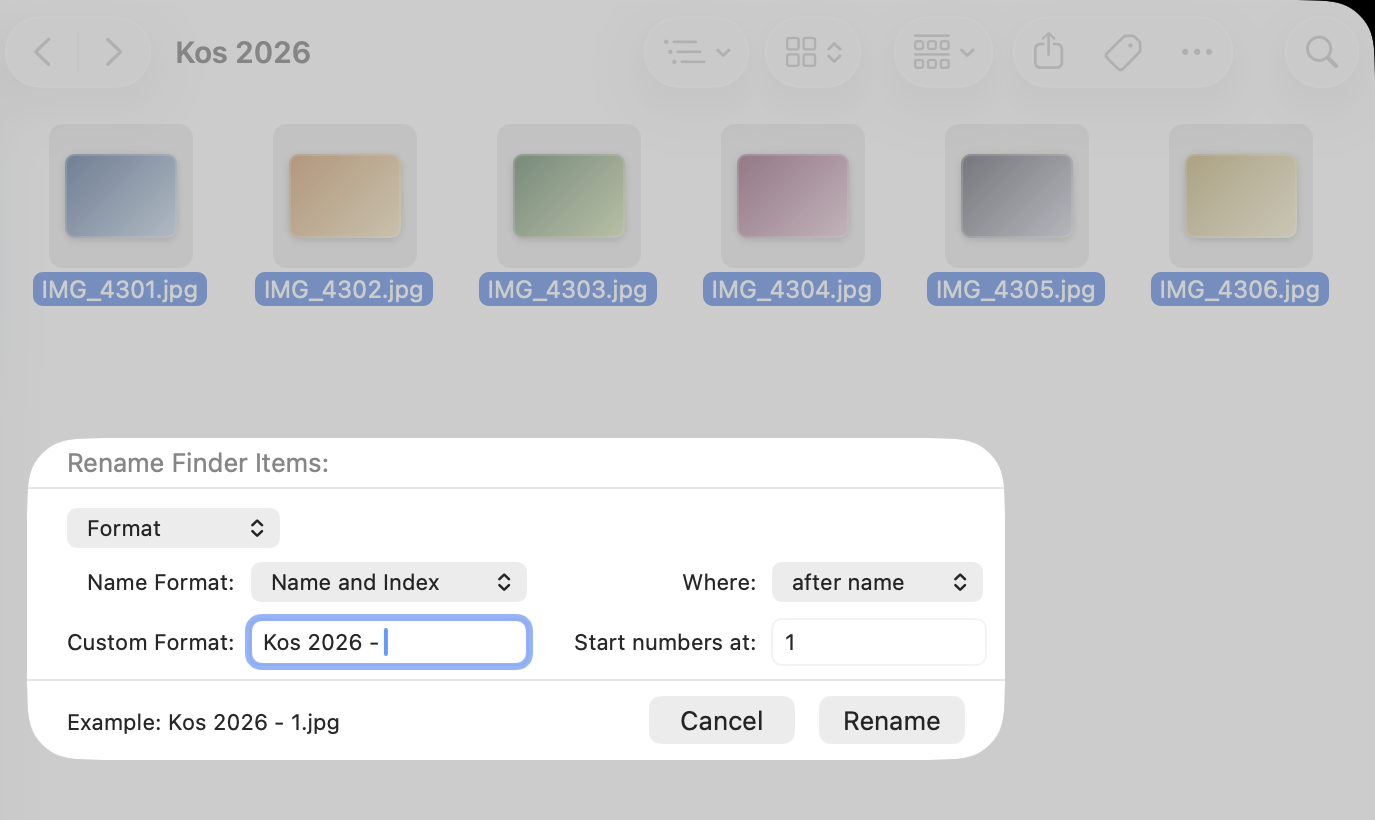
The Finder’s built-in batch renamer (select the photos, right-click, Rename…): Format mode
turns IMG_4301.jpg, IMG_4302.jpg… into Kos 2026 - 1.jpg, Kos 2026 - 2.jpg, with a live
example before you commit.
That’s genuinely all there is to it for simple jobs. The Finder’s renamer, its limits (no metadata, no control over number padding before macOS 26, one step at a time), and the Terminal alternatives are covered in depth in the main guide: How to batch rename files on a Mac.
In Apple Photos, you rename titles, not files
Photos you’ve imported into the Photos app live inside its library, and the app deliberately doesn’t expose their filenames for renaming. What it offers instead is a title: select a photo, press ⌘I, and type into the title at the top of the Info panel — the bold line above the file name. (Don’t confuse it with the Caption field lower down: a caption is a longer description, and Photos turns neither captions nor keywords into filenames.) Selecting several photos and pressing ⌘I lets you give them all the same title in one go. Titles show up under pictures in the grid (turn on View ▸ Metadata ▸ Titles), they’re searchable, and they travel with the photo through iCloud — but they do not change any filename anywhere.
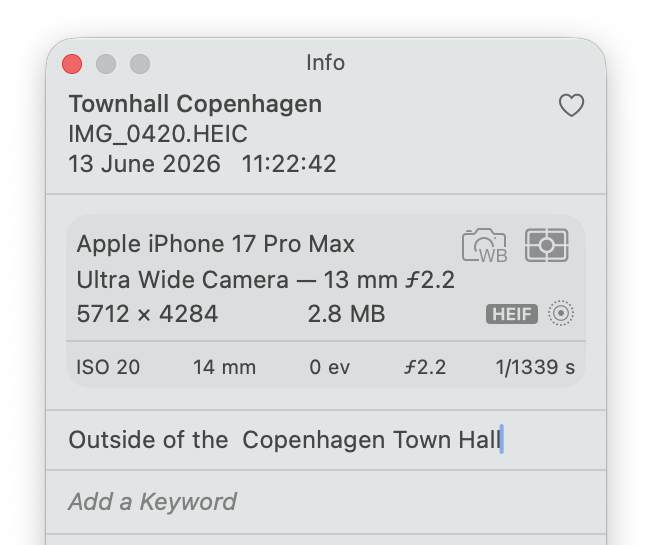
In the Info panel (⌘I) the Title is the bold line at the top — here “Townhall Copenhagen”, above
the file name IMG_0420.HEIC. That’s what shows under the photo and what export’s Use Title
turns into a filename. The Caption field below it is just a description; Photos never uses it (or
keywords) as a name.
Here’s the under-appreciated flip side: wherever you haven’t set a title, Photos displays the
filename in the title position, and search matches filenames too. A well-named file labels
itself — import Kos 2026 sunset 014.jpg and that’s what you’ll see under the thumbnail and find
in search, no typing required. Which means the cheapest route to a fully labelled Photos library
isn’t titling thousands of pictures one ⌘I at a time: it’s renaming the files properly before
you import them.
Three more things follow from this design:
- Renaming the files inside the library is off-limits. The Photos library
(
Photos Library.photoslibrary) looks like a single file but is a package full of managed originals. Renaming things inside it behind Photos’ back is unsupported and a good way to hurt your library. If you want different filenames, do it on export or before import. - Sorting in Photos ignores names anyway. Photos orders pictures by date, so renaming or retitling won’t reorder anything. (If wrong dates are your real problem, fix the dates — see How to change file dates on a Mac.)
- The original filename isn’t lost. Photos remembers the name each file had at import and shows it in the Info panel, which is handy for tracing a picture back to its source folder or camera card.
Titles are pleasant, but they live in Photos’ database: the moment a picture leaves the app — exported, shared, attached to an email, handed to a print shop — the title stays behind, and the recipient sees whatever the filename says. A photo named well before import is labelled in Photos and everywhere it ever travels afterwards; a photo titled inside Photos is labelled in exactly one app. Which brings us to getting photos back out.
The round-trip: really renaming photos that live in Photos
There is one honest way to change the names of photos already in your library, and it goes through the Finder:
- Select the photos and choose File ▸ Export ▸ Export Unmodified Original.
- Rename the exported files in the Finder (or with any renaming tool).
- Delete the originals from Photos and empty the Recently Deleted album — and if you use iCloud Photos, let the deletion sync everywhere before continuing.
- Import the renamed files back in.
Photos won’t turn the new filenames into titles — but wherever a photo has no title, Photos
displays its filename instead (grayed out, in the title position) and finds it in search, so the
renamed photos now show their meaningful names throughout the app. If you want them as real titles,
embed the name into the file’s IPTC Title metadata before re-importing (ExifTool:
exiftool "-Title<Filename" *.jpg); Photos picks that field up as the title on import.
Two warnings before you do this at scale: skipping step 3 creates duplicates, and deleting the originals discards their edits, album memberships, keywords and faces — so the round-trip is best done early, before you’ve built organization on top of the photos. What the two exports actually give you, and why the library can’t be worked on in place, is explained in getting photos out of Apple Photos.
Getting photos out of Photos with good names
File ▸ Export ▸ Export … Photos is where Photos finally lets you choose filenames. The File Name option offers four choices:
- Use Title — the titles you set in Photos become the filenames. This is the payoff for
titling: name your pictures once inside Photos, and exports come out as
Lighthouse at dusk.jpginstead ofIMG_4302.jpg. - Use File Name — keeps each photo’s original imported filename.
- Sequential — numbers the exports, with a text prefix you choose (
Birthday - 1,Birthday - 2, …). - Album Name With Number — names the exports after the album they’re in, numbered.
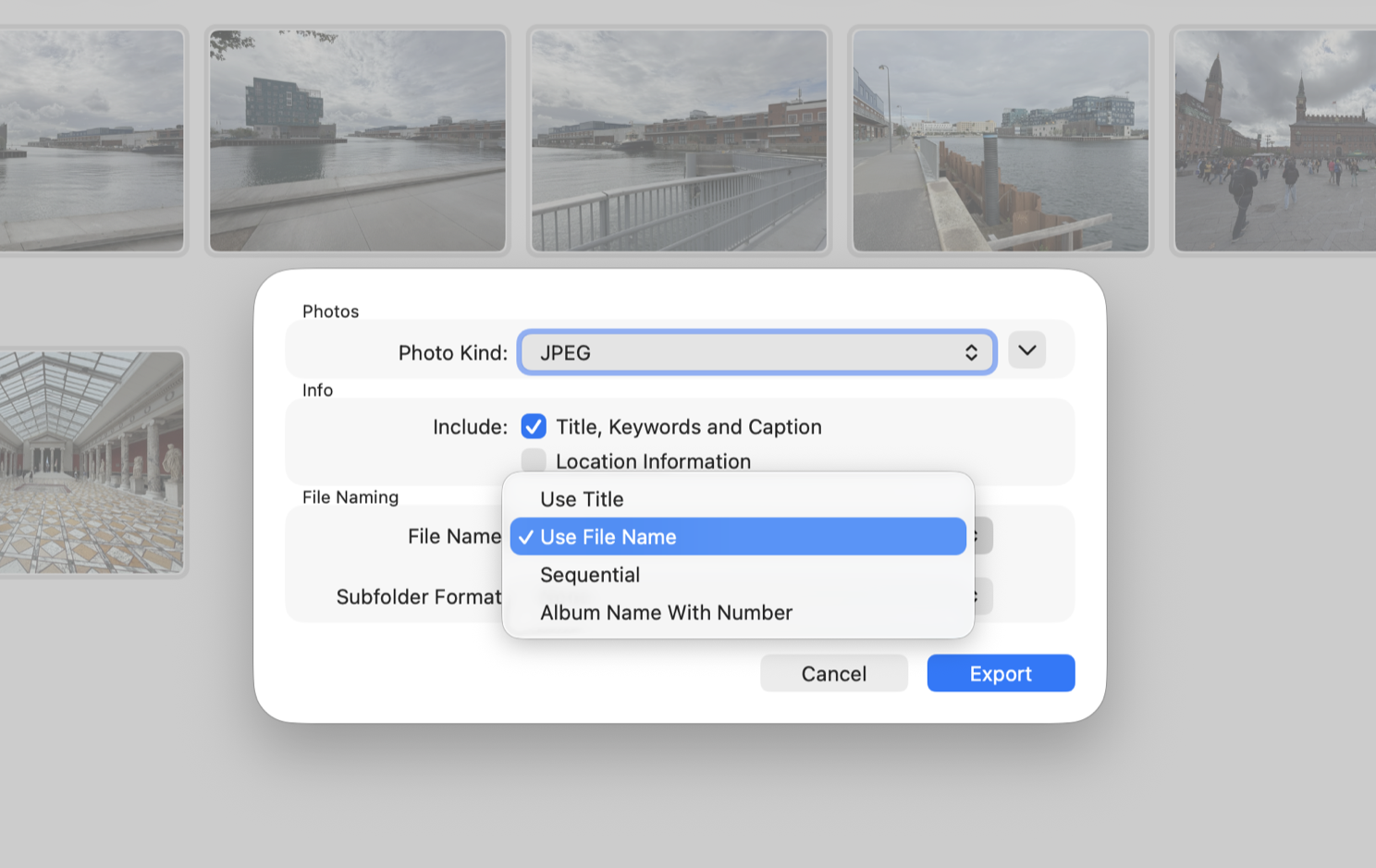
Photos’ export dialog: the File Name menu decides what the exported files are called — titles, original filenames, a numbered sequence, or the album’s name with a number.
The Subfolder Format option can additionally split the export into folders (by moment, for example), and File ▸ Export ▸ Export Unmodified Original hands you the untouched original files — in their original format, with RAW files as RAW, and Live Photos as two files (a still and a video).
If the export’s names aren’t quite right (wrong padding on the numbers, missing date, inconsistent capitalization), don’t redo the export: it’s now a folder of ordinary files, and any renaming tool can finish the job.
Rename photos by their capture date
The most useful photo filenames are usually built from when the picture was taken:
2026-07-14_18-42-31.jpg sorts chronologically everywhere, survives any transfer, and never
collides with another trip’s Beach 001. The capture time lives in the photo’s EXIF metadata, which
the Finder can’t read — this is Terminal or dedicated-tool territory, and it has enough depth
(RAW files, time zones, two photos in the same second, scans with no EXIF at all) that it gets its
own guide: How to rename photos by date taken on a
Mac.
Keep RAW+JPEG pairs and sidecars together
If your camera saves RAW+JPEG, or your editor writes XMP sidecars, renaming becomes a coordination
problem: IMG_4302.CR3, IMG_4302.JPG and IMG_4302.xmp must all end up with the same new base
name or the pairing breaks. The Finder has no concept of file pairs; A Better Finder
Rename 12 handles them natively (see File Pairing in the
manual), keeping every sidecar in lockstep with its
image through any rename.
Give photos sequence numbers that sort correctly
For “name them Wedding 001 to Wedding 850, in the order they were shot” — including why the
zero-padding matters and how to number in capture-date order rather than alphabetically — see
How to rename photos with sequence numbers.
When the free tools are enough — and when they aren’t
For renaming a handful of files, or one-step batch jobs on any number of them, the Finder is enough — and files renamed well before import label themselves in Photos for free. You need more when the job involves metadata (capture dates), file pairs, custom number padding, several steps at once, or enough files that you want to see every new name before committing.
That’s the niche A Better Finder Rename, a batch file renamer for the Mac, has occupied since 1996: it reads EXIF capture dates (RAW formats included), keeps file pairs synchronized, combines date + text + sequence number in one pass, and shows a live preview of every name before a single file is touched. Version 12 is US$29.95 / €29.95 as a one-time purchase, with a free trial that renames up to ten files at a time.
Common pitfalls
- Retitling in Photos and expecting the files to change. Titles are metadata; filenames only change at export (with Use Title).
- Renaming inside the Photos library package. Don’t. Export first, rename the exports.
- Renaming to fix the order in Photos. Photos sorts by date; fix the dates instead.
- Breaking RAW+JPEG pairs by renaming one half. Rename pairs together, always.
- Name collisions. Renaming 400 photos to
Beach.jpgvariants can collide; the Finder stops and warns, shell commands may silently overwrite, and a good renamer shows the conflict in its preview before anything happens.
FAQ
How do I rename a photo on a Mac? In the Finder: click its name (or select it and press Return), type, press Return. In Photos: select it, press ⌘I and set a title — the file itself keeps its name.
How do I batch rename photos on a Mac? In the Finder: select them all, right-click, Rename…. In Photos: you don’t — set titles, or export with Use Title or Sequential naming.
Can I rename photos inside the Photos app? You can give them titles (⌘I), which is what Photos means by a name. To truly change the filenames, use the round-trip: export the unmodified originals, rename them, delete the originals from Photos (and Recently Deleted), and re-import — Photos then displays the new filenames wherever no title is set.
Why are my exported photos called IMG_1234? The export used Use File Name. Export again with Use Title or Sequential, or just batch-rename the exported folder afterwards.
Does renaming photo files break anything? The photos themselves, never — but anything that references them by name (a Lightroom catalog, an edited video project, an HTML gallery) will lose track of renamed files. Rename before building projects on top of them, and keep RAW/JPEG/XMP groups renamed together.
How do I rename photos by the date they were taken? With a tool that reads EXIF: see the date-taken guide.
Frank Reiff is the developer of A Better Finder Rename, the Mac batch renamer in continuous development since 1996. Start with How to batch rename files on a Mac, or get in touch with a renaming problem this guide doesn’t cover.