Applies to macOS Ventura through macOS 27
The short answer: when the new names already exist somewhere else, in a spreadsheet, a database export, a parts catalogue, a class list, the job is to map each old name to its new name from that list rather than to compute names with a pattern. There’s no built-in macOS feature for this. You can script it in the Terminal for free from a tab-separated list, or use a dedicated renamer that previews every change and round-trips through Excel.
A disclosure: I’m the developer of A Better Finder Rename, a paid batch file renamer for Mac with this feature. So this starts with the free route and is honest about where it stops. If instead you want names generated from a rule (numbers, dates, search-and-replace), that’s the batch rename guide, not this one. And if your list is just the new names on their own — no old→new pairs, matching by order — that’s the simpler cousin of this job: rename files from a list of names.
When this is the right approach
List-based renaming fits when the mapping lives outside the filenames themselves:
- a spreadsheet pairing product codes with product names,
- a database or CMS export of IDs and titles,
- a yearbook or roster matching photo numbers to people,
- any case where someone has already typed the names you want.
If the new names can be derived from the old ones (add a prefix, insert the date, replace text), a pattern is simpler. List-based renaming is for when they can’t.
The free way: the Terminal
Put your old and new names in two columns, save them as a tab-separated file (in Excel: File ▸ Save As ▸ Tab delimited Text, or CSV and adjust the separator), with no header row, then loop over it:
# rename old → new, one tab-separated pair per line, no header row
while IFS=$'\t' read -r old new; do mv "$old" "$new"; done < rename-list.tsv
This works and costs nothing. The catches are the familiar ones: no preview and no undo, the old names must match exactly (a stray space, a smart quote, or the wrong text encoding breaks the match), and it assumes every file is in the current folder. Run it on a copy first.
Where the free route runs out
A dedicated tool is worth it once you need any of these:
- A preview of every old → new pair before committing, so you catch a misaligned row before it renames a thousand files wrongly.
- A starting template: export the current names to a list, so you can paste the new ones beside them in Excel instead of typing both columns by hand.
- Files spread across folders, where plain names aren’t unique and you need to match on the full path instead.
- Conflict handling when two rows would produce the same name, rather than silently overwriting.
Doing it with a preview
A Better Finder Rename has a Rename from file list action (in the Advanced & Special category) that reads three list formats:
- a simple list with one new name per line, applied to the selected files in order;
- a two-column tab-separated list of old name then new name;
- a full-path tab-separated list, for when the same filename appears in several folders.
Its Save File List feature writes out the current names as a ready-made template, so the Excel round-trip is: export the list, paste your new names into the second column, save as tab-delimited UTF-8, and load it back with a live preview of every change. It’s version 12, US$29.95 / €29.95 as a one-time purchase, with a free trial.
Renaming files from names held in a spreadsheet, previewed before anything is changed.
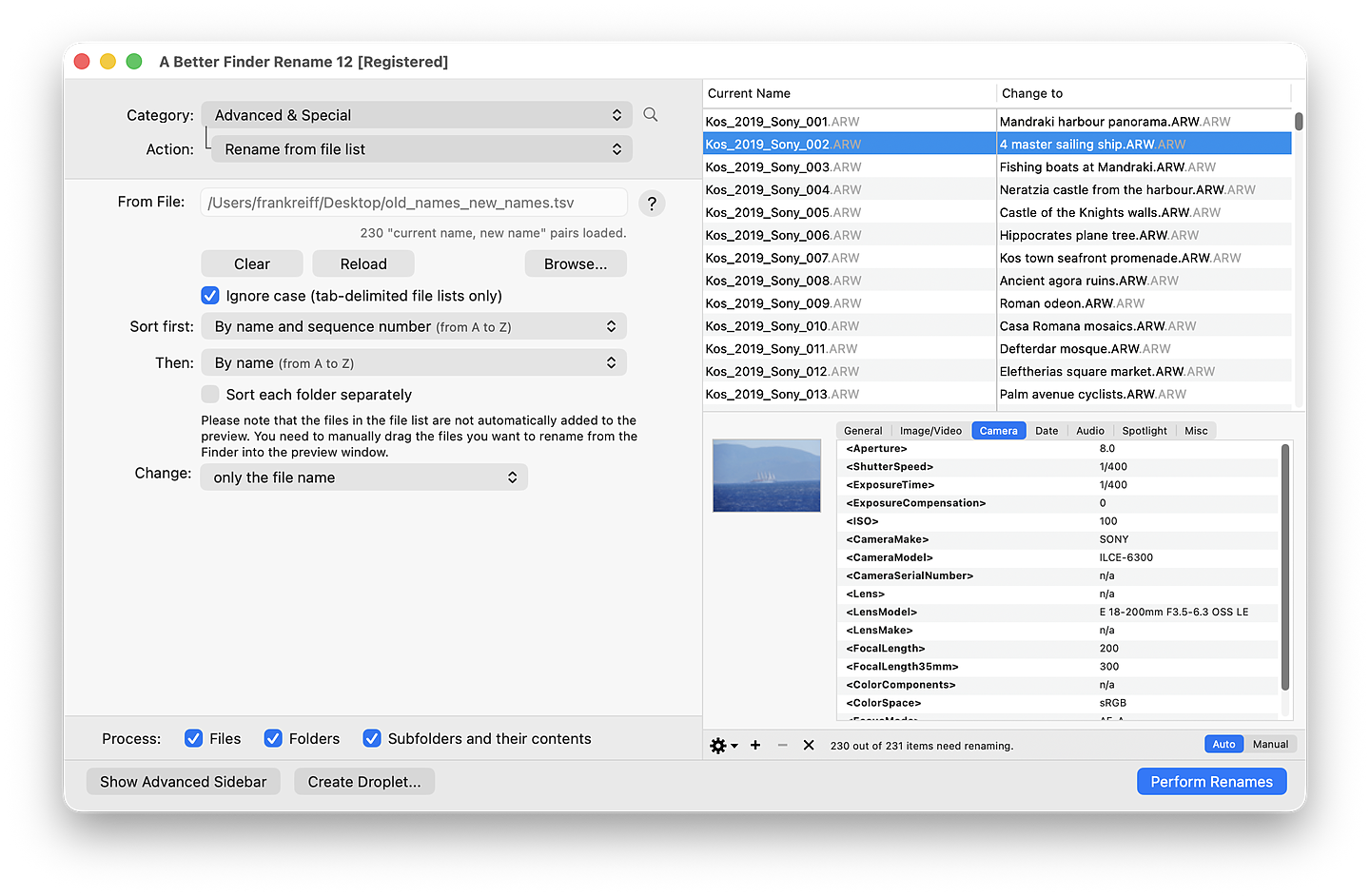
A two-column list pairs each original camera filename with a meaningful name, shown in a live preview before a single file is renamed.
Which list format to use
| Your situation | Format |
|---|---|
| You just have the new names, in the same order as the files | Simple list (one new name per line) |
| You have old-and-new name pairs (e.g. from a spreadsheet) | Two-column tab-separated list |
| The same filename appears in more than one folder | Full-path tab-separated list |
Common pitfalls
- Old names must match exactly. Trailing spaces, smart quotes, and the wrong encoding stop a row from matching. Export the real names rather than retyping them.
- Save as UTF-8. Accented characters and non-Latin names mangle if the list is saved in the wrong encoding; macOS’s TextEdit needs setting to plain UTF-8 text.
- Keep the columns aligned. A single missing row shifts every name below it by one. A preview is the only reliable guard against this.
FAQ
Can the Finder or Shortcuts rename files from a spreadsheet? No. The Finder’s renamer and Shortcuts generate names from patterns; neither maps arbitrary old → new pairs from an external list. You need the Terminal or a dedicated tool.
My spreadsheet is a CSV, not tab-separated. Does that matter? Tab-separated is safest because filenames often contain commas. In Excel, save as Tab delimited Text; if you must use CSV, make sure no name contains the separator.
How do I get the current filenames into the spreadsheet to start with? Export them: a dedicated
renamer can save the current names as a list you paste new names beside, or in the Terminal ls >
names.txt gives you a starting column.
The names didn’t match. Why? Almost always an exact-match problem: a trailing space, a curly quote substituted by the spreadsheet, or a UTF-8 vs Latin-1 encoding mismatch. Export the real names instead of typing them.
Frank Reiff is the developer of A Better Finder Rename, the Mac batch renamer in continuous development since 1996. Start with How to batch rename files on a Mac, or get in touch with a renaming problem this guide doesn’t cover.