
Getting Started
The Main Window
A tour of the A Better Finder Rename main window: category and action popups, action settings, Process checkboxes, preview table, info pane and Command Window.
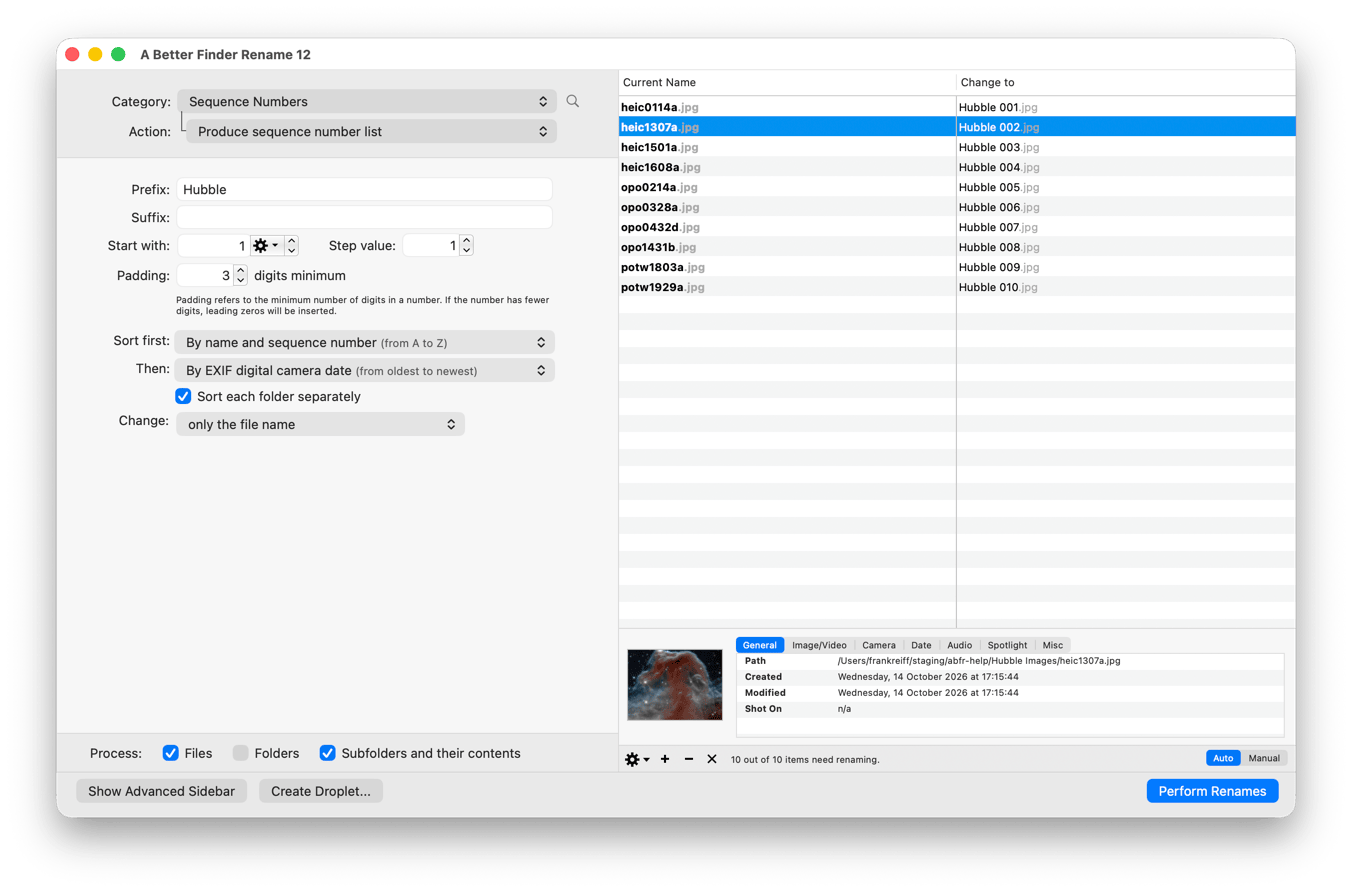
The main window of A Better Finder Rename has three areas: the action settings on the left, the preview table on the right and the info pane below it.
Choosing and configuring an action
Category:selects a group of renaming actions andAction:the action itself; the magnifying glass next to them opens the Command Window, which finds an action by typing part of its name- The parameters of the selected action appear below the popups and change with the action; the preview updates as you type
Process:decides what the action applies to:Files,Folders, and whether the contents of dropped folders are included (Subfolders and their contents). Ticking all three renames everything inside the selected folders; untickingFolderskeeps the folder names and processes only the files inside themShow Advanced Sidebarreveals the Advanced Sidebar with the action list for multi-step renames and the presetsCreate Droplet…saves the current settings as a droplet mini-applicationPerform Renames(or theReturnkey) renames the files. If the confirmation dialog is enabled in the Settings, it is shown first (see The Confirmation Dialog)
The preview table
The table shows the Current Name of each file and, in the Change to column, the name it will get. Names that would
not change are shown unchanged. In a multi-step rename, the This Action column shows the result of the currently
selected action alone, so you can check each step. Folders are shown in bold.
The View › Preview menu adds or hides columns (Show Current Name Column, Show Intermediate Results Column,
Show File Path Column), highlights the changed parts of the names (Highlight Changes), makes spaces and other
invisible characters visible (Show Invisible Characters) and hides the info pane (Toggle Preview Pane).
Below the table:
- The
+and-buttons add and remove files and folders;×clears the list. You can also drag files and folders from the Finder into the table, or useFile›Open… - The status text tells you how many of the listed items would be renamed
Auto/Manualsets the sorting order of the list:Autokeeps the list sorted as configured in theConflict Resolutiontab of the Settings;Manuallets you drag rows into the order you want, which matters for sequence numbers
The info pane
The pane at the bottom right shows a thumbnail of the selected file and, under the General, Image/Video, Camera,
Date, Audio, Spotlight and Misc tabs, the meta-data the application has read from it. This is the easiest way
to check which tags a file can supply before you build a pattern from them.
The Command Window
Click the magnifying glass next to the Category: popup (or choose Window › Show Command Window…) and start
typing: the list narrows to the actions whose names or descriptions match, and Return selects the highlighted one.
Edit › Previous Action and Next Action step through the action list from the keyboard.