Applies to macOS Ventura through macOS 27
The short answer: a .DS_Store file is the Finder’s private note about one folder: which view
you used, where the icons were, how big the window was, what the background and sort order were.
The name stands for Desktop Services Store. It contains none of your data and is safe to
delete: the only thing you lose is that folder’s view settings, and the Finder writes a fresh one
the next time you open the folder. You can’t stop the Finder creating them on your own disk, but
you can stop it writing them to network shares and USB drives with two Terminal settings, and
you can delete every one under a folder with a single find command. The cases where it is worth
the bother are the ones where the file turns up somewhere it has no business being: a Windows
share, a zip you’re sending someone, a web server, a git repository.
A disclosure before we start: I’m the developer of A Better Finder
Attributes, a paid file-attribute utility whose Remove invisible
files action has been cleaning .DS_Store, Icon and .localized files out of folder trees
since 2007. You’d expect this to end by recommending it. It does, for one specific job; for the rest
the Terminal is free and this guide gives you the exact commands.
1. What a .DS_Store file is (and what it isn’t)
Every time you open a folder in the Finder and it has something to remember about how you looked
at it, it writes a small hidden file called .DS_Store into that folder. It has done this since the
first version of Mac OS X in 2001. The file holds:
- the view you chose for that folder (icons, list, columns, gallery) and its options: icon size, grid spacing, text size, which columns are shown and how wide they are;
- the position of every icon in icon view, which is why a folder you arranged by hand stays arranged;
- the window’s size and position on screen, and whether the sidebar and toolbar were showing;
- the sort order and the folder background colour or picture, if you set one;
- on older versions of macOS, a copy of the Finder comments on the files inside.
What it does not hold is any of your files or their contents. It is a view-settings cache, about
6 KB in a typical folder, in a binary format Apple has never documented (the first bytes spell
Bud1, which is as readable as it gets). One detail matters later: it records the names of
the files it has view data for, and those entries can outlive the files themselves.
Why you’ve probably never seen one: on the Mac any file whose name begins with a full stop is
hidden, and since macOS Sierra the Finder goes one step further and keeps .DS_Store hidden even
when you show hidden files with ⌘⇧. (Command-Shift-full stop). So the first time most people
meet the file is on a Windows PC, inside a zip, in a web host’s file manager or in a git status,
which is also why “what is this .DS_Store file?” is the question people actually type.
2. Is it safe to delete .DS_Store files?
Yes, always. Deleting a .DS_Store file has exactly one consequence: the Finder forgets how you had
that folder set up. The icons go back to the default grid, list view reverts to the default columns,
a custom background disappears, and the window opens at its default size. The next time you open
the folder and change anything, a new .DS_Store appears. Nothing else references the file, no
application depends on it, and the system is not harmed in any way.
The caution worth having is about the other hidden files that keep it company. The Finder’s
.DS_Store is harmless; .git, .ssh, .zshrc, .Trashes, .Spotlight-V100 and the rest of
the dot-files on a Mac are not, and a “delete everything hidden” sweep is how people lose their
shell configuration or a repository’s history. Delete .DS_Store by name, and read section 7
before you touch anything else.
3. When you should delete them
Left alone on your own Mac, .DS_Store files cost you nothing and quietly do their job. Five
situations make them worth removing:
- Windows users and shared drives. When a Mac browses a network share or a USB stick, it
leaves a
.DS_Storein every folder it looks at. Windows shows them, and the person on the other end finds a stray file in every folder with a name that looks like malware. (It isn’t; see the FAQ.) On a shared NAS this is the single most common complaint about Mac colleagues. - Zip files and uploads. The Finder’s Compress command puts the
.DS_Storefiles in the archive, together with a__MACOSXfolder of._files (section 7). Anyone unpacking it on Windows or Linux gets the lot. Game mods uploaded to a workshop, student assignments, print files sent to a bureau, app and plug-in bundles: all regular sources of “what is this__MACOSXfolder?” support mail. - Web servers. Upload a folder by FTP or drag it into a hosting control panel and the
.DS_Storegoes up with it. Because it lists the names of the files in that folder, including ones you never linked to and ones you deleted later, it is a small information leak, and there are scanners whose only purpose is to request/.DS_Storefrom every site and reconstruct the directory listing. Delete it before uploading, or tell the server not to serve it. - Git and other version control. A committed
.DS_Storechanges every time someone opens the folder in the Finder, so it shows up in every diff and every merge conflict. Section 5 fixes this once, for every repository you’ll ever create. - A folder whose view has gone wrong. Icons that jump back when you move them, a list view that
won’t keep its columns, a folder that opens to a window off the edge of the screen. Deleting that
folder’s
.DS_Storeresets it. It is the one case where the file is the problem rather than the bystander.
A sixth, for the record: in early 2022 Google Drive briefly flagged users’ .DS_Store files as
copyright violations. It was Google’s mistake and was fixed, but it shows how far these files
travel without anyone meaning them to.
4. How to delete .DS_Store files
One folder
The Finder won’t show the file, so the Finder can’t delete it. In the Terminal (Applications ›
Utilities), type rm followed by a space, drag the folder from the Finder into the Terminal
window to paste its path, then add /.DS_Store:
rm ~/Documents/"Client Files"/.DS_Store
Nothing happens visibly; the folder’s view settings are gone and will be rebuilt. If the Terminal says No such file or directory, the folder didn’t have one.
Every folder inside a folder
This is the command people actually want. It finds every file named .DS_Store anywhere under the
folder you give it and deletes them, however deep the tree:
# list them first (nothing is deleted)
find ~/Documents/"Client Files" -name .DS_Store -type f -print
# then delete
find ~/Documents/"Client Files" -name .DS_Store -type f -delete
Run the -print line first. It costs nothing and tells you how many files you’re about to remove
and from where. The -type f keeps find to plain files; the -name is exact, so nothing else is
touched. The files are not moved to the Bin; they are gone, which for .DS_Store is fine.
Two things not to do, both widely recommended online:
- Don’t run it from the root of your disk with
sudo(sudo find / -name .DS_Store -delete). It walks your Time Machine backups, every other user’s home folder, every mounted drive and the system volume, takes a very long time, and the Finder starts recreating the files behind it before it has finished. Point it at the folder you are about to share, not at the whole Mac. - Don’t schedule it as a nightly job. The Finder writes a
.DS_Storeas soon as you open a folder again; a cron job that deletes them every night only guarantees that your folders forget their view settings every night.
On a USB stick or network share
The same find command works on any mounted volume; external drives live under /Volumes:
find /Volumes/"Transfer Stick" -name .DS_Store -type f -delete
Eject the stick straight afterwards. If you open its folders in the Finder again before you do, some of the files come straight back. Better still, stop the Finder writing them there in the first place (section 6).
On a Windows PC
If the stick or share is already in a Windows user’s hands: in File Explorer, open the top folder,
turn on View › Show › Hidden items, type .DS_Store into the search box, select all the results
(Ctrl+A) and delete them. Search ._ as well to catch the AppleDouble files from section 7.
In a zip file
Prevent rather than cure. The command-line zip doesn’t add ._ files and can be told to leave
.DS_Store out:
cd ~/Documents
zip -r "Client Files.zip" "Client Files" -x "*.DS_Store"
To clean an archive that already exists, including one made with the Finder’s Compress:
zip -d "Client Files.zip" "*.DS_Store" "__MACOSX/*"
Many folders at once, with the files going to the Bin
If you clean up folder trees regularly, hand them to Windows colleagues every week, or would
rather not point find -delete at a client’s folder, this is the job my own A Better Finder
Attributes has an action for. Choose Remove invisible files in the
Action menu, drop the folders in, tick Subfolders and their contents, and tick which kinds of
file to remove: .DS_Store files, Icon files (custom folder icons), .localized files, any other
Unix-style dot-file, and any file hidden with the old Mac OS 9 invisible flag. Click Perform
Changes and every matching file in every listed folder is moved to the Bin rather than deleted
outright, so a wrong tick is recoverable. That, and the two kinds of file find -name .DS_Store
doesn’t know about (Icon and the invisible flag), is what it adds over the command. What it
doesn’t do yet: the file list shows the folders you dropped in, not the hidden files inside them, so
if you want a count of what went, look in the Bin afterwards.
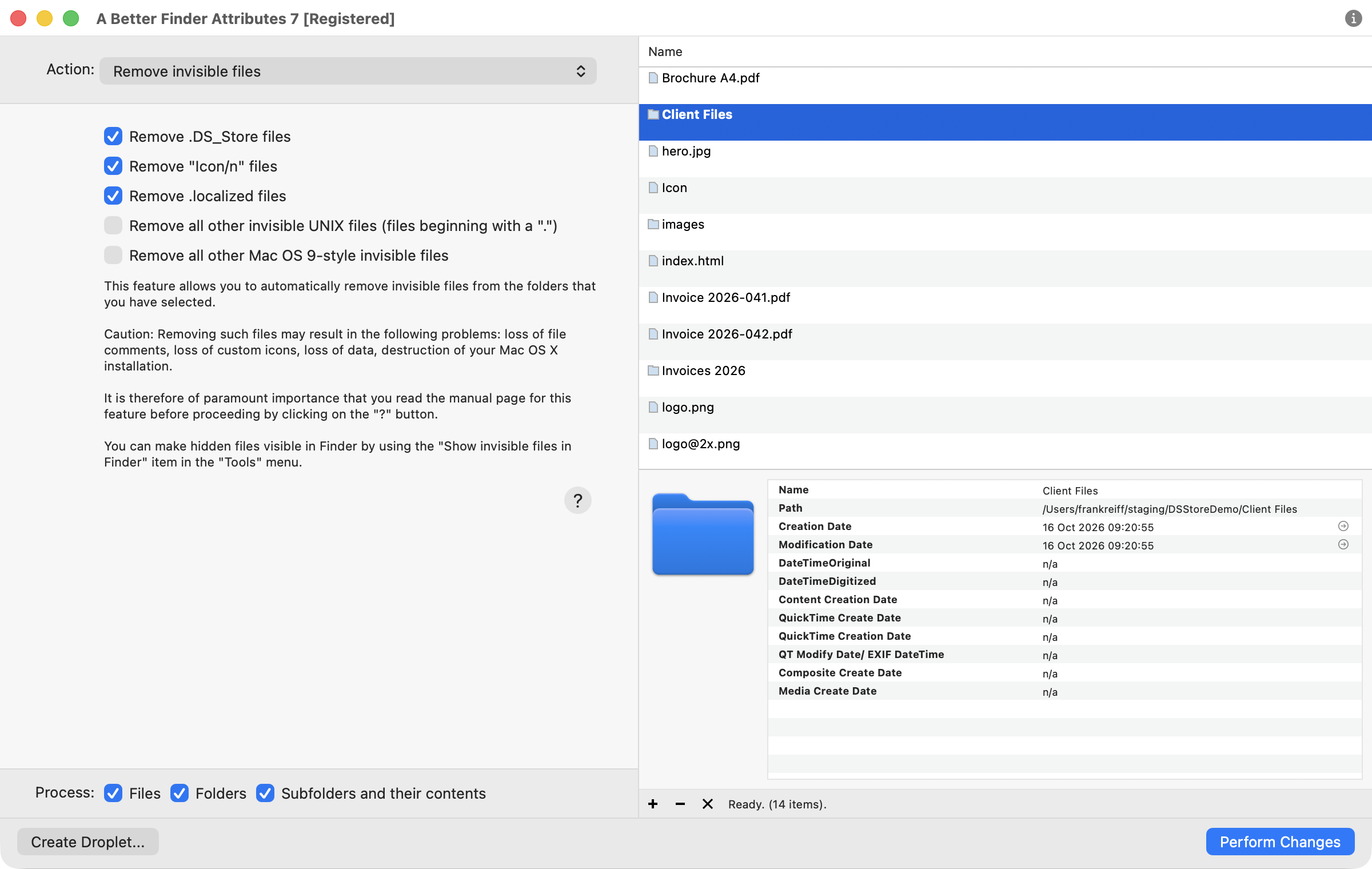
The Remove invisible files action set to clear .DS_Store, Icon and .localized files from a
client folder and all its subfolders. The two broader options are off on purpose: “all other
invisible UNIX files” would take .git and .htaccess with it.
It’s currently version 7, US$29.95 / €29.95 as a one-time purchase with a free trial that
processes five items per run, enough to try it on one folder. The same action is in
the Mac App Store edition, File Multi Tool. For a one-off clean of a single
folder, use the find command above; it’s free and it’s two lines.
5. Keeping .DS_Store out of git, once and for all
Adding .DS_Store to a project’s .gitignore works for that project. The better fix is a
global ignore file that applies to every repository on your Mac, including the ones you haven’t
created yet:
echo .DS_Store >> ~/.gitignore_global
git config --global core.excludesFile ~/.gitignore_global
A bare .DS_Store pattern matches the file at any depth, so you don’t need **/.DS_Store. If some
have already been committed, take them out of the index (the files stay on disk) and commit:
find . -name .DS_Store -print0 | xargs -0 git rm --cached --ignore-unmatch
git commit -m "Remove .DS_Store files"
From then on they’re invisible to git. Collaborators on Windows and Linux will thank you; so will
you, the first time a merge conflict in a .DS_Store doesn’t happen.
6. Stopping macOS from creating .DS_Store files
On your own disk you can’t. There is no supported setting, the Finder needs the file to remember your view settings, and every third-party “fix” is a loop that deletes files the Finder immediately rewrites. Leave them be; they are doing no harm there.
On network shares and external drives you can, and this is the setting that ends the Windows
colleagues’ complaints. Two preferences tell the Finder not to write .DS_Store to those kinds of
volume:
defaults write com.apple.desktopservices DSDontWriteNetworkStores -bool TRUE
defaults write com.apple.desktopservices DSDontWriteUSBStores -bool TRUE
Then log out and back in (restarting the Finder is not enough). The first line is Apple’s own recommendation for SMB shares, documented in its support article Adjust SMB browsing behavior in macOS, where the stated benefit is speed: the Finder stops gathering view metadata for every folder and shows network folders in plain alphanumeric order straight away. The second covers USB sticks, SD cards and other removable drives. Both settings are per user, so each account on the Mac needs them.
The trade-off is the one you’d expect: folders on those volumes no longer remember a view or icon arrangement, and open in the default list or icon view every time. For shared and removable drives that is almost always what you want. To undo either setting:
defaults delete com.apple.desktopservices DSDontWriteNetworkStores
To check what is set: defaults read com.apple.desktopservices.
7. The other hidden Mac files that travel with it
.DS_Store is the famous one, but it rarely turns up alone. Knowing the rest of the family saves a
lot of worry when a Windows user sends you a screenshot:
-
._filenamefiles (AppleDouble). On a drive formatted for Windows (FAT32, exFAT, NTFS) or on most network shares, the Mac file system’s extended attributes, resource forks and Finder tags have nowhere to live, so macOS stores them in a shadow file next to each file:._photo.jpgnext tophoto.jpg. In a zip made by the Finder they are collected in the__MACOSXfolder. They are harmless and can be deleted; they only contain metadata the other system can’t use anyway. Apple ships a command for exactly this:dot_clean -m /Volumes/"Transfer Stick"It merges the attributes back into the files where it can and deletes every
._file. Run it before you hand over the stick. .localized. An empty marker file that tells the Finder it may display the folder’s name in the user’s language: the folder on disk isApplications, a German user sees Programme. Only the standard folders have one (Applications, Documents, Pictures, Library and so on, plus folders some installers create). It’s harmless either way; delete it and the folder simply shows its real name. If you’ve found.localizedin a folder you made yourself, an installer or an app put it there and nothing depends on it.Iconwith an invisible character. A folder with a custom icon holds it in a hidden file namedIconfollowed by a carriage return character. Windows can’t even display the name properly and SMB transfers have been known to stop dead on it. Deleting it removes the custom icon and nothing else. The Terminal needs the odd name quoted:rm "Icon"$'\r'; the action in section 4 has a checkbox for it.- Volume-level folders on external drives:
.Spotlight-V100,.fseventsd,.Trashes,.TemporaryItems. These are macOS’s index, change log and Bin for that drive. Safe to delete on a drive you are handing to someone else, but they return the moment the drive is mounted on a Mac again, so for a drive that moves between systems the fix is to stop the indexing (sudo mdutil -i off /Volumes/"Transfer Stick") rather than to keep deleting the folders.
8. Which method, for which job
| You want to… | Use |
|---|---|
Understand the one .DS_Store you found |
Leave it; it’s a view-settings cache (section 1) |
| Reset one folder whose Finder view misbehaves | rm folder/.DS_Store |
| Clean a folder tree before sharing or uploading | find folder -name .DS_Store -type f -delete (preview with -print first) |
Clean a folder tree with the files going to the Bin, plus Icon and .localized files |
A Better Finder Attributes, Remove invisible files |
| Make a zip without them | zip -r … -x "*.DS_Store" |
| Remove them from a zip you already have | zip -d archive.zip "*.DS_Store" "__MACOSX/*" |
| Keep them out of git forever | Global core.excludesFile (section 5) |
| Stop them appearing on a NAS or Windows share | DSDontWriteNetworkStores (section 6) |
| Stop them appearing on USB sticks and SD cards | DSDontWriteUSBStores (section 6) |
Get rid of the ._ files and __MACOSX |
dot_clean -m volume, or zip from the command line |
| Stop them on your own internal disk | Not possible, and not worth wanting |
FAQ
Is it okay to delete .DS_Store files? Yes. You lose the folder’s view settings (icon positions, view type, window size, background) and nothing else. The Finder recreates the file when needed.
Do I need to keep .DS_Store files? Only if you care about how a particular folder is laid out in the Finder. For anything you are sending, uploading or sharing, no.
Is .DS_Store a virus? No. It is created by the Mac’s Finder and contains folder view settings. Windows users see it because Windows doesn’t hide dot-files. Antivirus software flags it as nothing more than an unknown file, and it can’t execute anything on any system. If one turned up on a drive or in a folder, a Mac has been there.
How do I delete all .DS_Store files at once? For a folder and everything inside it,
find /path/to/folder -name .DS_Store -type f -delete (section 4). For a drive, give it the
volume’s path under /Volumes. Don’t run it against the whole disk.
Can I delete .DS_Store files on Windows? Yes, like any other file: show hidden items in File
Explorer, search for .DS_Store, select all, delete. They only come back if a Mac browses the
folders again, and section 6 stops that.
Why is there a .DS_Store on my desktop? Your Desktop is a folder, so the Finder keeps one there for the icon positions on your desktop. You normally can’t see it; if you can, you’re looking at the Desktop folder from another program, a Windows PC, a backup or a cloud sync client. Delete it and your desktop icons snap back to the default grid.
Why can’t I see .DS_Store even with hidden files shown? Since macOS Sierra the Finder hides it
unconditionally, even with ⌘⇧. turned on, because showing it in every folder would be noise. The
Terminal shows it (ls -a), as do most other file managers.
How do I open a .DS_Store file? You can’t usefully; it’s a binary file in an undocumented format
with no application attached. Opening it in a text editor shows gibberish beginning with Bud1.
There are open-source parsers written by forensics researchers (the file is of interest to them
because it lists file names that were once in the folder), but for ordinary purposes there is
nothing in it to read.
What is a .localized file? An empty marker that lets the Finder translate the folder’s name for the user’s language. Harmless; see section 7.
Does deleting .DS_Store speed up my Mac or free space? No. The files are a few kilobytes each and the Finder reads them only when it opens the folder. The speed gain Apple documents is for network folders when the Finder is told not to write them at all (section 6), not for deleting existing ones.
Related guides
- How to change a file’s created or modified date on a Mac: the other file-attribute job people reach for the Terminal to do.
- Which date does your Mac actually use?: the Finder’s other hidden bookkeeping, explained.
- How to merge folders on a Mac: a differing
.DS_Storeis one of the reasons the pre-Tahoe Finder refuses to merge two folders. - How to rename files in the Finder: why the Finder won’t let you give a file a name that starts with a full stop, which is the hiding rule this guide relies on.
- A Better Finder Attributes: the Removing invisible files reference page and the product page.
- Apple: Adjust SMB browsing behavior in macOS, the
source for the
DSDontWriteNetworkStoressetting.
Frank Reiff is the developer of A Better Finder Attributes and A Better Finder Rename, Mac file-management utilities in continuous development since 1996. Found a hidden file this guide doesn’t explain? Get in touch.