Applies to macOS Ventura through macOS 27
The short answer: the Finder can merge two folders that have the same name. On
macOS 26 Tahoe and later, drag or paste one onto the location of the other and the dialog
offers Stop, Replace and Merge outright; Merge copies across everything that is
missing and, where both folders hold a file of the same name, keeps the newer one and discards
the older. On macOS Ventura, Sonoma and Sequoia, the Merge button only appears if you hold
down the Option key while dragging, and it vanishes the moment any file in the two folders has
a namesake with different contents, leaving Stop or Replace, and Replace throws away the
whole destination folder. For anything beyond those cases, this guide covers the Terminal
(ditto, rsync, cp) and the job the Finder can’t do at all: merging many folders with
different names into one, without losing files that happen to share a name.
A disclosure before we start: I’m the developer of The Big Mean Folder Machine, a folder splitting and merging utility for Mac, a paid tool I’ve sold since 2007. You’d be right to expect this article to end by recommending it. It also says, more than once, when the Finder or a one-line Terminal command is all you need.
1. Why the Finder makes merging folders so hard
On Windows, dropping a folder onto a folder of the same name has always meant “merge the contents”. On the Mac it has always meant “replace the folder”, and that one difference is behind most of the forum threads you’ll find on this topic, some with over a hundred thousand views and titles like “Why does macOS overwrite whole folders rather than merging their contents?”
The reason is historical: the classic Mac OS treated a folder as a single object, and replacing it replaced everything inside. OS X Lion (2011) added a Merge button, but Apple kept it behind a modifier key and made it conditional, and the conditions were strict enough that a lot of people believed the feature didn’t exist. Fourteen years later, macOS 26 Tahoe finally put the button in plain sight and gave it a rule for clashing files. Both versions are still in use, so here is exactly how each works.
2. Merging two folders in the Finder
This is for the case where you have two folders with the same name in two different places,
say Photos 2024 on your Mac and Photos 2024 on an external drive, and you want one folder
containing everything from both. Which Finder you have decides how it goes.
macOS 26 Tahoe and later: the Merge button is right there
- Open the destination location in a Finder window (the place that already contains one of the two folders).
- Drag the other
Photos 2024folder into that window, or copy it (⌘C) and paste it there (⌘V). - The dialog says “A folder named ‘Photos 2024’ already exists in this location. Do you want to merge or replace it with the one you’re copying?” and offers Stop, Replace and Merge. Click Merge.
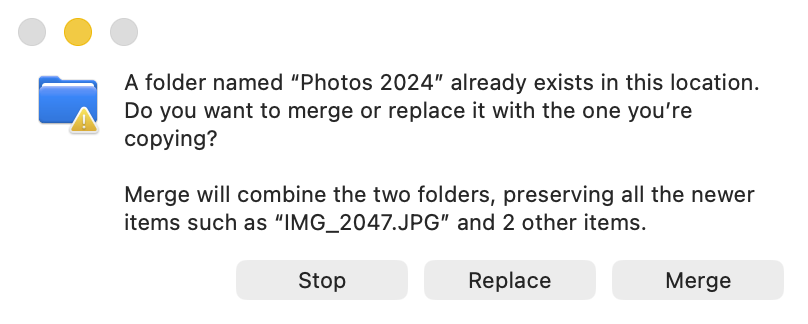
macOS 26’s folder dialog, no modifier key needed. Read the second sentence before clicking: “preserving all the newer items” means a same-named file in the destination is replaced by the newer copy, not kept alongside it.
Three things I found by running it on macOS 26.2, with two folders that shared one file name:
- Files that exist on only one side are copied across, subfolders included, and the source folder is left where it was.
- Where both folders contain a file with the same name, the newer one wins. The older version is replaced outright; it is not renamed, not kept, and not in the Trash afterwards. If your two folders hold different edits of the same document, “newer” is not necessarily the one you wanted, and you have no say. When the destination folder is the older of the two, the dialog text changes to “An older folder named … already exists”, which is your cue to look twice.
- Replace is still Replace. It deletes the destination folder’s contents and copies the source in. The button sits between Stop and Merge; clicking by reflex is how data goes missing.
If the newer-wins rule isn’t acceptable (two people’s edits, or two cameras that both number
their files IMG_0001.jpg), skip the Finder and use a tool that keeps both versions: see the
rsync backup form in section 3, or section 4.
macOS Ventura, Sonoma and Sequoia: hold Option, and hope
Before Tahoe the button is hidden and conditional:
- Open the destination location in a Finder window.
- Press and hold the Option (⌥) key.
- Drag the other
Photos 2024folder into that window and drop it. Keep Option held until you let go. - In the dialog that appears, click Merge.
Without the Option key the dialog shows Keep Both, Stop and Replace. Keep Both puts a second, renamed copy of the folder next to the first, which solves nothing; Replace deletes the destination folder and everything in it, then copies the source in. Option is what turns Keep Both into Merge.
Two rules decide whether you’ll see the button at all. Both come from Apple’s Mac User Guide for these versions, and both bite constantly:
- Merge only appears if one of the folders contains items that are not in the other. If the folders have exactly the same contents there is nothing to merge, and you get the normal replace dialog.
- If the folders contain different versions of identically named files, the only options are Stop or Replace. One pair of files with the same name and different contents, anywhere in the two folder trees, and the Merge button is gone. The Finder won’t ask you file by file, won’t keep both, and won’t tell you which file caused it.
Merging works down through subfolders: nested folders with the same name are merged too, and new files and folders are added alongside the existing ones. Holding Option also forces a copy, so the source folder is left in place; delete it yourself once you’ve checked the result.
When the Merge button doesn’t appear (pre-Tahoe)
The second rule is the one that sends people to the forums. You have two Invoices folders, both
contain an IMG_0001.jpg or a .DS_Store that differs, and macOS offers to destroy one folder or
nothing. Three ways around it, in order of effort:
- Merge the contents instead of the folders. Open the source folder, select everything inside (⌘A), and drag the files into the destination folder. Now the Finder asks about each clashing file rather than the folder: Keep Both, Stop, Replace, with an Apply to All checkbox. Hold Option here and a Skip button appears, which keeps the destination’s version and moves on. Nested subfolders with clashes will stop you again one level down, so this scales to a handful of folders, not to a hundred.
- Make the names unique first. If the clashing files are things like
IMG_0001.jpgfrom two cameras, rename one side with a prefix before merging (the Finder’s own Rename… on a selection can add text; see how to batch rename files on a Mac). Then Option-drag Merge works, because nothing clashes any more. - Use a tool that resolves the clashes for you: the Terminal (next section) or a merging utility (section 4).
3. The Terminal: ditto, rsync and cp merge without asking
Every one of these merges a folder into another in one command and never shows a dialog. That is exactly why you should read the line about what happens to clashing files before you run them, and why you should try them on a copy first. Replace the paths with your own; dragging a folder from the Finder into the Terminal window pastes its path.
ditto is Apple’s own tool and the simplest: copy everything in the first folder into the
second, creating folders as needed, merging the rest.
ditto "/Volumes/Backup/Photos 2024" ~/Pictures/"Photos 2024"
Clashing files: the source version silently overwrites the destination version. No prompt, no backup. Use it when the source is the newer, better copy and you’re sure.
rsync gives you a say in what happens to clashes. The trailing slash on the source matters
(it means “the contents of”); -n is a dry run that lists what would be copied:
# dry run first
rsync -avn "/Volumes/Backup/Photos 2024/" ~/Pictures/"Photos 2024/"
# keep the destination's version of any clashing file
rsync -av --ignore-existing "/Volumes/Backup/Photos 2024/" ~/Pictures/"Photos 2024/"
# overwrite clashes, but keep the old file renamed with a suffix
rsync -avb --suffix=_old "/Volumes/Backup/Photos 2024/" ~/Pictures/"Photos 2024/"
That last form is the closest the command line gets to “keep both”: the destination’s report.pdf
becomes report.pdf_old and the source’s takes its name. Note the suffix goes after the
extension, so the Finder no longer knows what kind of file it is; you’ll want to rename those
afterwards.
cp -Rn is for people who already know cp: -R recurses, -n means never overwrite, so
the destination always wins on a clash and the source’s version is simply not copied:
cp -Rn "/Volumes/Backup/Photos 2024/" ~/Pictures/"Photos 2024/"
What mv can’t do. mv folder destination/ fails with Directory not empty if a folder of
that name is already there. There is no “move and merge” in the shell; move the contents
(mv -n source/* destination/) and remember that this skips hidden files and stops at the first
level of subfolders.
The honest assessment: for merging two folders where you know which side should win, rsync
with a dry run is the best tool on this page, paid or free. What none of the commands give you is
a look at the result before it exists, or a third choice beyond “source wins” and “destination
wins” for the files that clash: no “keep both, numbered”, no “keep the newer one”, no “keep the
larger one”. And an rsync with the slash in the wrong place creates a folder inside a folder
instead of merging, which you discover afterwards.
4. Merging many folders into one (and the file-name problem)
The two-folders case above is the easy one. The requests that actually fill my support mailbox look like this:
- “I have 60 folders from 15 years of camera imports, named by date, and I want all the photos in one folder.”
- “Three people worked on the same project on three laptops. I need one folder with everyone’s files, and I can’t lose anybody’s version.”
- “My music collection is spread across four old drives and I want it in one place before I sort it properly.”
What these have in common: the folders have different names, so the Finder’s Merge button is
never offered (it only pairs folders by name); there are many of them, so dragging contents one
folder at a time is an afternoon of clicking; and there are lots of files with the same name
(IMG_0001.jpg, track01.mp3, Document.docx), each of which is a different file you want to
keep.
The Finder has no answer to this at all. The Terminal has half an answer: this moves every file
from every subfolder of Imports into All Photos, skipping any file whose name is already taken:
find ~/Pictures/Imports -type f -exec mv -n {} ~/Pictures/"All Photos"/ \;
Skipped is the problem. The second IMG_0001.jpg stays behind in its old folder, and the only way
to find out how many did is to go looking. Drop the -n and it’s worse: each namesake overwrites
the last, silently, and your 60 folders of holidays become one folder with one IMG_0001.jpg in
it. This is the job a folder-merging utility exists for.
The rest of this section uses my own The Big Mean Folder Machine (US$29.95 one-time, free trial, macOS 10.7 through macOS 27), because it is the one I can describe accurately. It is an assistant-style app: you answer a question per screen and nothing is touched until the final step.
Merge any number of folders, with or without subfolders
The first screen asks whether you want to split a folder into a hierarchy or merge files
from different folders. Choose merge, then drop in as many source folders as you like. Every file
in every subfolder of every source is collected into one flat destination folder; this is the
“un-wind an existing organisation” operation, the opposite of the split. If what you actually want
is one new folder structure built from all the sources (every photo from 60 import folders in
Year/Month folders, say), don’t merge and then sort: the split flow takes the same multiple
source folders and does both in one pass. That’s covered below.
Name clashes are resolved, not skipped and not overwritten
The next screen is the one the Finder and the Terminal don’t have. For every group of files that
would end up with the same name in the destination (compared case-insensitively, like the Mac’s
file system), the program keeps all of them and makes the names unique by appending a
distinguisher before the extension. You choose the style: (1), (01), (001), (a), or the
same without brackets, starting at 0 or 1, and whether the first file in each group keeps its
original name unchanged. So three IMG_0001.jpg files become IMG_0001.jpg, IMG_0001(1).jpg
and IMG_0001(2).jpg, and nothing is lost.
Which file counts as “first” (and so keeps the clean name) is decided by a sort order you pick: by name, modification date, creation date, size, EXIF shooting date or the number in the name, ascending or descending. “Newest file keeps its name, older copies get numbered” is one popup away, and so is “largest file keeps its name”, which is handy when the same photo exists as an original and a downscaled export.
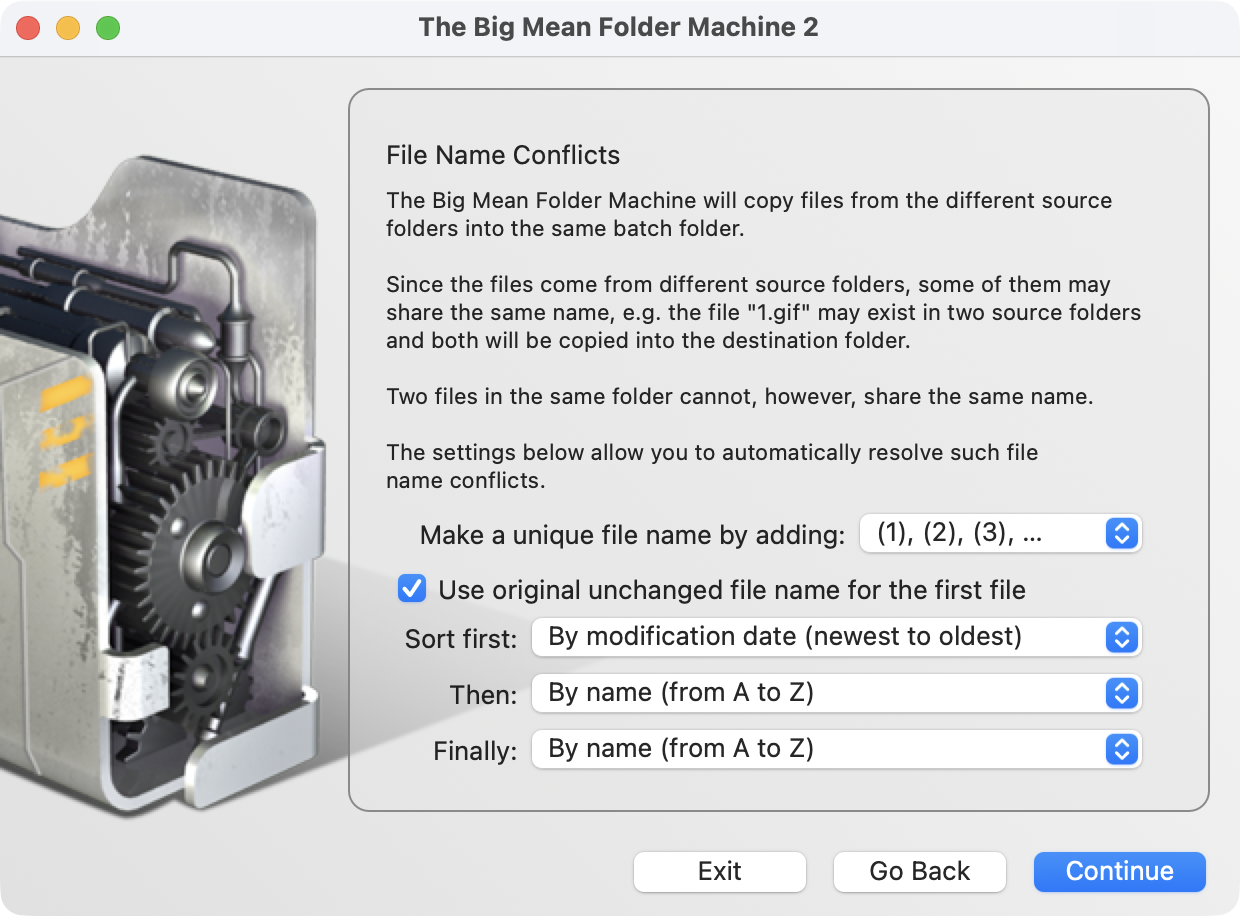
The conflict resolution step, set up so that duplicates are numbered (1), (2), (3) and the
most recently modified file in each group keeps its original name. Every file is kept whatever you
choose here; the popups only decide the names.
Preview, then move or copy
You then choose a destination folder, whether to copy (sources untouched) or move, and
whether you want a preview. The preview shows the finished folder, with every renamed file
visible, before a single byte is written. Check that the (1) files are where you expect, go back
and change the sort order if the wrong copy kept the clean name, and only then let it run. The
trial version does everything up to the preview and copies the first 10 files, which is enough to
see whether the result is what you wanted.
Merge into a new folder structure
Most “merge my 60 folders” requests are really “merge my 60 folders and give me a sensible structure”, because the old structures disagree with each other: one drive sorted by year, another by camera, a third not at all. For that, choose Split to Hierarchy on the first screen instead of Merge, and add exactly the same list of source folders. The program pools every file from every source and then builds up to four levels of new folders from criteria you pick per level:
- Photo shooting date, as year, month or day folders (from the EXIF data, so it survives copying), or the file’s creation date for files without it;
- File type, so JPEGs, RAW files, videos and PDFs land in their own folders;
- the first letter or first pair of letters of the file name, for A to Z structures;
- or a custom rule that takes part of the file name (a client code, an album name between delimiters) as the folder name.
Every file from every source ends up in the right new folder; files that would clash inside one of
those folders go through the same name-conflict step as a merge, and the same preview shows the
whole new tree before anything is written. So “merge four music drives into one
Artist initial/ structure” or “merge fifteen years of camera imports into 2024/03/” is a single
operation, not a merge followed by a sort. The date, file-type and N-files-per-folder structures
are covered in detail in how to organize files into folders by date on a
Mac.
What it doesn’t do: it never compares file contents. Two byte-identical copies of the same photo in two source folders both end up in the destination, one of them numbered. If what you actually want is to merge and throw away true duplicates, merge first (so nothing is lost), then run a duplicate finder on the result, where you can see what it proposes to delete.
5. Which method, for which job
| You want to… | Use |
|---|---|
| Merge two same-named folders, no clashing files | Finder: Merge (macOS 26: just drag; earlier: Option-drag) |
| Merge two same-named folders, clashes, newer version should win | Finder on macOS 26: Merge |
| Merge two same-named folders, a few clashes, you want to decide each | Finder: drag the contents, answer per file (Option for Skip) |
| Merge two folders, source should win on clashes | Terminal: ditto or rsync -av |
| Merge two folders, destination should win | Terminal: rsync --ignore-existing or cp -Rn |
| Merge two folders, keep both versions of clashes | Terminal: rsync -b --suffix, then rename; or a merging utility |
| Merge many differently named folders into one | A merging utility (The Big Mean Folder Machine) |
| Merge and keep every same-named file, newest keeps its name | A merging utility |
| Merge many folders into a new structure (by year, by file type, A to Z) | A merging utility’s split-to-hierarchy flow (section 4) |
| Merge and delete true duplicates | Merge first, then a duplicate finder |
6. Pitfalls, whichever way you merge
- Replace is not merge. The Finder’s Replace button deletes the destination folder’s entire contents first. If you clicked it by reflex, stop and check the Trash; the replaced folder is not there, it is gone.
- Hidden files count. Before macOS 26, a differing
.DS_Store(the Finder’s own view-settings file) inside the two folders is enough to make Merge disappear. The Terminal commands copy hidden files too, which is usually what you want. - Case. The Mac’s file system treats
Report.pdfandreport.pdfas the same name. Merging from a case-sensitive source (a Linux server, some NAS shares) can produce clashes you didn’t see. - External and network drives. Merging to a drive that isn’t formatted APFS or Mac OS Extended can fail on long names, accents or characters the other file system doesn’t allow. Try the operation on your internal drive first if something refuses to copy; the Big Mean Folder Machine troubleshooting page has the details.
- Copy, then delete. Merge by copying, check the result, delete the sources. A move that fails halfway (full disk, dropped network connection) leaves you with two half-folders and no easy way to tell which files made it.
- Pilot first. For anything irreplaceable, run the merge on a copy of a few folders before the real thing. This applies to the Terminal above all: there is no undo.
Related guides
- How to organize files on a Mac — the overview: a folder scheme that lasts, what the Finder’s own tools do, and the four restructuring jobs this guide is one of.
- How to organize files into folders by date on a Mac — the opposite job: one big folder split into a Year/Month, file-type or A to Z structure.
- How to batch rename files on a Mac — give clashing files unique
names before a Finder merge, or clean up the
(1)suffixes afterwards. - Rename photos by date taken — the better fix for
IMG_0001.jpgclashes from several cameras: names that can’t collide. - Export a list of files in a folder — list the merged folder to check that the file count matches the sources.
- The Big Mean Folder Machine: product page, the manual’s merging section and troubleshooting.
- Apple’s Mac User Guide: Organize files in the Finder, the source of the two pre-Tahoe Merge rules quoted above.