Applies to macOS Ventura through macOS 27
The short answer: a photo’s “date taken” is stored as the time on the camera’s clock, and in
newer files there is a second field next to it that says how far that clock was from UTC, such as
+09:00. iPhones write that offset; many cameras don’t; and videos store their time in UTC with no
zone at all. Every photo app has its own rule for what to do with a missing or present offset, and
the rules disagree: Apple Photos honours the offset, Lightroom ignores it, Google Photos leans on
the GPS position, and all of them treat a bare video time differently from a bare photo time. Put
files from two devices in one album and they interleave wrongly, with the videos hours away from
the photos shot next to them. The fix is not to shift anything by hand but to give every file the
same offset, converting each wall-clock time so that the moment it describes stays the same. Once
every file says the same +09:00, wall-clock order equals real order and every app sorts the set
the same way. The free ExifTool can do it, one command per group of files
that share an offset; since version 7.55, A Better Finder Attributes
does it for a mixed folder in one pass, with a preview.
A disclosure before we start: I’m the developer of A Better Finder Attributes, a paid Mac utility that does this among many other file, date and metadata jobs. The free route is covered first, with tested commands and its real limits, and the section on the paid tool says what it adds.
Four boundary checks, because four different guides serve four different goals:
- The camera clock was wrong by a fixed amount (never set, slow, an hour out) → the camera-clock section of change the date a photo was taken on a Mac.
- Photos puts an imported file on the wrong day, not just the wrong hour → why Apple Photos shows the wrong date.
- Your clips are wrong in Final Cut Pro → Final Cut Pro’s Content Created date.
- The Finder sorts your photos wrongly → fix photo sorting in the Mac Finder. The Finder reads the file date, not the embedded one, and this guide’s fix needs that extra step at the end.
1. What the file actually says
A JPEG, HEIC or RAW file carries its capture time in the EXIF field DateTimeOriginal, as a plain
wall-clock reading: 2024:06:15 14:00:00. Nothing in that string says where on Earth 14:00 was.
EXIF 2.31, published in 2016, added three companion fields to fix that, OffsetTimeOriginal,
OffsetTimeDigitized and OffsetTime, each holding a UTC offset such as +09:00. A file with both
says “14:00 at +09:00”, which is a precise instant. A file with only the first says “14:00”,
somewhere.
The same information lives in several other places inside the same file, often with its own
offset: the IPTC TimeCreated field (14:00:00+09:00), the XMP DateCreated and CreateDate
copies that Lightroom and Photoshop write, and, for videos, three different dates: the movie
header’s creation time, which the QuickTime format defines as UTC with no zone, Apple’s
Keys:CreationDate, which iPhones write with the offset, and the ©day user-data tag. What each
kind of device writes:
| Source | Date taken | Offset |
|---|---|---|
| iPhone photo (HEIC or JPEG) | local time | written (OffsetTimeOriginal) |
| iPhone video | local time in Keys:CreationDate |
written, on that key |
| Most cameras, stills | local time (the camera’s clock) | none, except on recent bodies with a time zone setting |
| Camera, GoPro, DJI and drone video | UTC in the movie header | none, by definition |
| Scans, screenshots, exports from editors | whatever the software chose | usually none |
| Files that went through Lightroom or Photoshop | local time, plus XMP and IPTC copies | copied from the original, or none |
A trip shot with a phone and a camera therefore produces three kinds of file: photos with an offset, photos without one, and videos in UTC. That mix is the whole problem.
2. How the apps read it, and why they disagree
Each application fills in the missing information with a rule of its own:
- Apple Photos honours an explicit offset. For a file without one it uses the GPS position, if there is one, to work out the zone, and otherwise your Mac’s zone at the time of import. A bare video time is read as UTC and shifted into your zone. (Measured in detail in why Apple Photos shows the wrong date.)
- Adobe Lightroom ignores the offset fields altogether and sorts by the wall-clock
DateTimeOriginal. Two photos taken a minute apart in Tokyo and Austin sort by what their clocks read, not by when they were taken; a video’s UTC time is converted to the Mac’s zone. - Google Photos uses the GPS position where there is one. Reports on what it does with the EXIF offset fields when there is no position conflict, and users have reported sets with offsets that would not sort by date taken at all.
- digiKam, Capture One and most other managers each pick one of the above rules, and most shift a UTC video time into the computer’s zone.
So a camera shot at 14:00 Tokyo time with no offset lands at 14:00 in Lightroom, at 14:00 in Photos
if the Mac is set to Tokyo time, nine hours earlier if the Mac is on UTC, and at a third position
if the file also has a GPS fix. The phone’s shot of the same scene, with its +09:00, lands
correctly in Photos and by its wall clock in Lightroom. The GoPro clip of the same moment, stored as
05:00 UTC, lands at 05:00 in some apps and at 14:00 in others. No single app is wrong; they are
answering a question the files leave open.
3. Why one offset for every file fixes it everywhere
The observation that makes this tractable: when every file carries the same offset, wall-clock order and real order are the same thing. An app that honours offsets converts them all by the same amount and keeps the order; an app that ignores them sorts by the wall clock, which is in the same order; an app that infers the zone from GPS gets the same answer for every file. The disagreement between apps only shows when offsets differ or are missing.
That rules out the quick fix people usually reach for, shifting the camera’s files by nine hours so they line up with the phone’s. Shifting changes what the clock said; a lunch photographed at 14:00 then claims it was taken at 05:00, and the files still carry no offset for the next app to misunderstand. Converting is different: the moment is kept, and only its expression changes. “14:00 at +09:00” and “07:00 at +02:00” are the same instant. Pick one zone, express every timestamp in it, and write the offset into every file.
Which zone? Three sensible choices:
- Your home zone, the one your Mac is set to. Photos and videos then read as they will be viewed, and files that already carry your home offset are already right.
- The zone where the pictures were taken. The wall-clock times then match what the clocks on the walls said, which is how most people remember a trip. Files from several trips need several runs.
- UTC. Neutral and unambiguous, favoured for archives and for anything that will be processed by software rather than looked at.
For mixed sets from one trip, the trip’s zone reads most naturally; for a library, the home zone is the least surprising. Either is fine as long as every file gets it.
4. Free route: ExifTool
The free command-line ExifTool can rewrite every date field in these files.
To convert a photo from -07:00 to +02:00 you shift its wall-clock time by the difference, nine
hours, and write the new offset:
# photos shot at -07:00, to be expressed at +02:00: shift the clock by +9 h and set the offset
exiftool "-DateTimeOriginal+=0:0:0 9:0:0" "-OffsetTimeOriginal=+02:00" \
         "-CreateDate+=0:0:0 9:0:0" "-OffsetTimeDigitized=+02:00" /path/to/camera-folder
I tested this on a JPEG from a file set with every date copy present. The EXIF fields came out
right. The IPTC TimeCreated and the XMP DateCreated copies did not change: they still said
03:09:25-07:00 next to an EXIF date that now said 18:09:25+02:00. Both are the same instant, so
the file is not wrong, but Photos reads the IPTC date before the EXIF one on a JPEG, and Lightroom
reads XMP first, so the copies have to be converted too, with their own arguments.
Videos need a different approach, because the field Photos reads, Keys:CreationDate, holds the
offset inside the value and there is no separate offset tag to set. ExifTool’s advanced formatting
can shift the time and swap the offset in one expression:
# iPhone clips recorded at -04:00, expressed at +02:00 (+6 h)
exiftool '-Keys:CreationDate<${Keys:CreationDate;ShiftTime("+6:0:0");s/-04:00$/+02:00/}' clip.mov
The movie header’s own creation time is UTC by definition and should be left alone; use -api
QuickTimeUTC when reading so that ExifTool shows it in your zone instead of as a bare UTC value.
The limits of the free route are now visible:
- One command per source offset. Files at
-07:00need a nine-hour shift to reach+02:00; files at-04:00need six; files with no offset need an assumption first. You sort the files into groups by their current offset before you start, and the groups are not visible in the Finder. - Daylight saving. A trip that straddled a clock change has two source offsets for one place.
Converting to a named zone such as
Europe/Berlinrather than a fixed offset means working out the offset per date. - Every copy. EXIF, IPTC, XMP, the Apple key, the
©daytag. Miss one and a different app reads the old value. - Not repeatable. Run the shift twice by accident and the files move eighteen hours. There is no
preview and no “already done” check; ExifTool’s
_originalbackup copies are your undo.
5. The batch tool: A Better Finder Attributes
Since version 7.55, A Better Finder Attributes has an action built for exactly this, Standardize the time zone of embedded timestamps. Drop the whole trip onto the window, phone photos, camera photos and videos together, choose the action and set two things:
- Convert embedded timestamps to: this Mac’s time zone, UTC, a fixed UTC offset (any half-hour step, plus the odd ones such as +05:45) or another time zone, chosen by name. A named zone is applied date by date, so files from either side of a daylight-saving change get the right offset each.
- Timestamps without a time zone offset: how to read a file that carries no offset: assume this Mac’s time zone, assume UTC, assume a fixed UTC offset, or leave the file unchanged. For camera stills from a trip, assume the trip’s zone; for a content creation date that a camera or an editing app wrote without an offset, UTC is the usual answer.
The preview then shows, for every file, the DT Original, DT Digitized and Content dates with
their current offset and, beneath each, the converted value, plus an Offset column that reads
-07:00 with → +02:00 under it, or none for a file that carries no offset yet. Files that
already carry the target offset are shown unchanged and are not rewritten, so running the action
again on the same folder does nothing, and adding next month’s files to the folder and running it
again converts only those.
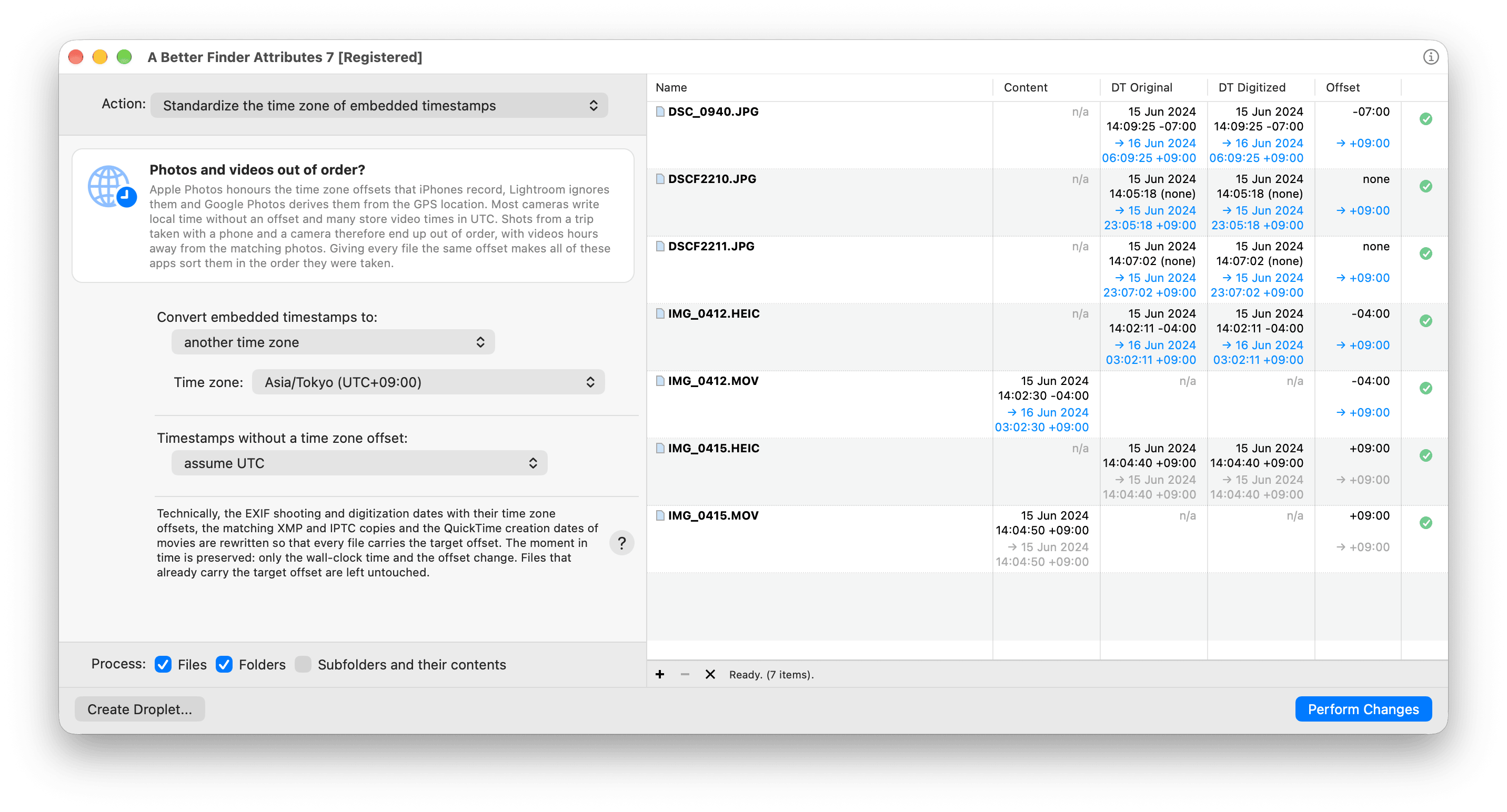
One pass for the whole trip: the files that already carry the target offset stay grey, the others show the converted wall-clock time and the new offset in blue before anything is written.
When it runs, it rewrites the EXIF date fields and their offset fields, the IPTC and XMP copies,
and for movies Apple’s creation-date key and the ©day tag, so that every copy an app might read
agrees. The movie header stays as it is, since it is UTC by definition, so a clip whose only date is that
header, which is what most action cameras and drones write, is shown as n/a and left alone: it
already says UTC and needs no offset. The moment in time is preserved throughout: only the wall-clock reading and the offset change. It handles JPEG, HEIC,
PNG, DNG and the common RAW formats, and MOV, MP4 and M4V movies.
Two steps finish the job. If the files are already in Apple Photos, re-import them; Photos reads dates once, at import (details in the Photos guide). And if you want the Finder to agree with Photos, run Copy EXIF content creation timestamp to file creation date afterwards, which is the subject of fixing photo sorting in the Finder.
It’s version 7, US$29.95 / €29.95 as a one-time purchase, with a free trial to check it against your own files. The reference page for the action is Standardizing the time zone of embedded timestamps.
Check your work
exiftool -a -G1 -time:all photo.jpg
exiftool -a -G1 -api QuickTimeUTC -time:all clip.mov | grep -E "Keys|UserData|QuickTime\]"
Every date line that can carry an offset should now end in the same one, and the wall-clock times of files shot at the same moment should match to the second. Then import a handful into a test album in Photos, sort by date, and look at the order. If you use Lightroom, select the files and choose Metadata ▸ Read Metadata from Files, because the catalog keeps its own copy of the capture time.
The tricky cases
- A phone that recorded the wrong zone. Near borders and airports, and in the hours after a zone change, iPhones sometimes write a wall-clock time and an offset that are both wrong but describe the right instant. Converting fixes these for free: the instant is what is preserved.
- Camera video: local or UTC? The format says UTC and most cameras comply, but a few cameras and most screen-recording and editing apps write local time into the UTC field. Check one clip against a photo of the same moment before choosing the assumption for the batch.
- Live Photos and RAW+JPEG pairs. Keep the pairs together in the batch so both halves get the same result; Photos pairs them at import by their dates.
- Files already in a library. Photos, Lightroom and Capture One store the capture time in their own database at import. Changing the file afterwards changes nothing on screen until the file is re-imported or the metadata re-read.
- Scans and undated files. A file with no capture date at all has nothing to convert; give it a date first with the methods in change the date a photo was taken.
- Pre-2016 software. Programs written before EXIF 2.31 do not know the offset fields exist and will keep sorting by the wall clock. With a uniform offset, that order is right anyway.
Common pitfalls
- Shifting instead of converting. Moving every camera file by nine hours lines them up in one app and makes the clock lie everywhere. Convert, and write the offset.
- Forgetting the copies. A JPEG with a converted EXIF date and an unconverted IPTC date is read differently by Photos and by Lightroom. Convert every copy or use a tool that does.
- Assuming video is local time. Camera video is UTC unless proven otherwise. Reading it as local time puts every clip hours out.
- Running a shift twice. An ExifTool shift is not repeatable; a second run moves the files again.
Keep the
_originalbackups until you have checked the results. - Checking in the app that imported the old files. Re-import, or read metadata again, before judging the result.
FAQ
Why are my videos hours off from the photos taken next to them? Cameras store video times in UTC and photo times in local time. An app that does not convert the video time, or converts it with the wrong assumption, shows the clip hours away from the photos. Give the videos the same offset as the photos and they line up.
Why do my photos sort differently in Lightroom and in Apple Photos? Lightroom sorts by the wall-clock time in the file and ignores the offset fields; Photos converts by the offset. Files from different zones sort differently in the two apps until they all carry the same offset.
Should I convert to UTC or to local time? For a library you look at, local time (your home zone or the trip’s zone) reads naturally. For an archive or files that other software will process, UTC is unambiguous. Either works; the point is that every file gets the same one.
Does this change when the photo was taken? No. The instant is preserved; only the way it is written changes. “14:00 at +09:00” and “07:00 at +02:00” are the same moment.
Do I have to re-import into Apple Photos? Yes, for files already in the library. Photos reads the dates once, at import. Import the converted files and delete the old items.
Will Google Photos pick up the change? For files uploaded afterwards, yes. Reports on how Google Photos reads the offset fields conflict; a uniform offset is the one setup every reported behaviour sorts correctly.
Does the camera-clock correction do the same thing? No. A clock correction shifts the moment because the clock was wrong. A time zone conversion keeps the moment and changes its expression. If the clock was also wrong, correct the clock first, then standardize the zone.
Related guides
- Why Apple Photos shows the wrong date on imported photos and videos: the measured order in which Photos reads dates and zones.
- How to change the date a photo was taken on a Mac: the camera-clock case and the EXIF offset fields in general.
- How to fix photo sorting in the Mac Finder: the file-date step that makes the Finder agree with Photos.
- Which date does your Mac actually use?: file dates, embedded dates and which app reads which.
- A Better Finder Attributes: Standardizing the time zone of embedded timestamps, the timestamps explainer and the product page.
- ExifTool: the date and time shift documentation.
Frank Reiff is the developer of A Better Finder Attributes and A Better Finder Rename, Mac file-management utilities in continuous development since 1996. Got a time zone mix this guide doesn’t cover? Get in touch.