Applies to the Photos app on macOS Ventura through macOS 27
The short answer: Apple Photos decides an item’s date at import, from metadata inside the file,
and it reads more fields than you would think, in a fixed order. For a video it takes the Apple
creation-date key, then the classic QuickTime ©day tag, then the movie header’s creation time,
which every video has. So a video never shows the Finder date in Photos; it shows the moment the
camera or encoder wrote the file, converted to a time zone Photos works out for itself. For a JPEG
it takes the IPTC Date Created first and the EXIF “date taken” second. When the date or the hour is
wrong, one of those fields is wrong, or the time zone is missing. Fix the file, re-import it, and
Photos files it on the right day.
A disclosure: I’m the developer of A Better Finder Attributes, a paid utility that writes these dates in batches. I ran the test below after a run of support mails that all said the same thing: “I fixed the date, Photos still shows the wrong one.” The free routes are covered first.
Three boundary checks, because three different guides serve three different goals:
- Photos puts an imported photo or video on the wrong day or at the wrong hour → this guide.
- You want to change the date a photo was taken in general, inside Photos or in the file → change the date a photo was taken on a Mac; this page goes deeper only on what Photos does with the result.
- Your clips are wrong in Final Cut Pro rather than Photos → Final Cut Pro’s Content Created date. The two apps read different fields and show different times for the same file.
Why the date is wrong in Photos
- A video with no Apple creation-date key. Older cameras, screen recorders and most editing software write the standard QuickTime header but not Apple’s key. Photos then uses the header’s creation time, which is stored in UTC and which some encoders fill with the moment of export, not the moment of recording. A clip exported from an editor lands on the export day.
- A video date without a time zone. If the key or the
©daytag carries a bare time such as2024-06-15T10:30:00, Photos treats it as UTC and shows it shifted by your Mac’s offset: 10:30 becomes 12:30 in Central European summer time. This is the classic “the hour is wrong on every video from that camera” complaint. - A tool wrote the date somewhere Photos does not look. The
©daytag exists in two places inside a movie; Photos reads one and ignores the other, and several tools (including earlier versions of mine, see below) wrote the wrong one. Rewriting the track or media headers, or XMP dates inside a movie, does nothing either. - A stale IPTC date on a JPEG. Files that went through Lightroom, Photoshop or Capture One carry an IPTC Date Created that outranks the EXIF date in Photos, so correcting only the EXIF date changes nothing.
- The camera clock or its zone was wrong. The dates are read correctly; they were wrong to begin with. Same fix, different starting value.
- You exported from Photos and then looked at the file. A regular export bakes Photos’ own date into the exported copy and strips the IPTC block; Export Unmodified Original gives you the file exactly as imported, adjustments not included. Neither is a bug, but both surprise people. More below.
Which date Photos actually reads
Apple does not document this, so I measured it: 127 test files, each with every date field set to a different, recognisable year, imported into a throwaway library in Photos 12.0 on macOS 27, and the stored date and time zone read back for each. The method is at the end of this page; this is what it showed.
Videos (.mov and .mp4), in priority order:
com.apple.quicktime.creationdatein the movie’s Apple metadata keys, with or without a time-zone offset- the
©daycontent-created tag in the QuickTime user-data section (and only there: the same tag in the iTunes-style section is ignored) - the movie header’s creation time (
mvhd), which every movie has, so this is the effective fallback - the file’s creation date in the Finder, only when the movie header’s time is zero
The movie header’s modification time, the track and media header times, XMP dates inside the movie and the file’s modification date are ignored. This is exactly the chain Apple’s own AVFoundation framework uses, which is how Photos imports.
JPEG stills, in priority order:
- IPTC Date Created (with Time Created)
- EXIF
DateTimeOriginal, the “date taken” - IPTC Digital Creation Date
- XMP
photoshop:DateCreated - XMP
exif:DateTimeOriginal - EXIF
CreateDate, the “digitized” date - XMP
xmp:CreateDate - the file’s creation date
Only EXIF ModifyDate and the XMP ModifyDate and MetadataDate fields are ignored.
PNG follows the JPEG chain without the IPTC entries. HEIC, the iPhone’s native format,
follows the PNG chain and adds EXIF ModifyDate as a last resort before the file date. IPTC cannot
be embedded in HEIC at all.
Time zones: the Photos-specific story
This is where Photos differs from every other app on the Mac. Photos stores one instant plus a time zone per item and displays the capture time in that zone, not in yours. A clip shot at 12:00 in Tokyo shows 12:00 in Photos wherever you open the library. Final Cut Pro would show the same clip converted to your Mac’s zone. Both are correct; they answer different questions. The simplest way to put it: Photos shows the time on the camera’s clock, Final Cut Pro shows what your Mac’s clock read at that moment.
Where the zone comes from, in order:
- An explicit offset in the file. For stills, EXIF
OffsetTimeOriginal; for videos, the offset on the Apple key or the©daytag. Honoured and stored as a fixed zone such asGMT+0900. - A GPS location, if the file has one and no explicit offset. Photos infers the zone from the
coordinates (
Asia/Tokyo, say) and anchors the wall-clock time there. - Otherwise your Mac’s zone at the date in question, daylight saving included.
Two consequences follow. A still with a plain EXIF date and no offset is taken as wall-clock time in your zone and shows unchanged: harmless. A video with a plain date and no offset is taken as UTC and shows shifted by your offset: not harmless, and the cause of most “every video from this camera is two hours off” reports. Worse, a video with a naive date and a GPS location is wrong twice over: shifted into your zone first, then re-anchored in the location’s zone. Offsets inside the IPTC time field and on XMP dates are ignored for both stills and videos.
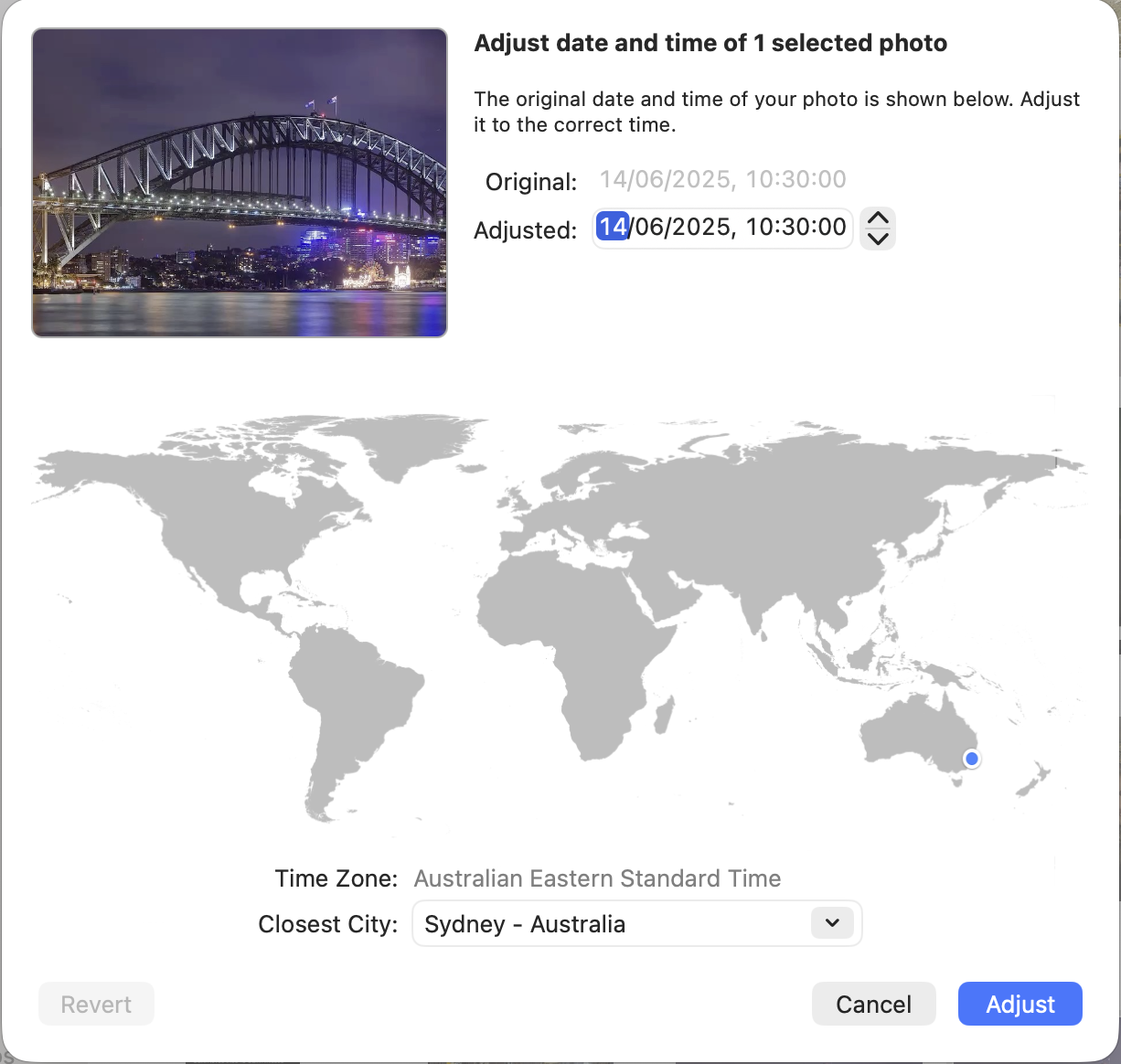
Photos keeps the zone out of the Info panel, which shows only the date and the time. To see the zone it stored, select the item and open Image ▸ Adjust Date and Time…: the sheet names it, here Australian Eastern Standard Time for a clip whose creation-date key carries a +10:00 offset. If a clip is hours off, that line usually explains why.
What exporting from Photos does to the dates
People often fix a date inside Photos, export the item and then find the “old” date in the file. Here is what actually happens, measured on the same test files:
- Export Unmodified Original returns a byte-identical copy of the file you imported. Adjustments made inside Photos are not in it, because Photos never writes to originals.
- Export N Photos/Videos (the regular export) produces a new file. For a JPEG, every EXIF and XMP date is rewritten to Photos’ stored date, the modern EXIF offset fields are filled in with the item’s zone, and the IPTC block is removed entirely. For a video, the container is rewritten: the movie header dates become the export time, and the Apple creation-date key is written from the library value, offset included, even if the original never had that key.
- After Adjust Date and Time, the regular export carries the new date; the original does not.
So Photos can produce corrected copies, and a regular export of a video actually gives you a file that Photos and Final Cut Pro will both date correctly on re-import. What it cannot do is fix the files sitting in your folders.
Free route 1: adjust the date inside Photos
Select the items and choose Image ▸ Adjust Date and Time…. You set the correct date, time and, if needed, zone for the first item, and Photos shifts the rest of the selection by the same offset. This is ideal for the camera-clock case, where every item is wrong by the same amount.
The honest limit, as above: the adjustment lives in Photos’ database. The originals keep their wrong dates, which resurface the moment the files leave the library unmodified.
Free route 2: ExifTool
The free command-line ExifTool can write the fields Photos reads. For a
video, the tag ExifTool calls CreationDate is the Apple key; ExifTool appends your Mac’s offset
for that date, which is exactly what keeps Photos from shifting it:
# one clip, recorded 15 June 2024 at 10:30 local time
exiftool "-QuickTime:CreationDate=2024:06:15 10:30:00" clip.mov

# a JPEG from Lightroom: set the EXIF date, its offset, and the IPTC date that outranks it
exiftool "-DateTimeOriginal=2024:06:15 10:30:00" "-OffsetTimeOriginal=+02:00" \
         "-IPTC:DateCreated=2024:06:15" "-IPTC:TimeCreated=10:30:00" still.jpg
Then import (or re-import) the file. The usual caveats: no preview, a typo moves a whole folder the wrong way, the file’s Finder date does not follow, and ExifTool rewrites the container, so work on copies of anything irreplaceable.
The batch tool: A Better Finder Attributes
Writing these dates for a whole card of footage and photos at once is what A Better Finder Attributes is for. Since version 7.50 its content-creation actions write the Apple creation-date key, with the offset, on every movie write, and update a JPEG’s IPTC Date Created alongside the EXIF date and its offset, so the defaults produce files that Photos (and Final Cut Pro) date correctly. The workflow with the fewest decisions:
- Drop the videos and photos onto the window.
- Choose Advanced date manipulation in the Action: popup.
- Set Use: to Specific date and enter the date and time. (Or pick one of the Existing …
sources to copy a date the file already carries elsewhere, or the file-name mode for files named
like
2024-06-15_1030.mov.) - Under Overwrite:, tick File creation date. Leave For Images: at Set DateTimeOriginal and For Movies: at Set Content Creation & Media Create Date, the defaults.
- Check the preview: each file shows its current date and, next to it, the date it will get. Then run.
- Import into Photos. Items that were already in the library must be re-imported; the changed file counts as new content, so the import goes through and the old item stays. Delete the old one.
Step 4 makes the Finder agree with Photos, because Spotlight shows the file-system date and never reads the embedded one. The time you enter is local time on your Mac for that date, and the offset written into the file is that zone’s offset on that date, so Photos shows the same wall-clock time on any Mac. For a shoot whose camera clock was simply off, Adjust EXIF content creation timestamp shifts every file by the same number of hours or days instead.
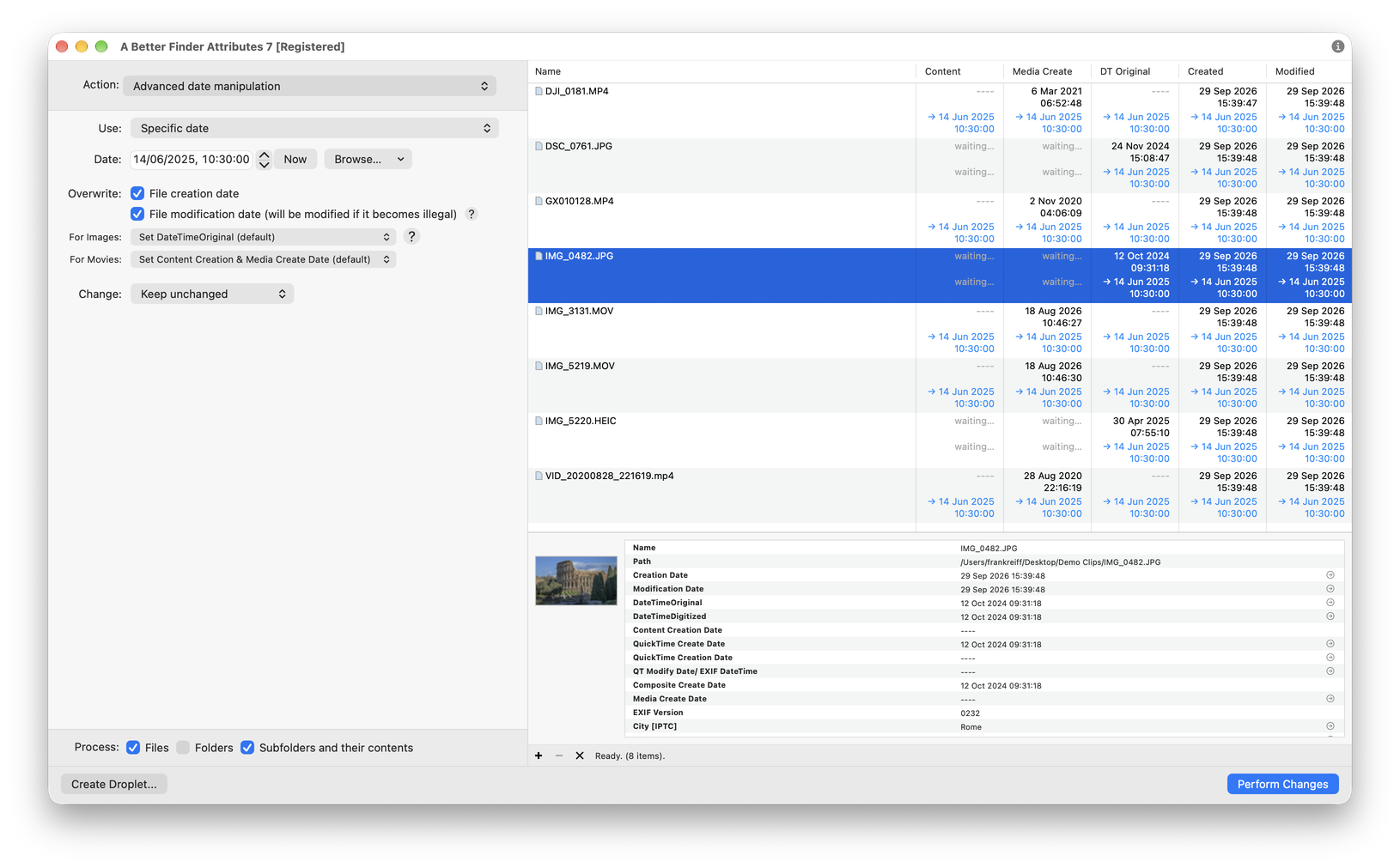
One pass for the whole batch: the embedded dates Photos reads, the offset that keeps the hour right, and the file creation date for the Finder, previewed before anything is written.
It’s version 7, US$29.95 / €29.95 as a one-time purchase, with a free trial to check it against your camera’s files.
On version 7.49 and earlier. The default movie mode wrote the ©day tag into the section Photos
ignores, plus the media header, so the clip stayed on the encoder’s time. Set For Movies: to Set
QuickTime Creation Date or Use Apple Photos Brute Force Mode (which also rewrites the movie
header, the historical workaround). For JPEGs with a stale IPTC date, run Remove content creation
date with the IPTC fields ticked first. Updating is the simpler answer.
Check your work
Import into a test album, select the item and press ⌘I: the Info panel shows the date and the time Photos stored. For the zone, open Image ▸ Adjust Date and Time…, read the Time Zone line and cancel. On the command line:
exiftool -a -G1 -time:all -gps:all photo.jpg
exiftool -a -G1 -time:all clip.mov | grep -E "Keys|UserData"
A correct still shows DateTimeOriginal with an OffsetTimeOriginal next to it. A correct video
shows [Keys] Creation Date : 2024:06:15 10:30:00+02:00, offset included.
The tricky cases
- Videos exported from an editor. An export typically carries the export moment in the movie header and no Apple key, so Photos dates the clip on export day. Write the key with the real recording date before import.
- Scans. ABFA’s Set DateTimeDigitized (for scanners) writes the EXIF “digitized” date, which
Photos does read, but only if the file has no EXIF date taken, no IPTC date and no XMP date. A
scan that already carries a
DateTimeOriginal(many scanner apps write one) needs the default Set DateTimeOriginal mode instead. - Photos from Lightroom, Photoshop or Capture One. The IPTC date wins. Update it or clear it; a tool that only touches EXIF leaves the photo where it was.
- Footage shot abroad, no offset in the file. Photos will use the GPS zone if the clip has a location and your Mac’s zone if it does not. If the camera wrote a bare time, the hour is wrong either way. Write the key with the correct offset.
- Live Photos and RAW. Not covered by the test. A Live Photo is a HEIC and a MOV that Photos pairs at import; give both files the same date and keep them together.
- iCloud Photos. The test used a local library. iCloud may re-derive dates on its own side; fix the files before they are uploaded rather than after.
Common pitfalls
- Fixing the file after import and expecting Photos to notice. Photos copied the file into its library at import and reads the date once. Re-import, or adjust inside Photos.
- Writing a bare time into a video. No offset means UTC to Photos; the hour shifts. Always write the offset.
- Fixing the movie header and calling it done. It works, as the third fallback, only if the file
has neither the Apple key nor the
©daytag. If either exists, the header is ignored. - Reading dates off an export. A regular export carries Photos’ own date, and a pristine export carries the wrong original one. Neither tells you what Photos “thinks” better than the Info panel and the Adjust Date and Time sheet do.
- Editing originals without a backup. Metadata edits rewrite the file. Work on copies of anything you cannot re-shoot.
FAQ
Why does Photos show the wrong date on an imported video? Because the video has no Apple creation-date key and Photos fell back to the movie header’s time, which editors typically fill with the export moment; or because the date has no time zone and Photos read it as UTC. Write the key with an offset and re-import.
Why is the time two hours off on every video from my camera? The camera writes the recording time without a zone. Photos treats a bare video time as UTC and shows it shifted into your zone. Write the offset into the file, or shift the batch by the difference.
Does changing the date in Photos change the file? No. The adjustment lives in Photos’ database. A regular export writes the adjusted date into the exported copy; Export Unmodified Original returns the file exactly as imported.
Why does Photos show 12:00 and Final Cut Pro 09:00 for the same clip? Photos shows the capture time in the zone stored in the file; Final Cut Pro converts it to your Mac’s zone. Both are right for a clip shot three zones east of you.
Why does the Finder show a different date from Photos? The Finder shows the file-system creation date and never reads the embedded one. Set the file creation date to match the embedded date and they agree.
Does this work for HEIC and iPhone videos? Yes. HEIC follows the same chain as PNG, with EXIF
ModifyDate as a last resort. iPhone videos already carry the Apple key with an offset, which is
why they are rarely the problem; camera and editor footage is.
How the test was done
127 files were generated with no metadata at all (movies from AVAssetWriter, JPEGs and PNGs from macOS’s own image writer, HEIC converted from those and stripped), then stamped with ExifTool so that every date field carried a different, recognisable year, 2001 through 2019, always at noon. File-system creation and modification dates were set to 2012 and 2013 where relevant. Each folder was imported as an album into a throwaway, non-iCloud library in Photos 12.0 on macOS 27, and the stored instant, zone and date-source flag were read from a copy of the library’s database. A displayed year identifies the winning field directly; an hour shift reveals time-zone handling. Every pairwise priority above was established with a two-field knockout file, not inferred. The export behaviour was measured by exporting the same items both ways and reading the results with ExifTool; unmodified exports were compared byte for byte.
Frank Reiff is the developer of A Better Finder Attributes and A Better Finder Rename, Mac file-management utilities in continuous development since 1996. Related: Final Cut Pro’s Content Created date, how to change the date a photo was taken on a Mac and how to fix photo sorting in the Mac Finder, or get in touch with a date problem this guide doesn’t cover.