Applies to macOS Ventura through macOS 27
The short answer: the date a photo “was taken” lives inside the file, in its EXIF metadata,
chiefly a field called DateTimeOriginal. To change it you can use Apple Photos (Image ▸ Adjust
Date and Time, for photos living in your Photos library), the free command-line
ExifTool, or a dedicated batch tool when a whole shoot needs correcting. The
Finder can’t do it: its Get Info dates are file dates, a different thing entirely.
A disclosure: I’m the developer of A Better Finder Attributes, a paid utility that does exactly this. The free routes are covered honestly first.
Three boundary checks before we start, because four different guides serve four different goals:
- You want to change the embedded “date taken” itself → this guide.
- You are not sure which of a file’s several dates is the wrong one → which date does your Mac actually use? sorts that out first.
- You want your photos to sort correctly in the Finder without touching the embedded date → sync the shooting date onto the file date instead.
- You want the date in the filename → rename photos by date taken, and fix wrong dates first, here.
Why photo dates end up wrong
The usual suspects, in rough order of frequency:
- The camera clock. Never set, reset by a flat battery, still on home time after a trip, or off by exactly an hour twice a year. Every photo of the shoot inherits the error.
- Scans. A scanned print’s embedded date (if it has one at all) is the moment of scanning: the 1974 wedding is dated 2026.
- No date at all. Screenshots of prints, files passed through apps that strip metadata, old images from the pre-EXIF era.
- Time zones. The camera stamped Tokyo time; you live in Austin, Texas. This one is its own
rabbit hole: for most of EXIF’s history the “date taken” fields carried no time-zone information
at all; the date was simply whatever the camera’s clock said. Newer cameras and smartphones do
record the UTC offset in separate fields (
OffsetTimeOriginaland friends, added in EXIF 2.31), but plenty of photo-management software still ignores those fields, so in practice you can’t rely on the offset being there or on it being honored when it is.
What “date taken” actually is
Digital photos follow the EXIF standard, which has two timestamps that matter:
DateTimeOriginal: when the shutter fired. This is what nearly every app displays as “date taken”.DateTimeDigitized: when the image was digitized. In theory scanners set this one and cameras the other; in practice, many devices set both, or neither.
If you plan to import photos into Apple Photos or another library app, it’s these embedded fields
that decide where the photos land in the timeline, which is why fixing them properly beats any
workaround. Two complications worth knowing: some files also carry a TIFF Create Date that a few
apps confusingly display as the digitized date, and movie files are a different world (several
creation dates per file, usually stored in UTC). RAW formats from all the major camera makers embed
the same EXIF dates as JPEGs and can be corrected the same way, with the right tool.
Free route 1: Apple Photos
For photos that live in your Photos library: select one or many, then Image ▸ Adjust Date and Time…. You set the correct date for the first photo of the selection, and Photos shifts all the others by the same offset, which is exactly right for the camera-clock case, where every photo is wrong by the same amount.
The honest limits: it only works for photos in the library, and the adjustment lives in Photos’ own database; the untouched originals keep their original EXIF. A regular export does write the corrected date into the exported copy’s metadata (thoroughly, in fact: all three EXIF timestamps, and even the modern UTC-offset fields), but Export Unmodified Original hands back the file exactly as imported, wrong date and all. So Photos can produce corrected copies; the originals themselves stay wrong. Fine if Photos is your photos’ permanent home; not a fix for the files sitting in your folders. How the two exports differ, option by option: getting photos out of Apple Photos.
Free route 2: ExifTool
The free command-line ExifTool edits the embedded dates in the files, for any number of them:
# set an exact date on one scanned photo (all three date fields at once)
exiftool "-AllDates=1974:06:22 14:30:00" scan-042.jpg

# camera clock was 2 hours behind: shift a whole folder forward
exiftool "-AllDates+=0:0:0 2:0:0" /path/to/photos
AllDates is a convenient shorthand for DateTimeOriginal, CreateDate and ModifyDate together.
ExifTool keeps a _original backup of each file unless told otherwise, and it handles RAW formats.
The usual command-line caveats apply: no preview, and a sign error in a shift recipe moves a thousand photos the wrong way in a blink. There is also one caveat specific to dates: the file-system dates don’t follow automatically, so your freshly corrected photos may still sort wrongly in the Finder until you also sync the file dates.
The batch tool: A Better Finder Attributes
Correcting embedded dates is A Better Finder Attributes’ home turf. The everyday jobs get simple, single-purpose actions; the hard cases get a power tool:
- Set a whole batch to one date with Set EXIF content creation timestamp, the scan fix: pick
the date on a calendar and the time on a clock face, and every selected photo gets it written into
DateTimeOriginal(the For Images and For Movies menus decide exactly which embedded fields are set, so library apps like Photos file them where they belong). - Shift a shoot by an offset with Adjust EXIF content creation timestamp, the camera-clock fix: add or remove hours, days, months or years across the batch. Its sibling, Adjust file creation and EXIF content creation timestamp, moves the file-system dates in the same pass, so the Finder keeps sorting correctly with no second step. These simple actions don’t preview: the date columns in the file list update as the batch is processed.
- The Swiss army knife: Advanced date manipulation. Everything the simple actions do, with many times the options. The new date can come from a specific date, any existing embedded or file-system field, Spotlight’s dates, the date embedded in the file name, even a same-named file in a different folder hierarchy. And it’s the one action with a live preview: each file shows its current date and, next to it, the date it will get, before anything is written. The price is a denser set of options; for a straightforward set-or-shift, the simple actions are quicker.
- RAW and movie formats included: movie creation dates live in different fields (
Content Creation Date,Media Create Date), and the tool knows which is which.
It’s version 7, US$29.95 / €29.95 as a one-time purchase, with a free trial to confirm it handles your camera’s files.
Changing the shooting date on a batch of photos, with a live preview of the result.
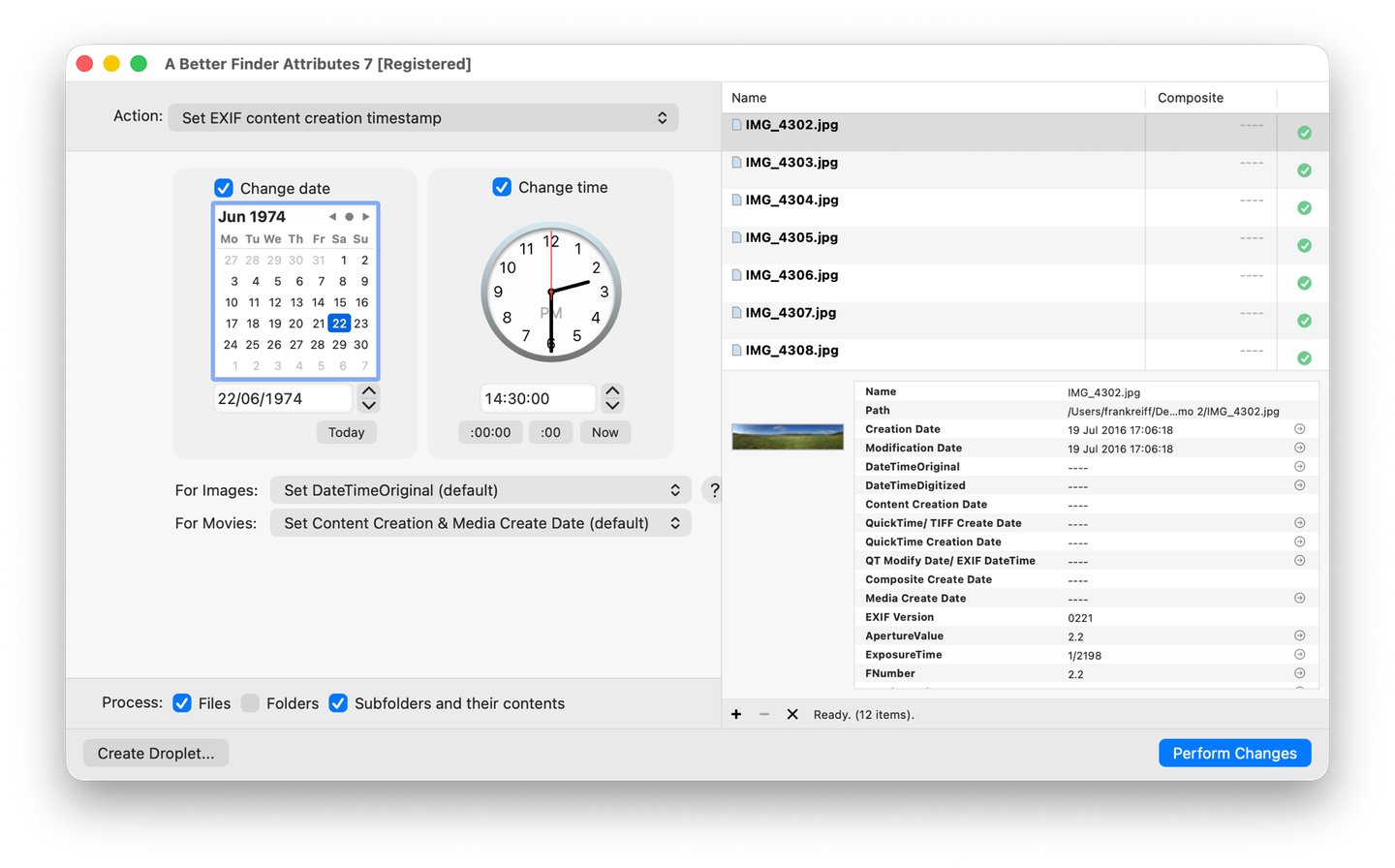
The scan fix: a batch of scans with no embedded dates at all (the empty Composite column), about to be given their real date of 22 June 1974, 14:30, in one pass.
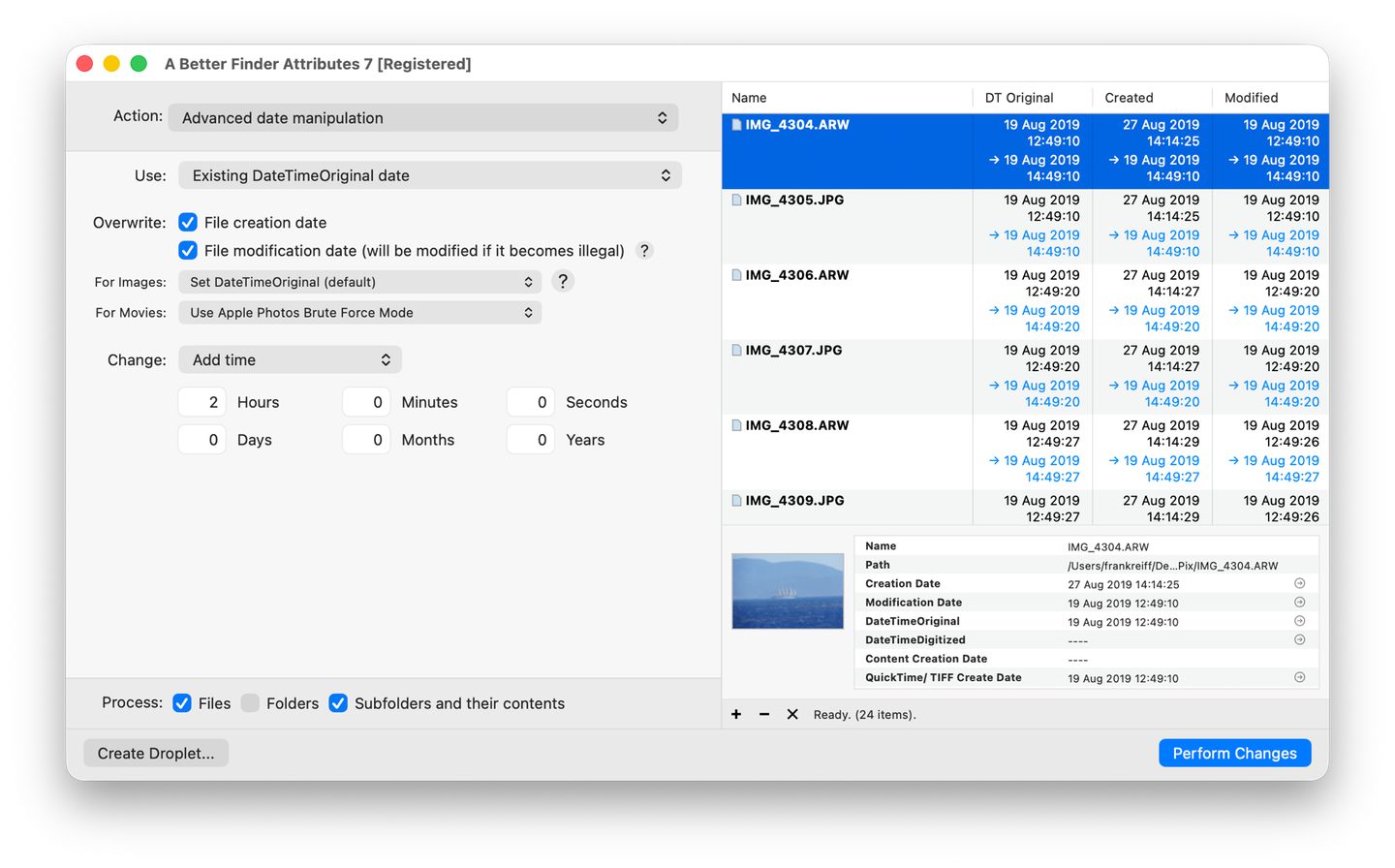
The Advanced date manipulation preview: a camera clock two hours wrong, corrected across a RAW+JPEG shoot. Every photo shows its current dates and, behind the arrows, the dates it will get. With both Overwrite boxes ticked, the file’s creation and modification dates are fixed in the same pass, so the Finder sorts correctly too.
Fix a camera-clock or time-zone mistake
Two different mistakes produce the same symptom, a whole shoot sitting at the wrong point in the timeline, and they want different fixes.
The clock was simply wrong. Never set after a battery change, slow by a few minutes, or an hour
out after a daylight-saving switch. Every photo is off by the same amount, so the fix is to shift
the whole batch by that amount and leave the gaps between shots alone. To find the amount, look for
one photo of a known moment: a phone picture of the same scene, a clock or a departure board in
frame, a ticket stub. If the camera has GPS, its GPSDateTime field is written in UTC straight from
the satellites, independently of the camera’s clock, so comparing it with DateTimeOriginal gives
the error to the second:
# compare the camera clock with the satellite time on one photo
exiftool -DateTimeOriginal -GPSDateTime DSC_0412.NEF
Then shift: Photos’ Adjust Date and Time (set the first photo right, the rest follow), the
ExifTool -AllDates+= recipe above, or A Better Finder Attributes’ Adjust EXIF content creation
timestamp. For a shift you want to check first, Advanced date manipulation previews every photo’s
old and new date before writing.
The clock was right, for somewhere else. Shot in Tokyo, imported in Austin, Texas: the times in
the files are correct local times, but nothing in the file says which local time, so the importing
app assumes your home zone and files everything fourteen hours out. Here you have a choice. The
quick fix is to shift the times into your home zone; the photos then land in the right place but say
03:00 for a lunch. The better fix, when your software honours it, is to leave the times alone and
write the missing UTC offset into the EXIF 2.31 fields (OffsetTimeOriginal,
OffsetTimeDigitized), so the files say “14:00, at +09:00”:
# record that the whole folder was shot at Japan time
exiftool "-OffsetTimeOriginal=+09:00" "-OffsetTimeDigitized=+09:00" /path/to/photos
A Better Finder Attributes does the same in batch through its Add or change metadata tag(s) action, where the two fields appear as DT Original Timezone Offset and DT Digitized Timezone Offset; when its date actions write a new date they also fill these fields in, using the time zone your Mac was in on that date. Apple Photos and Final Cut Pro honour the offset fields; plenty of older software does not, in which case the shift is the only fix that works everywhere.
One caveat applies to both fixes: videos from the same trip usually store UTC where photos store camera time, so treat the two as separate batches (more under The tricky cases below).
Correcting a time-zone error across a shoot so that Apple Photos places the photos correctly.
The tricky cases
- Scans with no EXIF at all. Setting a date adds the missing fields. Do the batches album-by-album (“summer 1974”), give each batch its approximate date, and accept that precision has limits: a date within the right month beats “scanned 2026” every time.
- Same camera-clock error across thousands of photos. Don’t set dates one by one; shift the whole set by the offset. That preserves the intervals between shots, which is what keeps a wedding or a holiday in narrative order.
- Mixed photo + video shoots. Videos often store UTC where photos store camera time, so one shift rarely fixes both: treat them as two batches.
- Photos already in Apple Photos. Either adjust inside Photos and let it stay the system of record, or fix the actual files before import. Fixing files behind Photos’ back after import is the one order of operations that ends badly. Which fields Photos reads at import, and why the hour can shift on videos, is in why Apple Photos shows the wrong date on imported photos and videos.
Common pitfalls
- Confusing file dates with the embedded date. The Finder’s Get Info shows file dates; changing them doesn’t move the photo in Photos’ timeline, and vice versa. (Full explanation in the file dates guide.)
- Editing without a backup. Metadata edits rewrite the file; work on copies for anything
irreplaceable. ExifTool’s automatic
_originalbackups and Advanced date manipulation’s preview both exist for this reason. - Forgetting the file dates afterwards. Embedded date fixed, Finder still sorts wrongly: sync one onto the other as the final step.
- Renaming before fixing. If the date is going into the filename, correct it first, then rename by date taken.
FAQ
Can I change the date a photo was taken on a Mac? Yes. In Apple Photos: Image ▸ Adjust Date and Time… for photos in your library. For the files themselves: ExifTool (free, command line) or A Better Finder Attributes (batch; its Advanced date manipulation action shows a preview) edit the embedded EXIF date directly.
Does changing the date in Photos change the file? Not the untouched original: the adjustment lives in Photos’ database. A regular export writes the corrected date into the exported copy; Export Unmodified Original brings back the old date exactly as imported. To fix the files themselves, edit the EXIF dates before import, or with a metadata tool.
How do I fix the dates on scanned photos? Set both EXIF timestamps (DateTimeOriginal and
DateTimeDigitized) to the approximate real date, batch by batch. Library apps then file the scans
where they belong in the timeline instead of at the scanning date.
The camera clock was wrong for the whole shoot. Do I have to fix each photo? No: shift the
entire batch by the same offset (Photos’ Adjust Date and Time, ExifTool’s -AllDates+=, or ABFA’s
Adjust EXIF content creation timestamp). The gaps between shots stay intact.
Why do my photos still sort wrongly in the Finder after I fixed the date taken? The Finder sorts by file dates, which don’t change when you edit the embedded date. Sync the shooting date onto the file creation date: see How to fix photo sorting in the Mac Finder.
Does this work for RAW files and videos? RAW: yes, same EXIF fields. Videos: the dates live in different fields and often in UTC, so use a tool that explicitly supports movie creation dates.
Frank Reiff is the developer of A Better Finder Attributes and A Better Finder Rename, Mac file-management utilities in continuous development since 1996. Related: which date does your Mac actually use?, how to change a file’s Created or Modified date on a Mac, why Apple Photos shows the wrong date on imported photos and videos, Final Cut Pro’s Content Created date and Attribute Changer for Mac: what to use instead, or get in touch with a date problem this guide doesn’t cover.