Applies to macOS Ventura through macOS 27
The short answer: when two cameras cover the same event and their clocks disagree, every photo from one camera sits a fixed amount too early or too late, so the merged set jumps back and forth between moments. Nothing is lost and the fix is exact: find one moment that both cameras photographed, read the two capture times, and shift every photo from one camera by the difference. The gaps between that camera’s shots stay as they were, and the two sets interleave in the order things happened. Lightroom Classic and Apple Photos can do the shift inside their libraries, the free ExifTool does it in the files with one command, and A Better Finder Attributes does it in the files with a preview.
A disclosure before we start: I’m the developer of A Better Finder Attributes, a paid Mac utility. The routes that cost nothing extra come first, and if you already work in Lightroom Classic, its built-in command is all you need.
Three boundary checks, because neighbouring problems have their own guides:
- One camera, wrong clock, nothing to line it up against → change the date a photo was taken on a Mac.
- A phone and a camera exactly hours apart, and the result differs between apps → that is a time zone offset problem, not a clock problem: fix time zone offsets across cameras.
- The Finder shows the wrong order even though the capture times are right → fix photo sorting in the Mac Finder.
1. Find the difference between the two clocks
Everything depends on one number: how far camera B’s clock was from camera A’s. Camera clocks drift by well under a second a day, so one measurement covers the whole shoot. There are four ways to get it, best first.
- A clock photo. If each camera photographed the same clock at the start (a phone showing seconds, or a time website), compare what the picture shows with the capture time stored in that file. Do this for both cameras and you have each one’s error against real time.
- A shared instant. Without a clock photo, look for something both cameras caught that lasted a fraction of a second: the other photographer’s flash lighting the frame, the first kiss, a champagne cork, a hand clap, a ball leaving a foot. Pick the sharpest such moment you can find; a pose held for ten seconds only gets you within ten seconds.
- A phone photo. A phone’s clock is set by the network and is right. A phone picture of a moment that either camera also caught gives you the true time for that camera.
- GPS time, on the few cameras that record it. Phones write the satellite time into
GPSDateTime, but most cameras do not, including many whose photos carry a location: coordinates added by a phone app or afterwards come without a GPS time. Ifexiftool -GPSDateTimedoes show a value for a camera file, compare it withDateTimeOriginal. GPS time is in UTC and the capture time is local, so ignore the whole hours and read the minutes and seconds; the GPS fix can be a second or two older than the shot.
To read the stored times to the second, select a photo in the Finder and press ⌘I, open the inspector in Preview (⌘I, the Exif tab), or ask ExifTool:
# the capture time, camera model and serial number of one photo from each camera
exiftool -DateTimeOriginal -Model -SerialNumber A_0412.CR3 B_0388.NEF
Then subtract. If camera A recorded the kiss at 15:42:10 and camera B recorded it at 15:38:43, camera B is 3 minutes 27 seconds behind, and every photo from camera B needs 3 minutes 27 seconds added. Decide which camera to move: the one that is wrong against real time if you know which that is, otherwise the second shooter’s, so that your own files stay untouched.
2. Separate the photos by camera
The shift must reach every photo from one camera and none from the other. If the cards were copied into separate folders, you are done. If the photos are already merged, split them again by what the files say about themselves:
# move each photo into a subfolder named after the camera that took it
cd /path/to/merged-shoot
exiftool '-Directory<Model' .

# two bodies of the same model: use the serial number as well
exiftool '-Directory<${Model} ${SerialNumber}' .
Without the command line, a Finder search of the folder with the Device model attribute (add it from Other… in the search criteria) lists one camera’s photos so that you can move them into their own folder. It cannot tell two bodies of the same model apart; for that you need the serial number, which only ExifTool and the photo managers show.
3. How to sync camera times in Lightroom Classic
If the shoot is going into Lightroom Classic anyway, do it there. This is the method most wedding photographers use, and once you know it, it takes a minute.
- In the Library module, switch to Grid view. In Loupe view the command changes only the one photo on screen.
- Open the Library Filter bar, choose Metadata, and set a column to Camera Serial Number (or Camera, if the bodies are different models). Click the camera you want to move.
- Click the photo of the shared moment, so that it is the active one, then select all (⌘A). The reference photo stays the most-selected photo.
- Choose Metadata ▸ Edit Capture Time…, keep Adjust to a specified date and time, and type the time the other camera recorded for that moment. Lightroom applies the same difference to every selected photo.
- Clear the filter and sort by Capture Time.
Two things to know. The command warns that it cannot be undone, and it means it: note the original time of the reference photo first. And Lightroom changes its catalog, not your files, until you save metadata to the files (⌘S), so other apps keep seeing the old times until you do.
Photo Mechanic users have the same recipe under Tools ▸ Adjust Capture Dates and Times.
4. Apple Photos
Photos shifts a selection the same way: you correct one photo, and the others move by the same amount.
- Make a Smart Album with the condition Camera Model is and the camera you want to move.
- Select everything in it, with the photo of the shared moment first in the selection.
- Choose Image ▸ Adjust Date and Time… and enter the corrected time for that first photo.
The correction lives in the Photos library. The original files keep the camera’s times, so photos exported as unmodified originals, or handed to a client outside Photos, are still out of step.
5. ExifTool: fix the files themselves
To correct the files once, for every app and for delivery, shift the capture times of one camera’s folder:
# camera B was 3 minutes 27 seconds behind: add 0 h 3 min 27 s to every photo in its folder
exiftool "-AllDates+=0:0:0 0:3:27" "/path/to/merged-shoot/NIKON Z 6_2"

# the other direction: a camera that was ahead
exiftool "-AllDates-=0:0:0 0:3:27" "/path/to/folder"
AllDates covers DateTimeOriginal, CreateDate and ModifyDate. ExifTool keeps an _original
copy of each file as your undo, and it writes RAW formats.
The limits are the usual ones for a command line. There is no preview, a sign error moves a
thousand photos the wrong way, and running the same command twice moves them again. The file dates
that the Finder sorts by do not follow. Keep the _original files until you have checked the
result.
6. With a preview: A Better Finder Attributes
A Better Finder Attributes makes the same correction in the files, RAW included, without the command line. Drop one camera’s folder onto the window, then pick one of two actions:
- Adjust EXIF content creation timestamp:
choose
Add timeorRemove timeand enter the difference in theMinutesandSecondsfields (andHours, if a time zone was involved as well). Its sibling, Adjust file creation and EXIF content creation timestamp, moves the file date in the same pass, so the Finder sorts the merged folder correctly too. - Advanced date manipulation
with
Add timeorSubtract time, when you want to see the result first: every file shows its current capture time and the time it will get before anything is written. Check the reference photo’s new time against the other camera’s, then run it.
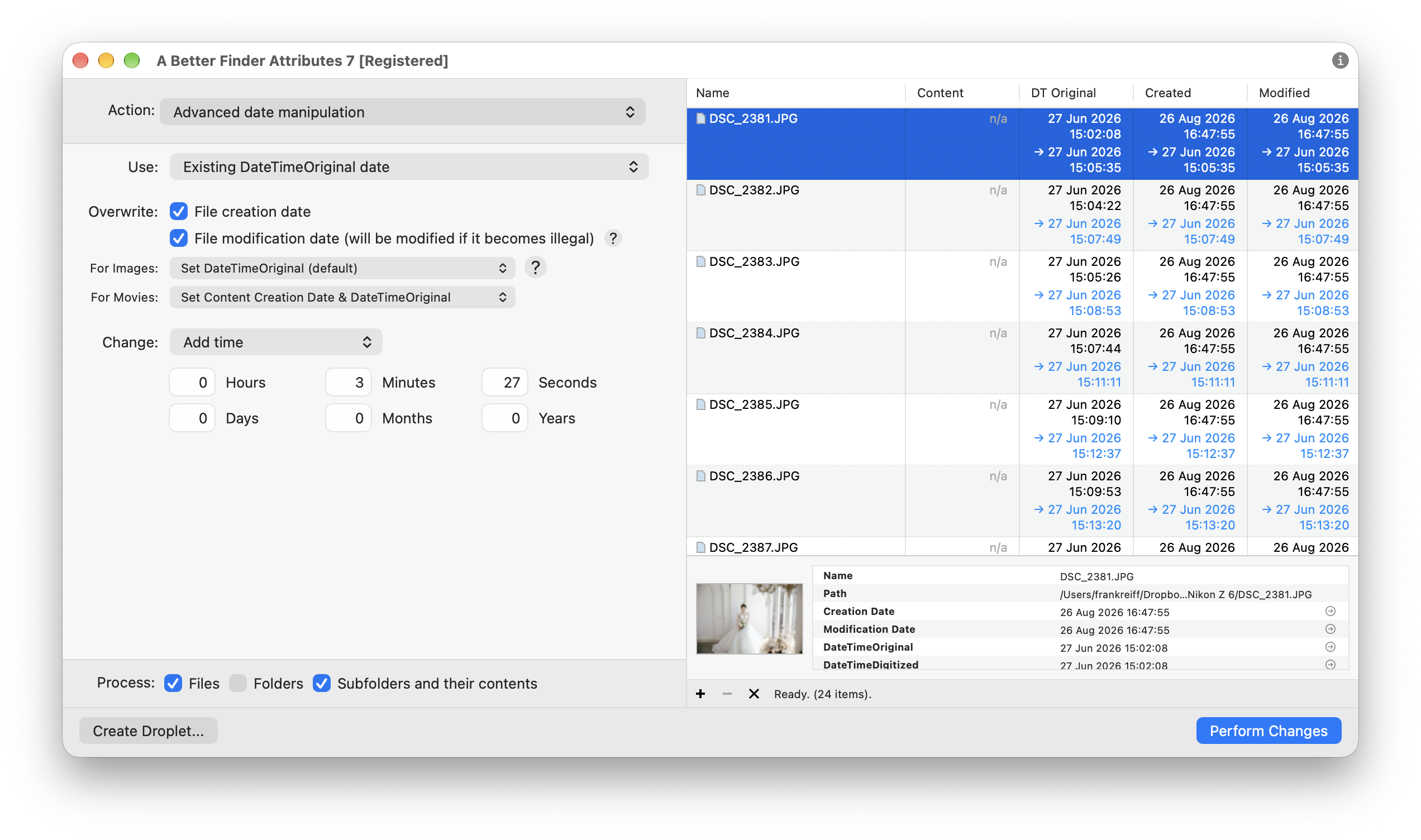
Camera B was 3 minutes 27 seconds behind: every photo’s new capture time is shown before anything is written.
It works a folder at a time and does not group photos by camera for you, so the split from section 2 comes first. It’s version 7, US$29.95 / €29.95 as a one-time purchase, with a free trial to check it against your own files.
Check your work
List both cameras’ photos in time order and look at the stretch around the shared moment:
exiftool -T -DateTimeOriginal -Model -FileName -r /path/to/merged-shoot | sort
The two reference photos should now sit next to each other, and a sequence such as the walk down the aisle should alternate between cameras without jumping back. If one camera’s photos are consistently a few seconds early, the shared moment was not as instantaneous as it looked; find a sharper one and shift by the remainder.
The tricky cases
- Two bodies of the same model. The camera model cannot separate them. Use the serial number, in Lightroom’s filter or with the ExifTool command in section 2.
- Exactly an hour out, plus some seconds. One clock missed a daylight-saving change or was set to another zone. It is still a single shift: enter the hour and the seconds together.
- The clock was changed during the shoot. Someone corrected a camera halfway through. That camera now has two errors; split its photos at the moment of the change and shift each part separately.
- Three or more cameras. Pick one as the reference and repeat the measurement and the shift for each of the others against it.
- Bursts. Capture times are stored to the second, with fractions in a separate field that not every app reads. Within a burst, photos from two cameras may still swap places by a frame; the file name’s sequence number keeps each camera’s own order.
- Same file names from two cameras. Two bodies both produce
DSC_0412. Keep them in separate folders until you have renamed them; renaming photos by date taken gives the merged set one chronological sequence. - Video clips. Cameras store video times in UTC, with their own fields; the shift is the same but the fields differ. See the time zone guide.
Next time
Before the first frame, have every camera photograph the same phone clock showing seconds. It takes ten seconds and turns the whole job into reading two numbers. Camera makers’ phone apps can set the clock automatically, but only on bodies paired with that phone, which rarely includes the second shooter’s.
FAQ
Why are my photos from two cameras out of order? Each camera stamps its photos with its own clock, and the clocks were not set to the same second. Apps sort by those stamps, so one camera’s photos all land too early or too late by the same amount.
Can I sync photos from two cameras without a shared moment? You need some reference: a clock in the frame, a phone photo of the same scene, GPS time in the file (rare on cameras), or an event with a known time. Without any of these you can still align by eye, moving one camera until a sequence reads correctly, but only to within a few seconds.
Does shifting the time damage the photos? No. Only the date fields in the metadata change; the image data is untouched. Keep a backup anyway until you have checked the order.
Which camera should I change? The one that was wrong against real time, if you can tell. If you cannot, it does not matter for the order: move the second camera to match the first.
Do I have to fix it before importing into Lightroom or Photos? Fixing the files first is cleaner, because every app and every export then agrees. Fixing it inside Lightroom or Photos works for that library only, unless you write the metadata back to the files.
How accurate does it need to be? For a wedding, a second or two is enough to keep every sequence in order. For sport or anything shot in bursts from two positions, use the sharpest shared instant you can find.
Related guides
- How to change the date a photo was taken on a Mac: one camera with a wrong clock, scans, and the EXIF date fields.
- Fix time zone offsets across cameras: phone, camera and video files that are hours apart.
- How to fix photo sorting in the Mac Finder: making the Finder follow the capture time.
- Rename photos by date taken: one numbered sequence for the merged set.
- A Better Finder Attributes: Adjusting dates, Advanced date manipulation and the product page.
- ExifTool: the date and time shift documentation.
Frank Reiff is the developer of A Better Finder Attributes and A Better Finder Rename, Mac file-management utilities in continuous development since 1996. Got a multi-camera mix this guide doesn’t cover? Get in touch.