Applies to macOS Ventura through macOS 27
The short answer: a folder has the same two dates as a file, Created and Modified, and the
Finder shows both in Get Info but lets you edit neither. The modification date is maintained by
macOS: it moves to “now” whenever something is added to, removed from or renamed directly inside the
folder. The creation date is set once, when the folder came into existence on this disk, which is
why a copy, a restore or an unpacked archive dates every folder with the day you made it. In the
Terminal, touch -r or touch -t sets a folder’s modification date and SetFile -d sets its
creation date, and a short find loop can give every folder in a tree the date of the newest file
inside it. For a few folders that is all you need. For an archive of hundreds, or when you want to
see what each folder will get before anything is written, A Better Finder
Attributes has an action that sets folder dates from the files inside,
with a preview.
A disclosure before we start: I’m the developer of A Better Finder Attributes, a paid Mac utility that does this job among many other file, date and metadata jobs. Every free route is covered first, with the exact commands, and the section on the paid tool says plainly what it adds.
Four boundary checks, because four different guides serve four different goals:
- You want to change the dates of files, not folders → how to change a file’s created or modified date on a Mac.
- You are not sure which date the Finder, Spotlight or Photos is showing → which date does your Mac actually use?
- The wrong date is the date a photo was taken → change the date a photo was taken on a Mac.
- You want to sort files into dated folders rather than date the folders you have → organize files into folders by date on a Mac.
1. What a folder’s dates mean
Open Get Info on any folder and you see three dates:
- Created is when the folder was made, on this volume. Copy the folder to another disk and the copy gets a new creation date unless the copying program takes care to carry the old one over.
- Modified is the last time the folder’s list of entries changed: a file or subfolder was added, deleted or renamed directly inside it. Editing the contents of a file inside the folder does not count, and neither does a change two levels down. A folder’s modification date is therefore not “the last time anything in here changed”, which surprises most people the first time they sort a folder of project folders by Date Modified and find the active one half-way down the list.
- Date Added is when the item arrived in its current location. It is bookkeeping for Spotlight and the Finder’s “Date Added” sort, there is no supported way to change it, and the rest of this guide leaves it alone.
One rule ties the first two together: macOS does not allow a folder (or a file) to have been modified before it was created. When a program sets a modification date that lies before the creation date, the system quietly pulls the creation date back to match. Remember this; it explains the most common “wrong” folder date of all.
2. Why folder dates go wrong
Folder dates almost never go wrong while you work. They go wrong when the folders move. I ran the usual routes over a test folder created on 14 July 2016 and last modified on 1 August 2016:
| Route | Created | Modified |
|---|---|---|
cp -R in the Terminal |
today | today |
cp -Rp, ditto, rsync -a |
1 Aug 2016 | 1 Aug 2016 |
zip, then unzip |
1 Aug 2016 | 1 Aug 2016 |
| the files inside, via any of the above | kept or collapsed the same way | kept |
Two patterns cover nearly every support mail I have had on the subject:
- Every folder is dated today. A plain copy, a download from a cloud service’s web interface, a restore from a backup that only stores modification times, or an archive format that stores dates for files but not for folders. The files inside usually keep their modification dates, so the information is still there, one level down. This is the case this guide is mainly about.
- Created equals Modified on every folder. The copying tool restored the modification date but not the creation date, and the rule from section 1 then dragged the new creation date back to the older modification date. Not harmful, but a photo archive whose folders were created in 2016 and last touched in 2019 has lost half its story.
Either way, nothing in the Finder puts the dates back. The Finder has never offered a way to edit a date on anything; Get Info is read-only for all three.
3. Free route: the Terminal
For one folder, two commands do the whole job. touch sets the modification date and ships with
macOS; SetFile sets the creation date and comes with Xcode’s command line tools (xcode-select
--install). Apple marked SetFile deprecated years ago, but it is still present on macOS 27 and
still works.
# modification date: copy it from a file ...
touch -r "Holiday 2016/notes.txt" "Holiday 2016"

# ... or type it, as YYYYMMDDhhmm
touch -t 201608010800 "Holiday 2016"

# creation date (month/day/year), SetFile from the Xcode command line tools
SetFile -d "07/14/2016 18:40:00" "Holiday 2016"

# read both back
stat -f 'created %SB  modified %Sm' "Holiday 2016"
Set the modification date first and the creation date second, so the rule from section 1 cannot undo the second command.
Date every folder in a tree from the newest file inside it
The interesting case is the archive where every folder says “today” and the files inside still know
better. This loop visits every folder below Archive, finds the newest visible file directly inside
it and gives the folder that file’s modification date:
find "/path/to/Archive" -type d | while IFS= read -r dir; do
  newest=$(find "$dir" -maxdepth 1 -type f -not -name '.*' \
           -exec stat -f '%m %N' {} + | sort -n | tail -1 | cut -d' ' -f2-)
  [ -n "$newest" ] && touch -r "$newest" "$dir"
done
Three details in that loop are there for a reason, and they are the details that go wrong when you improvise it:
-not -name '.*'skips invisible files. Without it, the.DS_Storefile the Finder writes every time you open a folder is usually the newest file inside, and every folder ends up dated the day you last browsed it.-maxdepth 1looks only at the files directly inside each folder. Drop it and a folder is dated by the newest file anywhere beneath it, which is sometimes what you want and sometimes not. Decide before you run it.- Folders that contain no files, only other folders, are left alone (
[ -n "$newest" ]). A year folder such as2016/that holds only month folders keeps today’s date. If you want it dated too, run a second pass without-maxdepth 1on just those folders.
The loop sets modification dates only. For creation dates you would add a SetFile -d line with the
date reformatted the way SetFile wants it, pick the oldest file instead of the newest, and test
on a copy first, because a typo in a find ... -exec loop has no undo. That is roughly the point
where a few dozen folders become easier in a tool that shows you the outcome before it writes.
4. The batch tool: A Better Finder Attributes
A Better Finder Attributes has always been able to set a folder’s dates the way it sets a file’s: pick the folder, choose a date, done. Since version 7.55 it also has the action this guide is about, Set the folder’s creation/ modification date from the files inside. Drop the folders onto the window (or the parent folder, with Process: Subfolders and their contents ticked) and choose the action:
- Tick Set folder creation date, Set folder modification date or both.
- For each one, choose the source: from the earliest creation date of its files, the latest creation date, the earliest modification date or the latest modification date. For a photo archive, creation from the earliest creation date and modification from the latest modification date gives each folder the span of what is inside it.
- Under Look at:, choose files directly inside the folder or files in all subfolders too. With the second option a year folder is dated by the photos in its month folders.
- Read the preview. The Created and Modified columns show each folder’s current date and, under it, the date it will get; hover over the new date to see which file it comes from. Folders that contain no files say no files, unchanged and are left alone.
- Click Perform Changes.
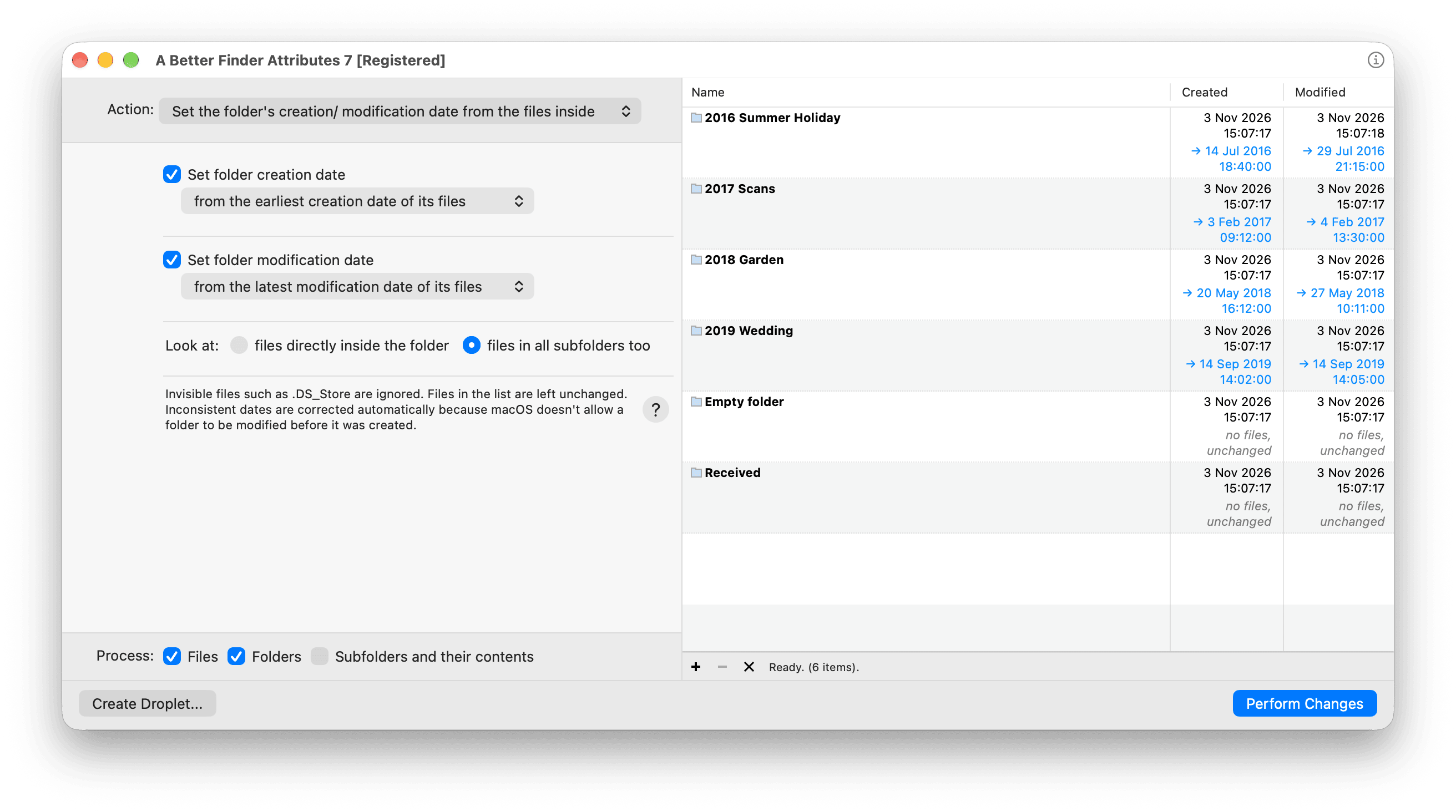
Every folder of the archive shows today’s copy date on top and, beneath it, the date it will get from its files. The two folders without files are marked unchanged.
The rules it applies are the ones you would otherwise have to encode in the loop: invisible files
such as .DS_Store are ignored, aliases and symbolic links are ignored and never followed, packages
such as .app bundles or Photos libraries count as single files and are not opened, subfolders
themselves never count as sources, a folder that cannot be read is reported rather than guessed at,
and a creation date that would land after the modification date is corrected automatically. It
works on any volume macOS can write dates to, including external drives.
Two neighbouring actions cover the other directions. Copy the enclosing folder’s creation/
modification date to its files (since 7.46) does the reverse, giving files the date of the folder
they sit in, which is the fix for a dated folder structure whose files lost their dates. And the
Advanced date manipulation action’s Date embedded in the file or folder name source dates a
folder called 2016-07 Holiday from its own name, for archives that carry their dates in the
folder names rather than in the files.
It’s version 7, US$29.95 / €29.95 as a one-time purchase, with a free trial to check it against your own folders. The reference page for the action is Setting folder dates from the files inside.
5. Which date to give a folder
There is no single right answer, so here is what people actually choose:
| Folder | Creation date | Modification date |
|---|---|---|
| A photo shoot or event folder | the earliest shot (first file created) | the latest shot or edit (last file modified) |
| A project folder | the oldest file | the newest file |
| A year or month folder holding subfolders | from all subfolders, earliest | from all subfolders, latest |
| Documents restored from a backup | the oldest file | the newest file |
The common thread: the creation date comes from the earliest date and the modification date from the latest, so that the folder spans its contents. Sorting a parent folder by either date then puts the folders in the order the work happened.
Check your work
Select the folder and press ⌘I: Get Info shows Created and Modified. In the Terminal:
stat -f 'created %SB  modified %Sm' "/path/to/folder"
GetFileInfo -d "/path/to/folder"      # creation date only, Xcode command line tools
Then sort the parent folder by Date Modified or Date Created in list view and check that the order is the one you expected.
The tricky cases
- Folders that only contain folders. Nothing directly inside them counts as a file, so a
per-folder pass leaves them unchanged. Use the subfolders option (or a second Terminal pass without
-maxdepth 1) to date them from everything beneath. - Packages. An
.app, a Photos library or a Pages document is a folder to the Terminal but a single item to the Finder. Thefindloop will walk into it and date its internal folders; the ABFA action treats it as one file and never opens it. - Cloud folders. iCloud Drive, Dropbox and Google Drive keep their own idea of a folder’s dates and may re-stamp them after a sync. Change the dates, let the sync settle, check again.
- Network shares. SMB and some NAS file systems store modification dates but not creation dates, or round them to even seconds. The modification date will take; the creation date may not.
- Read-only locations. Time Machine backups, APFS snapshots and mounted disk images are read-only by design. Copy the folders out first, then date the copies.
- The modification date will not stay put. It is maintained by macOS, so the next file you add to the folder resets it to today. Date folders when you have finished filling them, or expect to do it again.
Common pitfalls
- Letting
.DS_Storewin. It is nearly always the newest file in a folder you have looked at. Exclude invisible files, whichever tool you use. - Setting the creation date first. If the modification date is still “today” and you set an older creation date, fine; but if you set a modification date that is older than the creation date afterwards, the creation date snaps to it. Modification first, creation second.
- Expecting the files to follow. Dating a folder changes the folder only. For the files, see change file dates on a Mac.
- Running a loop against a whole disk.
find / -type dvisits system folders too. Point every command at the one folder you mean. - No undo. Neither
touchnorSetFilekeeps the old value. Work on a copy of anything you cannot recreate, or use a tool that shows the result first.
FAQ
Can I change a folder’s date in the Finder? No. Get Info shows the Created, Modified and Date Added dates but none of them can be edited there. You need the Terminal or a utility.
Why did all my folders get today’s date after copying them? The copy created new folders on the destination disk, and a folder’s creation date is the moment it was created there. Some copying tools restore the old modification date afterwards; a plain copy does not. The files inside usually keep their dates, so the folders can be re-dated from them.
Why is Created the same as Modified on my folders? The copying tool set the old modification date but not the creation date, and macOS does not allow a creation date later than the modification date, so it pulled the creation date back to match. Set the creation date separately, from the oldest file inside, to restore the span.
Does changing a folder’s date change the files inside? No. The two are independent. The reverse is also true: changing a file inside does not change the folder’s creation date, and changes the modification date only when a file is added, removed or renamed.
Does it work on external drives and network shares? On any drive formatted as APFS, HFS+ or exFAT, yes. On network shares the modification date works everywhere; the creation date depends on the server’s file system and may be ignored.
Can I change the Date Added? Not with supported tools. Date Added records when the item arrived in its current location and is maintained by the system. Moving the item to another folder and back gives it a new one.
What is the difference between modification date and “last opened”? Last Opened tracks when the
Finder or an app opened the item. Opening a folder does not change its modification date; it does
write a .DS_Store file inside it, which is a reason to exclude invisible files when dating folders
from their contents.
Related guides
- How to change a file’s created or modified date on a Mac: the same
dates, on files, and the
touchandSetFilecommands in more detail. - Which date does your Mac actually use?: Created, Modified, Date Added and the embedded dates inside photos, and which one each app reads.
- How to fix photo sorting in the Mac Finder: once the folders are right, make the photos inside them sort by the date they were taken.
- Organize files into folders by date on a Mac: the other way round, building dated folders from loose files.
- What is a .DS_Store file?: the invisible file that would otherwise date every folder with the day you last opened it.
- A Better Finder Attributes: Setting folder dates from the files inside, Copying dates between fields and from folders and the product page.
Frank Reiff is the developer of A Better Finder Attributes and A Better Finder Rename, Mac file-management utilities in continuous development since 1996. Found a folder date this guide doesn’t explain? Get in touch.