Applies to macOS Ventura through macOS 27
The short answer: the Finder can show your files grouped by date (Desktop Stacks, Use
Groups in any window, Smart Folders), but it will not put them into date folders for you. To
actually create 2024/03/ folders and move the files in, you need the Terminal (a six-line loop
for file dates, one ExifTool command for photo shooting dates), a rules
app such as Hazel that sorts files as they arrive, or a folder-splitting utility that takes an
entire dump of files, shows you the folder tree it is about to build, and then builds it. This
guide covers all three, including the jobs that are not about dates at all: by file type, by
first letter, and the “100 files per folder” split that USB sticks, DVDs and slow web uploads keep
asking for.
A disclosure before we start: I’m the developer of The Big Mean Folder Machine, a folder splitting and merging utility for Mac, a paid tool I’ve sold since 2007. You’d be right to expect this article to end by recommending it. It also says, more than once, when the Finder or a free command is all you need, and when Hazel is the better buy.
1. First, what “organize by date” actually means
Three different dates can be meant, and the tools below differ in which they can see:
- The file’s creation or modification date is what the Finder shows in list view. It is what
the Finder, Hazel and the shell
statcommand sort by. The catch: a copy made the wrong way (a download, an export, some cloud and NAS transfers) resets it to the day of the copy, so a folder of 2019 photos can wear a 2026 date. Which Mac file dates mean what, and which survive a copy is a guide of its own. - The photo shooting date lives inside the JPEG, HEIC or RAW file (EXIF
DateTimeOriginal). It survives any copy. Only tools that read EXIF (ExifTool, a folder splitter that understands it) can sort by it; the Finder can’t, and Hazel’s own date tokens are file-system dates. For photos, this is nearly always the date you want. - A date in the file name, such as
2024-03-15 Invoice.pdforIMG_20240315_..., is just text. Tools that can take “characters 1 to 7 of the name” as the folder name handle it; date tools don’t.
If your files are photos and you also want the file dates fixed so the Finder sorts them properly, fix photo sorting in the Finder covers that separately.
2. The Finder: grouped views, not folders
Everything in this section changes how files are displayed. Nothing moves. That is a feature when you want the loose Desktop to look tidy without committing to a structure, and a trap when you expected folders to appear.
- Desktop Stacks. Click the Desktop, then View › Use Stacks (⌃⌘0). Files on the Desktop collapse into piles by Kind, by Date (last opened, added, modified or created) or by Tags (View › Group Stacks By). New files you save to the Desktop join the right pile. Open a pile and you see the files; they are still loose on the Desktop.
- Groups in any folder. View › Use Groups, then View › Group By › Date Created (or Modified, Added, Last Opened, Kind, Size, Tags). List view then shows headed sections such as “Today”, “Yesterday”, “Previous 7 Days”, “2025”, “2024”. Useful for finding things; useless for handing the folder to someone else, because the grouping is a view setting of that window.
- Smart Folders. File › New Smart Folder, add criteria like Created date is within the last 1 year and Kind is Image, save it in the sidebar. A Smart Folder is a saved search: it lists matching files wherever they live, and it is empty the moment you look at it on another Mac.
- Tags. Colour tags are the Finder’s one organizing tool that does travel with the file (on APFS and in iCloud Drive). They still don’t make folders.
Where the Finder is enough: a Desktop or a Downloads folder you want to see by date, or a folder you’ll search rather than browse. Where it isn’t: anything you’ll copy to a drive, share, back up, or hand to software that expects a tree.
3. The Terminal: two loops that do make folders
By file date, for any kind of file
This takes every file directly inside Dump, reads its creation date, makes a YYYY/MM
folder for it and moves it there. Copy, paste, run; nothing to install.
cd ~/Downloads/Dump
for f in *; do
  [ -f "$f" ] || continue
  d=$(stat -f '%SB' -t '%Y/%m' "$f")
  mkdir -p "$d"
  mv -n "$f" "$d/"
done
%SB is the creation (birth) date; change it to %Sm for the modification date. -t '%Y/%m'
is the folder pattern: '%Y' for year folders only, '%Y/%m/%d' for year/month/day,
'%Y-%m' for flat 2024-03 folders. mv -n refuses to overwrite, so if two files share a name
the second one stays behind in Dump; check that the folder is empty afterwards. Subfolders
are skipped ([ -f "$f" ]); run it inside each one, or use find if you’re comfortable with it.
By photo shooting date, with ExifTool
ExifTool (brew install exiftool) can read the shooting date out of every JPEG, HEIC, RAW and
most videos, and it has a built-in “move into a folder named from a date” feature:
cd ~/Pictures/Dump
exiftool -r '-Directory<DateTimeOriginal' -d '%Y/%m' .
One line, recursive, and files that have no DateTimeOriginal are left exactly where they were
(ExifTool prints “No writable tags set” for each and counts them as “unchanged”). Use
-d '%Y/%Y-%m-%d' for day folders inside year folders, and -o . in front of the -Directory
argument if you want copies rather than moves. Videos keep their date in a different tag, so
they stay behind until you run it again with '-Directory<CreateDate'. It is very good, and it
is the tool I’d point any photographer at who already lives in a shell.
The honest assessment: both loops are free and do the job for one dump of files. What they
don’t give you: a look at the tree before it exists, a sensible answer for the files that have no
date (they’re left behind, mixed in with the ones that failed for other reasons), name clashes
handled rather than skipped, and anything other than dates. Every variation (by type, by name,
by size, N per folder) is another script. If you’ve never used the Terminal, this is not the job
to learn on: a typo in mv with a wildcard is how a folder disappears.
4. Hazel: for files that keep arriving
Hazel (US$42 one-time) watches folders and applies rules to whatever lands in them. For ongoing organization it has no equal on the Mac, which is why it has been the default recommendation for twenty years. The rule for this guide’s job is:
- Add the folder (say
Downloadsor a scanner’s output folder) in Hazel. - New rule, condition Kind is Image (or Date Added is after …, or any condition you like).
- Action Sort into subfolder, and in the pattern field put the Date Created token, set to
the year, then the small › subfolder token, then another Date Created token set to a
two-digit month. That builds
2026/03/. A literal slash in the pattern does not work; the › token does.
From then on every new file is filed within seconds of arriving, forever, and Hazel can also rename, tag, move to another drive or run a script in the same rule.
The honest assessment: Hazel’s date tokens are the file-system dates (created, modified,
added), not the EXIF shooting date, so a photo dump copied in today lands in 2026/10/ regardless
of when it was shot; the workaround its forums suggest is a shell-script action that calls
ExifTool, at which point you’re writing the script from section 3 anyway. And its model is a
stream: pointing a rule at an existing
50,000-file archive works, but you get no preview of the result, and every rule is a permanent
background process. If what you have is a one-off restructure of what’s already there, that’s the
next section; if what you have is a folder that fills up every week, buy Hazel.
5. Splitting a whole folder into a hierarchy, with a preview
The rest of this section uses my own The Big Mean Folder Machine (US$29.95 one-time, free trial, macOS 10.7 through macOS 27). It exists for exactly one job: take one or more folders containing anything from a hundred files to several hundred thousand, and rebuild them as a new folder tree according to criteria you choose, with the complete result shown before a file is touched. It is an assistant: one question per screen, Continue, next question.
What you can split by
On the first screen choose Split files into multiple folders, add your source folders (as many as you like; tick Subfolders to take everything underneath them too), and choose Split into hierarchies. You then pick a criterion for each of up to four folder levels:
- Photo shooting date as year, month, day, or a full date, read from the EXIF data of JPEG, HEIC, RAW and PDF files, so it works on any copy of the photo no matter what the Finder date says.
- Creation date, likewise as year, month, day or full date, for files that aren’t photos.
- File type: one folder per extension, so the PDFs, Word documents, JPEGs and videos in a
dumped
Documentsfolder each get their own. - First, second or third letter of the file name, or the first pair of letters, for A to Z structures (music by artist initial, clients by surname).
- Custom: take part of the file name as the folder name (characters 1 to 7, or everything
before the first underscore), a custom date pattern (
<4DigitYear>-<month0>gives flat2024-03folders), MP3 or AAC music tags (<Artist>/<Album>), or the file’s creator and type codes.
Each level has its own setting for folder-name case (original, lowercase, UPPERCASE, Sentence,
Proper) and, from the second level down, a threshold: create this level only if there would
be more than N files in the folder above. Set the month level to “only if more than 200 files in
the year folder” and quiet years stay as a single 2019 folder while busy ones get
2024/03, 2024/04 and so on. Three levels, Photo shooting date (YYYY) › Photo shooting date
(MM) › File type, give you 2024/03/JPG and 2024/03/RAW, which is how many photographers
keep RAW and JPEG apart without separating them.
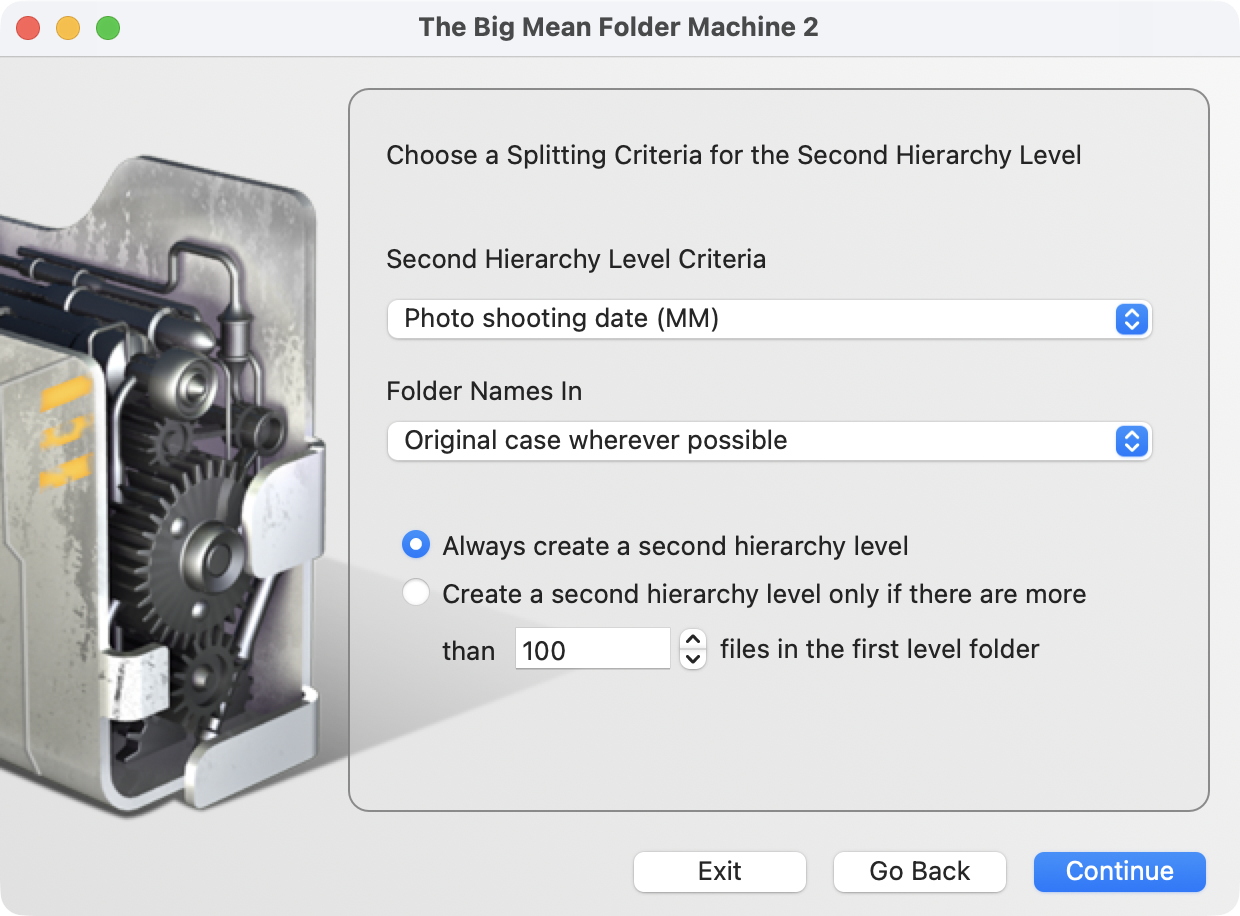
The second of up to four hierarchy levels. The threshold option is what keeps a thin year from being split into twelve folders with three files each.
Files without a date, and files with the same name
When you split by shooting date, the next screen asks what to do with files that have no EXIF
date (videos, screenshots, scans, anything that isn’t a camera file): put them in an others
folder next to the year folders (one others per date level, so others/others in a year/month
split), where you can deal with them by hand, or use the file creation date instead. The
Terminal loops above leave such files behind in the source; here they always end up somewhere
you can see.
Files that would end up with the same name in the same new folder (two cameras’ IMG_0001.jpg
in 2024/03) are kept, not overwritten and not skipped: the conflict screen lets you choose how
the names are made unique ((1), (01), (a) and so on) and which file keeps its original
name. This is the same mechanism described in how to merge folders on a
Mac, because the split flow is also how you merge and restructure
many folders in one pass.
Preview, then copy or move
Choose a destination folder, choose copy (the sources are left untouched; the default, and the
recommendation) or move, and leave Show preview ticked. The preview is a collapsible tree
of the entire result: open 2024, open 03, see which files landed there and what they will be
called. If something is wrong, Go Back changes the criteria without starting over. Only
Continue from the preview writes anything.
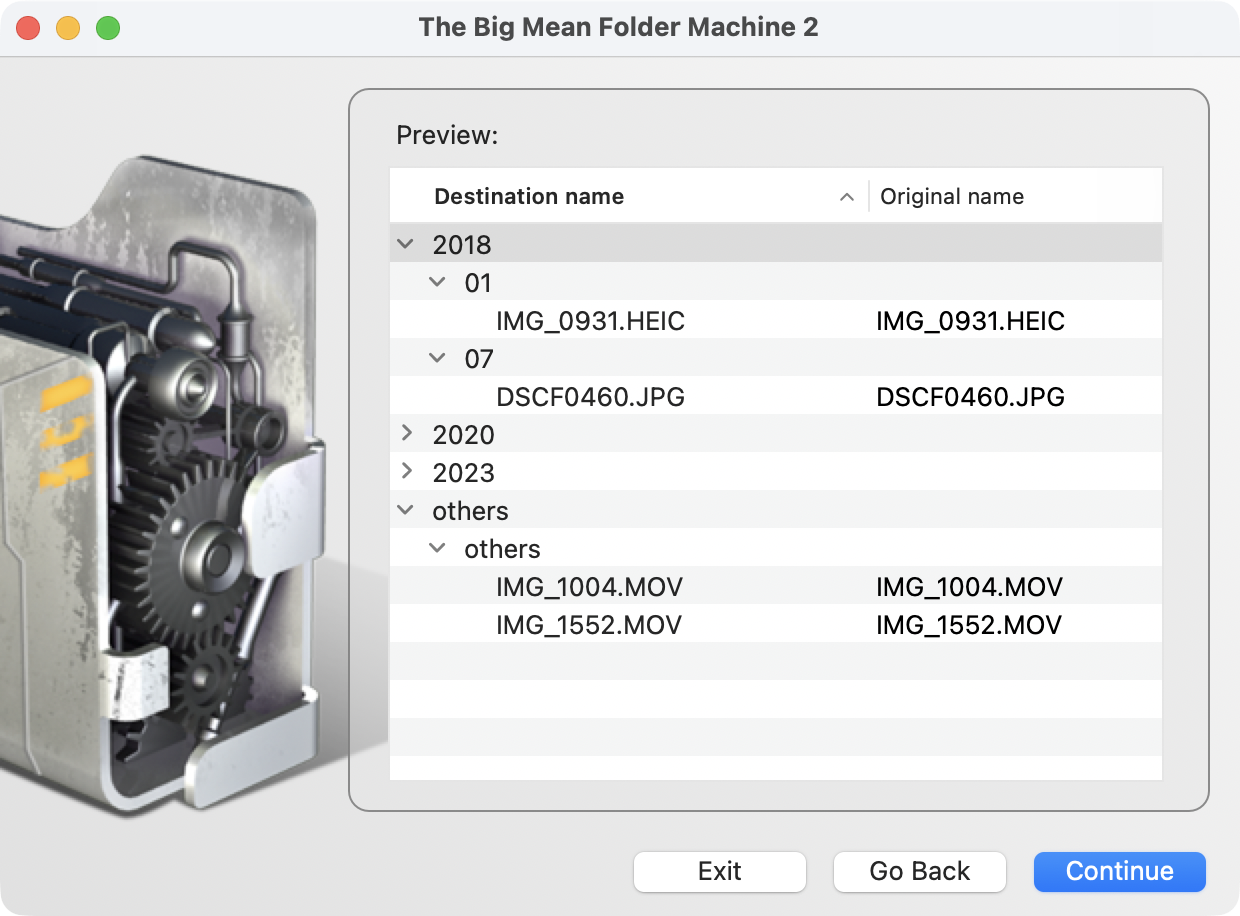
The preview is the whole point: the tree you are about to get, before you get it. Two
photos from 2018 in their month folders, and the two videos, which carry no EXIF shooting date,
in others.
The trial version runs the complete flow including the preview and copies the first 10 files, which is enough to confirm the structure is what you meant.
N files per folder, or N gigabytes per folder
The other splitting scheme, Split into batches, is for a different question: not where does
each file belong but how do I cut this into pieces of a manageable size. Choose a batch size
as a number of files or in KB, MB or GB (4.7 GB for a DVD, 32 GB for a card, 500 files for a web
uploader that times out beyond that), choose a sort order that decides which files go in batch
one, two, three (by name, by date, by size), and choose how the batch folders are named
(0-99, 100-199, …, Batch 1, Batch 2, …, and a few others). You can keep the original
subfolder structure inside each batch or flatten it. Searches like “group files into folders of 5
items” land on this page for a reason: it is the only way to do it on a Mac short of a script.
6. Which method, for which job
| You want to… | Use |
|---|---|
| See the Desktop or a folder grouped by date, nothing moved | Finder: Stacks, Use Groups, Smart Folders |
One dump of files into Year/Month folders by file date, you know the Terminal |
the stat loop in section 3 |
One dump of photos into Year/Month by shooting date, you know the Terminal |
ExifTool, section 3 |
| New files filed automatically as they arrive, forever | Hazel, section 4 |
| A large existing collection into date, type, A–Z or name-based folders, with a preview | a folder splitter, section 5 |
| Photos by shooting date, with videos and scans dealt with sensibly | a folder splitter (others folder or creation-date fallback) |
| Several folders merged and restructured in one go | a folder splitter with multiple sources; see the merge guide |
| Cut a folder into pieces of N files or N GB | a folder splitter’s batch mode |
| Rename the files by date as well | rename photos by date taken |
7. Pitfalls
- Copy first, move later. Every tool here can move files, and a move that stops halfway (full disk, network drop, a file the system won’t let go of) leaves you with two half-collections. Copy, verify, then delete the source.
- File dates lie after a bad copy. If every file in the dump is dated the day you copied it, sorting by file date gives you one folder. Sort photos by EXIF instead, or restore the dates first.
- Don’t organize inside the Photos library. The
Photos Library.photoslibrarypackage is a database; moving files inside it breaks it. Export first: getting photos out of Apple Photos explains the two exports and which keeps the dates. - iCloud Drive and “Optimize Mac Storage”. A file that is only a placeholder on this Mac has no EXIF data to read until it’s downloaded. Download the folder (right-click, Download Now) before sorting photos by shooting date.
- Name clashes.
IMG_0001.jpgexists in every camera’s output. Any method that silently overwrites or silently skips will lose or strand files; prefer one that renames and shows you. - Pilot on a copy. Twenty files, check the result, then the real thing. This applies to the Terminal above all: there is no undo.
Related guides
- How to organize files on a Mac — the overview: a folder scheme that lasts, what the Finder’s own tools do, and the four restructuring jobs this guide is one of.
- How to merge folders on a Mac — the reverse operation, and what the Finder’s Merge button really does.
- Mac file dates explained — created, modified, added and content-created dates, and which survive a copy.
- Fix photo sorting in the Finder — make the file dates match the shooting dates so every tool sorts photos correctly.
- Rename photos by date taken — date-based file names to go with date-based folders.
- The Big Mean Folder Machine: product page, the manual, custom date formats and music tag placeholders.
- Apple: use Stacks on the desktop; Noodlesoft: Hazel; Phil Harvey: ExifTool.