Applies to macOS Ventura through macOS 27
The short answer: to strip metadata from photos on a Mac you have three free routes and one batch route. Every photo you take carries hidden EXIF data: often the exact GPS position, the precise time of capture, your camera or phone model, sometimes even a lens serial number, and all of it travels with the file when you share it. Remove the location from copies you share via Apple Photos (untick Location Information on export) or Preview (Remove Location Info), remove all EXIF data with the free command-line ExifTool, or strip metadata from hundreds of photos and videos at once with a dedicated tool. What the big photo platforms do to your metadata is not something to rely on; more on that below.
A disclosure: I’m the developer of A Better Finder Attributes, a paid utility that does this in batches, along with many other file-date and metadata jobs. The free routes are covered honestly first.
Not on a Mac? On an iPhone, tap Options at the top of the share sheet and switch Location off before sending. On Windows, right-click the file, choose Properties ▸ Details ▸ Remove Properties and Personal Information. The online “metadata strippers” work too, but note what they ask of you: uploading the very original whose data you wanted to keep private. Everything below is for the Mac.
Three boundary checks, because removing is only one of three metadata jobs:
- You want to remove metadata before sharing → this guide.
- You want to change an embedded date (wrong camera clock, scans) → change the date a photo was taken.
- You want to add or fix location metadata (your camera has no GPS) → that’s the opposite job; it’s what Media Location Tagger is for. The same app also does the selective removal (drop the GPS, keep the city; or blur the position instead of deleting it) covered below.
What’s actually inside your photos
Point a metadata viewer at an ordinary iPhone photo and you’ll find well over a hundred fields. The ones that matter for privacy:
- GPS location. Not roughly: latitude and longitude to a few metres, plus altitude. iPhones even record the direction you were facing and your speed at the moment you pressed the shutter. Enough to identify your home from a single shared photo.
- Timestamps. When the photo was taken, digitized and last edited, down to fractions of a second, in several variants across EXIF, IPTC and XMP.
- Equipment. Camera or phone model, lens, and on many cameras a serial number that ties every photo you’ve ever published to the same body.
- Ownership and workflow. Artist and copyright fields, the software you edited with, and maker notes, a large opaque block in which camera makers store everything from focus points to firmware versions.
Videos carry their own family of embedded metadata tags: creation dates in the QuickTime container (usually in UTC) and, on iPhone footage, GPS coordinates in two places.
To see it for yourself: open a photo in Preview and choose Tools ▸ Show Location Info; the GPS tab even shows the spot on a map.
Before you share: what platforms do (and don’t) strip
The big social networks re-encode uploads and drop most metadata from the publicly served copies. That is why “Instagram removes EXIF” is only half-true: the copy strangers download is scrubbed, but you’ve still handed the original data to the platform, and its privacy policy decides what happens to it. And the places where photos travel unprocessed (email, most messengers set to “original quality”, cloud-drive links, your own website) pass every field along untouched.
The only version you control is the one that leaves your Mac. Strip it there.
Free route 1: Apple Photos, minus the location
For photos in your Photos library, File ▸ Export ▸ Export Photos… has an Include section: untick Location Information and the exported copies go out without GPS coordinates (untick Title, Keywords and Caption too, if you’ve added those). Your originals in the library keep their metadata; this affects only the exported copies, which is exactly what you want. The two exports and their options are compared in getting photos out of Apple Photos.
There are limits, though: it’s an either/or switch for location, not a general metadata scrub. The exported files still carry capture dates and camera details, and it only helps for photos that live in Photos.
Free route 2: Preview, for one-off location removal
For a photo sitting in a folder: open it in Preview, choose Tools ▸ Show Location Info (greyed out if the photo carries none), and at the bottom of the GPS tab: Remove Location Info. Quick and built-in, but one file at a time, location only.
Free route 3: ExifTool, to strip all EXIF data from the command line
The free command-line ExifTool removes anything, from any number of files:
# strip everything except the colour profile (recommended full scrub)
exiftool -all= -tagsfromfile @ -icc_profile photo.jpg

# location only, whole folder
exiftool -gps:all= -xmp:geotag= /path/to/photos

# capture date and GPS only; keeps camera data, keywords and the colour profile
# (photos only: video container dates can't be deleted, see the tricky cases below)
exiftool -DateTimeOriginal= -CreateDate= -gps:all= /path/to/photos
ExifTool keeps _original backups unless told otherwise. The caveats are the usual command-line
ones: no preview of what will be removed, and flag syntax with real teeth. Run -all= without the
-tagsfromfile @ -icc_profile clause and the colour profile is deleted too, which can visibly
shift a wide-gamut photo’s colours on the web.
Strip metadata from hundreds of photos at once: A Better Finder Attributes
Metadata removal in A Better Finder Attributes comes as three actions of increasing thoroughness. Drop files (or whole folders) on the window, pick the action, press Perform Changes.
- Remove geolocation metadata tag(s) (manual) is the before-sharing essential. It removes the entire EXIF GPS block: not just the coordinates but also altitude, speed, direction and the GPS timestamps, plus the city/state/country names that cataloguing software writes into IPTC and XMP fields, and the GPS coordinates embedded in iPhone videos. Everything else stays: dates, camera, your carefully written keywords.
- Remove EXIF content creation timestamp is the when scrub. Six checkboxes cover the shooting date, the digitization date, IPTC creation dates, file-edit dates, and the two families of video timestamps (exact tag lists in the manual). One honest technical note: QuickTime video dates cannot actually be deleted from the container, so the app overwrites them with the format’s zero date instead; the effect is the same, the original capture time is gone.
- Strip all metadata tags (manual) is the full scrub for anything that leaves the house. EXIF, IPTC, XMP, GPS, maker notes, serial numbers, editing history: afterwards a metadata dump shows nothing but the image’s structural properties (dimensions, encoding). A Preserve colour profile (ICC) checkbox, on by default, keeps the colour profile through the scrub, so Display P3 photos don’t shift colours; the profile describes how colours should be displayed and contains nothing personal.
All three handle batches of mixed formats and skip incompatible files rather than touching them. The geolocation and timestamp actions also cover the RAW formats of all major camera makers; the full strip works on JPEG, HEIC, PNG, TIFF and QuickTime-based video. File-system dates (what the Finder’s Get Info shows) are deliberately left alone; embedded metadata and file dates are different things.
It’s version 7, US$29.95 / €29.95 as a one-time purchase, with a free trial.
A tour of what’s hiding in your files, and the removal actions in practice, including what professional photographers may want to change rather than remove before delivering to clients.
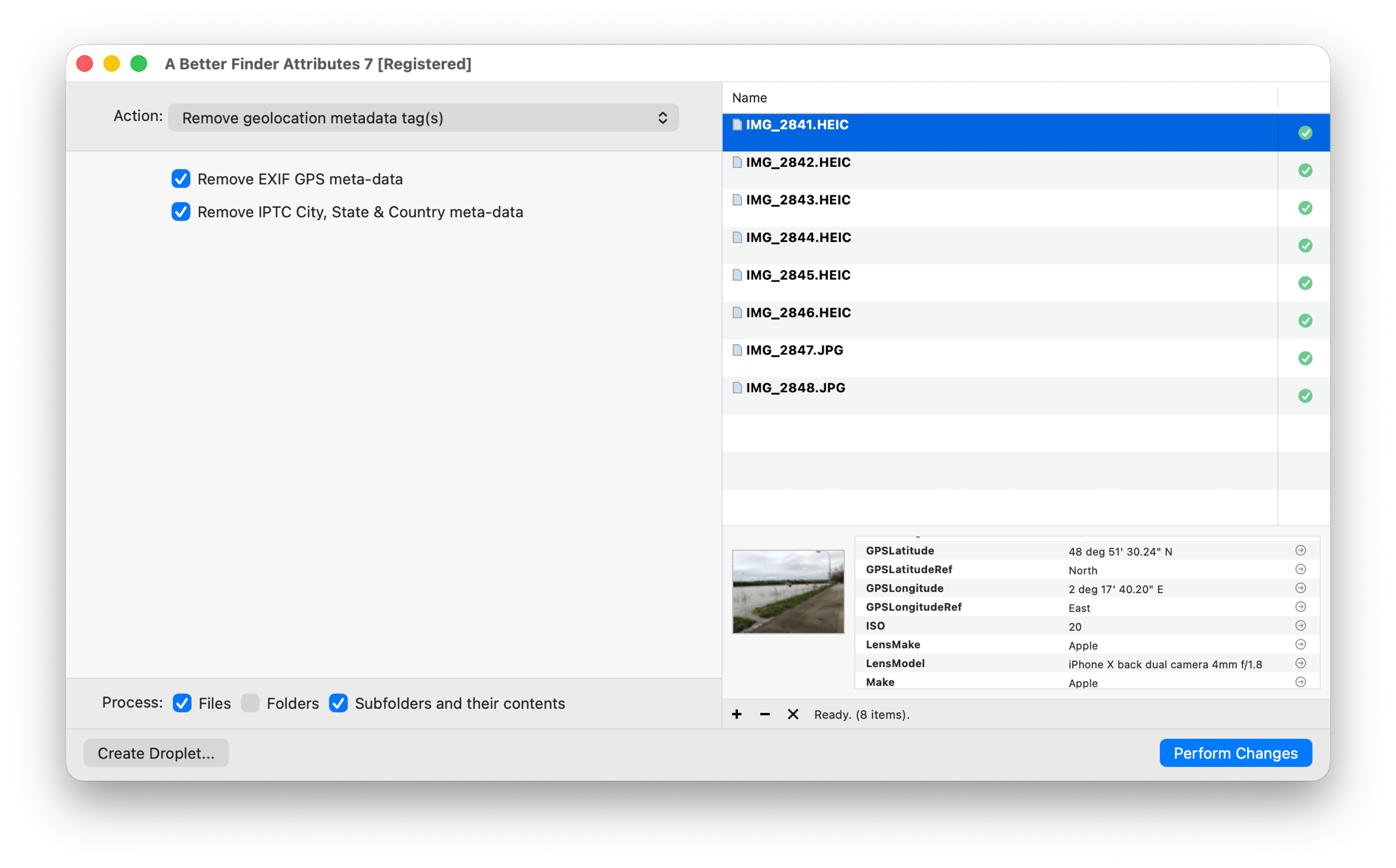
The before-sharing essential: GPS and location name fields removed from a batch in one pass; dates and keywords untouched.
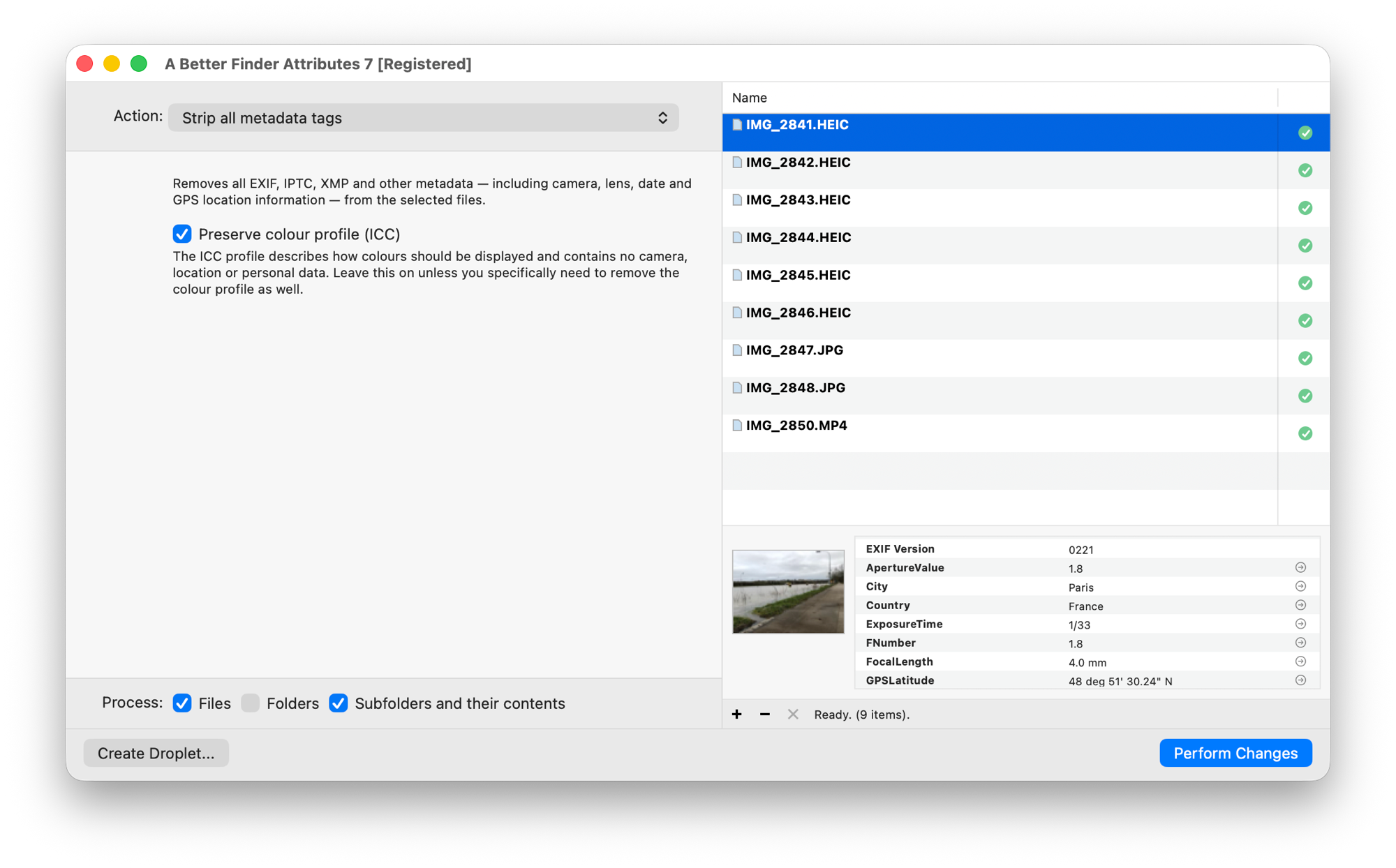
The full scrub: everything except the colour profile and the pixels themselves.
Remove only the location, keep everything else: Media Location Tagger
The geolocation action above is deliberately blunt: it takes out the whole location block, names included, from every file you give it. Sometimes that is more than you want. You may want to keep the city and country (so Photos and Lightroom can still group the pictures by place) and drop only the precise coordinates. You may want to keep a location, just not that one. Or you may want to look at where each file actually points before deciding. That is the job of Media Location Tagger, also mine, which is a location-metadata editor rather than a metadata remover: it reads and writes exactly the GPS and place-name fields, and shows them on a map.
Drop the copies you intend to share on the window and select the ones to clean. The Location menu then offers removal at whatever granularity you need:
- Remove GPS Tags strips the coordinates and leaves the IPTC place names in place. This is the usual choice for photos going to social media: the file still says “Lisbon, Portugal”, it no longer says which doorstep.
- Remove All IPTC Location Tags does the reverse: sub-location, city, state and country go, the coordinates stay. Useful when a sub-location names your street or building.
- Remove IPTC and GPS Data entirely removes all of it in one go, and single-field entries (Remove Sub-location, Remove City, and so on) take out just one value.
The GPS and IPTC columns of the file list switch to a grey “no data” icon for the cleaned files, so you can see at a glance that nothing location-related is left where you didn’t want it.

Removal at any granularity: the coordinates only, one place-name field, or all of it, for the selected files.
The alternative to removing: blur it. Deleting the coordinates has a real cost, because your own photo software loses the ability to sort those pictures geographically. The alternative is to keep coordinates that are roughly right but not revealing. Select the photos, click Add Pin next to the coordinates to jump the map to the precise spot, drop a new pin somewhere nearby but anonymous (the town centre rather than your street, the park entrance rather than your usual bench), then Apply the new pin to the selection. The photos still land in the right place on a map; they just no longer point at your front door. Nothing else I know of on the Mac offers this.
It works on the same batch scale as the actions above, on JPEG, HEIC, TIFF, the RAW formats of the major camera makers and on MOV/MP4 video (where iPhones store the coordinates in the QuickTime container rather than in EXIF). The same rule applies: work on the shared copies, keep your originals complete. The step-by-step page in the manual walks through both options with the app’s own terminology.
It’s version 1, US$29.95 / €29.95 as a one-time purchase, with a free trial.
The tricky cases
- Videos. The container’s date fields can’t be removed outright (the format requires them), only zeroed. iPhone videos also keep GPS in two different places, and both need removing. Use a tool that knows the video fields; the image-centric ones miss them.
- Your originals vs. the shared copy. Metadata removal is permanent; there is no “restore metadata” for a stripped file. Keep your originals complete (their metadata is useful to you: it’s what sorts your library) and strip copies on their way out.
- Edited exports. Exporting from an editor doesn’t reliably clean a file: most editors copy the original’s EXIF into the export, and add more (their own software tag, edit timestamps). Strip the export, not just the source.
- The filename also talks.
IMG_20230615_143000.jpgreveals the capture date with no metadata at all, and a stripped file with that name still tells the story. Batch-rename the shared copies to something neutral.
Common pitfalls
- Stripping the library instead of the copies. Remove metadata from your archive and your photo software loses the dates and locations it sorts by. Share-time copies, always.
- Trusting the platform. What a social network strips today it may not strip tomorrow, and the messenger set to “original quality” strips nothing.
- Removing the colour profile along with the metadata. A too-aggressive scrub (ExifTool’s bare
-all=) deletes the ICC profile; wide-gamut photos then render dull or oversaturated in some browsers. Keep the profile; it contains nothing personal. - Expecting the file dates to change. After a metadata scrub the Finder still shows the file’s creation date, because that lives in the file system, not the file. If that matters for what you’re sharing, change the file dates too.
FAQ
How do I remove metadata from a photo on a Mac for free? Location only: Preview’s Inspector
(Tools ▸ Show Location Info, then Remove Location Info) or a Photos export with Location
Information unticked. Everything: ExifTool on the command line (exiftool -all= -tagsfromfile @
-icc_profile photo.jpg).
How do I remove EXIF data from multiple photos at once? Drop the folder on A Better Finder
Attributes, choose Strip all metadata tags (or Remove geolocation metadata tag(s) for location
only), check the preview, press Perform Changes. Free alternative: point ExifTool at the folder
(exiftool -all= -tagsfromfile @ -icc_profile /path/to/photos); it processes every file inside
and keeps _original backups.
How do I strip all metadata from a JPEG on a Mac? Same two answers, for a single file: the
Strip all metadata tags action, or exiftool -all= -tagsfromfile @ -icc_profile photo.jpg.
Afterwards Tools ▸ Show Inspector in Preview lists nothing beyond the image’s dimensions and
colour profile. Preview itself can only remove the location, not the rest.
How do I remove the location from photos but keep the date and everything else? With a tool that removes only the location fields. A Better Finder Attributes’ Remove geolocation metadata tag(s) action takes out the GPS block and the place names and leaves dates, camera data and keywords alone. If you want finer control (drop the coordinates but keep the city, or replace the precise position with a vaguer one), Media Location Tagger does that per field, with the files shown on a map.
Does macOS remove location data automatically when I share photos? No. The Mac’s share sheet and the Finder pass files along with metadata intact. (iOS shows an Options link with a location toggle when sharing from the Photos app; macOS Photos only does this on export.)
Do Instagram, Facebook and the like remove EXIF data? From the copies they serve publicly, largely yes. But you’ve still uploaded the original metadata to the platform itself, and email, messengers and cloud links generally preserve everything. Strip before sharing rather than relying on the destination.
Can I remove metadata from videos too? Yes, with the right tool. Video dates live in the QuickTime container and can only be zeroed, not deleted (the effect is the same), and iPhone videos store GPS coordinates in two separate fields.
Does removing metadata reduce image quality? No. Metadata lives alongside the image data; removing it doesn’t touch the pixels. The one thing to preserve is the ICC colour profile (A Better Finder Attributes keeps it by default), because removing that can change how colours display.
What about the “date created” the Finder shows after stripping? That’s the file-system date, stored outside the file; metadata removal deliberately leaves it alone. It doesn’t travel with uploads the way embedded metadata does, but it does travel with the file on AirDrop or a USB stick; here’s how to change it.
Frank Reiff is the developer of A Better Finder Attributes and Media Location Tagger, Mac file-management utilities in continuous development since 1996. Related: How to change file dates on a Mac, or get in touch with a metadata problem this guide doesn’t cover.