Applies to the Photos app on macOS Ventura through macOS 27
The short answer: photos that live in Apple Photos are not files you can work on. They are entries in a database, and the picture files behind them are locked away inside the library package, where no renaming tool, date fixer or metadata editor is supposed to touch them. To change anything about the file itself, you first have to get a file out: select the items and choose File ▸ Export. There are two exports, and they give you different things. Export Unmodified Original hands you the exact file that was imported, byte for byte, with none of the edits, titles, dates or locations you set inside Photos. Export Photos renders a new file with all of that baked in, but re-encoded, re-dated and stripped of some metadata. Pick the one that matches the job, change the exported files, and either keep them in a folder or re-import them.
A disclosure: I’m the developer of A Better Finder Rename, A Better Finder Attributes and Media Location Tagger, three paid utilities that work on photo files. This page exists because the same support question reaches all three: “I dropped my photos from Photos onto your app and nothing happened” or “I pointed it at my Photos Library and it won’t open.” The answer is always the same, and it has nothing to do with the tool.
Four boundary checks, because the export is usually a means to some other end:
- Photos puts an imported item on the wrong day or hour → why Apple Photos shows the wrong date.
- You want to rename photos that live in Photos → rename photos on a Mac covers titles versus file names and the round-trip.
- You want to change the date a photo was taken → change the date a photo was taken on a Mac.
- You want to add, fix or remove a location → geotag photos on a Mac, fix the wrong location on photos or strip metadata from photos.
This page is the step those guides all assume: getting an actual file in front of you.
Why nothing works until you export
The Photos app is built around a database, not around your files. When you import a picture, Photos copies the file into its library package, gives the copy an internal name, reads the metadata it cares about once, and from then on works entirely from its own records. Everything you do in the app afterwards, cropping, adjusting the date and time, dropping a pin on the map, typing a title or a keyword, adding a face, is written to the database. The file you imported is never modified again. That is a deliberate design: Photos can always show you the original, and nothing you do inside the app can damage it.
The flip side is that Photos is a one-way street for file tools. Three things people try, and why each fails:
- Dragging thumbnails onto a utility. A drag out of Photos does not hand over the file. What arrives is a freshly rendered copy, made on the fly, with your edits applied, in the original’s format and size and under the original’s name. For a renamer that is a stray copy with no destination; for a date or location tool it is a rendered export with none of the options below. It is never the original file.
- Pointing a tool at
Photos Library.photoslibrary. The library looks like one file in the Finder but is a package: a folder tree with the originals under internal names, the rendered versions, the thumbnails and the database that ties them together. Tools that open folders either refuse the package or, worse, open it. Changing anything inside it behind Photos’ back is unsupported: the database does not learn about the change, iCloud Photos may re-upload or “repair” what you touched, and a library that no longer matches its files is the classic cause of the “Photos needs to repair your library” dialog. - Fixing the file and expecting Photos to notice. Photos read the metadata at import. Changing the date or location inside a file that is already in the library, even where that is physically possible, changes nothing in the app, because the app is not looking.
So the sequence is always: export, change the exported files, then either live with them as a folder of ordinary files or import them back.
Where your originals actually are
Before exporting it helps to know which of three situations you are in.
Managed library (the default). Photos copied every imported file into the library package,
normally ~/Pictures/Photos Library.photoslibrary. The originals are in there, but you reach them
only through an export. Leave the package alone.
Referenced files. If Copy items to the Photos library in Photos ▸ Settings ▸ General was unticked when you imported, Photos left the files where they were and only recorded their location. File ▸ Show Referenced File in Finder jumps to one. These are real files in a real folder, so a tool can work on them, with two cautions: Photos still won’t re-read their metadata, and if you rename or move a referenced file, Photos loses it and shows a missing-file placeholder. Referenced files are also never uploaded to iCloud Photos. File ▸ Consolidate copies them into the library if you would rather have them managed.
iCloud Photos with Optimise Mac Storage. The library on this Mac may hold only reduced-size versions of many items; the full originals are in iCloud. Both exports fetch the originals first, so a large export can take a long time on a slow connection, and a flaky one can fail part-way. Switching to Download Originals to this Mac in Photos ▸ Settings ▸ iCloud beforehand makes a big export predictable.
The two exports, and what each one gives you
Select the items in Photos, open the File ▸ Export submenu, and choose.
Export Unmodified Original
You get a byte-identical copy of the file that was imported: the same format, the same size, every byte of metadata exactly as the camera or the previous app wrote it. RAW files come out as RAW, a RAW+JPEG pair as two files, and a Live Photo as two files, a still and a short video. What you do not get is anything you did inside Photos. Edits, the date you adjusted, the location you set on the map, the titles and keywords you typed: none of it is in the file, because Photos never wrote it there.
The dialog has three options. File Name can keep the original file name, use the Photos title,
or number the files sequentially. Subfolder Format can split the export into folders by moment.
And Export IPTC as XMP writes a small .xmp sidecar file next to each original, carrying the
titles, captions and keywords you added in Photos, for the few applications that read sidecars.
This is the export for anything that must preserve the original: renaming, archiving, handing files to a client, fixing dates or metadata in the file itself, or moving to another photo manager.
Export Photos
You get a new file rendered by Photos: your edits applied, the image re-encoded in the format you choose (JPEG, HEIC, TIFF or PNG) at the quality and size you choose. The dates inside the file are no longer the camera’s: Photos writes its own stored date, the one you see in the app, adjusted or not, into every EXIF and XMP date field, adds the matching time-zone offset, and removes the IPTC block entirely. The location goes in only if Location Information is ticked under Include; titles, keywords and captions only if Title, Keywords and Caption is ticked. A video is rewritten the same way: the movie header gets the export time, and the Apple creation-date key gets Photos’ date, even if the original never had that key.
The File Name menu offers Use Title, Use File Name, Sequential and Album Name With Number; Subfolder Format is the same as above.
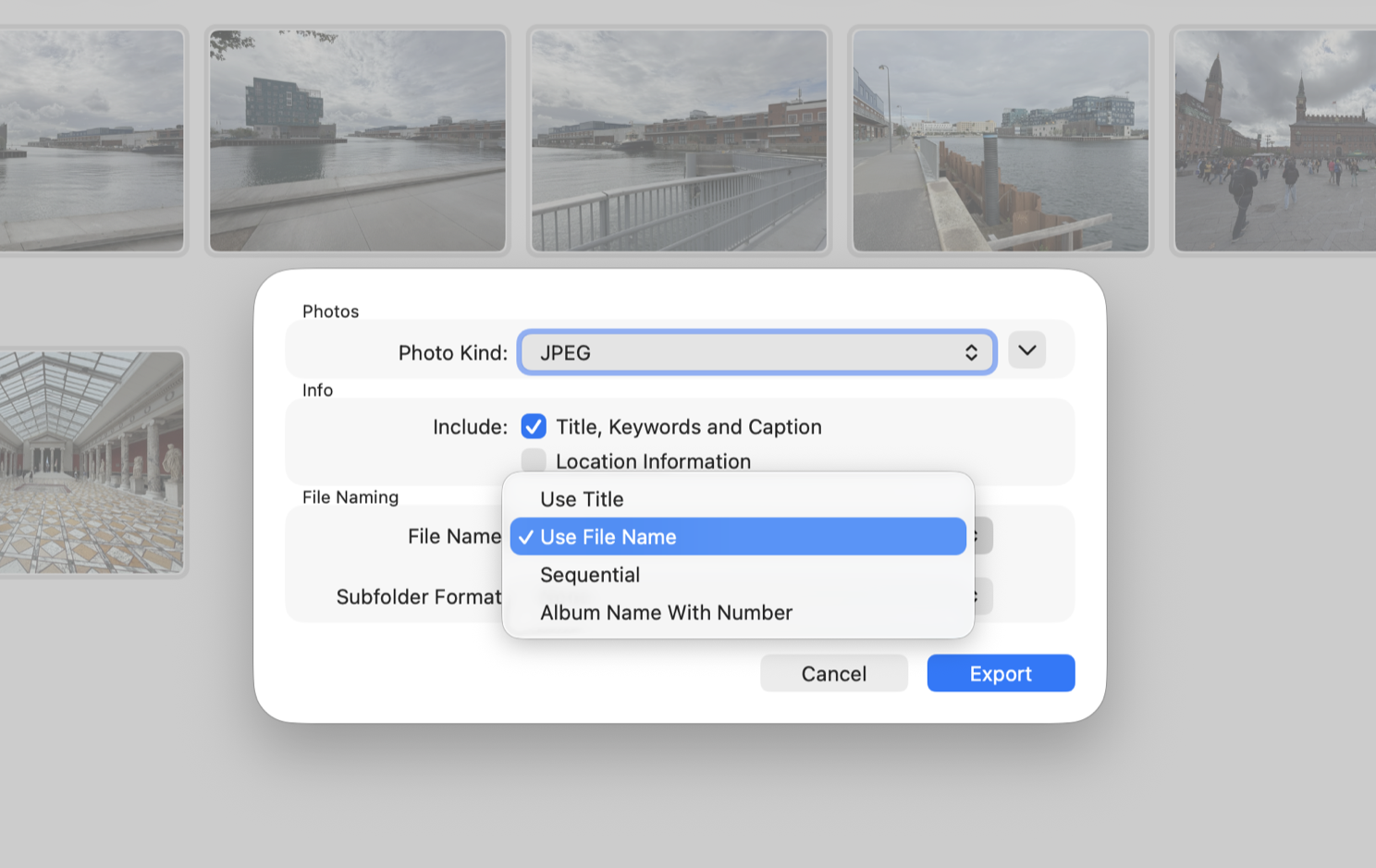
The Export Photos dialog. The two Include checkboxes decide whether the location and your Photos titles travel with the copy; the File Name menu decides what the copies are called.
This is the export for sharing: it carries what you did in Photos and nothing you did not ask for, and it is the only way to get a date or location you set inside Photos out into a file.
Side by side
| Export Unmodified Original | Export Photos | |
|---|---|---|
| The file | The imported file, byte for byte | A new file, re-encoded |
| Edits made in Photos | No | Yes |
| Date taken in the file | As the camera wrote it | Photos’ date, with offset, in every field; IPTC removed |
| Date adjusted in Photos | Not included | Included |
| Location | As the camera wrote it; map changes not included | Photos’ location, only if Location Information is ticked |
| Titles, keywords, captions | Only in the optional XMP sidecar | Only if Title, Keywords and Caption is ticked |
| RAW | RAW | Converted |
| Live Photo | Still plus video file | Still only |
| Finder Created date of the export | Export time | Export time |
That last row matters more than it looks. Whichever export you choose, the exported files are new files as far as the file system is concerned, so the Finder’s Created and Date Added dates are the moment of the export, and a folder of exports sorts by export day, not by when the pictures were taken. If the folder is going anywhere the Finder’s sort order matters, copy the embedded date onto the file dates afterwards; fix photo sorting in the Finder is that job.
Which export for which job
- Rename the photos. Unmodified Original. Then rename the exported files and, if you want them back in Photos, re-import. The round-trip and its two warnings are in the renaming guide.
- Fix a wrong date for good. If you already corrected it with Adjust Date and Time, Export Photos carries the corrected date into the copy, at the cost of re-encoding. If you want the original file corrected, export the unmodified original and write the date into it.
- Add or fix a location. Same split: a pin you placed in Photos reaches a copy only through Export Photos with Location Information ticked; the original gets the location only if you export it unmodified and geotag the file itself.
- Share without giving away where it was taken. Export Photos with Location Information unticked. Your originals keep their coordinates; only the copies go out clean. For a fuller scrub, strip metadata from photos.
- Archive, migrate, or deliver to someone who needs the real files. Unmodified Original, with Export IPTC as XMP ticked if your titles and keywords matter to the recipient.
Getting the changed files back into Photos
If the exports were only a detour, import the changed files with File ▸ Import or by dragging the folder onto Photos. Three things to know:
- Photos treats a changed file as new content. It does not update the existing item; it imports a second one. The old item stays until you delete it. (A file you did not change is recognised as a duplicate and skipped.)
- Deleting the old items discards what was attached to them: edits, album memberships, keywords, faces and favourites. Do the round-trip early, before you have built organisation on top of the pictures, or accept redoing it.
- Empty Recently Deleted, and with iCloud Photos let the deletion sync everywhere before importing the replacements, or the old versions come back from another device.
If you only wanted files in a folder, there is nothing to put back. Many people’s “photo library” is really two things, a Photos library for browsing and a folder tree of named, dated originals for everything else, and this is how the second one gets fed.
Common pitfalls
- Expecting Photos’ adjustments in an unmodified original. By definition they are not there. Export Photos for the adjusted version, or apply the change to the file itself after exporting.
- Reading dates off an Export Photos copy. Every date in it is Photos’ date, in Photos’ zone, and the IPTC date is gone. If you are investigating what the camera wrote, look at the unmodified original.
- Renaming or moving referenced files. Photos tracks them by path; they go missing. Export them (Photos can export a referenced file like any other), or consolidate first.
- A folder of
.jpegfiles. Export Photos names JPEGs with the.jpegextension. Harmless, but if something downstream expects.jpg, a renamer fixes the whole folder in one pass. - Giant exports with Optimise Mac Storage on. Download the originals first, or export in batches and check that nothing is missing.
- Working inside the package anyway. Even when a tool lets you, the database stays unaware, and iCloud will have opinions. Export instead.
FAQ
Where are my photos stored on the Mac? In a managed library they are inside
~/Pictures/Photos Library.photoslibrary, a package you are meant to reach only through Photos.
For a referenced item, File ▸ Show Referenced File in Finder shows the real file.
Does “Export Unmodified Original” lose quality? No. It is a copy of the imported file, with no re-encoding at all. “Export Photos” re-encodes, so a JPEG exported this way is a second-generation JPEG, even at maximum quality.
Why does the exported photo have today’s date in the Finder? Because it is a new file. The date taken is still inside it; the Finder just does not show that one. Copy the embedded date onto the file date if the Finder’s order matters: fix photo sorting in the Finder.
I adjusted the date in Photos. Which export keeps it? Export Photos. The unmodified original still has the camera’s date, because Photos never writes to originals.
Can I just rename the file after exporting and re-importing? Yes, that is the round-trip, and it works: wherever a photo has no title, Photos shows its file name, so a well-named file labels itself in the app. The cost is the edits, albums and faces attached to the old items, which do not transfer.