Applies to macOS Ventura through macOS 27
The short answer: when the new names already exist as a simple list — one name per line in Pages, Word, TextEdit or Notes — you can apply them to the actual files in one pass. There is no built-in macOS feature for it, but the job takes two steps with a dedicated renamer: save the list as a UTF-8 plain text file, then load it into a rename from file list action. The one thing everybody trips over is that a simple list matches names to files by position: the first name goes to the first file, the second to the second. Get the files into the same order as the list — by sorting, or by dragging them into place by hand — and the rename is trivial; miss that detail and every file gets the wrong name. This guide covers the whole path, including that detail.
A disclosure: I’m the developer of A Better Finder Rename, the paid Mac batch file renamer whose Rename from file list action this guide demonstrates. There’s no built-in or comfortable free route for this particular job — I’ll say honestly below what the free workaround looks like and why I don’t recommend it for anything that matters.
A boundary check first, because two similar jobs need two different guides:
- Your list is just the new names, in order — a track listing, a chapter list, names brainstormed in a document → this guide.
- Your list is a table of old name → new name pairs (or you could make one), typically in Excel or Numbers → matching happens by name, not order, and the better path is the companion guide: rename files from a spreadsheet or CSV.
Step 1: turn the list into a UTF-8 plain text file
Whatever holds your names now — Pages, Word, Notes, an email — the renamer needs them as a plain text file, one name per line, saved with UTF-8 encoding. Plain text because formatting has no place in file names; UTF-8 because that’s what preserves accents, umlauts and non-Latin characters instead of mangling them.
From Pages: File → Export To → Plain Text… — Pages exports UTF-8 by default.
From Word: File → Save As…, format Plain Text (.txt); in the conversion dialog that appears, choose Unicode (UTF-8).
From TextEdit: make the document plain text first (Format → Make Plain Text, ⇧⌘T), then File → Save with encoding Unicode (UTF-8) — if the encoding popup says “Automatic”, UTF-8 is what it picks for anything beyond plain ASCII, but choosing it explicitly costs nothing.
Whichever route: one file name per line, no blank lines in between, no numbering, no bullets —
just the names. Whether you include the file extension (.mp3, .jpg) is up to you; a good
renamer can keep the existing extensions regardless, which is usually what you want.
Step 2: load the list and match it to the files
In A Better Finder Rename, the Mac batch file renamer, drop the files to rename into the window,
add the Rename from file list action (in the Advanced & Special category), and load your
.txt with its Browse… button. Every file in the preview now shows the new name it’s about
to receive — which brings us to the part that matters.
The matching rule: first name → first file
A simple file list carries no information about which file each name belongs to — so the action assigns them by position: line 1 of the list names the first file in the preview, line 2 the second, and so on. The entire job therefore reduces to one question: is the file order in the preview the same as the name order in your list?
You have two tools to make it so:
- Sorting. The Sort first: and Then: popups in the action’s settings order the files by name, modification date, creation date, size and more — with a secondary criterion for breaking ties. If your list was written against the files as the Finder shows them sorted by name, sort by name and you’re done. A track listing usually matches the files sorted by name precisely because the file names carry track numbers.
- Manual drag & drop. When no sort order matches the list — the list is in an order of its own, as brainstormed lists tend to be — switch sorting to manual by simply dragging the files into position in the preview list. Drag each file to the row whose new name it should receive; the live preview updates as you go, so you can see each pairing before anything is renamed.
The live preview is the safety net for the whole exercise: every file shows its future name before you click Perform Renames, so a list that’s one line short, or offset by one because of a stray blank line, is caught by eye rather than discovered in the Finder afterwards.
The whole workflow in six minutes: a simple text list, the order-based matching, and the live preview.
A worked example: track titles from a Pages document
The support case that prompted this guide: a customer had song titles in a Pages document and wanted them applied to the audio files of an album.
- In Pages, cut the list down to just the titles, one per line, in track order.
- File → Export To → Plain Text… →
titles.txt. - Drop the album’s files into A Better Finder Rename; they arrive named
01 Track.m4a,02 Track.m4a, … so the default name sorting (Sort first: By name and sequence number) puts them in track order — the same order as the list. - Add the action: pick the category Advanced & Special, then the action Rename from file list.
- Click the action’s Browse… button and select
titles.txt. Watch the status line under the setting: it starts out saying “File does not exist. Nothing loaded.” and changes to “12 new names loaded.” — that’s the confirmation the list came in correctly. (A different count than you expected means a stray blank line or a missing title — fix the list and click Reload.) - Check the preview: first title on the first track, last title on the last. Had one pairing been off, dragging the file into place would have fixed it.
- Perform Renames. (To keep the track numbers in front of the titles, put a numbering action before the list action in the same pass — multi-step is the point of the tool.)
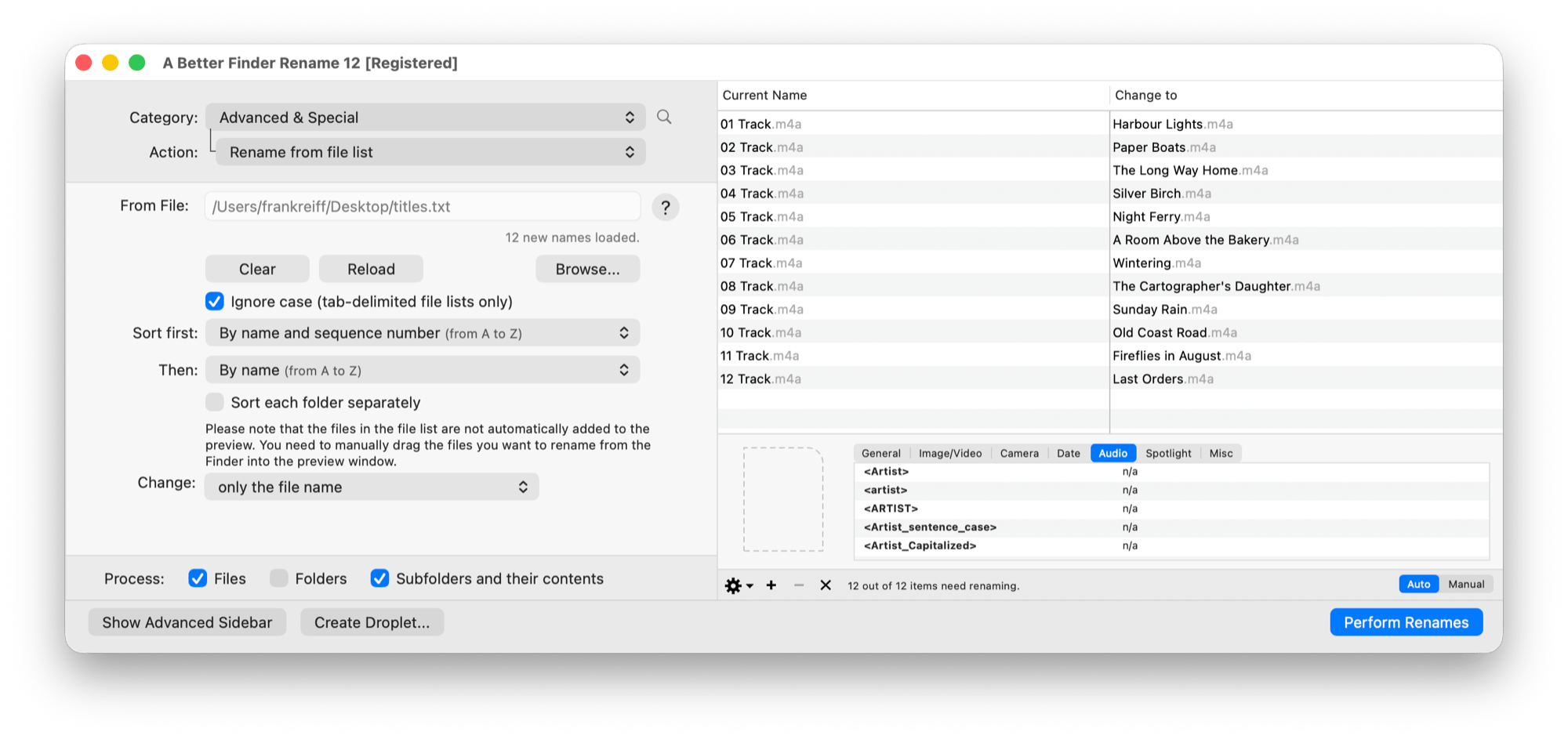
The worked example, ready to run: twelve tracks matched to twelve titles by position, “12 new names loaded.” confirming the list, and every pairing visible before anything is renamed.
Where the free route stands
Honesty section: can you do this without a dedicated tool? Technically, yes — a shell loop that
reads names line by line and mvs files in glob order:
i=1; while IFS= read -r name; do
  files=( *.m4a ); mv "${files[$((i-1))]}" "$name.m4a"; i=$((i+1))
done < titles.txt
I show it to be fair, and I’d use it in a scripted pipeline — but I don’t recommend it for one-off jobs on files you care about: it matches by the shell’s alphabetical glob order with no way to see the pairing before it runs, no preview, no undo, and one stray line in the list shifts every subsequent name onto the wrong file, silently. Order-based matching without a visual check is precisely where mistakes happen. (The Finder’s built-in Rename can’t do any version of this job — it computes names from patterns and can’t read a list.)
Common pitfalls
- The order mismatch. The classic failure: the list is in one order, the files in another, and every name lands one row off or fully scrambled. Always read the preview top to bottom before renaming — that’s what it’s for.
- A stray blank line or heading in the list shifts every name after it by one. Just the names, one per line.
- Rich text instead of plain text. A
.pagesor.rtfor.docxfile is not a text file — export/save as plain text first (Step 1). - Wrong encoding. If accented or non-Latin characters arrive garbled (
éinstead ofé), the list wasn’t saved as UTF-8. Re-save it with the encoding set explicitly. - More files than names, or vice versa. Files beyond the end of the list simply keep their names — check the count if the preview’s tail looks unchanged.
FAQ
Can I rename files from a list without any typing? Yes — that’s the whole point of the workflow: the names are typed once, in the document where they already live, and applied to the files in one pass with a preview.
Does the list need the file extensions? No. The renamer can preserve each file’s existing extension, so a list of bare titles works — usually the cleaner choice, since a list written in Pages or Word rarely has extensions anyway.
How does the app know which name belongs to which file? With a simple list, it doesn’t — matching is purely by position: first line, first file. You control the pairing by sorting the files (Sort first: / Then:) or by dragging them into order manually. If you need name-to-name matching instead, use a two-column list — that’s the spreadsheet guide.
Can I make the list from the files themselves, edit it, and load it back? Yes — the Save File List feature writes the current names out as a ready-made template; edit the names in any text editor and load the file back in.
My list is in Excel or Numbers — same workflow? You can paste a single column into TextEdit and save it as plain text, and the order-based workflow applies. But if you have (or can make) two columns — old name and new name — the tab-delimited route matches by name instead of order, which is more robust: see rename files from a spreadsheet or CSV.
Does this work in other languages and scripts? Yes — the full Unicode range works, provided the list is saved as UTF-8 (Step 1). Garbled accents in the preview mean the encoding is wrong, not the names.
Related guides
- Rename files from a spreadsheet or CSV — the two-column version: old name → new name, matched by name instead of order.
- How to batch rename files on a Mac — the general how-to for computed renames: patterns, numbering, find & replace.
- Export a list of files in a folder — the reverse trip: get the current names out into a list or spreadsheet first.
Frank Reiff is the developer of A Better Finder Rename, the Mac batch renaming utility in continuous development since 1996. Get in touch with a renaming problem this guide doesn’t cover.