Applies to macOS Ventura through macOS 27
The short answer: the free Attribute Changer utility you may know from Windows is
Windows-only and has never had a Mac version. On a Mac, the built-in options are the Finder’s Get
Info window (locks, extension hiding — but not dates) and the Terminal (touch, SetFile,
chflags — free but unforgiving). The closest Mac equivalent of Attribute Changer — batch changes,
a preview, file dates and EXIF photo dates in one tool — is A Better Finder
Attributes, which is my own app, so weigh that recommendation
accordingly. The honest breakdown of when you need it and when the free routes are enough is below.
A disclosure before we start: I’ve been building Mac file utilities since 1996 and A Better Finder Attributes is one of them. This page exists because a steady stream of people search for “attribute changer mac” and land on pages that don’t actually answer the question — so here is the whole answer, including the parts where you don’t need my software at all.
What “file attributes” mean on a Mac
Windows and macOS think about attributes differently, which is the first thing that trips up switchers. Windows files traditionally expose four classic attribute bits — read-only, hidden, system and archive — plus their timestamps, and Attribute Changer edits all of them. On macOS the same jobs are spread across different mechanisms:
| You want to change… | macOS mechanism | Windows equivalent |
|---|---|---|
| Creation date (“date created”) | file creation time (the “birth time” in Unix-speak) | Created timestamp |
| Modification date | file mtime | Modified timestamp |
| Hidden / invisible | BSD hidden flag or a leading dot |
Hidden attribute |
| Locked / immutable | BSD uchg flag |
Read-only (roughly — uchg also blocks moving & deleting) |
| Photo date taken | EXIF metadata inside the file | EXIF (same) |
| Quarantine, Finder tags, etc. | extended attributes (xattr) |
no direct equivalent; ADS serve some similar purposes |
Two practical consequences: there’s no single “attributes dialog” anywhere in macOS that does all of this, and the photo “date taken” is not a file attribute at all — it lives inside the image file as EXIF metadata, so changing the file’s dates doesn’t touch it (and vice versa).
The free, built-in ways
The Finder’s Get Info window (select a file, press ⌘I) can lock and unlock a file, hide its extension, and show you the dates — but it cannot change any date. That’s not an oversight you can toggle; the Finder simply doesn’t do it.
The Terminal can do all of these jobs, with caveats — all of it free. touch and chflags
ship with macOS; SetFile requires Apple’s free Command Line Tools; ExifTool is a separate free
download:
touch -mt 202608151200 file.pdfsets the modification date (formatYYYYMMDDhhmm). One macOS wrinkle worth knowing: usingtouchto set a modification date earlier than the file’s creation date can also pull the creation date backwards to match.SetFile -d "08/15/2026 12:00:00" file.pdfsets the creation date. It works, but Apple deprecatedSetFileyears ago, so treat it as living on borrowed time.chflags hidden file.pdf/chflags nohiddentoggles invisibility;chflags uchg/chflags nouchglocks and unlocks.- For the photo dates, the command-line gold standard is the free
ExifTool:
exiftool "-DateTimeOriginal=2026:08:15 12:00:00" photo.jpg.
The catch with all of these is the same one I gave in the file renamer
comparison: none of these commands provides a built-in preview or
undo. A mistyped touch command can rewrite a folder of timestamps in half a second, and the
command itself offers no ⌘Z. For one file that’s fine; for a client handoff of four hundred files
it’s how mistakes happen.
The dedicated tool: A Better Finder Attributes
A Better Finder Attributes is, as far as I know, the closest thing on the Mac to what Attribute Changer does on Windows — and it goes further on the photo side. In one batch operation, with a preview of every change before anything is touched, it can:
- set or batch-adjust file creation and modification dates (add or remove hours and days as well as setting absolute dates — useful for timezone and camera-clock corrections),
- change the embedded shooting dates of JPEG, RAW and video files (EXIF for images, the container date fields for video), or sync the file dates to the capture dates so images finally sort correctly in the Finder,
- set names from dates, fix dates from filenames, and strip GPS, IPTC and EXIF metadata,
- toggle file flags — invisible, locked — and reveal invisible files without touching the Terminal.
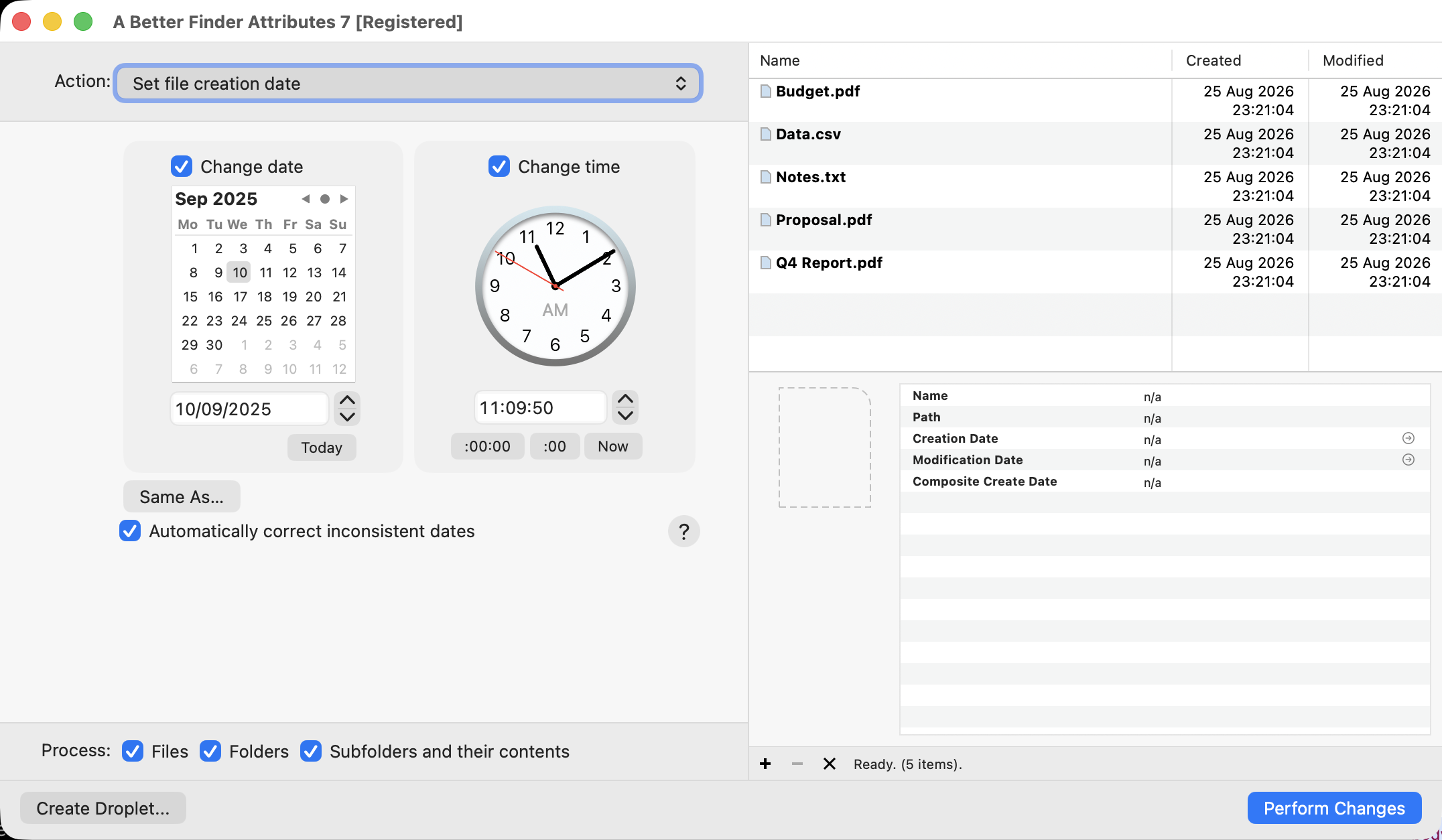
Setting a creation date on a batch of files — every change previewed before it runs.
It’s $29.95 as a one-time purchase (no subscription, free trial, minor updates free). The same
rule as the renamer guide applies: if you need to change one file’s modification date once, use
touch and keep your money. A Better Finder Attributes earns its
price when the job is batches — hundreds of photos with a wrong camera clock, a folder tree
whose dates must survive a migration, EXIF dates and file dates that need to agree — and when
you want to see exactly what will happen before it does.
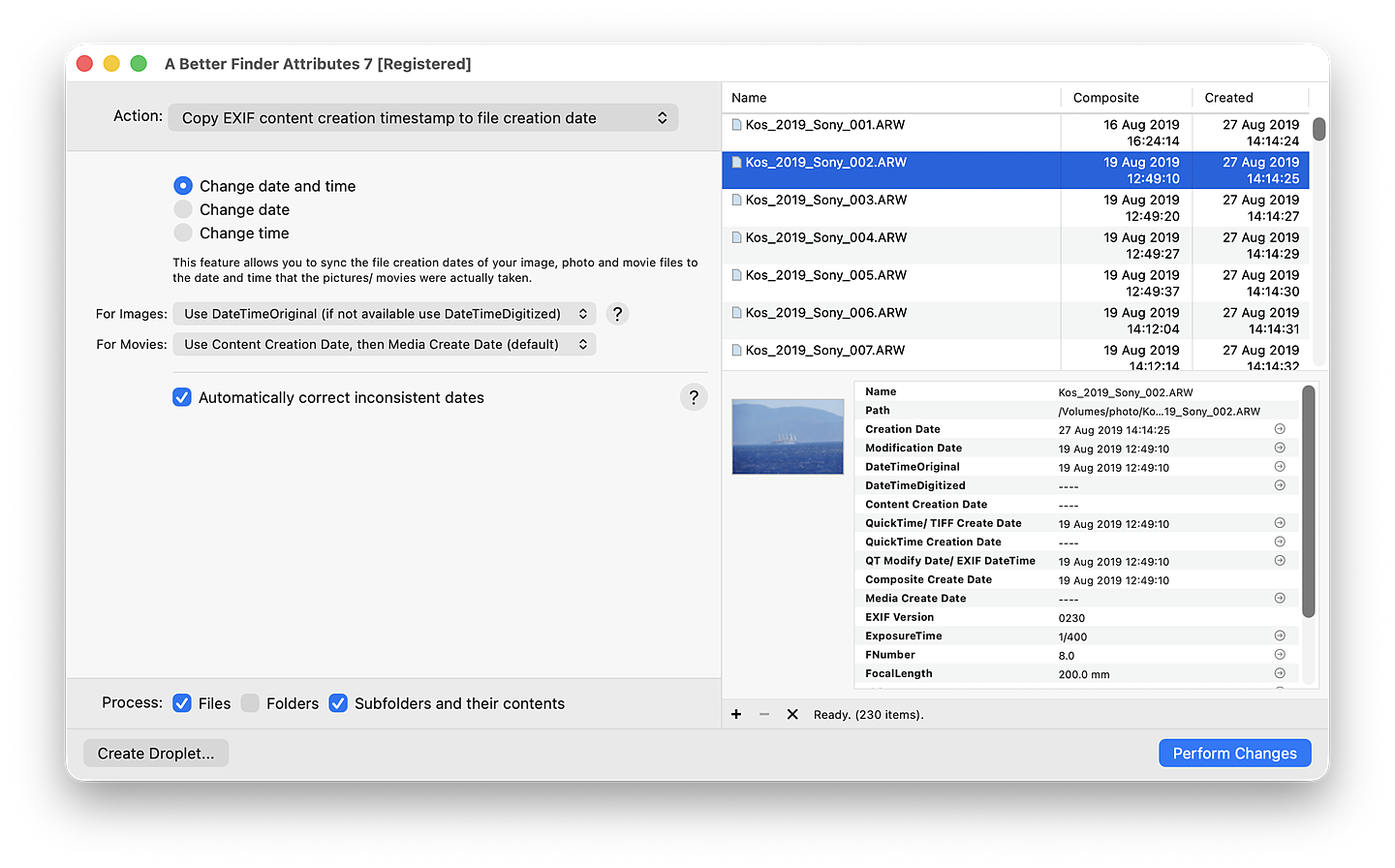
The most-used trick in the app: make the Finder sort photos by when they were actually taken.
Still on Windows too?
If part of your life is still on a PC: the original free Attribute Changer remains an excellent choice there — it’s genuinely good software and it’s what I’d use for the classic Windows attribute bits. For the date-centric jobs, my own Windows line covers the same ground as the Mac tools: Better File Attributes ($9.95) batch-changes file dates on Windows, and Photo Date Changer handles EXIF shooting dates.
Which should you use?
| You need to… | Use |
|---|---|
| Lock a file or hide its extension | Get Info (⌘I) — free, built in |
| Change one file’s modification date | Terminal touch — free |
| Change one file’s creation date | Terminal SetFile, or A Better Finder Attributes |
| Hide / unhide files | chflags hidden, or A Better Finder Attributes |
| Fix dates on whole folders, with a preview | A Better Finder Attributes |
| Fix wrong camera clock / timezone on photos | A Better Finder Attributes (or ExifTool, scripted) |
| Make photos sort by date taken in the Finder | A Better Finder Attributes — see the full guide |
| Classic attribute bits on a PC | Attribute Changer (Windows, free) |
FAQ
Is there a Mac version of Attribute Changer? No. Attribute Changer is a Windows-only utility and its developer has never shipped a Mac build. On the Mac the equivalent jobs are split between the free built-in tools and dedicated utilities — A Better Finder Attributes covers the widest slice of them in one app.
Can I change a file’s creation date without the Terminal? Not with anything Apple ships — Get
Info shows the date but won’t edit it. You need either the deprecated SetFile command-line tool
or a third-party utility with a proper interface.
Why did my creation date change when I only set the modification date? On macOS, using
touch to move a modification date earlier than the file’s creation date can also pull the
creation date backwards to match. It’s one reason date-changing tools need to handle the
relationship between the two timestamps for you — if you’re working by hand, set the creation
date first.
How do I change the EXIF “date taken” (DateTimeOriginal)? That’s metadata inside the image
file, not a file attribute. For JPEG and most camera images the principal shooting-date field is
EXIF DateTimeOriginal (tag 36867); RAW formats and video containers use their own equivalent
fields. The free command-line answer is ExifTool; A Better Finder Attributes edits the same
fields in batches with a preview, including RAW and video files, and can shift whole shoots by a
fixed offset to fix a wrong camera clock. Full walk-through: change the date taken of photos on
a Mac.
Is there a completely free way to batch-change file dates on a Mac? Yes — a for loop with
touch (and SetFile for creation dates) in the Terminal does it, cost-free. You give up the
preview, the undo, and the EXIF side, which is precisely the trade this whole page is about.
Related guides
- How to change file dates on a Mac — the full creation and modification date guide.
- Change the date taken of photos — EXIF dates, camera clocks and timezones.
- Fix photo sorting in the Finder — why photos sort wrongly and how to cure it.
- Remove metadata from photos — strip GPS and EXIF before sharing.
Frank Reiff is the developer of A Better Finder Attributes and the other publicspace.net file utilities, in continuous development for the Mac since 1996. Spotted something that belongs on this page? Get in touch.