Applies to macOS Ventura through macOS 27
The short answer: the Finder’s built-in Rename tool does not understand regular expressions,
and neither does Automator. If you can write a pattern, the free routes are the Shortcuts app
(a Replace Text step with Regular Expression switched on) and the Terminal (rename,
zmv, or a sed loop). If you want to see what the pattern will do to five hundred files before
anything is touched, you want a renaming utility with a live preview, and this guide ends with a
cookbook of regex recipes you can paste straight into one.
A disclosure before we start: I’m the developer of A Better Finder Rename, a batch file renamer for Mac, a paid utility I’ve worked on since 1996, and regular expression renaming has been in it since 2005. You’d be right to expect this article to end by recommending it. It also says, more than once, when you don’t need regex at all.
1. What a regular expression is, in the sixty seconds a file renamer needs
A regular expression (regex) is a pattern that describes text. For renaming files you only ever need a handful of its rules:
| You write | It matches |
|---|---|
abc |
exactly the letters abc |
. |
any single character |
\d |
any digit ([0-9] means the same) |
\w |
any letter, digit or underscore |
\s |
a space (or tab) |
+ / * / ? |
the previous thing one-or-more / zero-or-more / zero-or-one times |
{4} / {2,3} |
the previous thing exactly 4 / 2 to 3 times |
^ / $ |
the start / the end of the name |
[ _-] |
any one of the characters inside the brackets |
( … ) |
a capture group: remember this part, so you can reuse it |
\. \( \[ |
a literal dot, bracket, etc. (a backslash “escapes” a special character) |
The one idea that makes regex worth learning for filenames is the capture group. Wrap part of
the pattern in parentheses and whatever it matched becomes $1; the second pair becomes $2, and
so on. The replacement is then just those pieces in a new order, with any fixed text you like
around them. That is how you turn 05-31-2026 Invoice.pdf into 2026-05-31 Invoice.pdf in one
move:
pattern:      (\d{2})-(\d{2})-(\d{4})
replace with: $3-$1-$2
Two habits will save you more grief than any amount of syntax:
- Anchor when you mean it.
IMG_matches anywhere in a name;^IMG_matches only at the start. Most accidental renames come from a pattern that matched somewhere you didn’t expect. - Prefer the lazy quantifier when in doubt.
.*grabs as much as it can;.*?grabs as little as it can. InMovie (2019) (Director's Cut).mkv, the pattern\(.*\)swallows everything from the first(to the last);\(.*?\)stops at the first.
If you want a proper tutorial, regular-expressions.info is still the best on the web, and regex101.com lets you test a pattern against sample names before you go anywhere near real files.
2. The Finder and Automator: no regex, and what to do instead
The Finder’s Rename… dialog (select files, right-click, Rename…) has a Replace Text mode that replaces one literal string with another. There is no pattern matching of any kind: no wildcards, no regex, no capture groups. Automator’s Rename Finder Items action is the same literal replace with a few extra modes (add date, make sequential, change case).
That’s not a criticism. For “replace IMG_ with Hawaii_” the Finder is the right tool, and for a
surprising number of jobs that look like they need regex, a couple of literal replaces run one
after the other get you there. Try that first. Regex earns its keep when the part you want to
change is different in every file (a number, a date, a name) and can only be described as a
pattern.
For the broader picture of what the Finder can and can’t do, see how to batch rename files on a Mac.
3. Shortcuts: free regex renaming, without a preview
Apple’s Shortcuts app is the one built-in tool that does speak regex, though it doesn’t advertise it. The recipe, four actions long:
- In Shortcuts, create a new shortcut. In the inspector on the right, tick Use as Quick Action and Finder, and set it to receive Files.
- Add Repeat with Each over Shortcut Input.
- Inside the loop, add Get Name of Repeat Item, then Replace Text. Expand the action and
tick Regular Expression. The pattern goes in the first field, the replacement in the with
field, and the text to search is Name. Capture groups are
$1,$2as everywhere else. - Finish with Rename File: rename Repeat Item to Updated Text. Get the two variables the right way round; the other way round fails with “no name provided”.
Save it, select some files in the Finder, right-click, Quick Actions, run it.
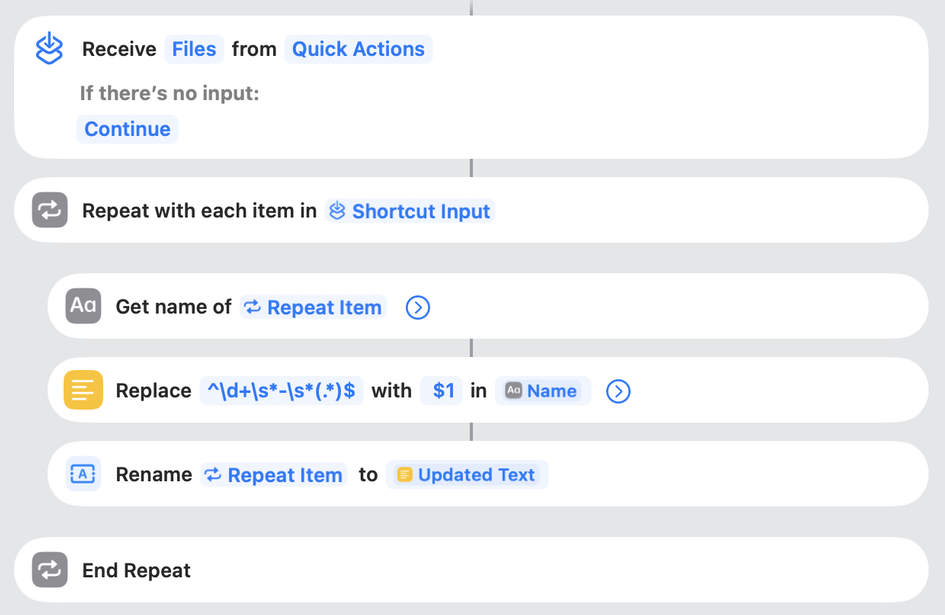
Working as of macOS 26. Note the Regular Expression checkbox, which only appears once the Replace Text action is expanded.
Three things I found out by running it, none of which the Finder will show you:
- The replacement can’t be empty. Shortcuts refuses to leave the with field blank, and the
obvious workaround, a single space, gives you ` Intro.mp3
with a leading space that the Finder hides. To *remove* something, capture what you want to keep instead: pattern^\d+\s-\s(.*)$, replacement$1. One more trap on the way there: the field keeps whatever you typed before, so if you add$1` after that space you get the space back. Clear the field completely first. - It renames every file, matched or not. Rename File runs on all of them, and in doing so
rewrites the extension to the file type’s preferred spelling: an untouched
IMG_4821.JPGcame back asIMG_4821.jpeg. If you keep camera files, RAW+JPEG pairs or anything that depends on the exact extension, this is a real problem. - No preview, no undo. You see the result when it’s done, and ⌘Z in the Finder does nothing.
The honest assessment: it works, and it’s free. It’s a good fit when you run the same regex rename regularly and have already debugged it on copies. It is a poor fit for the one-off “I have 400 client files and a deadline” job, which is exactly when most people reach for regex.
4. The Terminal: rename, zmv and sed
If you live in a shell, macOS will regex-rename anything. Three ways, in order of how much I’d recommend them:
Perl rename (brew install rename) is the classic. It takes a sed-style substitution and
applies it to every name you pass; -n shows what it would do without doing it:
# dry run: strip a leading track number "01 - " from every mp3
rename -n 's/^\d+\s*-\s*//' *.mp3
# for real
rename 's/^\d+\s*-\s*//' *.mp3
# reorder MM-DD-YYYY to YYYY-MM-DD
rename 's/(\d{2})-(\d{2})-(\d{4})/$3-$1-$2/' *.pdf
zmv ships with zsh, the default shell since Catalina. It uses glob patterns rather than full
regex, but for “keep this part, move that part” jobs it’s often enough, and -n is a dry run here
too:
autoload -U zmv
zmv -n '(*)-(*)-(*).pdf' '$3-$1-$2.pdf'
A sed loop needs nothing installed, but it is the easiest of the three to get wrong (names
with spaces, names that already exist, hidden files):
for f in *.mp3; do mv -i -- "$f" "$(printf '%s' "$f" | sed -E 's/^[0-9]+ *- *//')"; done
The honest assessment: the Terminal can do everything a paid utility can, including things no
GUI can. What it doesn’t give you is a preview across the whole batch or protection from the
classic failure modes: a pattern that also matches the extension, two files that collapse to the
same new name (and mv silently overwriting one of them unless you remembered -i), and the
discovery, afterwards, that .* matched more than you intended. Always dry-run, and always on a
copy the first time. The people I’d genuinely point here are developers and anyone with a scripted,
repeatable pipeline.
5. Renaming utilities: regex with a live preview
A dedicated renamer’s whole reason to exist is that you see every new name before anything is touched, and with regex that matters more than anywhere else, because a pattern that is almost right looks identical to one that is right until you check the output. Most renaming utilities offer some form of regex support; the comparison of Mac file renamers goes through the field.
The rest of this section uses my own A Better Finder Rename (version 12, US$29.95 / €29.95 one-time, free trial), because it’s the one I can speak about accurately, and because it does three things with regex that matter more than the syntax: it shows you the capture groups, it keeps the extension out of harm’s way, and it lets regex be one step among several.
Two regex actions, for two different jobs
Both live in the Advanced & Special category of the action list (or just type “regex” into the action search field).
Replace regular expression is classic search-and-replace: every match of the pattern in the name is replaced, and everything else is left alone. Use it to strip, clean up or substitute parts of a name.
Re-arrange using regular expression is for rebuilding a name from its parts. You write a
pattern with capture groups, and the Substitution is the new name assembled from $1, $2 …
$8 plus any fixed text. The difference from the replace action is what the preview shows you:
each capture group gets its own column in the preview table, headed $1 to $6, so you can
see what the pattern pulled out of every single file before you’ve even typed the substitution. When a pattern isn’t
matching what you think, this is where you find out.
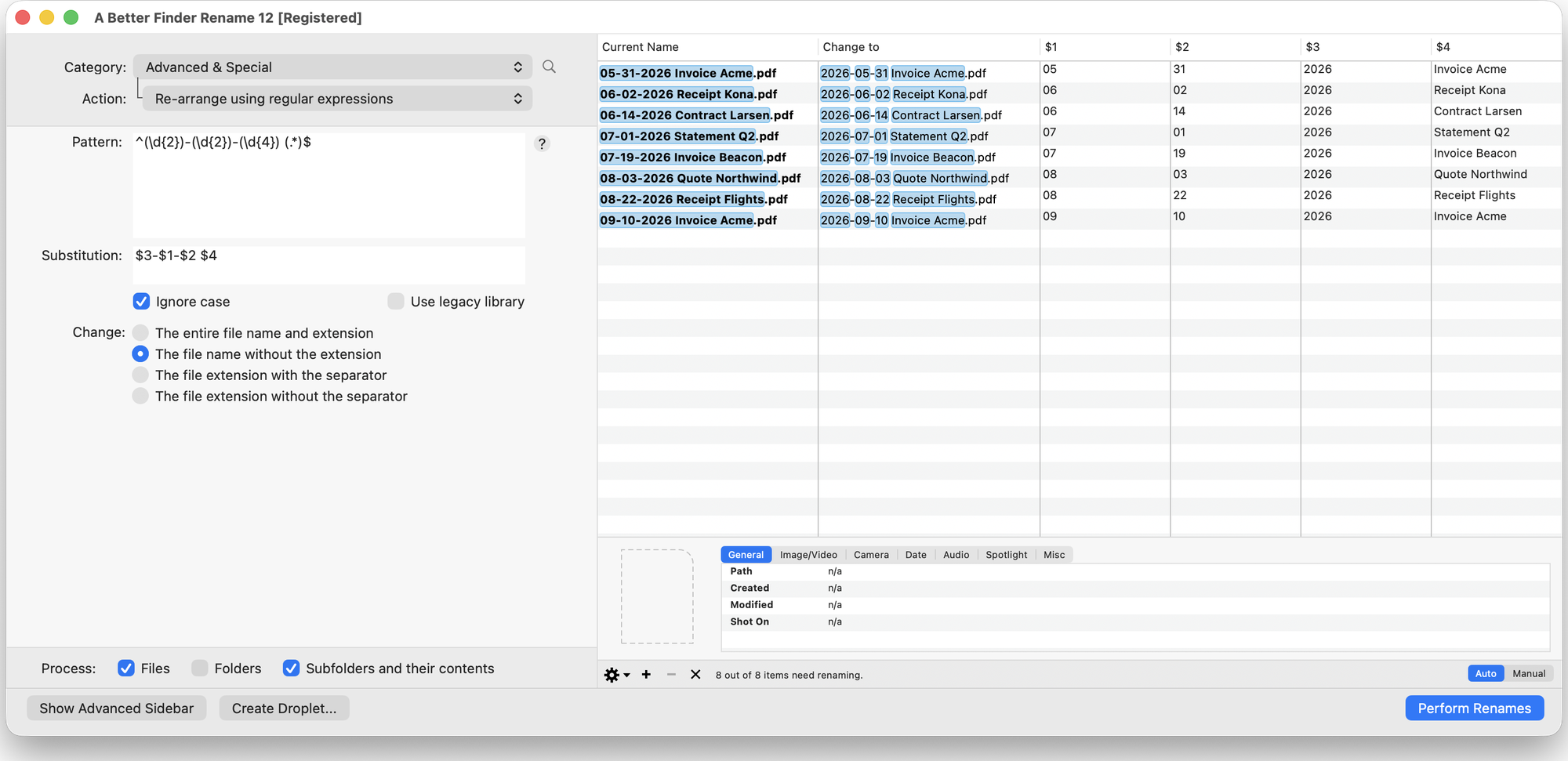
The capture columns: $1 to $4 pulled out of each name by the pattern, next to the resulting
new name. Here the pattern splits a month-first date and the rest of the name, and the substitution
$3-$1-$2 $4 reassembles it year-first. Fix the pattern until the columns look right, then write
the substitution.
Name, extension, or both
Every action has a Change: popup above its settings with four choices: both the file name and
the extension, only the file name, only the file extension, and only the file extension
(including separator). A new action starts on only the file name, and for regex renaming that is
where it should stay unless you specifically want to touch the extension. This one setting removes
the most common regex accident, the pattern that eats .jpg, and it’s the reason none of the
recipes below need to worry about the extension.
Case conversion inside the replacement
The replacement side understands the sed/Perl case escapes: \U…\E uppercases everything
between, \L…\E lowercases it, and \u / \l change just the next character. So
(\w)(\w*) replaced with \u$1\L$2\E title-cases every word in one action, and ^(.*)$ replaced
with \U$1\E uppercases the whole name. (A Better Finder Rename has plain change case actions
too; the regex escapes are for when the case change is only part of a bigger rebuild.)
Multi-step, saved, repeatable
Regex is one action in a list. A typical real-world job is: filter to .pdf files only, re-arrange
the date with regex, replace underscores with spaces, add a zero-padded sequence number, all in one
saved action list you can run again next month, or install as a Finder Quick Action or a
drag-and-drop droplet. The preview shows the result of the whole chain, and an intermediate
results column shows what each step did.
Ignore case, and the legacy checkbox
Ignore case is on by default in both actions: img_ matches IMG_. Untick it when the case is
the thing you’re matching on.
The re-arrange action also has a Use legacy library checkbox. A new action starts with it
unticked, on the modern engine that has the case conversion, lookahead and lookbehind, and the
full ICU syntax. It is ticked automatically for actions loaded from presets and droplets saved by
older versions, so that patterns people wrote years ago keep producing the same names. Leave it
alone unless an old preset misbehaves. The replace action always uses the modern engine, and both
accept the older \1, \2 capture syntax as well as $1, $2.
6. A regex renaming cookbook
Ten patterns that cover most of the regex requests I’ve had in thirty years of support mail. All
assume the action is set to name only, so the extension is never in play. “Replace” means the
Replace regular expression action (every match is replaced); “Re-arrange” means the Re-arrange
using regular expression action (the substitution is the new name). Each one works, with the same
syntax, in Perl rename and in Shortcuts.
1. Strip a leading number (01 - Intro.mp3 → Intro.mp3). Replace:
pattern:  ^\d+\s*[-_.]?\s*
with:     (nothing)
2. Reorder a date (05-31-2026 Invoice.pdf → 2026-05-31 Invoice.pdf). Replace:
pattern:  (\d{2})-(\d{2})-(\d{4})
with:     $3-$1-$2
3. Remove everything in brackets (Movie (2019) [1080p].mkv → Movie.mkv). Replace:
pattern:  \s*[\[(][^\])]*[\])]
with:     (nothing)
4. Swap “Last, First” to “First Last” (Smith, John.vcf → John Smith.vcf). Re-arrange:
pattern:       ^(.*?),\s*(.*)$
substitution:  $2 $1
5. Keep only the reference number (Scan of contract INV-20419 final v2.pdf → INV-20419.pdf).
Re-arrange:
pattern:       ^.*?(INV-?\d+).*$
substitution:  $1
6. Normalise separators (my file_name-v2.txt → my_file_name_v2.txt). Replace:
pattern:  [\s_-]+
with:     _
7. Zero-pad single-digit numbers so they sort (track 7.mp3 → track 07.mp3). Replace:
pattern:  (?<!\d)(\d)(?!\d)
with:     0$1
(The lookbehind/lookahead pair means “a digit with no digit on either side”, so track 12 is left
alone. Run it again with (?<!\d)(\d\d)(?!\d) → 0$1 if you need three digits.)
8. Title Case every word (annual report draft.docx → Annual Report Draft.docx). Replace:
pattern:  (\w)(\w*)
with:     \u$1\L$2\E
9. Replace a camera prefix but keep the number (IMG_4821.JPG → Hawaii_4821.JPG). Replace:
pattern:  ^IMG_(\d+)$
with:     Hawaii_$1
10. Drop the “ copy” / “ (1)” suffix macOS adds (report copy 2.pdf, report (1).pdf →
report.pdf). Replace:
pattern:  \s+(copy( \d+)?|\(\d+\))$
with:     (nothing)
Notice that recipe 10 will happily turn three files into report.pdf. This is the other reason
you want a preview: a good renamer flags the collision before you press Rename; the Terminal
finds out after.
7. When you don’t need regex
Regex is the right tool when the text you’re changing varies from file to file and follows a pattern. It is the wrong tool, or at least a slower one, for:
- Fixed text. Replacing
IMG_withHawaii_is a literal replace. Finder, free. - Positions. “Remove the first 8 characters” or “insert
_v2before the extension” are character-position jobs; every renamer, mine included, has a direct action for them that can’t match wrongly. - Numbering. Sequence numbers, padding, start values and sort order are a numbering feature, not a regex one. See rename photos with sequence numbers.
- Dates that come from metadata. If the date you want isn’t in the filename but in the photo’s EXIF data or the file’s creation date, no pattern can find it. See rename photos by date taken.
- Names that come from a list. When the new names are arbitrary (client names, catalogue numbers from a spreadsheet), you want rename files from a spreadsheet or CSV, not a pattern.
A good rule of thumb: if you can say what you want without the word “whatever” (“replace the date, whatever it is, with…”), you probably don’t need regex.
8. Pitfalls, whichever tool you use
- The extension is part of the name unless your tool scopes it out.
\..*$will remove.jpg. Anchor to what you mean, or use a renamer that lets you work on the name only. - Greedy matching.
.*and.+grab as much as possible. Use.*?or a character class such as[^-]+(“everything up to the next dash”) when there’s more than one candidate. - Special characters are everywhere in filenames. Dots, brackets, parentheses and plus signs
all mean something in regex. Escape them:
\.\(\[\+. - Collisions. Any pattern that removes the varying part of a name can make two names identical. Preview, or dry-run, every time.
- Case. Decide whether
IMGshould matchimgbefore you start; the default differs from tool to tool. - Pilot batch first. Twenty copied files, check the result, then the real thing. This applies to the Terminal above all: there is no undo.
On Windows
Windows users searching for the same thing: Microsoft’s free PowerRename (part of PowerToys) does regex find-and-replace with a preview from the Explorer context menu, and the recipes above work in it unchanged. Better File Rename, the Windows counterpart of A Better Finder Rename, adds the multi-step, metadata and re-arrange features described here.
Related guides
- How to batch rename files on a Mac — the general picture: Finder, Shortcuts, Terminal and renamer apps.
- The best Mac file renamer, compared — free and paid renamers side by side, including their regex support.
- Rename photos with sequence numbers — numbering and padding done properly, no regex required.
- Rename files from a spreadsheet or CSV — for when the new names are a list, not a pattern.
- A Better Finder Rename & Regular Expressions by John L. Reed, a reader’s own walkthrough of building patterns for a music collection, still the best worked example I know of.
- A Better Finder Rename manual: regular expression support, the replace and re-arrange actions, and the basic syntax reference.