Applies to macOS Ventura through macOS 27
The short answer: a photo shows the wrong place for one of a handful of reasons, and the fix depends on which. If the coordinates in the file are wrong (the camera reused an old position, the GPS had a bad fix, a script dropped a minus sign), the file needs new coordinates, and for a trip’s worth of photos that means selecting the misplaced ones and applying the right spot to all of them at once. If the coordinates are right and only the name is off, that’s a place-name problem. And if Photos says “Looking up location info…” or shows a different place from yesterday, the file is probably fine and Photos isn’t. This guide sorts the causes first, then the tools.
A disclosure: I’m the developer of Media Location Tagger, the batch editor in the last route. Apple Photos and Lightroom are covered first for the one-photo case.
Boundary checks:
- The photos have no location at all → add one rather than fixing.
- The pin is right, the name is wrong → the place-names guide; the coordinates don’t need touching.
- It’s a video → the causes below apply; the videos guide explains where the location lives in a MOV or MP4.
- You want the location removed, not corrected → the remove-metadata guide.
First find out what’s actually wrong
Look at the coordinates in the file, not at the name an app shows for them. Preview (Tools ▸ Show Inspector, GPS tab), the Finder’s Get Info panel, or ExifTool will tell you what’s stored; the explainer has the details. Then match the symptom to a cause:
| What you see | Likely cause | Fix |
|---|---|---|
| A whole day’s photos in the wrong city or country, all at one spot | The camera reused a stale position: a manual location set before an earlier trip, or the last fix the phone app sent before the link dropped | Overwrite the coordinates for those files (below) |
| Photos “in the middle of the ocean”, often at 0°, 0° in the Gulf of Guinea | The device wrote zeros for “no fix” | Overwrite; the files effectively have no location |
| Photos mirrored across the equator or the Greenwich meridian, ending up in the sea | A hemisphere sign was lost: coordinates typed without the minus, or written without the EXIF reference tag | Overwrite with the signed values, or fix the reference tag |
| One or two photos a few streets off, indoors or in a city canyon | A poor GPS fix; the phone fell back to Wi-Fi or cell positioning | Overwrite the affected files |
| Right map pin, wrong or vague name | The name is a reverse-geocoding lookup, not in the file | Write the place names |
| Pin on the spot you stood on, not on the subject | Nothing is wrong; the camera was there | Move it to the subject if that’s what you want the archive to say |
| Photos shows “Looking up location info…” indefinitely, or a location that changed by itself | A Photos library or network problem | Not a file problem; see the last section |
| Two apps show two different places for one file | The legacy EXIF/IPTC copy and the XMP copy disagree | Rewrite with something that writes both |
The first four are coordinate problems and the rest of this guide is about them. The ocean case and the sign flip are the ones that fill the Apple Community threads, so they get their own sections.
Route 1: Apple Photos, one location at a time (into the library)
Select the misplaced photos (⌘-click to add, shift-click for a range), press ⌘I, and either drag the pin on the Info panel’s map or click the location and type a new one. Image ▸ Location ▸ Revert to Original Location puts back whatever the file had, and Remove Location clears it.
Two things to know. The change lives in the library and not in the file: an export carries the corrected location only if Location Information is ticked, and Export Unmodified Original still has the wrong coordinates from the camera. (Which export to use for which job: getting photos out of Apple Photos.) And for a large batch, Photos has no way to show you the misplaced files as a group; you find them by scrolling the Places map or sorting by location, then fix the selection.
Route 2: Lightroom Classic (into the catalogue, then the file)
In the Map module, select the misplaced photos and drag them to the right spot, or right-click
the spot and choose Add GPS Coordinates to Selected Photos; the Map module filters let you show
only tagged photos to spot the outliers. In the Library module the Metadata panel’s GPS field is
editable and accepts pasted coordinates. Either way the correction is in the catalogue until you
save metadata to the files (⌘S), and for proprietary RAW formats it goes into the .xmp sidecar
rather than the RAW itself.
Route 3: ExifTool (into the file, scripted)
For a folder of files that all need the same correct position, ExifTool does it in one line. Remember that EXIF stores latitude and longitude as positive numbers with the hemisphere in a separate reference tag:
# overwrite with a known position (Sydney Opera House); refs carry the hemisphere
exiftool -GPSLatitude=33.8568 -GPSLatitudeRef=S \
         -GPSLongitude=151.2153 -GPSLongitudeRef=E \
         -overwrite_original /path/to/folder

# the sign-flip case: values were right, the reference tags weren't
exiftool -GPSLatitudeRef=S -GPSLongitudeRef=E -overwrite_original /path/to/folder

# find the "no fix" files: zero coordinates
exiftool -if '$GPSLatitude# == 0 and $GPSLongitude# == 0' -p '$FileName' -r /path/to/folder
ExifTool shows no map, so you have to already know which files are wrong and where they belong. That’s fine for “the whole card says Luxembourg and it was Sydney”; it’s not fine for “some of these four hundred are off and I’m not sure which”.
Route 4: Media Location Tagger (see the misplaced files, then overwrite them)
Media Location Tagger is built for the case where seeing the problem is half the job: every file with coordinates is on the map before you touch anything, and a batch from Paris sitting in the Indian Ocean is obvious at a glance. Nothing is written until you press Apply, and only for the files you select, so a mixed batch of right and wrong locations is safe to work in.
-
Drop the files on the window and switch to the Map or Side-by-Side view. Each located file is a marker; clusters in the wrong place stand out. For a single suspicious file, select it and click the zoom button next to Add Pin in the sidebar: the map jumps to wherever the stored coordinates actually point, and no pin is left behind. The greyed-out place-name proposals are another giveaway: a photo of the Eiffel Tower proposing a city on another continent has wrong coordinates.

The camera’s stale position: a photo of the Sydney Harbour Bridge, filed in Luxembourg. The sidebar shows what the file says; the pin section below it shows where it belongs.
- Select the misplaced files. In the table, or directly on the map with the Area Selection tool: drag a rectangle around the cluster in the sea, and those files are selected.
- Drop a pin where they belong. Search the place in the map’s search field, as in Apple Maps, and use Drop a new pin on the exact spot. Or, if a phone photo from the right place is in the batch, select it and click Add Pin to put the pin at its coordinates.
- Apply next to the pin’s coordinates. The old values are overwritten in every selected file: EXIF GPS in photos and RAW files, the QuickTime location in videos, and the XMP copy wherever the file has one, so the two copies can’t disagree afterwards.
- Fix the names too. Wrong coordinates usually came with wrong or now-mismatched place names. Once the coordinates are written, the files’ own grey proposals follow them: hold ⌥ and choose Location ▸ Overwrite with All Proposed IPTC Location Tags (also in the right-click menu on the files or their marker) and the stale names are replaced in one go, or apply the pin’s names from its section. Then change any you’d word differently (New South Wales rather than NSW) in the selected files’ own fields at the top of the sidebar, where you can type what you want and apply it to the whole selection; the place-names guide covers the choices.
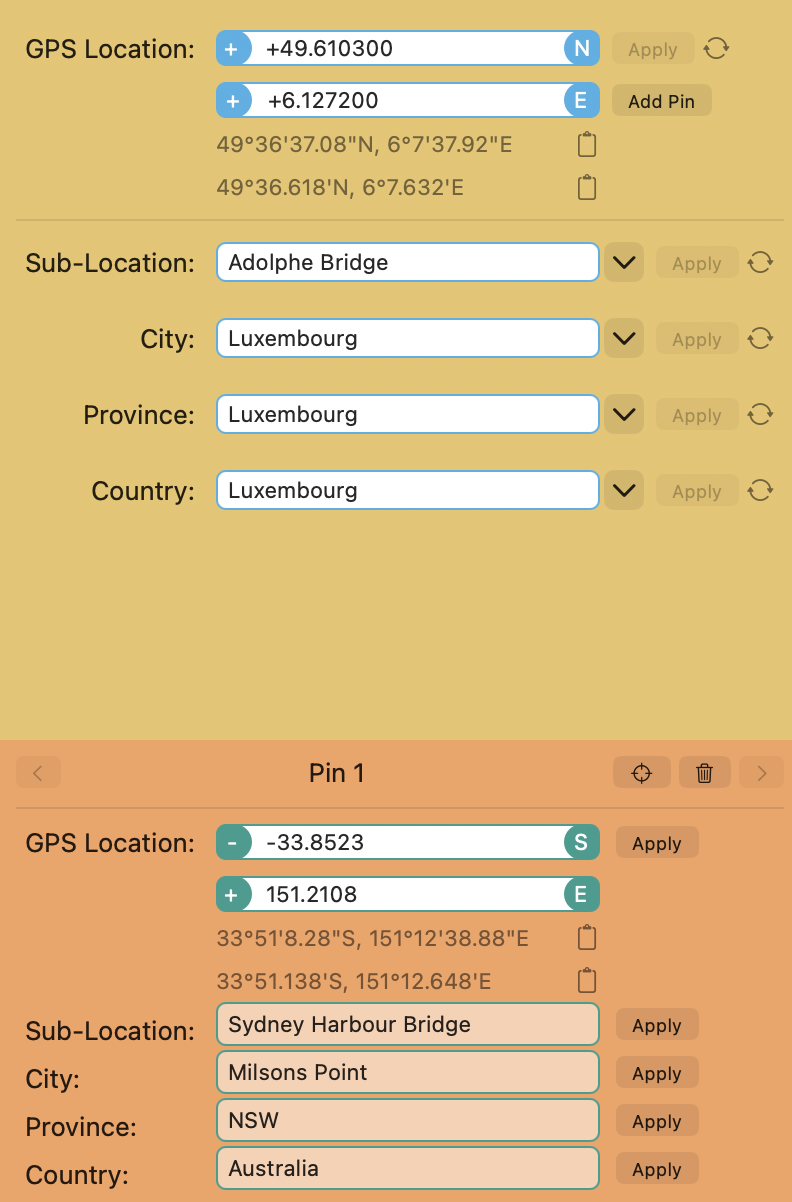
The sidebar for one misplaced file. Top: what the file currently says, in fields you can type into. Bottom: the pin, with an Apply button for the coordinates and one for each place name. If NSW isn’t your convention, apply the pin’s names, then type New South Wales into the file’s own Province field and apply that.
For a small correction rather than a new spot, the sidebar’s latitude and longitude fields for the selected files are editable: type the corrected values and press that field’s Apply. That’s the quickest fix for a dropped minus sign on a handful of files.
Formats: JPEG, HEIC, TIFF, PNG, the current RAW formats written in place, MOV and MP4. It runs on macOS 15 Sequoia or later, is US$29.95 / €29.95 as a one-time purchase, and has a free trial. The manual’s page on this scenario uses the app’s own labels.
The stale-position case: how a whole trip ends up in the last country
This is the most common batch-sized problem, and it comes from the way cameras get their location. Bodies without a receiver take the position from the maker’s phone app over Bluetooth, and most of them keep the last position they received and stamp it on every shot until a new one arrives. Some have a manual location setting as well. So: the link drops when the phone sleeps on the flight, you land, and every photo of the first two days carries the coordinates of your own front door. Or the airport. Or, for the classic version, the manual location you set for last year’s trip and never cleared. The fix is a bulk overwrite per stop, exactly as above; the prevention is checking the app link at the first stop of each day, which nobody does.
Photos in the ocean: the two kinds of nowhere
If the misplaced cluster sits at 0° latitude, 0° longitude, in the Gulf of Guinea south of Ghana, the device wrote zeros for “no fix” (some dashcams, action cameras and older phones do this). Those files have no real location; overwrite them, or strip the coordinates so that apps stop mapping them at Null Island.
If the cluster sits somewhere else in the sea, and is a mirror image of where you were (Sydney’s photos off the coast of Japan; Rio’s photos in the Indian Ocean south of Sri Lanka; anything west of Greenwich showing up the same distance east), a hemisphere sign was lost. This happens when coordinates are typed or scripted without the minus, or written into EXIF without the reference tag. The values are right; the sign isn’t. Fix the reference tags with ExifTool, or re-apply the correct position from a map, which sidesteps the sign entirely.
When it’s not the file: Photos’ own location problems
Three Photos symptoms that send people looking for a metadata fix they don’t need:
- “Looking up location info…” that never finishes. The coordinates are in the file; Photos is waiting on Apple’s geocoding service or on its own database. Give it a network connection and time, or restart Photos. If it persists across restarts, the library’s location cache is stuck, and the usual remedy is to repair the library (hold ⌥⌘ while launching Photos).
- The location changed by itself, or an edit reverted. With iCloud Photos on, location edits sync between devices, and an older copy on another device can win. Make the edit once, wait for the sync, and check on the other device before editing again.
- Photos shows a place name that doesn’t match the pin. The name is looked up on the fly and can be wrong at boundaries; the pin is what the file says. Ignore the name, or write the names into the file so that every app shows yours.
None of these is fixed by rewriting the file, and the coordinates are fine throughout.
Common pitfalls
- Fixing the copy and keeping the original. Correct the originals so that every future export inherits the fix.
- Correcting coordinates and leaving the names. The IPTC fields still say the old city. Apply the names in the same pass.
- Dragging a Photos pin and expecting the file to change. It doesn’t; export with location, or fix the file.
- Typing coordinates from Google Maps into Photos’ location field. Photos treats them as an address search and may offer something on another continent. Use decimal degrees with a comma, or a map pin.
- Sidecars and originals disagreeing. If Lightroom’s sidecar says one place and the RAW says another, decide which is the source of truth and rewrite the other.
- Time-based track-log matching with a wrong camera clock. A camera clock an hour off puts a whole day’s photos one stop back along the track. That’s a clock problem, not a GPS one; fix the date and time taken and re-match.
FAQ
Why do my photos show the wrong location? Usually because the camera wrote a stale or bad position: the last one its phone app sent, a manual location from an earlier trip, zeros for “no fix”, or a poor indoor fix. Less often, a tool wrote the coordinates without the hemisphere sign.
How do I change the location of a photo on a Mac? In Photos, ⌘I and drag the pin or type a place (library only). To change the file, use Lightroom Classic and save metadata, ExifTool, or a map-based editor.
How do I fix the location on hundreds of photos at once? Group them by where they were really taken, and apply one correct position per group: an ExifTool command per folder, a drag in Lightroom’s Map module, or a rectangle selection and a pin in Media Location Tagger.
Why are my photos in the middle of the ocean? At 0°, 0°, the device wrote zeros for no fix. Elsewhere in the sea, as a mirror image of the real place, a latitude or longitude sign was lost.
Can I fix the location on iPhone photos? Yes, the same way; iPhone photos are JPEG or HEIC files with EXIF GPS like any other. In the Photos app on the phone, tap the map in the photo’s details and choose Adjust, which, again, changes the library and not the file.
Does Photos change the file when I assign a location? No. The original stays as imported; only exported copies with Location Information ticked carry the assigned or corrected position.
Why does Photos say “Looking up location info”? It’s resolving the coordinates to a name and is stuck on the network or its own cache. The file’s location is fine.
The pin is right but the city is wrong. Do I need to fix the coordinates? No. Write the place names into the IPTC fields instead; the coordinates stay as they are.
Frank Reiff is the developer of Media Location Tagger, A Better Finder Attributes and A Better Finder Rename, Mac file-management utilities in continuous development since 1996. Related: How to geotag photos on a Mac, Add city, state and country names to photos, What is geotagging?, or get in touch with a location problem this guide doesn’t cover.