Applies to macOS Ventura through macOS 27
The short answer: macOS has no built-in EXIF editor, but it has more than people think. Preview shows every EXIF field and can remove a photo’s location. Apple Photos changes the date, time, location, title, caption and keywords, but keeps those changes in its library until you export a copy. The free command-line ExifTool edits any field in any format and is what nearly every Mac EXIF editor, including mine, is built on. The small EXIF editor apps on the Mac App Store give ExifTool’s common fields a window, one photo at a time. And when the job is hundreds of photos, RAW originals or videos, you want a batch editor with a preview: A Better Finder Attributes sets, changes or removes the fifty-odd EXIF and IPTC fields people actually use (dates, camera and lens, copyright and creator, captions and keywords, GPS and place names) across a whole folder in one pass, and Media Location Tagger does the location family with a map.
A disclosure: I’m the developer of A Better Finder Attributes and Media Location Tagger, the two paid tools at the end of this page. The free routes come first, and the page is honest about where they are all you need.
Three boundary checks, because “edit EXIF” usually means one specific job:
- The date is wrong, or missing on scans → change the date a photo was taken covers that job step by step.
- The location is missing or wrong → geotag photos on a Mac and fix a wrong location.
- You want metadata gone before sharing → remove metadata from photos.
This page is for the broader question: what is in there, what can be changed on a Mac, and with what.
What “EXIF” covers, and what it doesn’t
Three metadata blocks live inside a typical photo, and “EXIF editor” is used loosely for all of them:
- EXIF proper: written by the camera. Date and time taken, exposure, lens, camera make and model, serial number, orientation, and the GPS block if the device had a receiver. Some fields are safe to edit (dates, GPS, orientation, artist and copyright, the image description); others describe the file’s own structure and should be left alone.
- IPTC: the press and stock-agency standard. Caption, keywords, creator, copyright notice, city, country, date created. Cameras never write it; cataloguing software does.
- XMP: Adobe’s container that mirrors most of the above and adds editing history, ratings and labels. Written by Lightroom, Photoshop, Capture One and, for a few fields, by Apple Photos on export.
Two consequences matter for editing. First, the same fact is often stored two or three times (the date taken
sits in EXIF DateTimeOriginal, IPTC DateCreated and XMP photoshop:DateCreated), and an editor that
changes one copy leaves the others disagreeing, which is how Lightroom and Spotlight end up showing different
dates for one file. Second, different applications read different blocks: Apple Photos and the Finder read EXIF
and the QuickTime keys, Final Cut Pro and Spotlight prefer IPTC dates when present, stock agencies read IPTC
and XMP. A good edit updates every copy. Keep that test in mind for every tool below.
First decide what you want to change
| You want to… | Free, built in | Free, command line | Paid |
|---|---|---|---|
| See every field | Preview (⌘I, More Info), Photos (⌘I) | exiftool -a -G1 photo.jpg |
any editor app |
| Change the date and time taken | Photos, library only | ExifTool | A Better Finder Attributes (batch, preview, RAW, video) |
| Shift a whole shoot by a time-zone or clock error | Photos, selection-relative | ExifTool -AllDates+= |
A Better Finder Attributes |
| Add or fix the location | Photos, library only | ExifTool, four GPS tags | Media Location Tagger (map, place names, batch, RAW, video) |
| Write city, state, country names | — | ExifTool IPTC tags | Media Location Tagger; Lightroom Classic |
| Edit title, caption, keywords, copyright, artist, creator | Photos (title, caption, keywords; library only) | ExifTool | A Better Finder Attributes (batch); Exif Editor, Photos Exif Editor one photo at a time; Lightroom Classic, Bridge |
| Change camera make, model, lens, serial number, exposure fields | — | ExifTool | A Better Finder Attributes (batch); the small editor apps |
| Remove individual fields (serial number, owner, comment, keywords…) | — | ExifTool -Tag= |
A Better Finder Attributes (batch, per field) |
| Remove the location only | Preview, Photos | ExifTool -gps:all= |
A Better Finder Attributes, Media Location Tagger |
| Strip everything | — | ExifTool -all= |
A Better Finder Attributes (batch, keeps the colour profile) |
| Make the file dates match the photo dates so the Finder sorts correctly | — | ExifTool + SetFile |
A Better Finder Attributes |
The rest of this page walks the columns left to right.
Free route 1: Preview, to look and to remove a location
Open a photo in Preview, press ⌘I, and click the More Info tab (the ⓘ in a circle). The sub-tabs show the General, EXIF, GPS, TIFF and, for edited files, IPTC blocks: every field the file carries, read-only. The GPS tab also shows the location on a small map and has a Remove Location Info button, the one metadata edit Preview performs. For “what date does this file say, and does it have GPS”, Preview is the fastest answer on the Mac.
Free route 2: Apple Photos, for dates, location and captions (in the library)
For photos in your Photos library, the editable set is: date and time (Image ▸ Adjust Date and Time, applied as a shift across a multi-selection), location (⌘I ▸ Assign a Location, or Image ▸ Location ▸ Remove Location), and title, caption and keywords in the Info panel (⌘I; keywords also via Window ▸ Keyword Manager). Camera, lens, copyright and the other fields are display-only.
The limit is the one that surprises everyone: the changes live in the library database, not in the original file. They reach a file only when you File ▸ Export ▸ Export Photos with Title, Keywords, and Description and Location Information ticked; the exported JPEG or HEIC then carries the adjusted dates, the location and the descriptive fields. Export Unmodified Original hands back the file as it was imported, edits and all ignored. If the files are managed outside Photos, or need to agree with Lightroom, this route is the wrong one. The guide on exporting from Photos compares the two exports.
Free route 3: ExifTool, the editor every other editor is built on
ExifTool is a free command-line program that reads and writes essentially every metadata
field in every image, RAW and video format. Install it from the site or with Homebrew (brew install exiftool),
then:
# see everything, with the block each field lives in
exiftool -a -G1 photo.jpg

# date and time taken, all three copies at once
exiftool "-AllDates=2026:07:14 18:42:31" -overwrite_original photo.jpg

# the camera clock was 2 hours slow: shift a whole folder
exiftool "-AllDates+=0:0:0 2:0:0" -overwrite_original /path/to/folder

# artist, copyright, caption, keywords (EXIF, IPTC and XMP where they exist)
exiftool -Artist="Frank Reiff" -Copyright="© 2026 Frank Reiff" \
         -ImageDescription="Bennelong Point at dusk" -Keywords+=Sydney -Keywords+=harbour \
         -overwrite_original photo.jpg

# camera fields, if you must
exiftool -Make=Canon -Model="Canon EOS R5" -LensModel="RF24-70mm F2.8 L IS USM" -overwrite_original photo.jpg

# location (EXIF stores unsigned values plus a hemisphere Ref tag)
exiftool -GPSLatitude=33.8568 -GPSLatitudeRef=S -GPSLongitude=151.2153 -GPSLongitudeRef=E -overwrite_original photo.jpg

# remove the location only / remove everything
exiftool -gps:all= -overwrite_original photo.jpg
exiftool -all= -overwrite_original photo.jpg
ExifTool is the complete answer on this page: anything the others can do, it can, including RAW files and video
containers, and it is the right choice for developers and photographers with a scriptable pipeline. What it
doesn’t give you is a window, a preview, or protection from yourself: a mistyped tag writes nonsense into a
thousand files in a second, there is no undo, and the four-tag GPS structure puts photos in the wrong hemisphere
if you forget a Ref. Work on copies the first few times.
The Mac EXIF editor apps
Several small applications wrap ExifTool’s common fields in a window. None of them has a rating summary on the Mac App Store at the time of writing, which says something about how niche field-by-field editing is, but they do the job for a handful of photos:
- Exif Editor (Mac App Store, around $14): the long-standing one, with a field list per photo, batch copy of fields between files, and most EXIF, IPTC and XMP tags exposed.
- Photos Exif Editor (Mac App Store, around $4): a cheaper equivalent with a simpler field set.
- Metapho (free with an in-app purchase): an iPhone privacy app first, with a Mac build on recent macOS; good at viewing and removing, less at editing.
- AnyEXIF (web app, free for one image per session): no install, uploads your photo to a server.
- Lightroom Classic and Adobe Bridge, if you already pay for them: the professional answer for
captions, keywords, copyright and IPTC location names across thousands of files, with the caveat that
Lightroom keeps edits in its catalogue until you Save Metadata to File (⌘S), and writes
.xmpsidecars rather than editing proprietary RAW files.
If your edit is one field on a handful of photos and you want to see every tag the file carries, one of these is the practical choice. The reason this page doesn’t end here is that these editors work one photo at a time, and the same copyright line, owner name or set of keywords usually has to go into a few hundred files.
Batch EXIF editing on a Mac
Across thirty years of support mail, batch metadata edits come in three shapes: a whole shoot has the wrong time, a whole shoot has no location, and every file needs the same fields set or cleared (a copyright line and creator block before delivery, keywords and a caption for an agency, an owner name on a new camera, a serial number removed before sale). All three involve RAW files and videos, all three touch several metadata copies per file, and all three are where a one-photo-at-a-time editor becomes a week of clicking.
A Better Finder Attributes: dates, fields and removal, in batches with a preview
A Better Finder Attributes is a batch metadata editor for photos and videos. Drop files or folders on the window, choose an action, see the result in the file list, press Perform Changes.
Any of the common fields, on every file at once. The Add or change metadata tag(s) action takes a list of tag-and-value pairs and writes them into every selected file; Remove EXIF/ IPTC/ GPS metadata tag(s) clears the same tags individually. The list is deliberately the eclectic fifty-odd fields that come up in practice rather than the full ExifTool universe:
- Camera and lens: Make, Model, SerialNumber, OwnerName, LensMake, LensModel, LensSerialNumber, FocalLength, ISO, ExposureTime, FNumber, ShutterSpeedValue, ApertureValue, Software, ImageUniqueID, MakerNote.
- Description and rights: ImageDescription, UserComment, Artist, Copyright, and on the IPTC side Headline, Title (ObjectName), Description (Caption-Abstract), Description Writer, Keywords, Copyright Notice, Credit Line, Creator and the creator’s address, region, country, postal code, e-mail and telephone, By-line and By-line Title, Contact.
- Location: GPSCoordinates (or latitude, longitude and the two Ref tags separately), City, Sub-location, State / Province, Country, Country Code.
- Time zone: the EXIF 2.31 offsets (OffsetTimeOriginal, OffsetTimeDigitized, TimeZoneOffset).
So “put © 2026 Jane Doe and my creator block into 1,400 delivery JPEGs”, “set OwnerName on everything from the
new body”, “remove the body serial number before I sell it”, or “tag this folder with these six keywords” is one
action, one pass, with the file list showing which files accept the tags before you press the button. Writable
formats: JPEG, HEIC/HEIF, PNG, PSD, DNG and the common RAW formats (ARW, CR2, CR3, NEF, NRW, ORF, PEF, RAF, RW2,
SRW, IIQ, MEF, MOS, MRW, ERF, FFF, GPR; not X3F), plus MOV, MP4, M4V and the other QuickTime-family containers.
Dates, with every copy kept in step:
- Set a date and time on a selection (Set EXIF content creation timestamp): the scan repair, for files that have no date at all or the scanner’s date instead of the photo’s.
- Shift a selection by an offset (Adjust EXIF content creation timestamp): the camera-clock and time-zone repair, hours, days or years across the whole shoot.
- Advanced date manipulation, with a live preview: each file shows its current date and, beside it, the
date it is about to get. The new date can come from another EXIF field, from the file system, from a date
inside the filename (
IMG_20260714_184231.jpg), or from a file of the same name in another folder. - Every copy updated. When it writes
DateTimeOriginalit also updates the EXIF 2.31 time-zone offsets and any existing IPTC and XMP copies of the date, so Photos, Finder, Spotlight, Final Cut Pro and Lightroom agree afterwards. The manual explains which field each application reads. - RAW and video included: CR2, CR3, NEF, ARW, RAF, ORF, RW2, PEF, DNG written in place, and for MOV and MP4 the QuickTime creation date that Photos and Final Cut Pro actually use.
- File dates to match: Copy EXIF content creation timestamp to file creation date makes the Finder’s creation date equal the shooting date, so a folder of photos sorts chronologically without a photo manager.
- Removal: Remove geolocation metadata tag(s), Remove EXIF content creation timestamp (six families of timestamp, listed in the manual) and Strip all metadata tags, which keeps the colour profile by default so Display P3 photos don’t shift.
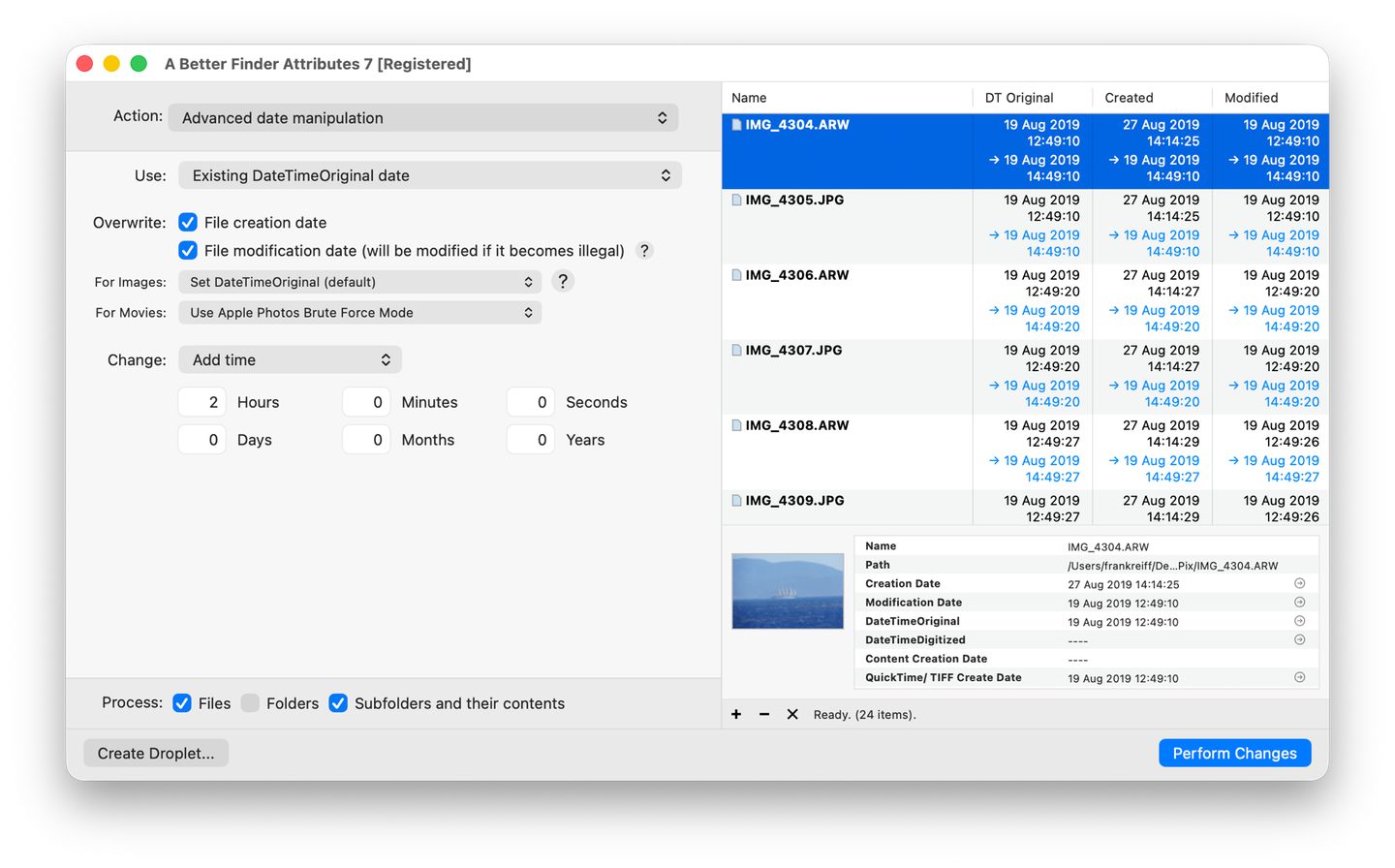
The preview before the write: a camera clock two hours slow, corrected across a RAW+JPEG shoot, with the file dates fixed in the same pass.
What it does not do: expose every one of ExifTool’s thousands of tags, or edit the structural fields (orientation, colour space, dimensions) that are better left to image editors; for a tag outside its list, use ExifTool. Version 7, US$29.95 / €29.95 as a one-time purchase, free trial.
Location and place names: Media Location Tagger
Media Location Tagger is the same idea for the location family: drop files, find the place on a map, drop a pin, select the files taken there, apply. It writes the EXIF GPS block and, separately, the IPTC place names (sub-location, city, state or province, country) in the wording you choose, into JPEG, HEIC, TIFF, the RAW formats above and MOV/MP4, and updates the XMP copy alongside so no application sees a stale location. Existing locations are shown on the map before you change anything, which is how you spot the three files still carrying last year’s trip. Details and the step-by-step are in geotag photos on a Mac. Same price and licence model.
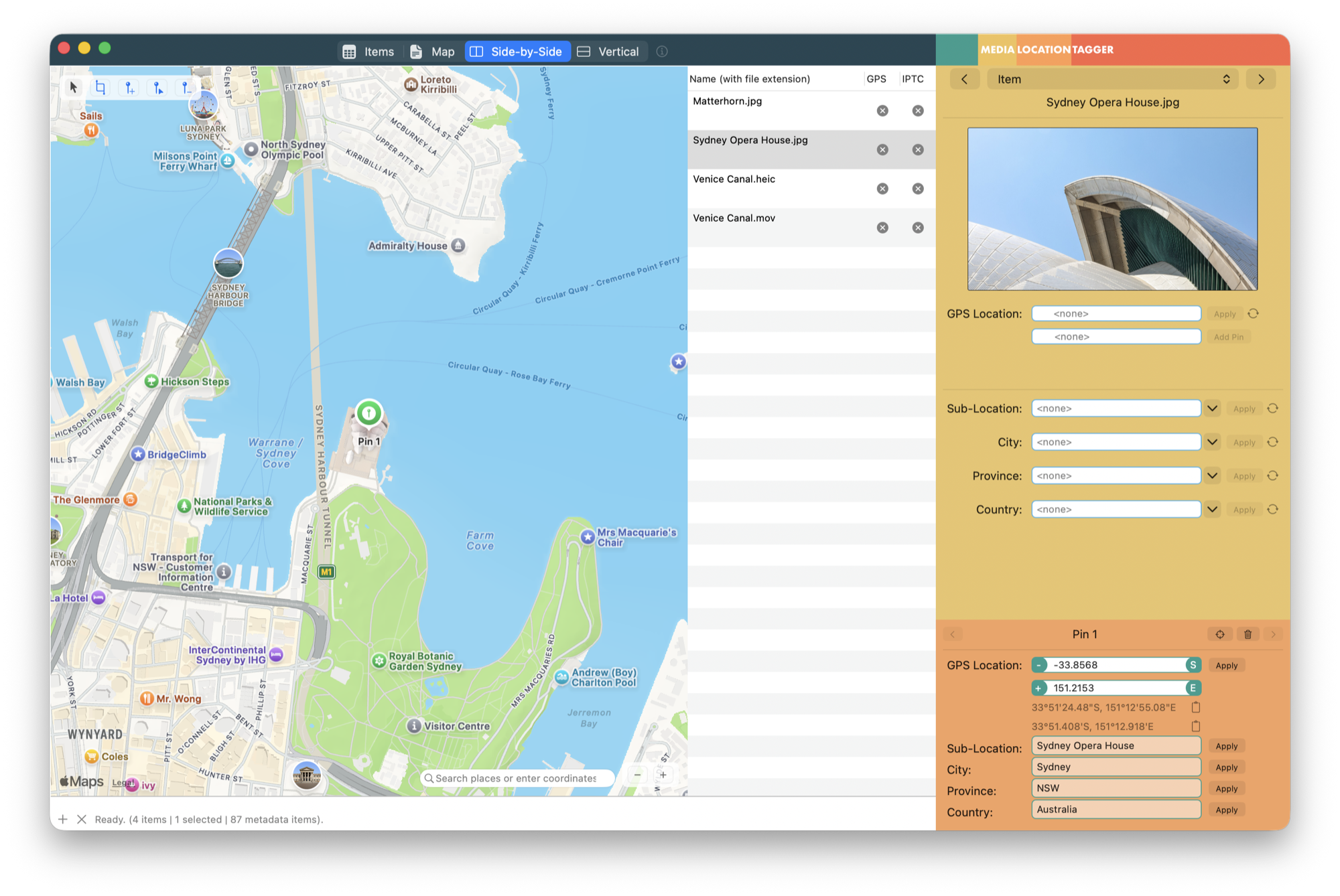
A batch with no location, a pin on the map, and coordinates plus place names about to be written.
RAW files and videos
Writing metadata into RAW files is safe in the current formats and every converter reads the result; the camera
makers do it themselves when a body has GPS. The one decision to make is sidecar versus in-file: Lightroom Classic
and Capture One keep their edits in .xmp sidecars next to proprietary RAW files, ExifTool and the batch tools
above write into the RAW itself. Mixing the two gives one file two opinions. Pick one.
Videos keep their dates and coordinates in the QuickTime container, not in EXIF, and most image-oriented editors, Preview and the small apps included, don’t touch them. Photos and Final Cut Pro read exactly one creation-date key; ExifTool, A Better Finder Attributes and Media Location Tagger write it.
Common pitfalls
- Editing one copy of a fact. The classic symptom: Photos shows the new date, Spotlight the old one. Use a
tool that updates EXIF, IPTC and XMP together, or ExifTool’s
-AllDates. - Expecting Photos’ edits in the original file. They are in the library. Export with the options ticked, or edit the files with a file-level tool before importing.
- Confusing file dates with photo dates. The Finder’s Created and Modified are file-system attributes and change when you copy a file; the photo’s own date is inside it. Which date does your Mac actually use? sorts this out.
- The GPS sign. South and west are negative in decimal notation and positive-plus-
Refin EXIF. Map tools avoid it; typed coordinates don’t. - Web editors upload your photos. Convenient for one image, a bad idea for a client shoot or anything with a location you’d rather not publish.
- No preview, no undo. ExifTool and most small apps write immediately. Test on copies.
FAQ
Does macOS have a built-in EXIF editor? No. Preview displays EXIF and can remove the location; Photos edits dates, location, title, caption and keywords inside its library. Anything else needs ExifTool or a third-party app.
What is the best free EXIF editor for Mac? ExifTool, by a distance: every field, every format, scriptable. If you want a window for free, Photos covers the common edits for photos you keep in Photos, and Preview the viewing and location removal.
Can I batch-edit EXIF data on a Mac? Yes. ExifTool handles any field across a folder; A Better Finder Attributes batch-edits dates and the fifty-odd common EXIF and IPTC fields (camera, copyright, creator, caption, keywords, GPS, place names) and removes them individually or entirely, with the file list as a preview; Media Location Tagger batch-writes locations and place names from a map. The small editor apps work one photo at a time, with limited field copying between files.
Can I edit EXIF data in RAW files? Yes, with ExifTool, A Better Finder Attributes (dates) and Media Location Tagger (location), which write into CR2, CR3, NEF, ARW, RAF, ORF, RW2, PEF and DNG directly. Lightroom writes a sidecar instead.
Does editing EXIF data change the image? No. Metadata sits beside the image data, and none of the tools here re-encode the pixels. Preview’s Export does re-encode, which is a reason not to use it for metadata work.
How do I change the camera model or lens in EXIF on a Mac? ExifTool (-Model=, -LensModel=), A Better
Finder Attributes’ Add or change metadata tag(s) for a batch, or one of the Mac App Store editor apps for a
single photo. The legitimate cases are adapted or manual lenses the body couldn’t identify and scans; agencies
and forensic tools treat a changed camera model as a red flag otherwise.
How do I add a copyright notice or keywords to hundreds of photos on a Mac? Lightroom Classic or Bridge if
you use them (remember to save metadata to the files), ExifTool with -Copyright= / -Keywords+= across a
folder, or A Better Finder Attributes’ Add or change metadata tag(s) with the Copyright, Copyright Notice,
Creator and Keywords fields filled in once and applied to the whole batch.
How do I see EXIF data on a Mac? Preview: ⌘I, More Info. Photos: ⌘I. Finder: ⌘I shows a subset under
More Info. For the full list with the block each field lives in, exiftool -a -G1 file.
Frank Reiff is the developer of A Better Finder Attributes, Media Location Tagger and A Better Finder Rename, Mac file-management utilities in continuous development since 1996. Related: change the date a photo was taken, remove metadata from photos, which date does your Mac use?, or get in touch with a metadata problem this page doesn’t cover.